Within the Asset Library display, you can choose to view folders in a different sort or layout order.
Adjusting Folder Sort & Layout Order
To adjust the folder sort and layout order:
- Navigate to the Asset Library module.
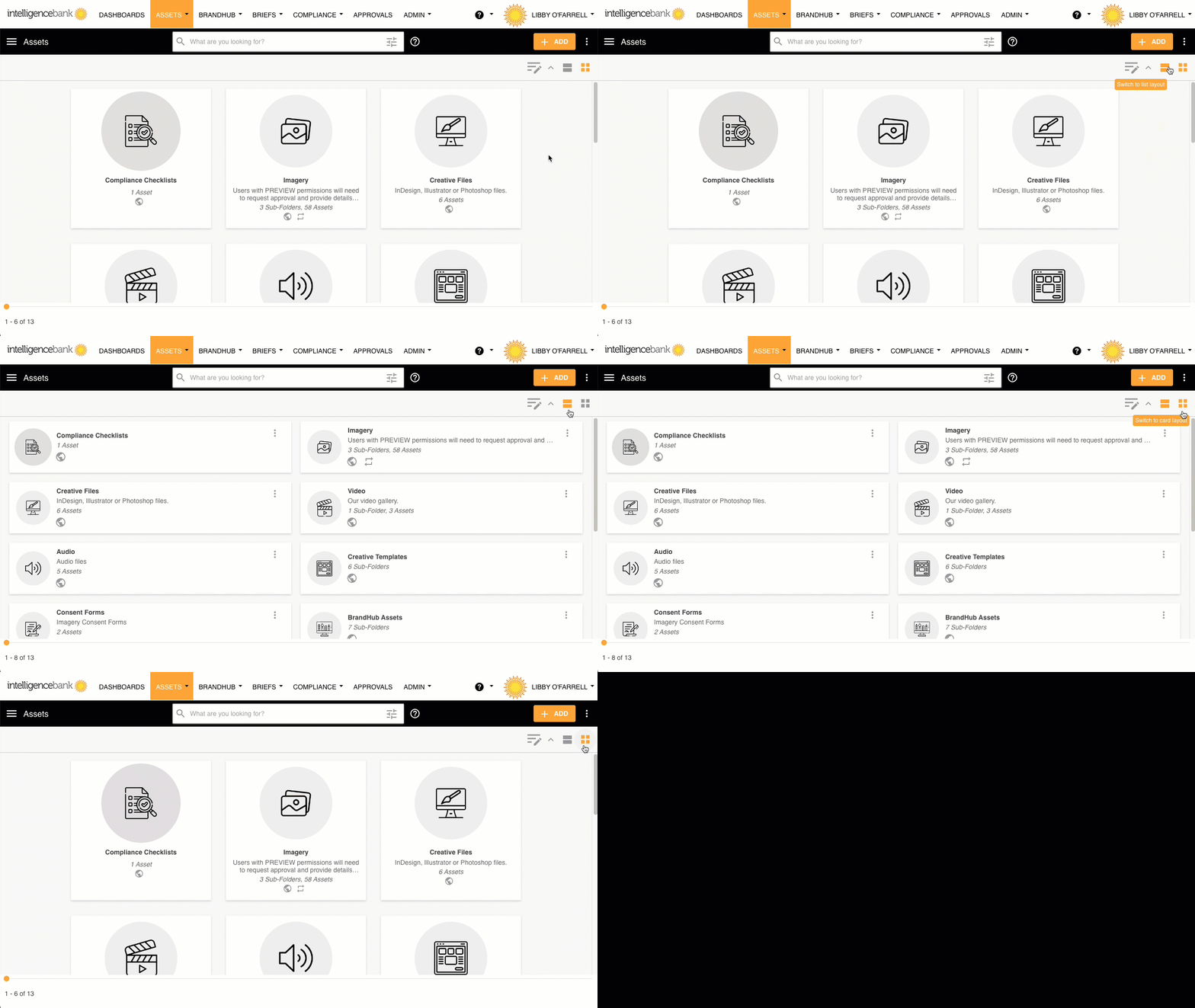
- In the upper right-hand corner, locate the three Switch/Sort display options.
- Select from the options below.
Option 1: Sort Your Folders
| Sort Option | Description |
|---|---|
| Alphabetical | Displays folders sorted by folder name (0–Z). |
| Date Created | Displays folders by created date (newest to oldest). |
| Custom Order | Displays folders in the custom order that Main Admins have manually arranged. |
Option 2: Choose a Folder Layout
| Layout Option | Description |
|---|---|
| List Layout | Displays folders in two columns with smaller folder icons. |
| Card Layout | Thumbnail page view with larger folder icons. |
Please note
- There is no requirement to save after making a selection.
- You can switch between display options at any time.
- The selected layout will remain applied for any future activities within the same session.
- The layout does not become your default. Default sort and layout orders are managed in the Admin area — individual users cannot set their own defaults.
Was this article helpful?
That’s Great!
Thank you for your feedback
Sorry! We couldn't be helpful
Thank you for your feedback
Feedback sent
We appreciate your effort and will try to fix the article