Main Admins can change how your databases visually display within the platform, as well as what order they display in.
Adjusting the Default Database Layout
There are two layout options for viewing your databases: List layout or Card layout.
To adjust your site's default database layout:
- Navigate to the Settings tab of the Admin module
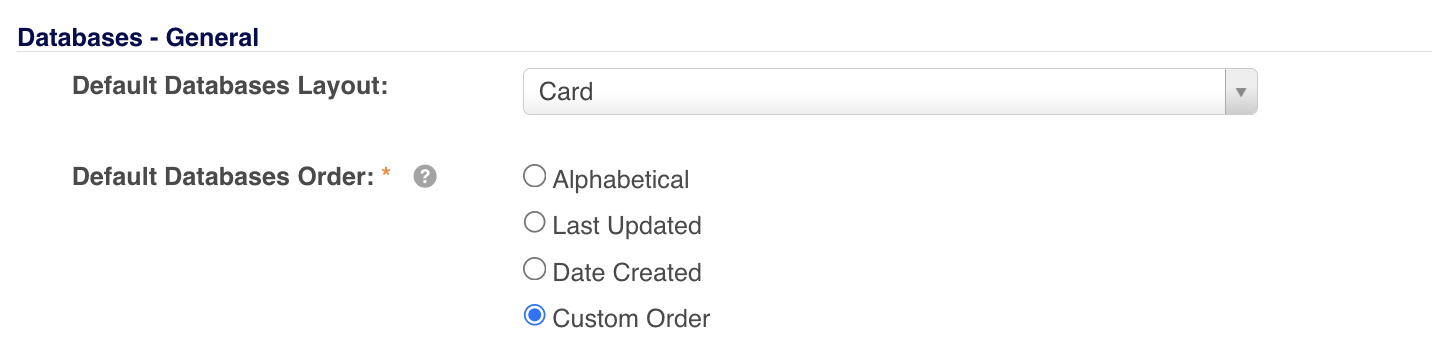
- Scroll down to the Databases - General section
- Locate the Default Databases Layout field
- Within the dropdown menu and select either:
- List - will display your databases in two columns on the screen, with a smaller database icon
- Card - will display your databases in a box/card view, with a larger database icon
- Select the SAVE button on the bottom of the page to complete the action.
Adjusting the Default Database Order
The database order options are Alphabetical, Last Updated, Date Added, or Custom.
To adjust the default database order:
- Navigate to the Settings tab of the Admin module
- Scroll down to the Databases - General section
- Locate the Default Databases Order field and select from:
- Alphabetical - by database name (0-Z)
- Last Updated - by most recently updated to last updated databases
- Date Added - by newest to oldest created databases
- Custom Order - Main Admins can manually arrange the preferred databases order. Click here to learn more about how to reorder databases in a custom order.
- Select the SAVE button on the bottom of the page to complete the action.
Note: Changes made to default database layout/order will retroactively change on existing databases. However, you may need to logout and log back in to see the changes take place.
Please note that the Database module terminology referenced above may appear as another name in your platform as these are customisable. You can see comparable terms here.
Was this article helpful?
That’s Great!
Thank you for your feedback
Sorry! We couldn't be helpful
Thank you for your feedback
Feedback sent
We appreciate your effort and will try to fix the article