IntelligenceBank's Related feature lets you create links or relationships between items in your platform. Once linked, each item displays the other as related content, so you can discover connected materials without searching. You can relate any combination of assets, folders, records, and databases.
Relationships are visible to anyone who has permission to view the item.
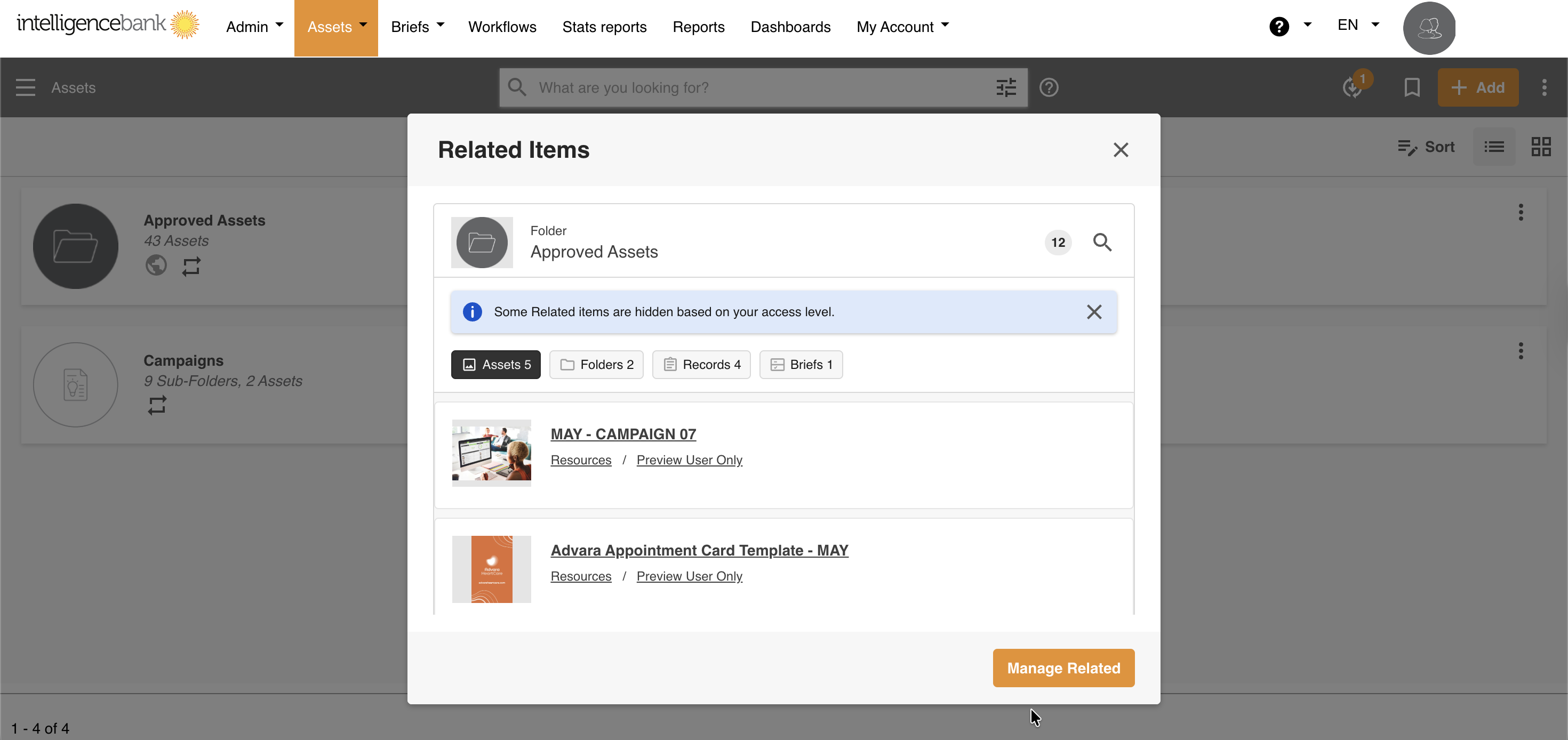
Table of Contents
Key Benefits
Related helps you build a connected library. You can link any combination of assets, folders, records, and databases together, so you and your team can navigate between related content without searching. Whether you are connecting a campaign brief to its assets or a product record to its supporting materials, Related surfaces those connections in context and more efficiently.
Limitations
- 3,000 item cap per item - Each item can have up to 3,000 related items across all types. Once this limit is reached, you must detach existing relationships before adding new ones.
- Title-based search only - Search items from within Related matches on title only. It supports a Boolean search.
- Records in Draft - Draft records are not supported as related items.
- Non-Approved Assets or Records - Assets or records with a pending, declined, or cancelled approval status are not supported as related items.
- Assets shared publicly - Any assets shared via a public link or public-facing folder will not show the Related icon or access any Related actions.
How to Use
1. View Related
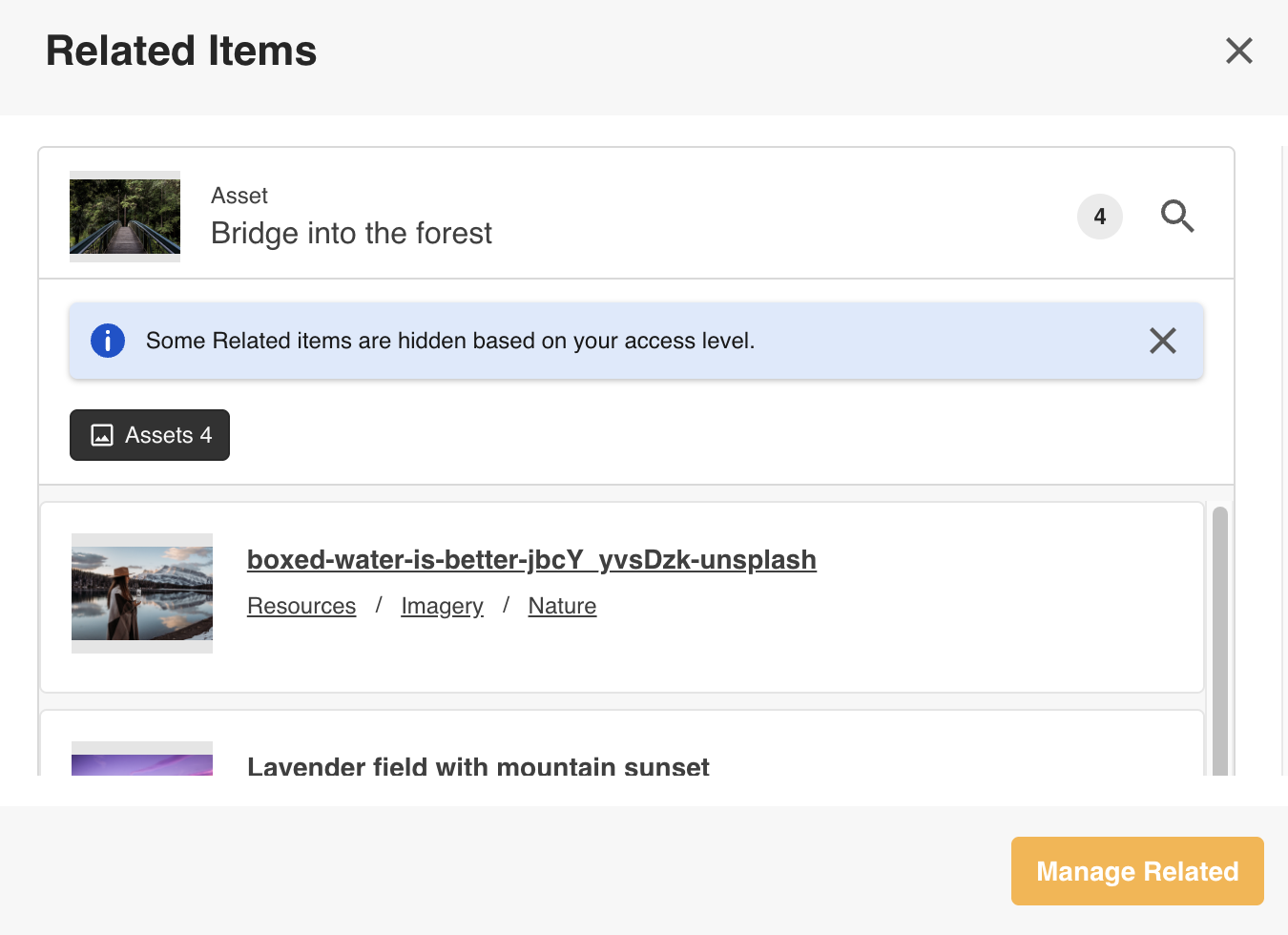
To view items related to another item, select Related from an item's action menu to open the Related panel. This panel shows the total count of all linked items, broken down by type. Click any type group to see a paginated list with breadcrumb navigation showing where each item lives in your platform. Use the search bar to find a specific related item by title.
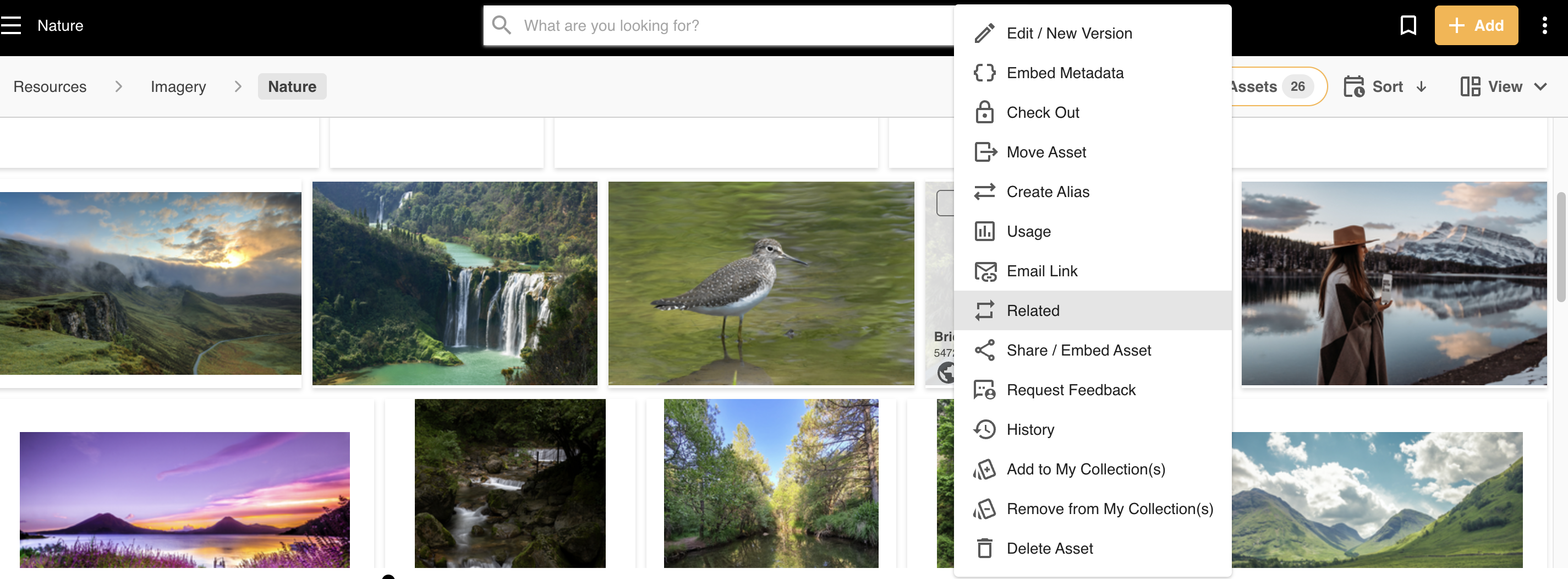
Items with at least one relationship display a Related indicator icon next to their title in the library view.
To add or remove related items, select Manage Related.
2. Manage Related
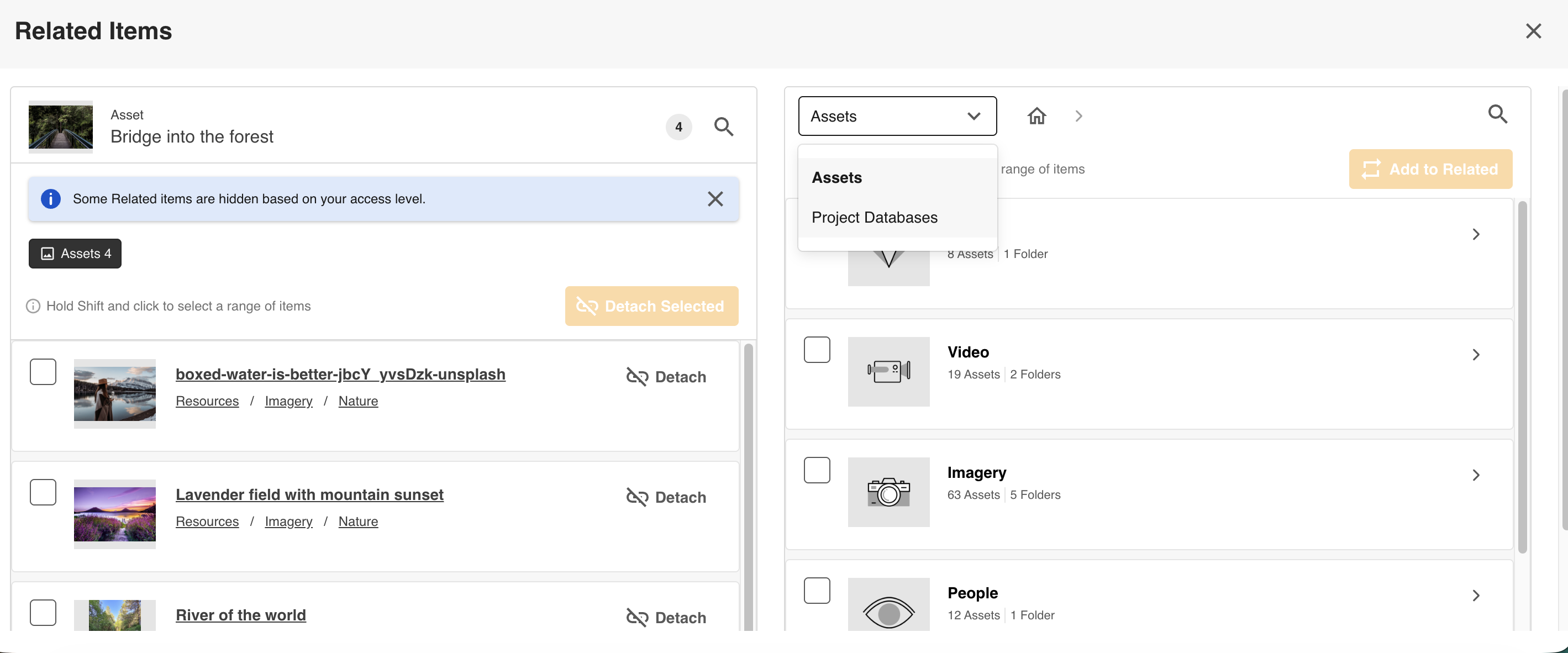
Once you select Manage Related, the left panel will show items already linked to the current item; the right panel shows all available items in the site. You can add and remove items from either panel by following the steps outlined below.
Adding related items
| 1Select the item | Navigate to your library and select the item you want to relate to other content. |
| 2Open Manage Related | Select Related from the item's action menu, or click the Related icon next to its title. In the panel that opens, click Manage Related. |
| 3Select item type | In the right panel, select the item type you want to relate to. Available options may include Assets, Folders, Records, and Databases - depending on your platform's inclusions. |
| 4Browse or search | Browse the right panel or use the search bar to find items by title. You can select multiple items to relate them in a single action. |
| 5Confirm | Click Add to Related. The selected items move to the left panel to confirm that the relationship was created. The relationship is two-way - linked items will also show the source as related. |
Removing related items
| 1Open Manage Related | Navigate to the item and select Related from its action menu. In the View Related panel, click Manage Related. |
| 2Select items to remove | In the left panel, browse or search for the related items (by title) you want to remove. You can select multiple items to detach them in a single action. |
| 3Detach | Click Detach Selected. The relationship is removed from both sides immediately. |
Required Permissions
You need the correct permissions on both items to create or remove a relationship. The required permission depends on the combination of item types:
| Related Item Combination | Required Permission |
|---|---|
| Asset + Asset, Asset + Folder, or Folder + Folder | Publish or higher on both items |
| Asset or Folder + Record | Publish or higher on the asset or folder, Edit on the record |
| Asset or Folder + Database | Publish or higher on the asset or folder, Manage on the database |
| Record + Record | Edit on both records |
| Database + Database | Manage on both databases |
FAQs
Can I relate items from different modules?
Yes. You can relate any combination of assets, folders, records, and databases to each other.
Is there a limit on how many items I can relate to a single item?
Yes - each item can have up to 3,000 related items across all types. Once this cap is reached, you need to detach existing relationships before adding new ones.
A related item I linked before is no longer visible. What should I check?
The item may have been deleted or your permission level may have changed on the item (you no longer have preview/view permission). The item may also be pending approval. Check with your site administrator who can help verify the cause.
Searching inside Related is not returning the item I expect. Why?
Search is title-based only, so if you are searching by an asset's metadata, for example, the asset will not return. The item may also be a draft record or pending approval.
Can I report on items that are related to other items?
No, reporting on Related is currently not supported.
Was this article helpful?
That’s Great!
Thank you for your feedback
Sorry! We couldn't be helpful
Thank you for your feedback
Feedback sent
We appreciate your effort and will try to fix the article