As an Admin, you may need to export a list of all your briefs, tasks, or project records so you have them in a data report format.
Using the IntelligenceBank Export records feature, you can easily export a full list of your database records into an excel data report with the information contained in all your records' fields.
Limitations
There is no way to export a filtered list of your briefs/tasks/project records using this feature. You will always export a complete list of your published and archived records. Draft records will appear in the exported list for General Use only.
If your records contain any file attachments within single or multi-upload fields, these file attachments will not be included in the export. Only the file name of those attachments will appear on the exported report.
How to Export Records
Follow the steps below:
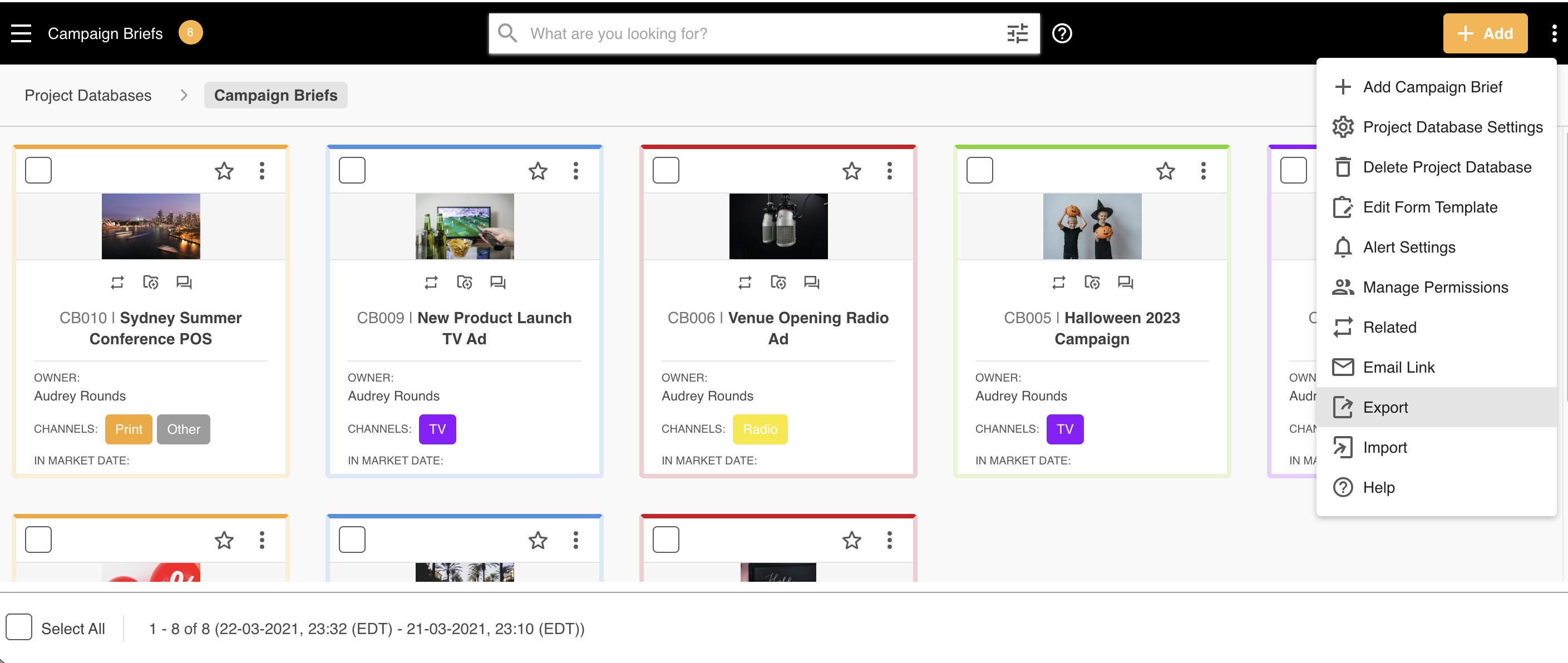
1Identify the database you’d like to export records from and click the three vertical dots in the right hand side.
2Select “Export” from the actions menu.
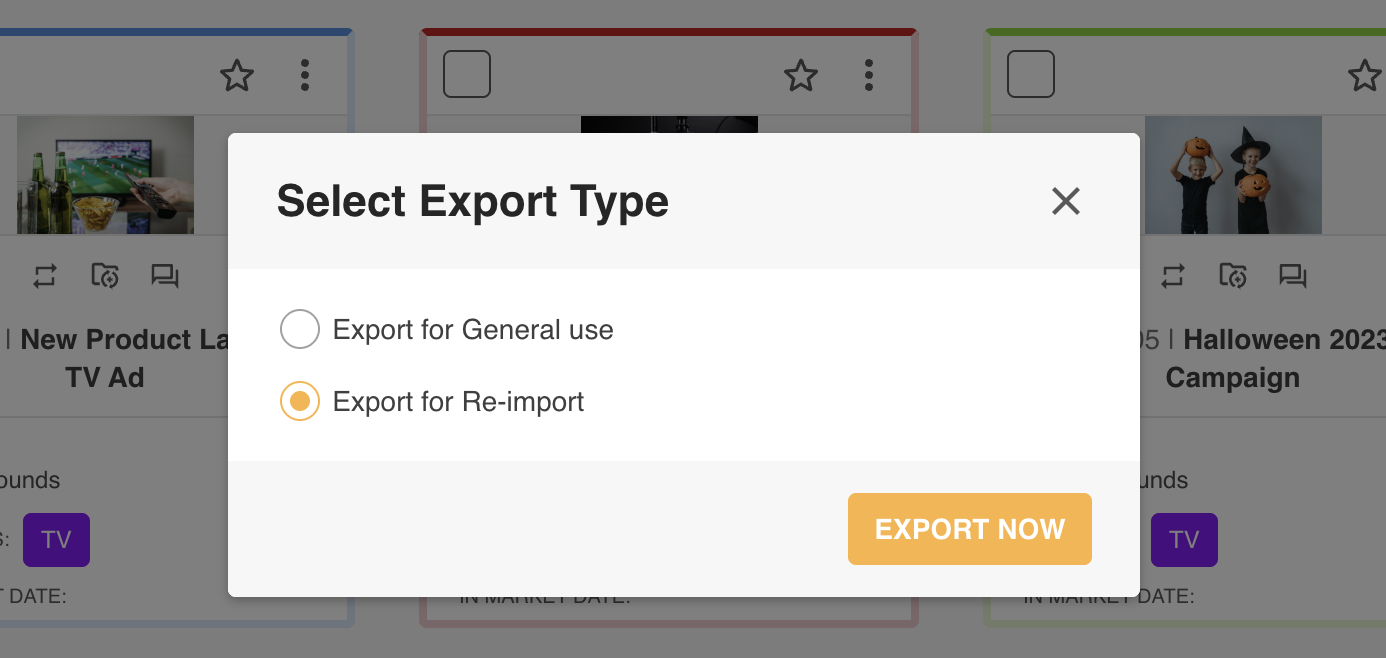
3It will give you two options to select from:
- General Use: is ideal to choose for providing data to other stakeholders, etc.
- Re-Import: is ideal for bulk edits to records, which you can make to the fields within the excel sheet. You can then re-import that excel sheet to the database to make those changes by following the steps outlined in this article
4Select one of the outlined options, and click “Export Now”.
5This will export that excel data report directly to your computer.
Was this article helpful?
That’s Great!
Thank you for your feedback
Sorry! We couldn't be helpful
Thank you for your feedback
Feedback sent
We appreciate your effort and will try to fix the article