IntelligenceBank's Data Reports (also known as Stats) allow you to set up, run, export, and save custom data reports on various sets of data in your platform.
Table of Contents
Key Benefits
Data Reporting is often a key part of daily operations and can help you delve into and understand things about your platform in more detail. For example, you may want to see a list of all the assets that have been uploaded to your Asset Library within the last 30 days to ensure your team is adopting the platform and adding content as they should. Or, you may want to generate and view a report of any open/pending approval requests past their request date, so you can analyse any potential blockers/bottlenecks and address accordingly.
Data Reporting is also a very important feature from a compliance perspective across a wide variety of industries. Auditors will often want to know that the content you make available within your IntelligenceBank platform meets certain regulatory standards. The data reports feature allows you to generate information on your content's approval history, making it easier to provide this information back to auditors, if requested.
Availability
Data Reports is a feature included in every IntelligenceBank package. User Group permissions in the platform will dictate what reports you and other users see and whether you can build/manage reports or only view/export certain items. If you have any questions regarding your ability to view/generate data reports, please reach out to your site administrator.
Main Types of Data Reports / Use Cases
IntelligenceBank's data reports can be broken down into four main categories (or Tools, as they're known in the platform):
Approval Workflow Requests
This type will report on any approval/workflow request data, such as the requester, date/time the approval request was made, the approval required by date, approvers, and approval status.
When to use:
- To pull a report that focuses mainly on the requester's perspective (for example, I need to pull a report on all pending approval requests with a required by date of this week).
- To see the overall status of open requests.
- To easily search for approval items by status - e.g. filtering on 'pending' approvals to get a full list, per item.
Each approval request will be on a single line/row when you generate this type of data report.
Approval / Workflow Responses
This type will report on detailed approval/workflow response data, such as the approver's response (ie: approved or declined), response date/time, response comments, or (for staged approval processes) what stage a particular approval request is currently in. You can also pull in data from the approval request (ie: requester, request time, item name, etc) on these response reports as well.
When to use:
- Reviewing multi-approver and/or multi-stage workflows to analyse the approvers' actions.
- To break down potential bottlenecks with certain approvers or teams.
- Audits where you want to see each approver and their response, including any approval comments.
Each approver on each request will be on its own line/row within the data report.
For both Approval/Workflow Request and Response data report types, you have the ability to generate reports on any specific approval process/workflow currently set up within your platform, or across all workflows set up (for a more holistic, comprehensive report on all workflows you may be using).
Assets / Resources
This type will report on the assets and related metadata within your Asset/Resource Library, such as asset name, created/uploaded date, folder path, keywords, and many other embedded metadata fields.
When to use:
- To report on information relating to the published assets in your library (for example, so you can analyse whether all your assets have enough metadata or perhaps need adjustments).
- To report on all assets uploaded within the last month, to ensure that your team is adding content consistently and utilising your Asset Library effectively.
Databases
This type will report on the records/briefs/tasks/requests published in any databases you may be utilising (ie: for Marketing Requests, Campaign or Creative Briefs, Tasks, Guest Upload Submissions, etc).
When to use:
- To analyse the unique information captured in your records/briefs/tasks/requests.
- To report on all briefs that haven't yet been completed with a due date within the next week to analyse any bottlenecks that might be occurring.
- Because your database forms are highly configurable, these data reports can report on almost any fields your forms were specifically set up to capture, such as the submitter, submitted date, due date, file attachments, status, etc.
Limitations
- When exporting a data report, if the file has under 1,000 results, it will download immediately upon generation. If it has more than 1,000 results, it will be sent to your user email address once generated.
- Only reports with up to 25,000 results are supported in a single report for export. If you have a report you need to export with more results, you can apply Data Conditions (see the Adding Data Report Conditions section below) to break up your report into multiple reports with results under 25,000 and export from there.
- Data reports are exported in an .xlsx format.
- Currently, there is no ability to auto generate/send saved reports from IntelligenceBank on a regular cadence (it's all based on a manual run/export).
Where to Find Data Reports in your Platform
The data reports feature is typically set up as its own tab or sub-tab within your platform's top navigation menu. Some platforms keep data reports as a Main Admin feature, where it is typically accessible under the Admin > Reporting > Data Reports tab. However, your site may make data reports available to a wider range of users, in which case it is most likely accessible as a standalone navigation tab. If you have any trouble locating your data report feature, please reach out to your site administrator.
How to Configure and Use Data Reports
Once you navigate to the Data Reports page, you can start building a report by following the below steps:
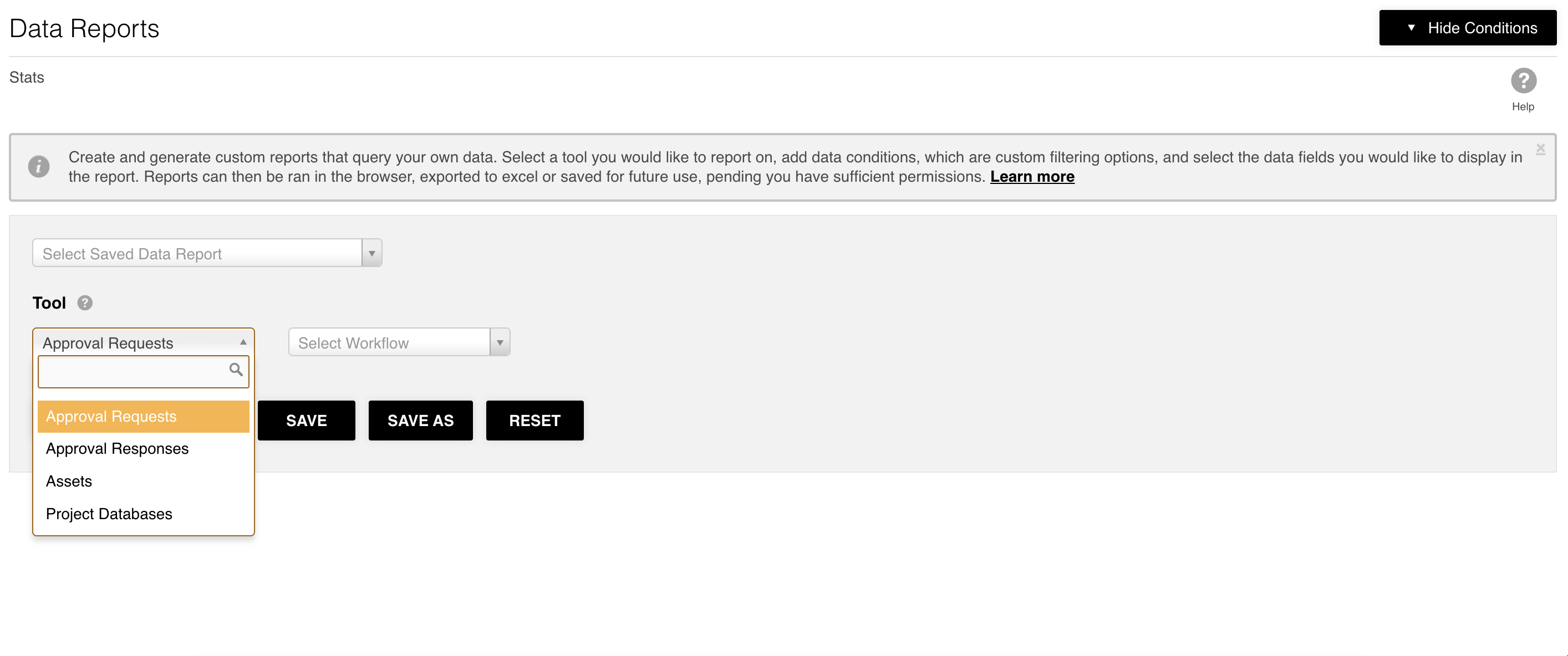
- Select the Tool dropdown menu and choose which tool you'd like to build a report on. If you select Approval Requests, Approval Responses, or Databases, an additional dropdown will display, where you can choose the specific approval workflow or database you'd like to report on, or choose to report on all approval workflows/databases set up in your platform. For more information on when you might want to select all versus a specific one, please refer to our Advanced Data Reports Actions article.
- Once your Tool is selected, you will be able to add columns/data points to your report in the Columns section. To add a column, select the Add button that appears.
- Within each column dropdown field, you'll be able to view and select the available fields/data points you can report on, which will vary by Tool. You can type within the field to search for relevant fields or scroll through the available options.
- Continue to select the Add button to add as many columns/report fields as you need. Each column will be represented as a column in the data report once it gets generated.
- You can apply any data report conditions to your report as well, using the Conditions section. For more detail on how to build conditions, see the Adding Data Report Conditions section below.
- Once you've configured your report, you'll be able to perform the following actions:
| Action | Description |
|---|---|
| Run | This will generate the data report for you to view in the platform. |
| Export | This will export your data report in an .xlsx format directly to your computer. |
| Save | This will allow you to save the parameters of your data report in the platform, which you can then access and generate at a later time by selecting the dropdown field above the Tool field. |
| Save As | This will allow you to save a different version of a data report you've pulled from the saved data reports dropdown. |
| Reset | This will clear all columns/conditions you had built in your data report. |
After running a report, the conditions and fields will minimise. If you want to review your conditions/columns or export the report, you can toggle the 'View Conditions' menu in the upper right to see all the options.
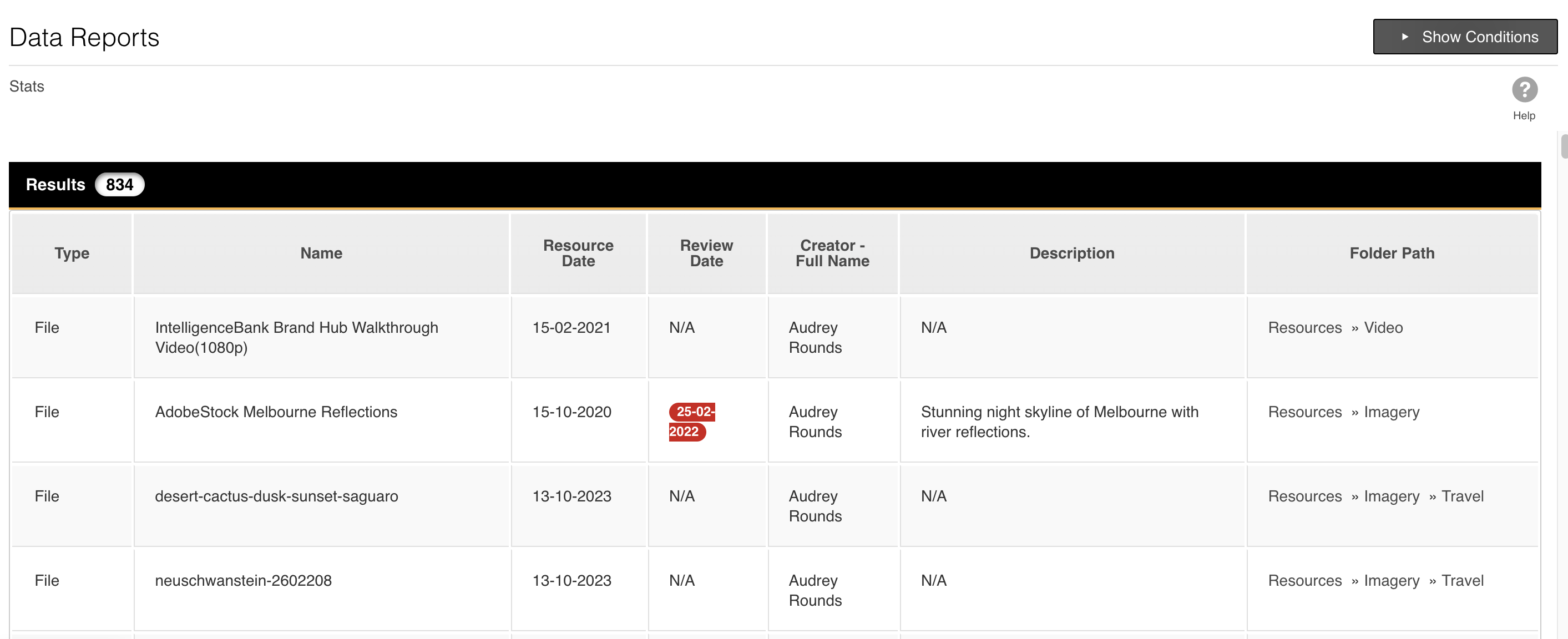
Types of Reportable Fields
Below is an overview of the general types of fields that can be reported on within IntelligenceBank:
- Informational fields: these types of fields display information about your assets, approvals/workflows, or database records, such as filters/other metadata for assets, required by date or approval status for approvals, or customised fields in your database records, like submitted date, due by date, record status, etc.
-
Lookup fields: these fields allow you to select and report on a variety of details pertaining to a particular field. Examples of lookup fields are:
- User fields, such as Creator, Requester, Reviewer, etc will allow you to select/configure specific information about those users you'd like to display, like their First Name, Last Name, Full Name, Email Address, etc.
- Database lookup fields that display information referenced in a separate area of the platform and "looked up" to within a database record, such as wanting to report on the project name your tasks are related to.
- Actions fields: these allow you to perform relevant actions against the items you're reporting on directly from the data reports page. For example, if you're reporting on assets, the action field will allow you to browse (be taken directly to that asset within its folder in the DAM), view (view details about the asset), or download the asset.
Adding Data Report Conditions
You can add conditions to your report to only display data that meets a specific criteria (ie: I want to see a report of all assets added within the last week, or approval requests that are still pending).
You can choose to display or show a data report's conditions by selecting the arrow icon that appears next to where it says Data Conditions.
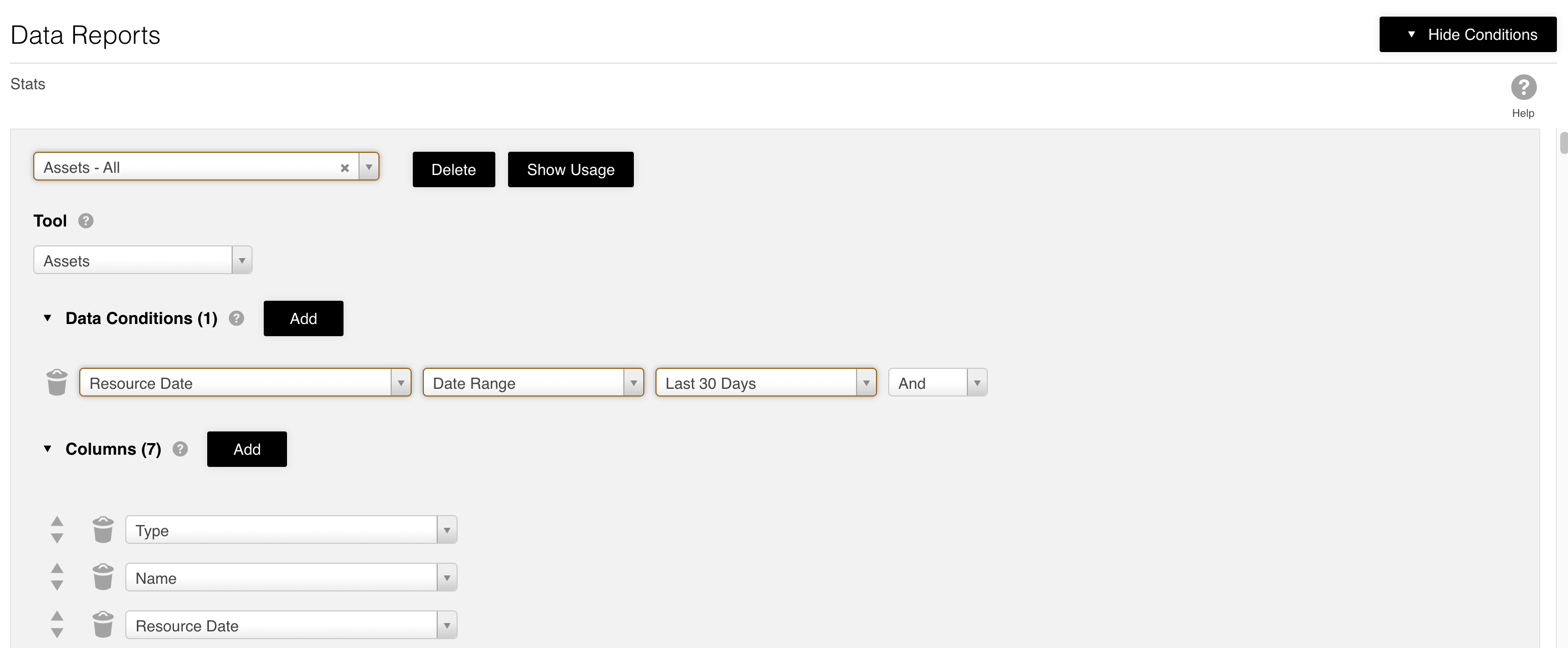
To add conditions to your data report:
- Select the Add button next to where it says Data Conditions.
- Select the dropdown menu that appears for the list of available fields you can apply conditions on. This might vary depending on the Tool you select. Select whichever field might be relevant to your report.
- Build the conditional logic based on the prompted dropdown field that appears once you've selected your condition field. For example, if you select a date field, you'll be able to select from either Static Date (which will allow you to select a specific calendar date you want to configure your data report results to display on, not on, before/after, etc.) or Date Range (which will allow you to select from a range of pre-configured date range options, such as yesterday, today, last 7 days, last 30 days, etc).
- Other notable data condition fields include user fields (ie: Creator, Requester, Reviewers, Last Updater, etc). These fields allow you to set conditions to display results based on particular users who performed these types of actions. You can select "Logged In User" to report on your own actions (ie: show me a report of the assets I've uploaded) or, to add a condition based on other users, you can choose from First Name, Last Name, Full Name, and other fields to then type in that criteria. Note that using Full Name will probably give you the most accurate results, in case there are multiple users with the same first or last name.
-
You can also add multiple condition sets, if desired. To do this, select the And/Or dropdown menu and then the Add button to build your additional condition set.
- Selecting And will work by only displaying results that satisfy BOTH conditions (ie: a report that shows all assets added within the last 30 days and by a specific user).
- Selecting Or will display results that satisfy EITHER condition (ie: a report that shows all assets added within the last 30 days, or by a particular user, regardless of when they were uploaded).
- Once you're done making your condition selections, you can perform the report actions as outlined above in this article.
Deleting Saved Data Reports and Viewing Usage
If a saved data report is no longer needed in your platform, you can delete it by selecting the report in the saved reports dropdown at the top of the data reports page, then selecting the Delete button to the right of the dropdown field. Usage details on deleted data reports are still accessible within the Global Usage Report in the Admin > Users area of the platform.
To view usage on a particular saved report, select the report you'd like to view usage on from the saved reports dropdown and select the Show Usage button. This will take you to another page where you can view information like who has viewed, ran, or exported this particular report, and when these actions took place. Viewing report usage can be helpful if you want to ensure that users in your platform are making use of a particular data report.
Frequently Asked Questions
Who can view/generate data reports?
Your ability to view/generate data reports is dependent on your user group permissions. Please reach out to your site administrator if you have any questions about your specific permissions.
Is there a limit to the number of saved reports I can have?
No.
Are data reports private to each user?
Main Admins will be able to see all saved data reports. It is possible to configure group permissions so that users only see and/or edit the data reports they've made. This can be managed by Main Admins in the Admin > Groups area.
Are there permission restrictions around what data users can see when they generate reports?
Yes, the same permissions for what they see in the platform will apply to what they see in the report. For example, if a user doesn't have access to particular folders of assets, or records/briefs/tasks within a database, the report they pull will only include the items they have access to view.
* Note that the name given to modules, features and information items may vary in your platform as they can be customised by Main Admin users.
Was this article helpful?
That’s Great!
Thank you for your feedback
Sorry! We couldn't be helpful
Thank you for your feedback
Feedback sent
We appreciate your effort and will try to fix the article