Main Admins can export and import users in bulk to add new users or update existing user profiles directly from an Excel spreadsheet.
Table of Contents
Overview
The export and import user functionality is available to Main Admins and is useful in two key scenarios:
- Adding users in bulk: rather than adding each user individually, prepare an Excel spreadsheet and import all new users into your platform at once.
- Making bulk changes to existing users: export your current user list, make changes directly in the spreadsheet (such as updating groups, divisions, or status), then re-import to apply those updates across multiple users quickly.
Exporting Your User List
Navigate to Admin > Users and select the Export Users button. An Excel (.xlsx) document will download directly to your system.

Each user appears as a row within the document, generally with the following columns:
| Column | Description |
|---|---|
| First Name | User's first name |
| Last Name | User's last name |
| Job Title | User's job title |
| User's email address | |
| Group | The group(s) the user belongs to. |
| Division | The division the user belongs to. |
| Status | Active or Suspended |
| Login Type | Applicable for Single Sign-On (SSO) environments only. Determines whether users log in via IntelligenceBank or SSO. |
Updating Existing Users
Export your user list, make the required edits in the spreadsheet, save the file, then follow the steps below to import the changes.
| 1Open Import | Go to Admin > Users and select Import Users.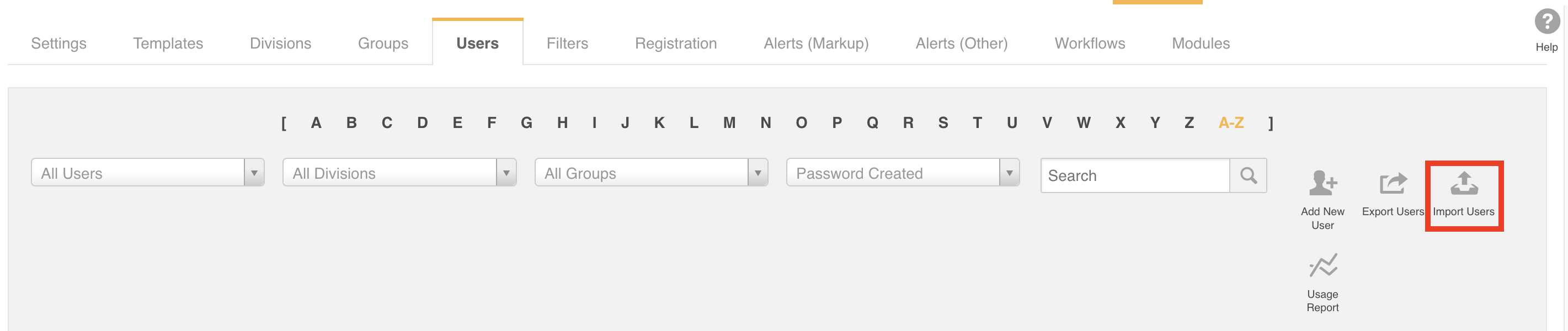 |
| 2Select File | Select Click here to select a file in the Select File to Import field, locate your saved Excel document, and open it. |
| 3Select Import Type | From the Import Type dropdown, select Update Existing Users, then select Initiate Import.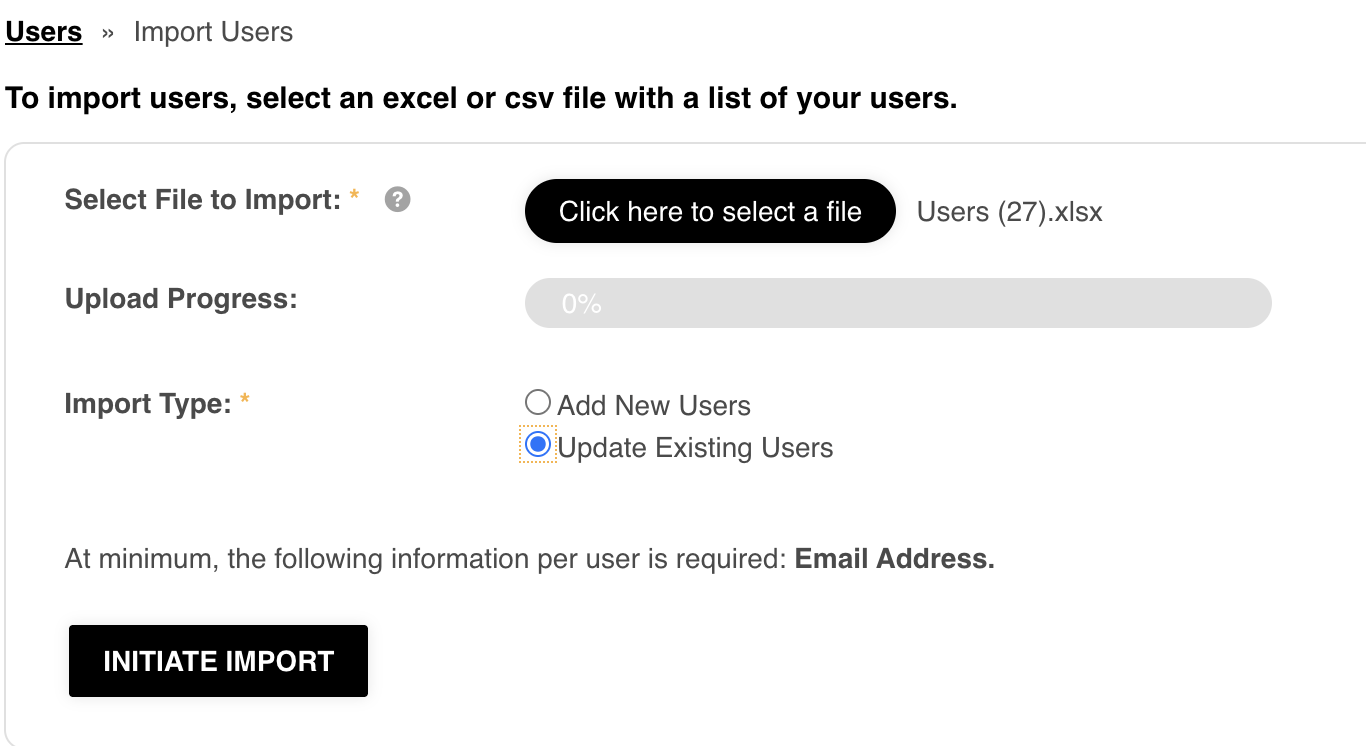 |
| 4Map Fields | Match IntelligenceBank fields to the corresponding columns in your spreadsheet. Since the column names come directly from IntelligenceBank, this should be a one-to-one match. Only fields marked as required in the dropdown are required for the import.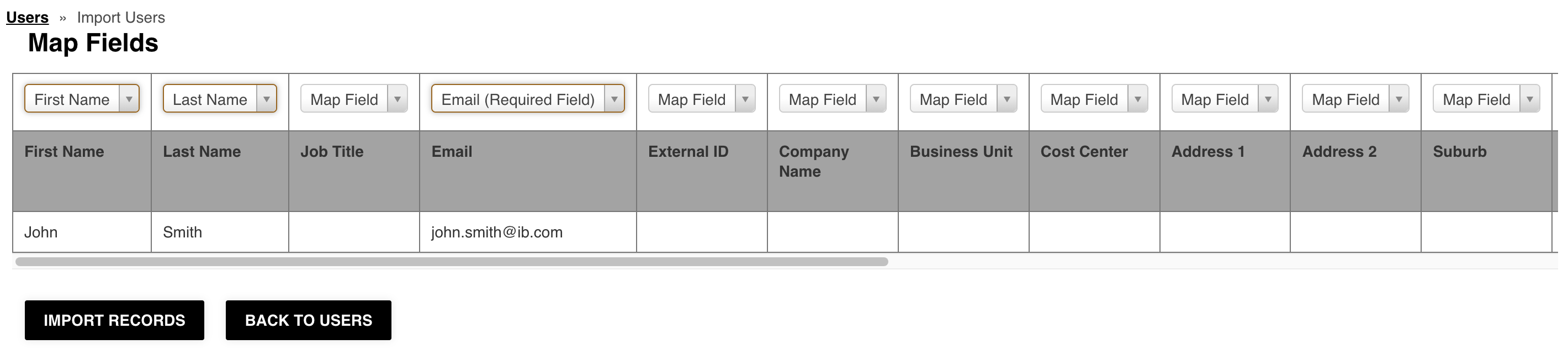 |
| 5Import Records | Once all relevant fields are mapped, select Import Records. The platform will process and apply the changes to the relevant user profiles. |
Adding New Users
Use the exported user list as a template to ensure the correct column format. You can also use a csv file, as long as it's formatted the same way as the user list template. Prepare your spreadsheet with one row per new user, then follow the steps below.
| 1Prepare Spreadsheet | Create your Excel file with columns for First Name, Last Name, Email, Group, Division, Status, and (if applicable) Login Type for SSO environments. Save the file to your system. |
| 2Open Import | Go to Admin > Users and select Import Users. |
| 3Select File | Select Click here to select a file, locate your prepared Excel document, and open it. |
| 4Select Import Type | From the Import Type dropdown, select Add New Users, then select Initiate Import. |
| 5Map Fields & Import | Map fields as described in the Updating Existing Users section above, then select Import Records. |
Understanding Import Results
Once the import is processed you will receive a notification confirming the outcome:
| Successful import | You will receive a success notification. Return to the Users area to confirm the changes have been applied correctly. |
| Import with errors | A message will display describing what went wrong, how many records failed to process, and an option to download an error spreadsheet. Review the file, address the issues noted, and re-import to apply the remaining updates. |
Was this article helpful?
That’s Great!
Thank you for your feedback
Sorry! We couldn't be helpful
Thank you for your feedback
Feedback sent
We appreciate your effort and will try to fix the article