Main Admins can view detailed usage reports to track individual and platform-wide user activity, from uploads and downloads to form submissions and asset views.
Table of Contents
Overview
IntelligenceBank's usage reporting gives Main Admins visibility into how users are interacting with the platform. Reports are available both at the individual user level and across all users globally.
Usage data is useful for:
- Tracking user adoption: understand how actively users are engaging with the platform.
- Monitoring specific actions: verify whether users have completed tasks such as uploading assets, downloading files, or filling out forms.
- Overall platform activity tracking: get a broad view of what is taking place across your organisation's IntelligenceBank environment.
Viewing an Individual User's Usage Report
To view usage data for a specific user, follow these steps:
| 1Go to Admin Users | Navigate to the Admin > Users section of the platform. |
| 2Locate the User | Find the user you want to review in the user list. |
| 3Open Usage Report | Select the usage report icon on the right-hand side of the user's row. This will open the usage report for that individual user. |
Understanding the Report Columns
The usage report displays the following columns: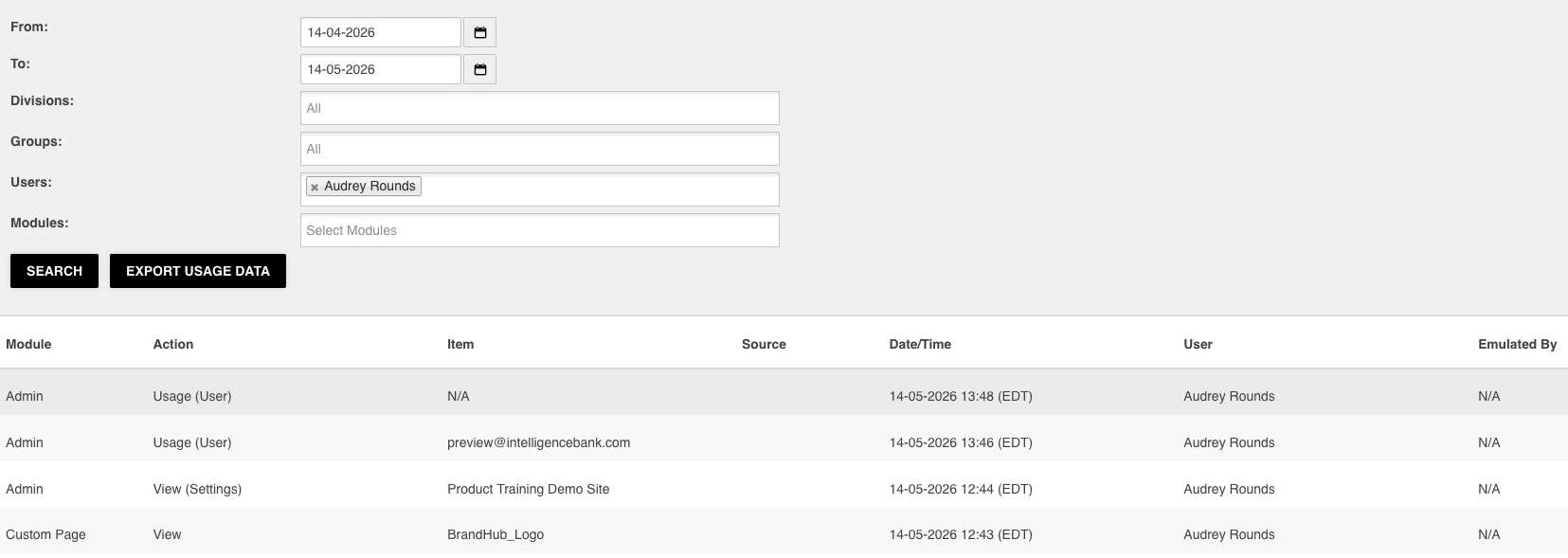
| Column | Description |
|---|---|
| Module | The overall area of the platform where the action took place (e.g., Asset Library, Databases). |
| Action | A general description of what the user did. For example, viewing a file, uploading or creating an asset, downloading, editing, filling out a form, or editing a form. |
| Item | The specific item involved in the action. For assets, this is the asset name. For database records or forms, this is the name of the record or form. |
| Source | Only populates when the action occurrs via an External API (for example, through an IntelligenceBank connector). |
| Date & Time | The date and time the action was performed, as recorded by the system. |
| User | The name of the individual user who performed the action. |
| Emulated By | Indicates whether the action was performed by the user directly, or by a Main Admin who was emulating that user. See the How to Emulate A User article for more detail on user emulation. |
Filtering and Exporting Usage Data
Both the individual and global usage reports default to the last 30 days. You can refine the data using the following options:
| Date Range | Update the date range at the top of the usage report to view activity across a custom time period. |
| Module Filter | Filter by a specific area of the platform. For example, select Resource to see only asset library activity, or Database to view form and record interactions. Select Search to apply the filter. |
| Export Usage Data | Select Export Usage Data to download the current report view as an Excel document directly to your computer. Note that exports are limited to the first 100.000 rows of usage data. |
Viewing Global Usage
To view usage across all users on the platform, navigate to Admin > Users and select the usage report icon at the top of the page (rather than next to a specific user). This gives you a bird's eye view of all activity taking place across your platform.
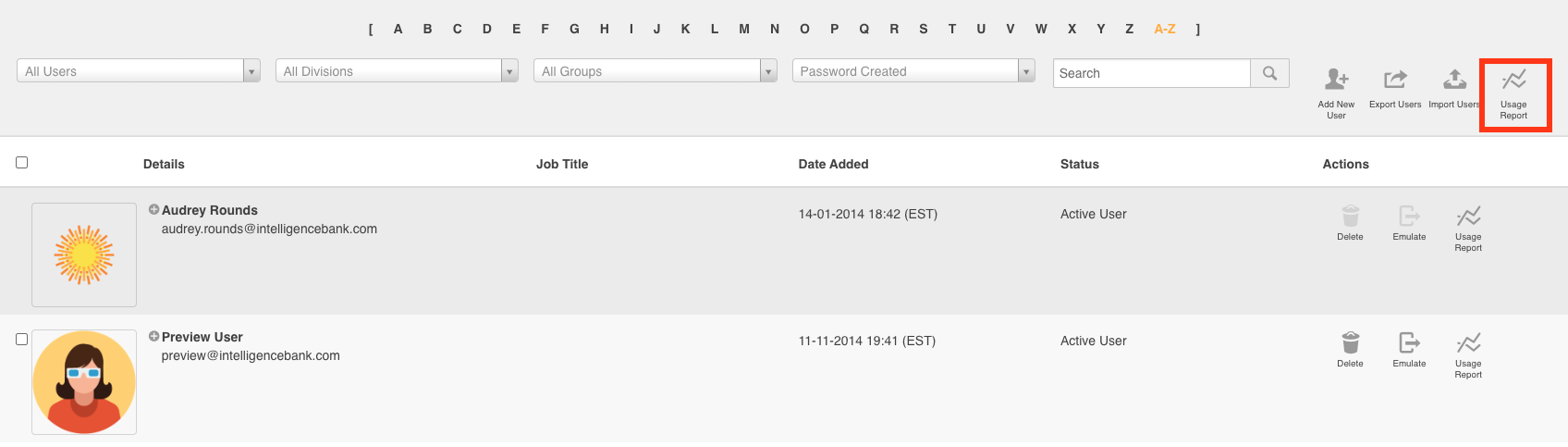
The global report is structured identically to the individual user report. The key difference is that it covers all users rather than a single person. Additional filtering options are available in the global view:
- User Groups: filter to see activity from a specific group.
- Divisions: filter by a specific division.
- Specific Users: narrow the report to one or several individual users.
- Module: filter by platform area, as with the individual report (e.g., Resource, Database).
The global usage report can also be exported to Excel by selecting Export Usage Data.
Was this article helpful?
That’s Great!
Thank you for your feedback
Sorry! We couldn't be helpful
Thank you for your feedback
Feedback sent
We appreciate your effort and will try to fix the article