Users with relevant permissions can access an asset's usage details within the platform. Usage information will display actions performed against an asset, such as when it was uploaded/created, views, downloads, shares, etc.
Viewing an asset's usage details can be good way for users to understand how or whether a particular asset has been utilised, and whether these has been a good ROI on any given asset.
The following users are able to view an asset's usage:
- Users with Folder Admin on folders AND Access or Admin permission to Usage Reporting
- Users with Admin permission on the overall Asset/Resource module AND Access or Admin permission to Usage Reporting
- Main Admins
How to View an Asset's Usage
To view an asset's usage:
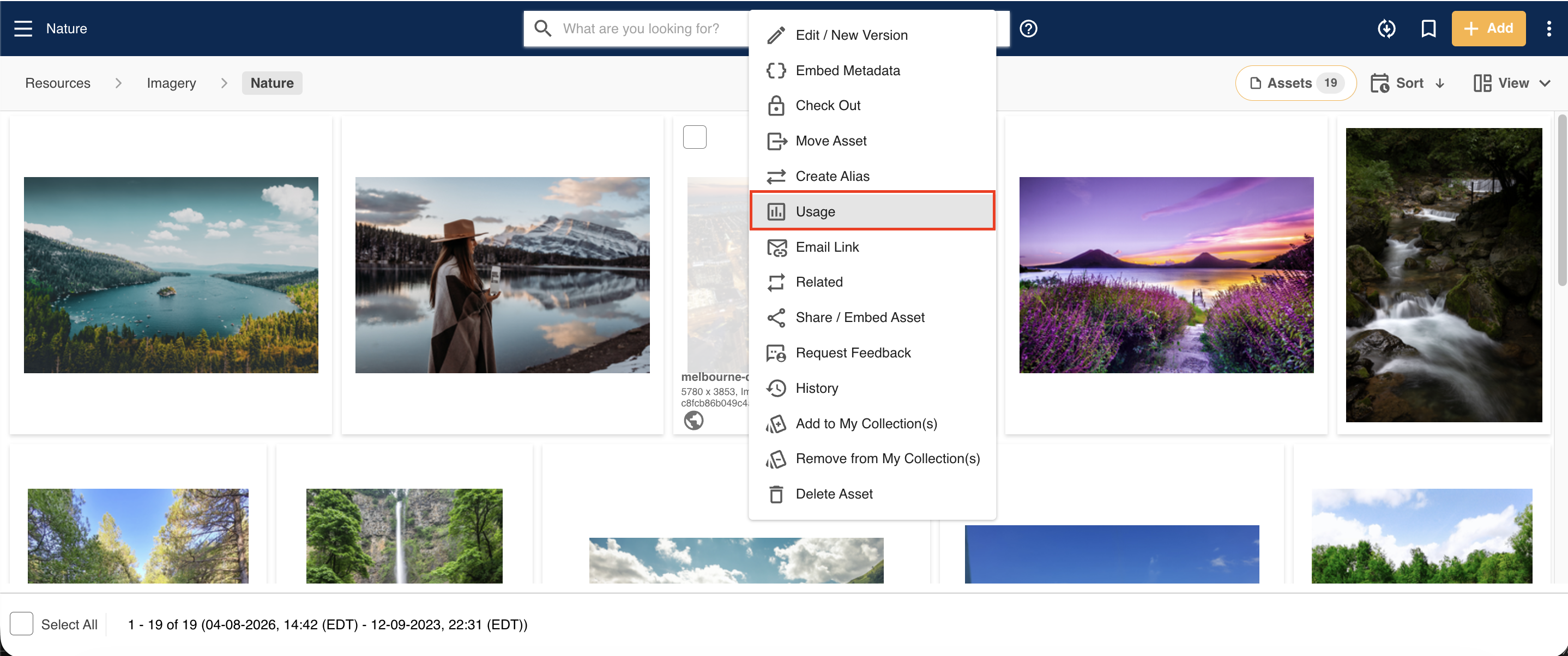
1. Navigate to the relevant asset. Select Usage in the asset's actions dropdown menu.
The usage report details all activities for this asset, including which users have downloaded, viewed, locked (ie: checked out), added versions, and edited the asset.
The report defaults to displaying usage within the last 7 days. However, you can adjust the dates in the From and To fields, then select Search to show an asset's usage within a custom date range.
Likewise, you can filter the usage report by Divisions, Groups, Users, or specific Actions.
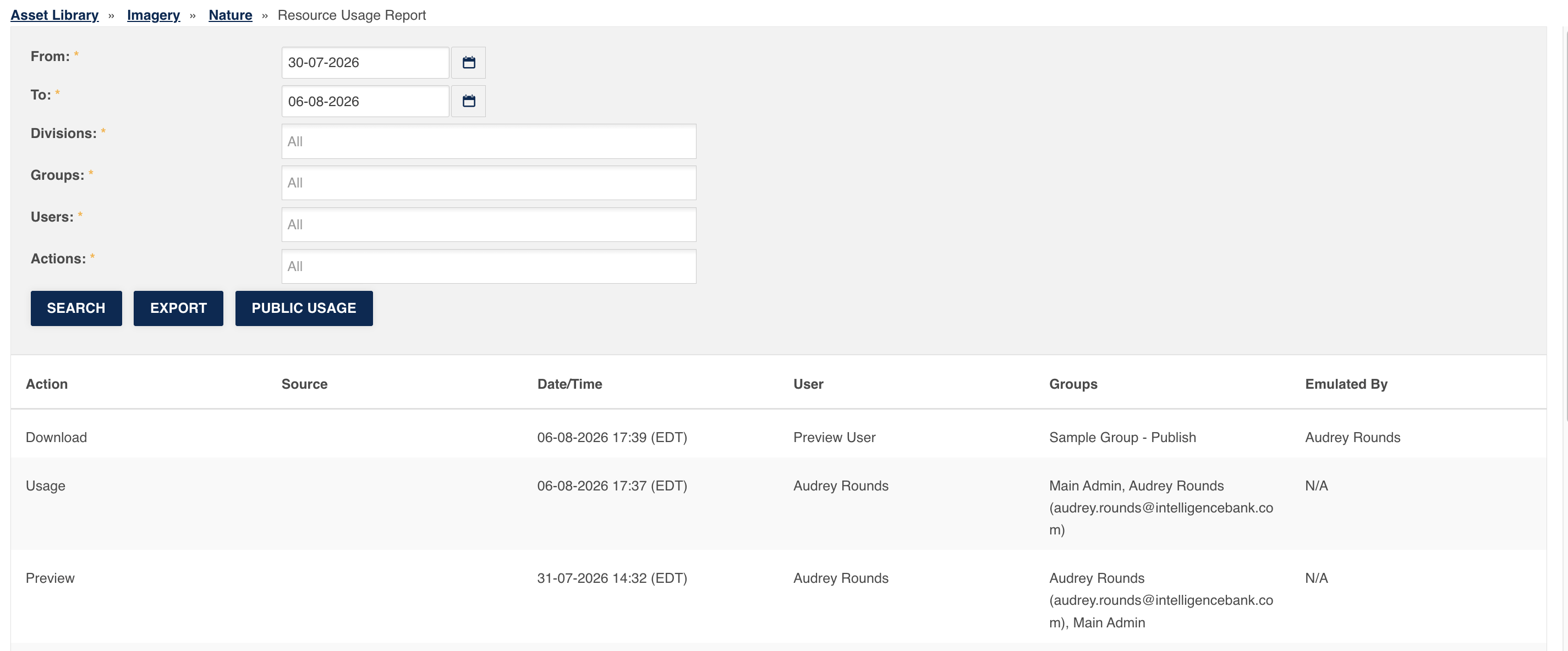
The report itself will display the following information:
| Action | A general description of what was performed (ie: Download, Share, Edit, etc). |
| Source | Only populates when the action occurs via an External API (for example, through an IntelligenceBank connector). |
| Date/Time | The date and time the action was performed, as recorded by the system. |
| User | The name of the individual user who performed the action. |
| Groups | The group(s) that user who performed the action is assigned to. |
| Emulated By | Indicates whether the action was performed by the user directly, or by a Main Admin who was emulating that user. See the How to Emulate A User article for more detail on user emulation. |
Exporting an Asset's Usage Report
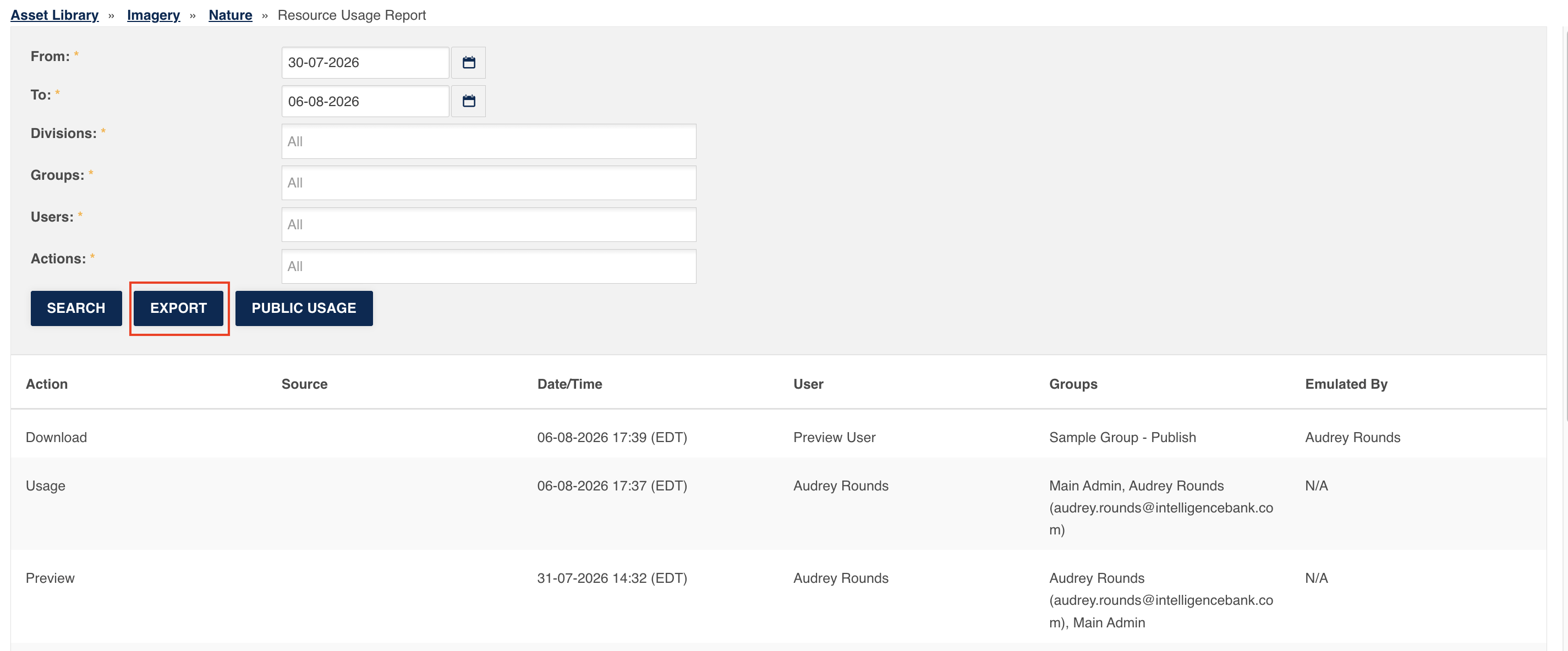
You can export the usage report by selecting the Export button. This will download the report to your computer in an .xlsx format.
Public Usage
Viewing an asset's Public Usage is also available for assets that have been publicly shared via Share/Embed. For more information on Public Usage, please refer to the article here.
*Note that the name given to modules, features and information items may vary in your platform as they can be customized by Main Admin users.
Was this article helpful?
That’s Great!
Thank you for your feedback
Sorry! We couldn't be helpful
Thank you for your feedback
Feedback sent
We appreciate your effort and will try to fix the article