Once you have added a widget to a dashboard, there are various actions you can perform against the resulting data. This makes it easy for users to perform various actions against items directly from the dashboard view, saving time and effort.
To learn more about the different widget options, please refer to the Item List Widget article, Calculation Widget article, and Grid Matrix Widget article.
To learn more about dashboards in general, please refer to the Dashboards - Overview article.
How to Access Widget Actions
Accessing an item's actions within a widget depend on the widget type.
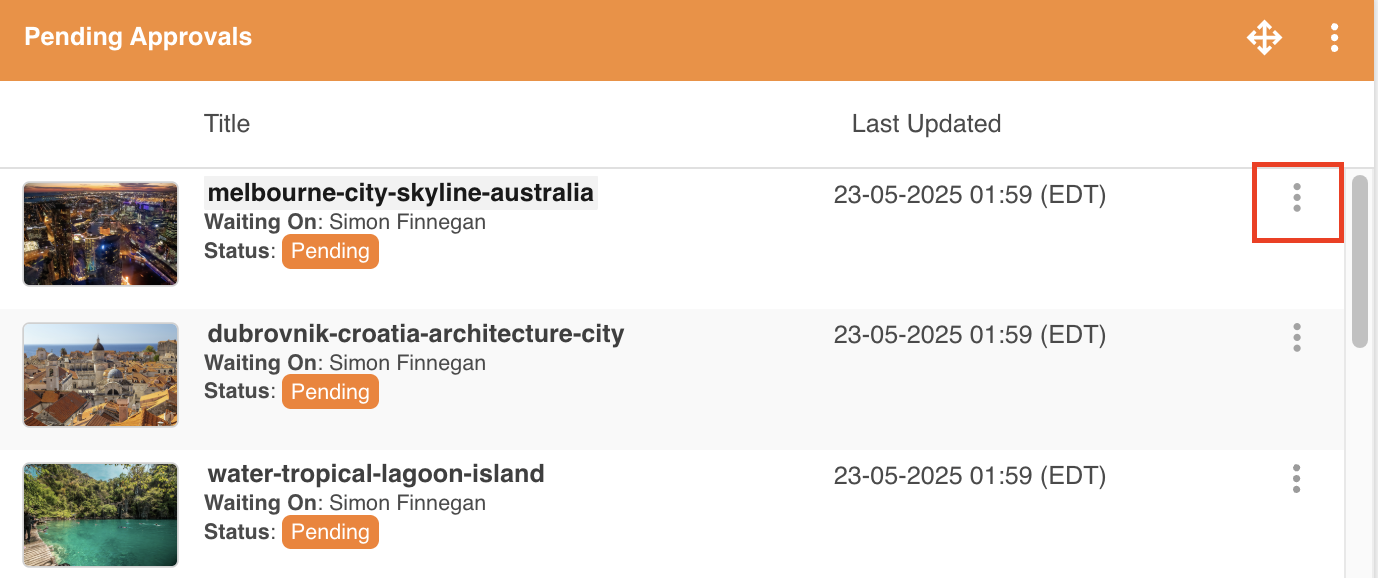
Item List Widget
To see the available actions within an item list widget, click the three vertical dots to the right of the information item:
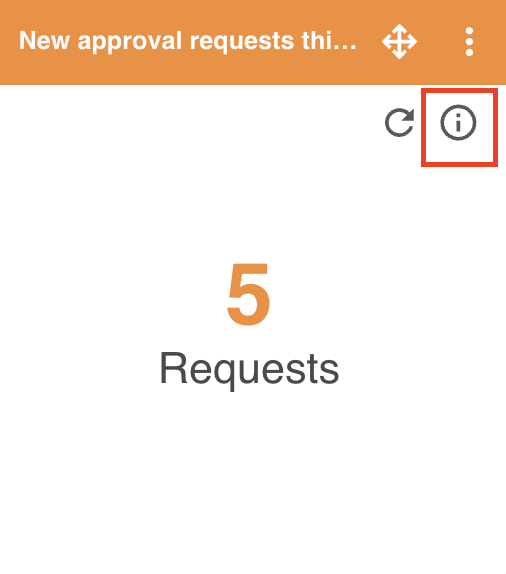
Calculation Widget
To see the available actions within a calculation widget, select the Information icon as noted below:
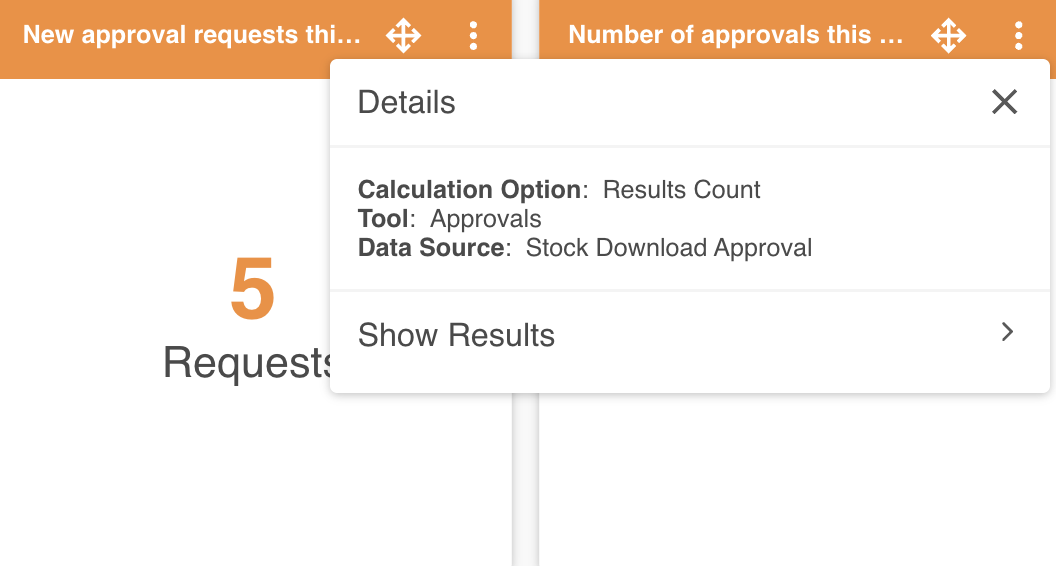
This will open up details about the widget. Select Show Results to display a list of the individual items within the widget.
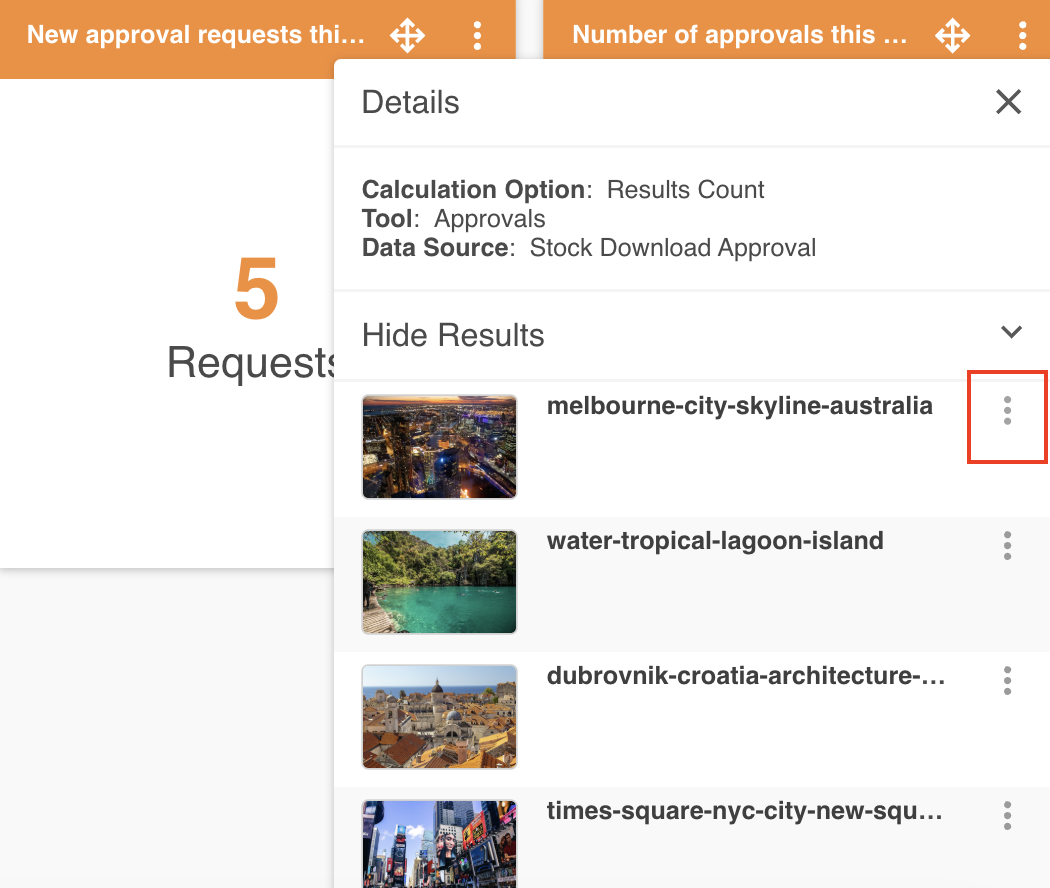
Then, select the three vertical dots to the right of the information item.
Grid Matrix Widget
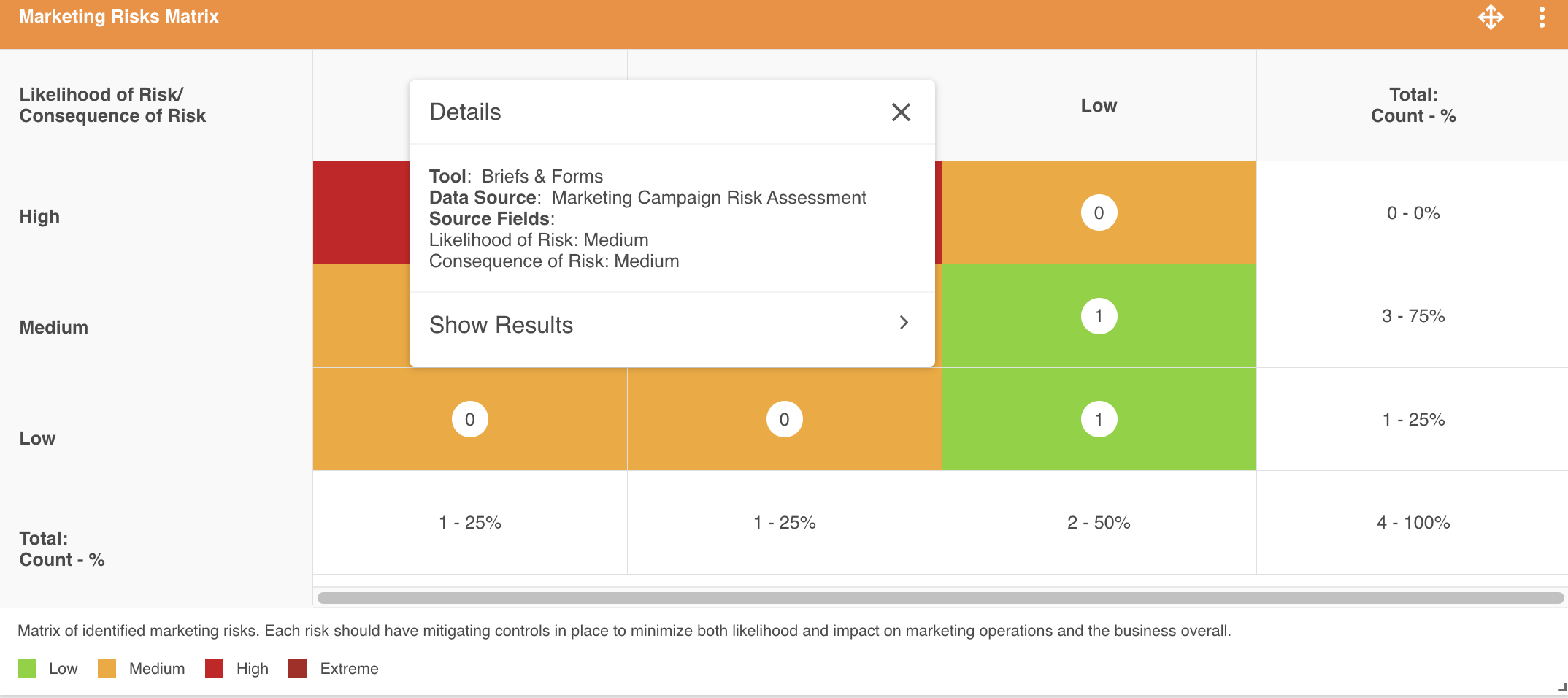
To see the available actions within a grid matrix widget, select a cell within the matrix you'd like to view the specific details on.
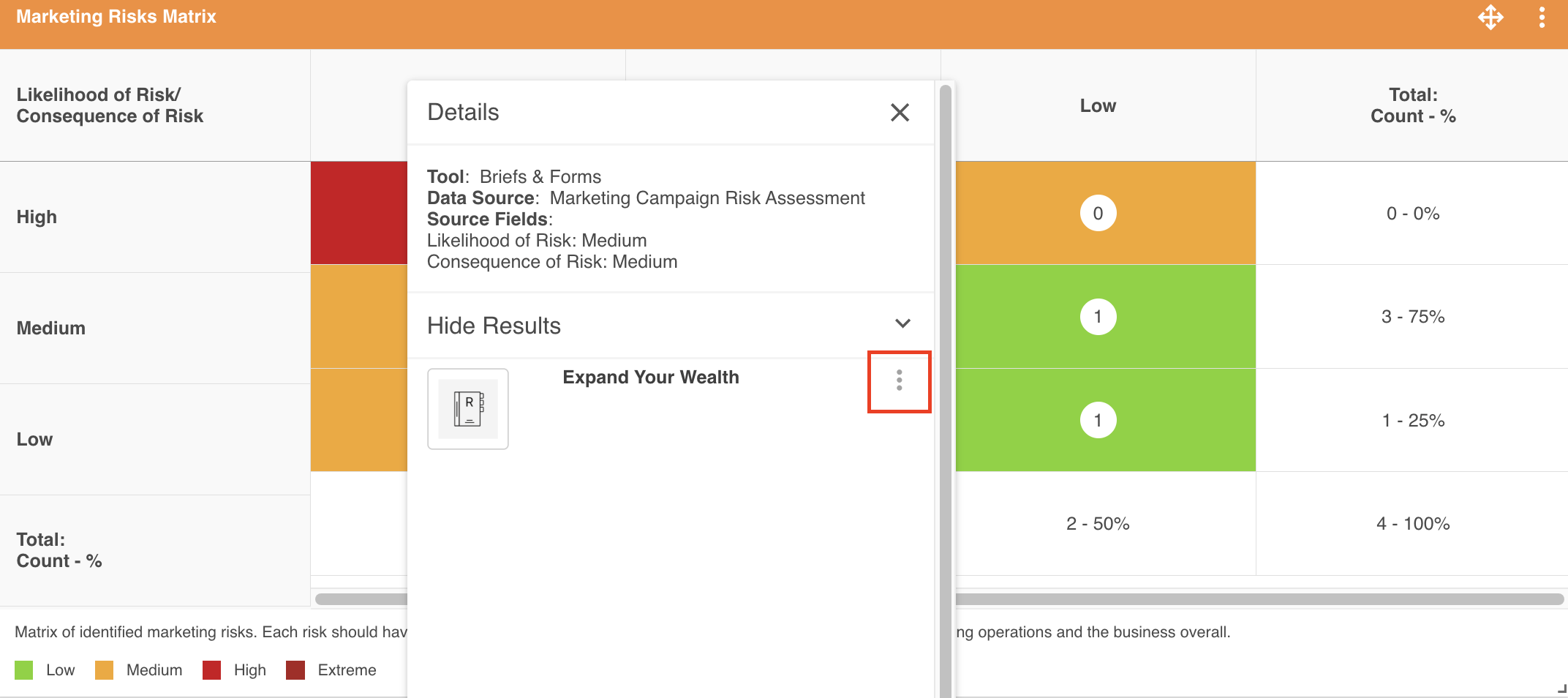
This will open up details about that specific combination. Select Show Results to display a list of the individual records which match that combination.
Then, select the three vertical dots to the right of the information item.
Available Widget Actions
The available actions depend on which Tool (ie: data source) was selected to display within the widget. The actions currently supported for widgets are:
For Assets / Resources
- Info
- Browse
- Play Video
- Play Audio
- Document Preview (when clicking thumbnail only)
- Image Annotations (will open in a separate tab)
- Reader (separate tab)
- Go to (Web URL) (separate tab)
- Download
- Edit / New Version (separate tab)
- Usage (separate tab)
- Request Feedback
- Workflow History
Note
The specific actions you see will depend on the asset format and your permissions.
For Database Records
- View (separate tab)
- Edit (separate tab)
- Usage (separate tab)
- Workflow History
- Manage Settings (separate tab)
For Survey Responses
- View (separate tab)
- Download PDF
- Workflow History
Note
The specific actions you see will depend on your permissions.
For Approvals
- Browse (separate tab) — takes the user to the Approvals area with the item highlighted first, and all filtering options removed (to ensure this item can always be displayed)
- Review Request (after approval/when completed — i.e. no refresh)
- View & Review (separate tab)
- Edit & Review (separate tab)
- Markup Comments
- Info
- Reader (separate tab)
- Download
- Usage (separate tab)
- Share / Embed Asset
- Request Feedback
- Manage Permissions
Note
The actions you see will depend on the approval workflow type, tool, and your permissions.
Was this article helpful?
That’s Great!
Thank you for your feedback
Sorry! We couldn't be helpful
Thank you for your feedback
Feedback sent
We appreciate your effort and will try to fix the article