Calculation widgets are one widget type you can add to a dashboard. This widget will aggregate a filtered list of results into a single metric.
Consider using a Calculation widget if you'd like to visualise your information in a way that immediately draws your attention to a particular metric (ie: number of overdue tasks or approval requests).
Below are some examples of how the Calculation widget can be beneficial:
- Assets/Resources: Monitor the number of new resources that have been added to your platform within a select time frame.
- Databases: Show a count of the number of overdue tasks, or the percentage of briefs assigned to a given team member for capacity tracking.
- Surveys: Show the average or a percentage of your in progress or completed survey responses.
- Workflows: Keep count of the number of Pending Approvals against yourself or particular users.
For more information on dashboards in general, please reference the Dashboards - Overview article.
How to Set Up a Calculation Widget
To create a calculation widget:
| 1 | Click + Add Widget on the Dashboard. |
| 2 | Choose the Calculation widget type.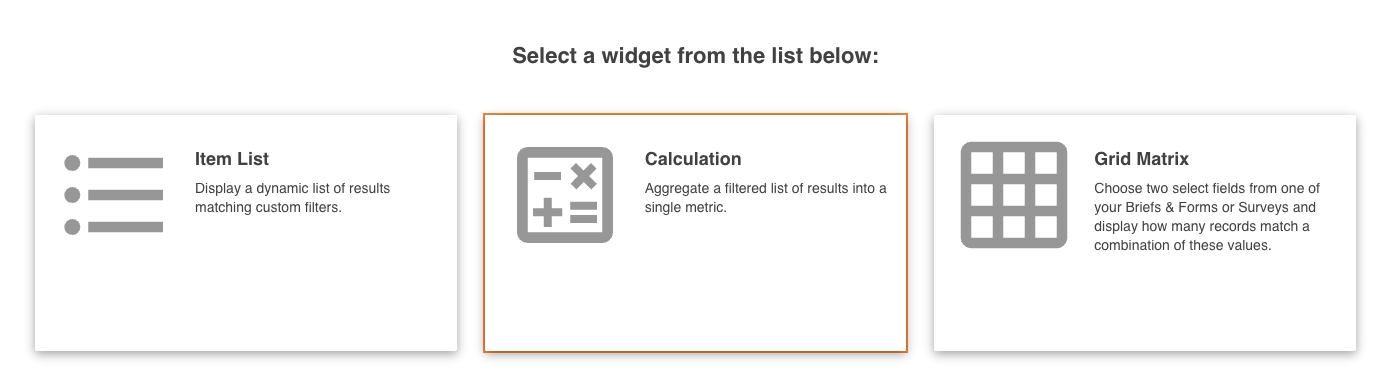 |
| 3 | Enter the widget's Main Details, which include:
|
| 4 | Select Next and select your data source. This controls what area of the platform information will display from. In the Tool dropdown, the options are:
|
| 5 | Select any Filtering Conditions. Filtering conditions will filter the information to specifically what you're looking to display (for example, just display the number of approval requests that are still pending).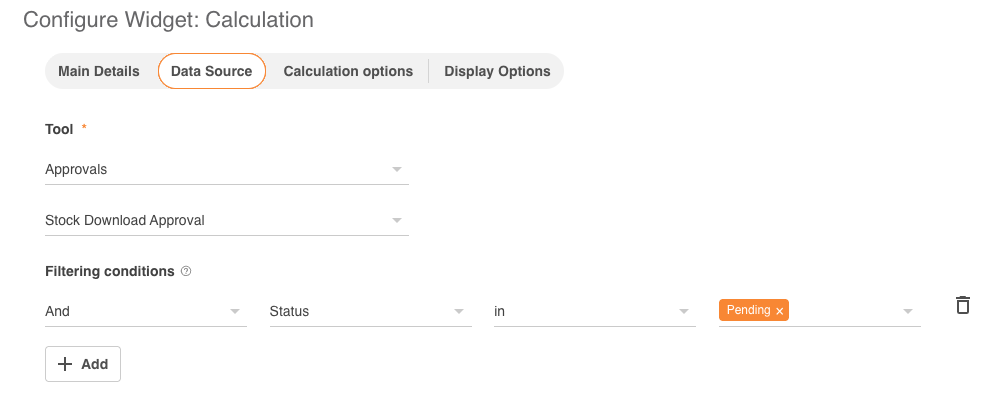 |
| 6 | After this is complete, click Next to set your calculation options. |
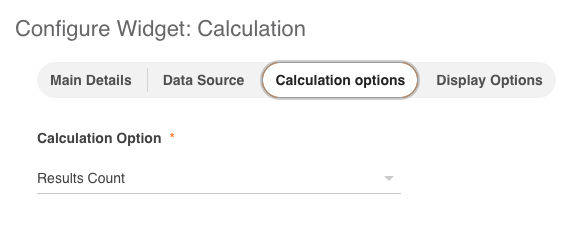
| 7 | You can select from the below options depending on the selected Tool:
 |
| 8 | After this is complete, click Next to continue to set data display options.  Here, depending on previous selections, you may have the option to enter a Unit (to give a name to what is being counted, for example) and for all calculations you have the ability to add in Custom Color Ranges to denote and emphasise possible results. Here, depending on previous selections, you may have the option to enter a Unit (to give a name to what is being counted, for example) and for all calculations you have the ability to add in Custom Color Ranges to denote and emphasise possible results.For example: if you're setting up a widget to display the number of your overdue tasks, it may be helpful to select red to show when a calculation outcome is not desirable (ie: over 3 overdue tasks), and green when the count shows that the measure is currently on target (ie: anything under 3). You can select a colour by picking one based on the provided colour scale, or enter a desired hex or RGBA code as required. |
| 9 | Click Finish to complete your widget creation. It will then display on the dashboard.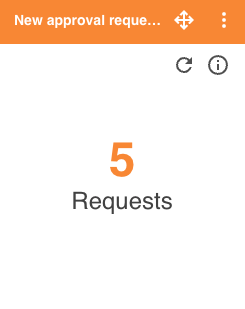 |
Was this article helpful?
That’s Great!
Thank you for your feedback
Sorry! We couldn't be helpful
Thank you for your feedback
Feedback sent
We appreciate your effort and will try to fix the article