Grid Matrix widgets are one widget type you can add to a dashboard. This widget type allows you to choose between two select fields within a form and display how many records match a combination of these values.
Grid Matrix widgets are most commonly used for creating risk heat maps and for risk management. For organisations that track, for example, risk level/impact and likelihood on their events, projects, etc, they can create a dashboard widget that will display both risk level and likelihood, along with a matrix of results/records that match each value.
This makes it easier for Risk Managers to visually identify and assess how many of their events/projects pose an overall low, medium, or high risk.
For more information on dashboards in general, please reference the Dashboards - Overview article.
How to Set Up a Grid Matrix Widget
To create a grid matrix widget:
| 1 | Click + Add Widget on the Dashboard. |
| 2 | Choose the Grid Matrix type.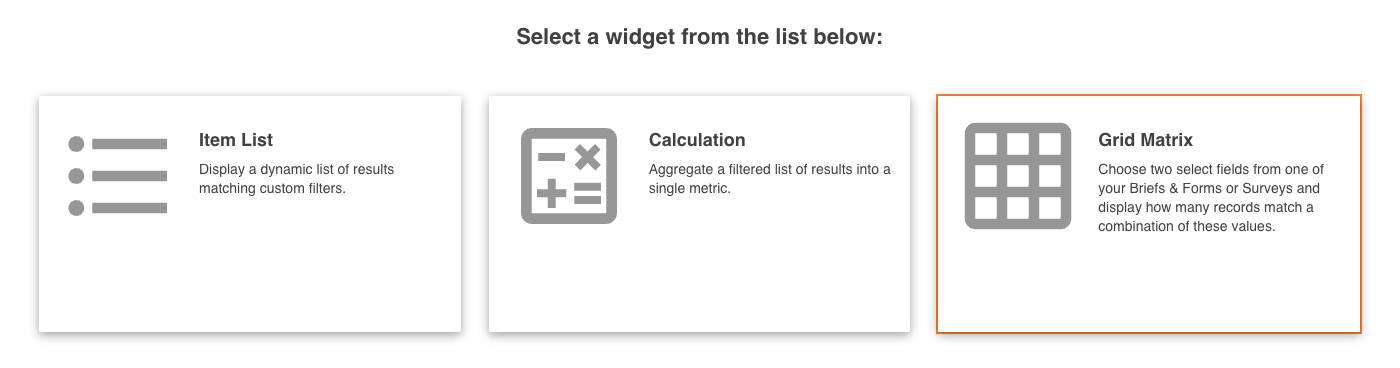 |
| 3 | Enter the widget's Main Details, which may include:
|
| 4 | Select Next and select your data source. This controls what area of the platform information will display from. In the Tool dropdown, select Databases/Forms/Surveys, then select the specific database/form/survey you'd like to pull information from.  |
| 5 | You will also need to select the Row and the Column of your Grid Matrix, in the Source Field options. These values will be drawn from the database or survey selection and will contain all Single Select fields from your custom form. |
| 6 | Add any Filtering Conditions, which let you display information/records based on specific criteria (ie: all records created after a specific date, or all records created by a particular team or group). |
| 7 | Select Next to set the data display options. |
| 8 | In the Legend Display field, you will need to input your Legend Values. These will be the colours and values that will be visible on the Grid Matrix.  Simply enter the name of your value and pick the colour you would like to appear. The content entered in the Legend Display section will appear as buttons in the Grid Display section, and provide a guide on the dashboard itself that reminds you of the classifications attributed to each cell. Simply enter the name of your value and pick the colour you would like to appear. The content entered in the Legend Display section will appear as buttons in the Grid Display section, and provide a guide on the dashboard itself that reminds you of the classifications attributed to each cell. |
| 9 | In the Grid Display field, the column and row titles are populated by the values from your Source Fields selected previously. Apply your Legend Values to any cell within the Grid Display by clicking the buttons above the table and then the cell in question. In the example below, the white (unassigned) cells in the 'Major' column are also in the Likely and Certain rows and need to be classified as High. Consequently the user needs to select the red 'High' button and then the remaining white cells.  The colours entered here will appear on your dashboard, within the Grid Matrix widget. The colours entered here will appear on your dashboard, within the Grid Matrix widget. |
| 10 | Once you have entered all your values, click Finish to create your widget. It will then display on the dashboard.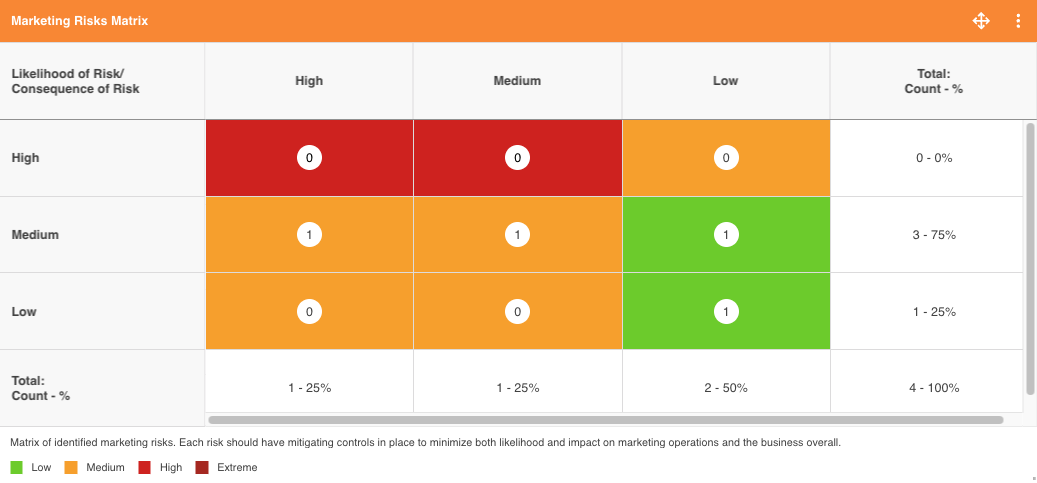 |
Was this article helpful?
That’s Great!
Thank you for your feedback
Sorry! We couldn't be helpful
Thank you for your feedback
Feedback sent
We appreciate your effort and will try to fix the article