IntelligenceBank offers the ability to share assets internally (ie: with other registered users of the platform).
Internal links are helpful if, for example, you need to share a large file which may not come through over email. Instead of downloading and attaching large files, you can send direct links to assets stored within your Asset Library.
How to Generate an Internal Share Link
Internal sharing of assets is possible for any user with at least Preview permission (or higher) to the folder the asset is located in. To generate an internal share link:
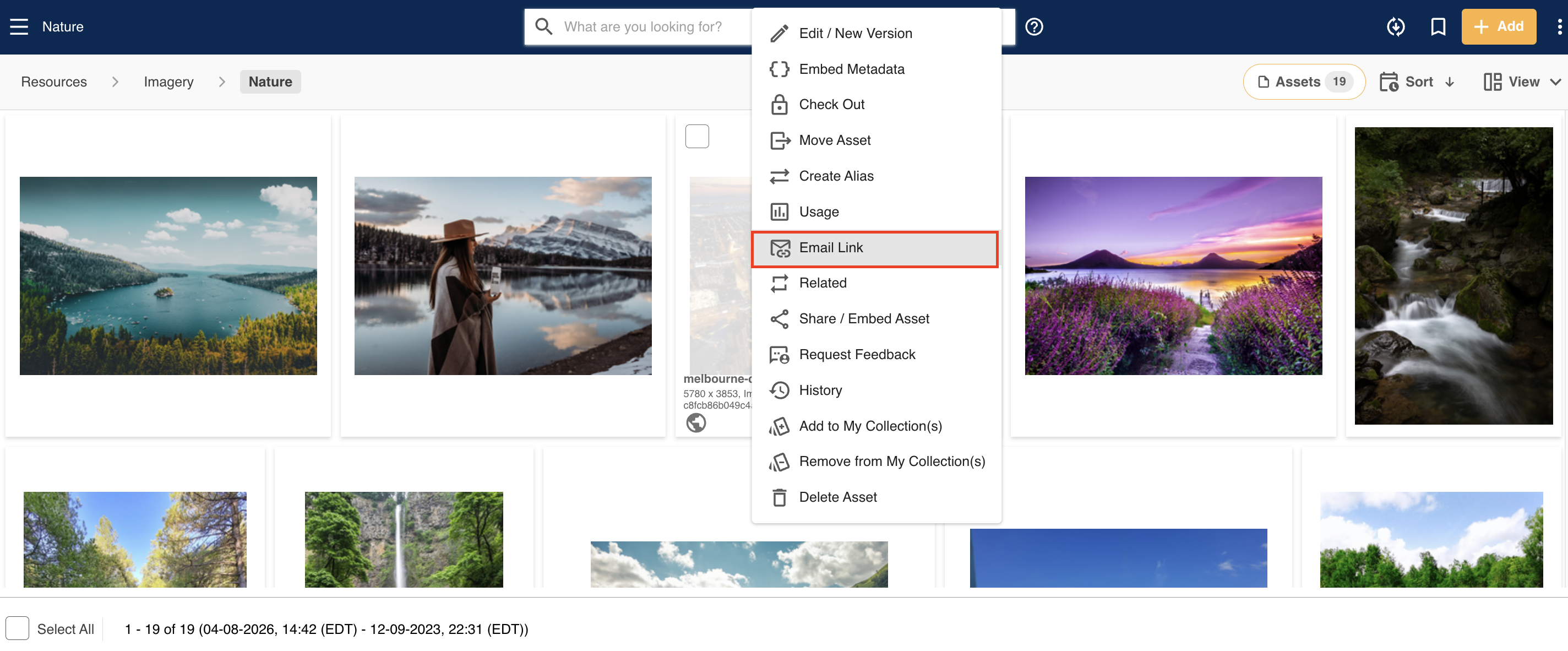
1. Navigate to the asset you wish to share and click on Email Link in the asset dropdown action menu, as indicated below.
2. A pop-up will then appear. If public sharing has been enabled on the folder and the user has Access permission or higher, users will see a Share Link Type field, with the option Internal Share Link (Registered Users) pre-selected. Keep this as the selection to generate an internal share link.
If public sharing has not been enabled on the folder (or the user just has Preview permission on a folder enabled for public sharing,) the Share Link Type field will not display.
3. If you're looking to email the internal share link, enter the users and/or groups you'd like to share the asset with in the Users and Groups fields, then select + Load Users/+ Load Groups. This will load them as Recipients. Note that the only users/groups that will display in the drop downss are ones who have at least Preview permission to the asset.
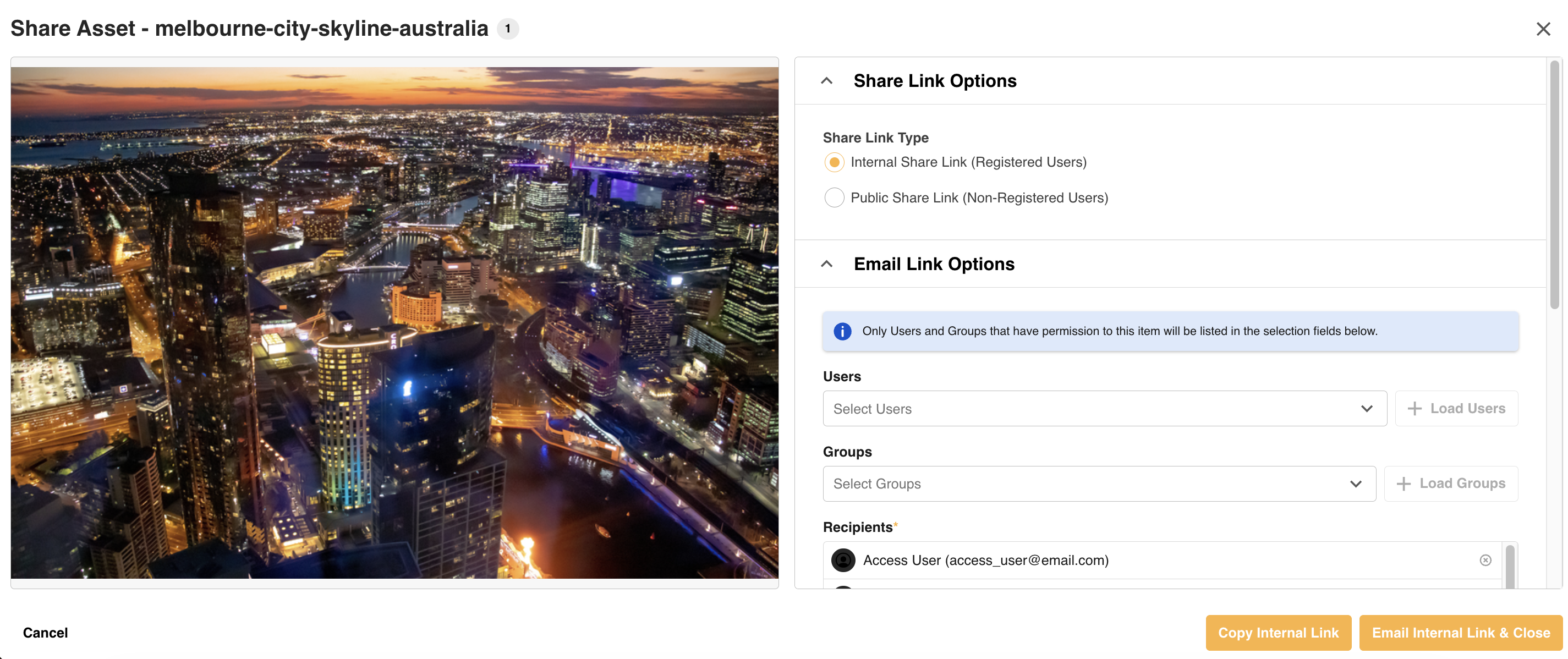
4. Select Email Internal Link & Close to generate and send an email with the internal link to the asset.
5. Alternatively, if you're looking to copy the internal link (so you can paste it in your own email, or send it via a communication channel), select Copy Internal Link. This will copy the link to your clipboard, which you can then paste and send off to your relevant recipients.
*Note that the name given to modules, features and information items may vary in your platform as they can be customized by Main Admin users.
Was this article helpful?
That’s Great!
Thank you for your feedback
Sorry! We couldn't be helpful
Thank you for your feedback
Feedback sent
We appreciate your effort and will try to fix the article