IntelligenceBank provides multiple ways to share assets — either with registered platform users or with external partners and stakeholders who don't have an account.
Before you begin: Public Sharing must be enabled by an Admin before external share links can be created. Go to Admin > Settings and enable the Enable Public Sharing option under Assets - Public Sharing, or check with your site administrator.
Sharing Internally (ie: with Registered Users)
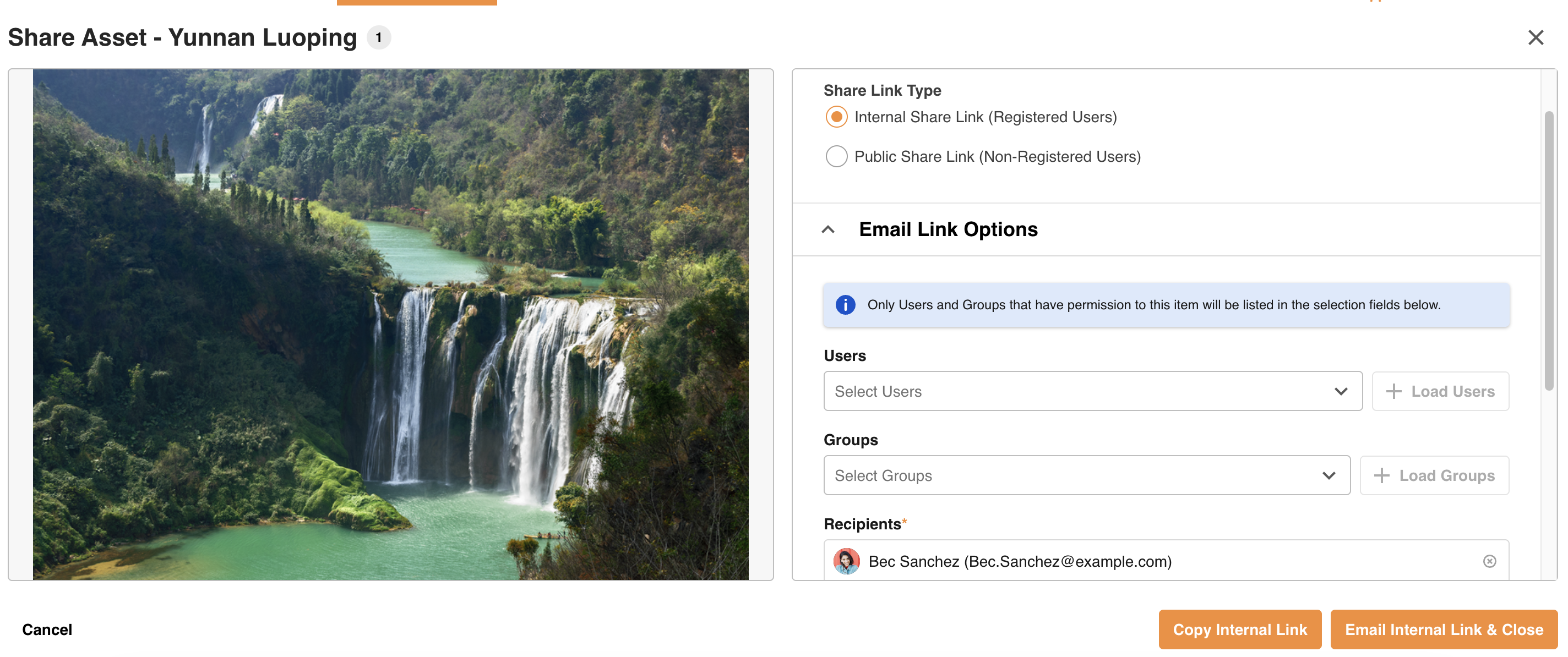
Use this method to share an asset with internal team members or groups who already have access to your IntelligenceBank platform. Note that the recipient(s) must have access to the folder the asset you intend to share is located in.
| Step | Action |
|---|---|
| 1 | Navigate to the desired asset in the platform. |
| 2 | Click the three vertical dots on the asset and select Email Link. |
| 3 | Select the user(s) and/or group(s) you want to share the asset with, then select +Load Users/Groups. |
| 4 | Select Copy Link to copy the share link to your clipboard and share out yourself. To send the share link out via an IntelligenceBank-generated email, select Email Internal Link & Close. Add a custom message to include in the email notification, if desired. |
Sharing Publicy (ie: with External (Non-Registered) Users)
You can generate a temporary or permanent public display link that allows external recipients — such as agencies or partners — to browse, preview, and download shared assets without needing to log in.
Prerequisites
The following conditions must be met before a public share link can be created:
| Requirement | Detail |
|---|---|
| User permission | You must have at minimum Access permission on the asset being shared |
| Public Sharing enabled | The asset must be in a folder enabled for Public Sharing |
| Resource type | Must be a File or Alias asset type |
| Published status | The asset must be published — not pending approval or declined |
| Step | Action |
|---|---|
| 1 | Navigate to the desired asset in the platform. |
| 2 | Click the three vertical dots on the asset and select Email Link. |
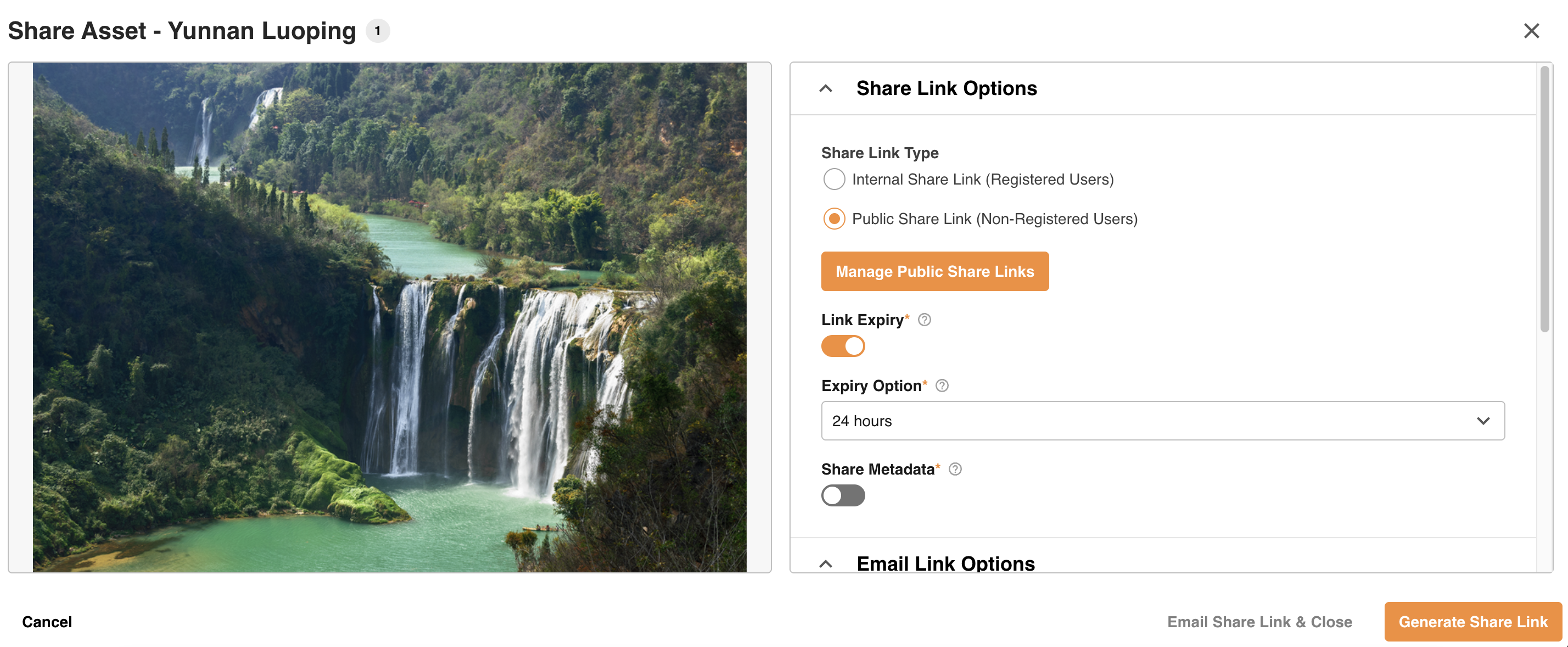
| 3 | Select Public Share Link (Non-Registered Users) under Share Link Type. |
| 4 | Enter in your Recipients' email address(es) and select +Add Recipient. |
| 5 | Select Generate Share Link, then either Copy Share Link to copy the link to your clipboard, which you can then share out, or Email Share Link & Close to send the link via an IntelligenceBank-generated email. Add a custom message to include in the email notification, if desired. |
Share link options
When creating a public share link, you can also configure the following:
- Expiry: Set the link to be permanent, or configure it to expire at a specific date and time.
- Metadata display: Choose whether to show or hide asset metadata on the shared page.
- Downloads: Recipients can download the shared assets directly from the public page.
Tip: After a share link has been generated, you can update or deactivate it at any time from the resource's share management settings.
Need Help?
If you need assistance with sharing settings or permissions, please submit a support ticket.
Submit a Support TicketWas this article helpful?
That’s Great!
Thank you for your feedback
Sorry! We couldn't be helpful
Thank you for your feedback
Feedback sent
We appreciate your effort and will try to fix the article