IntelligenceBank lets you share a folder of assets internally with other registered users of the platform.
Sharing folders internally allows you to generate and send a link to a specific folder another user may be asking about or needs to upload assets to, giving them quick, direct access to the appropriate folder
Any user with at least Preview permission on a folder can generate an internal share link for it.
How to Share a Folder Internally
| 1Open the folder menu | Navigate to the folder you want to share internally, click the three vertical dots to open the folder action menu, and select Share Folder Link.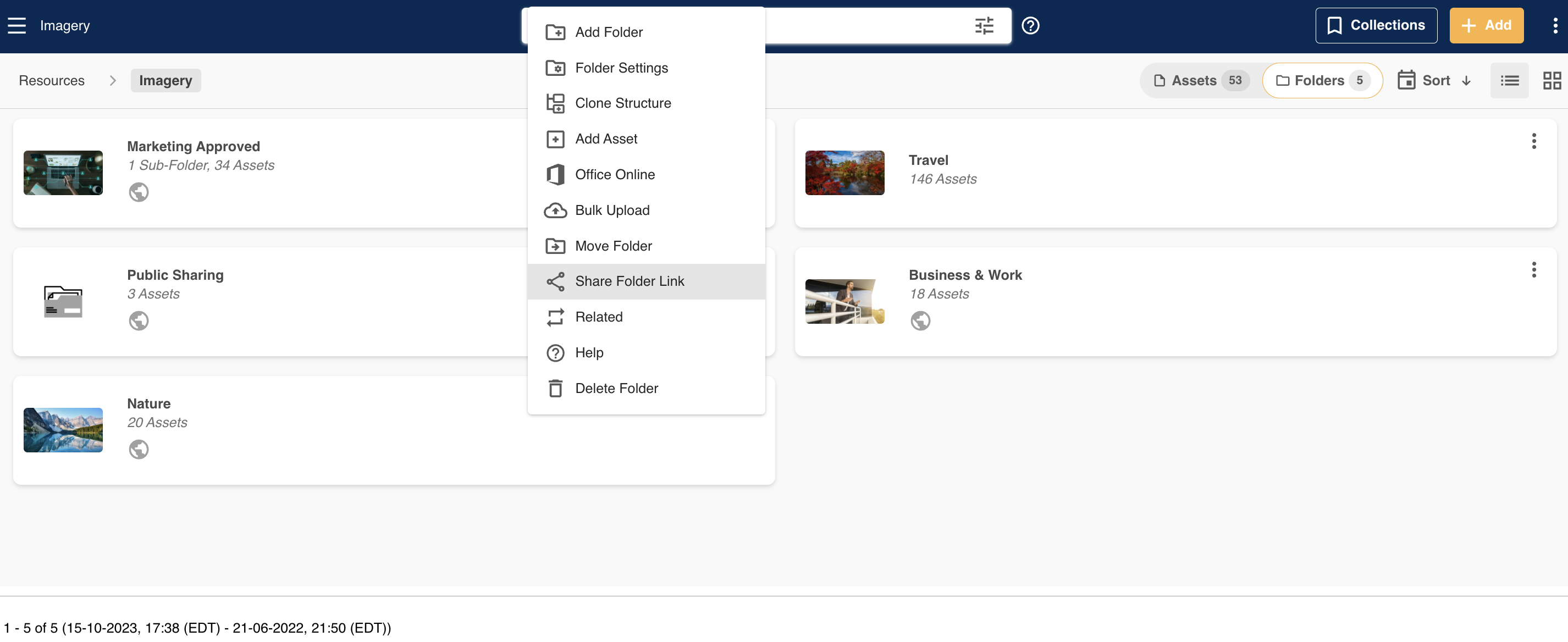 |
| 2Set the link type | In the share link options, set the share link type to Internal Share Link (Registered Users). Note, if publicly sharing is not enabled on the folder, you won't see this setting (since the only sharing users would be able to do is an internal share).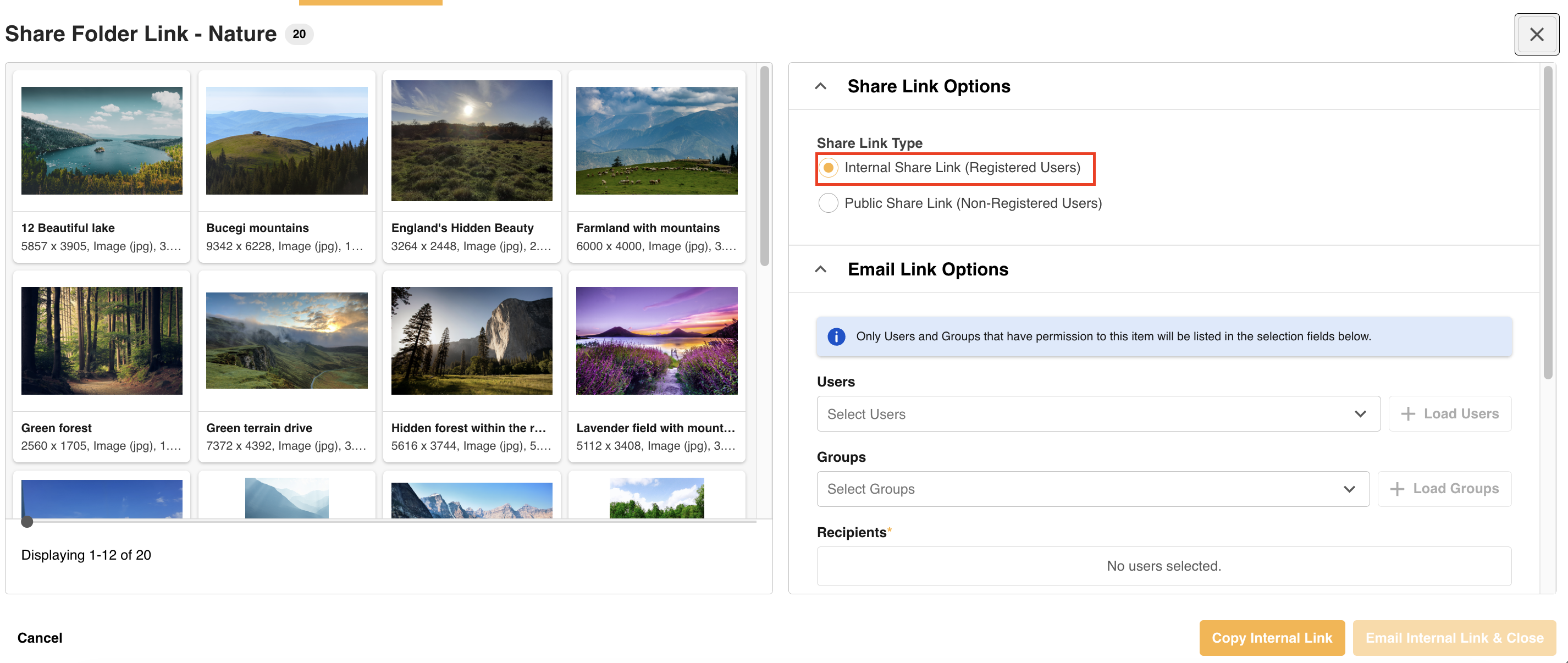 |
| 3Copy or email the link | Either copy the internal link to your clipboard to paste into an email or another messaging platform, OR use the Email Link Options section to add specific users, or a group of users, to share with directly.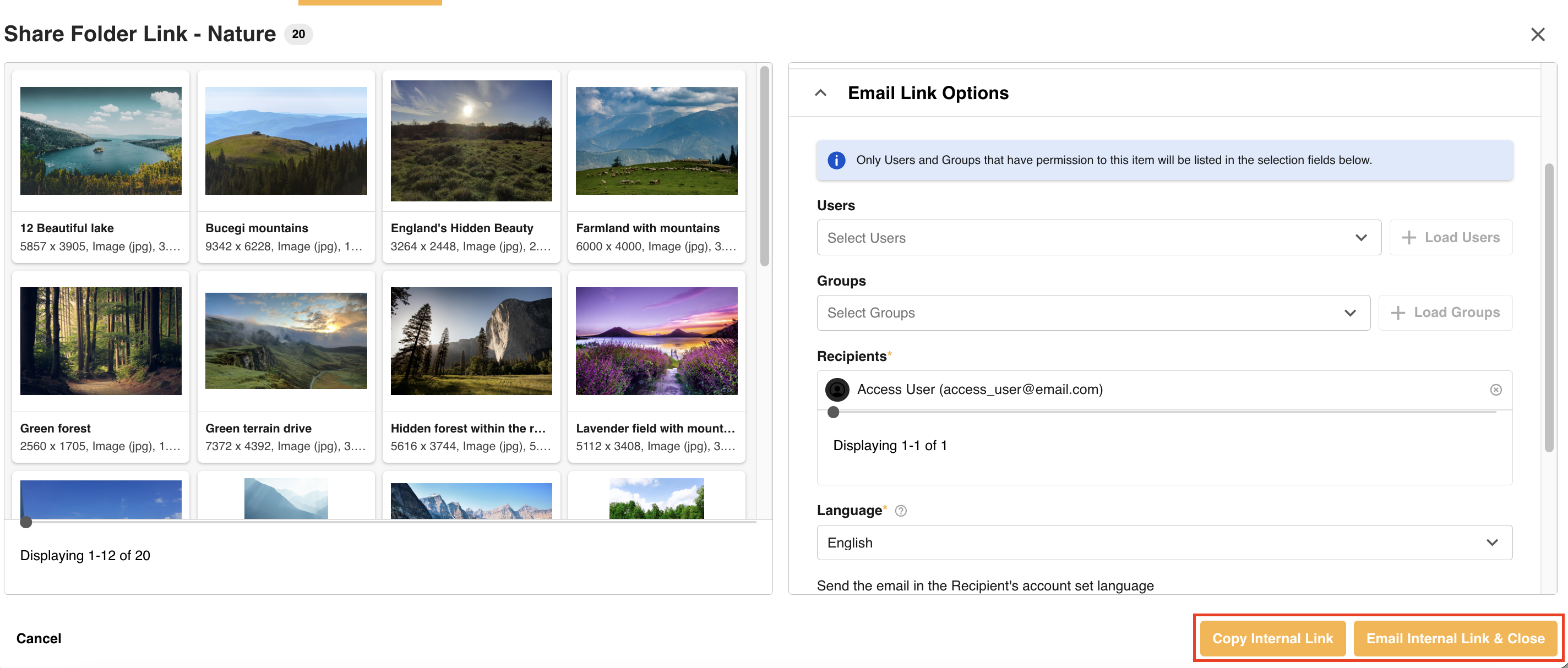 |
| 4Customize the message | Update the subject and message of the email those users will receive along with the link to the folder (relevant if you are choosing to email the internal link). |
| 5Send the email | Select Email Internal Link and close. This sends an email notification to the selected users with a link to the folder. |
Note: When you share a folder internally, any subfolders within it are shared as well.
Was this article helpful?
That’s Great!
Thank you for your feedback
Sorry! We couldn't be helpful
Thank you for your feedback
Feedback sent
We appreciate your effort and will try to fix the article