Your Asset Library contains a folder side panel, which users can use to easily search for or navigate through folders within IntelligenceBank.
Admins will also have the ability to perform several actions in bulk through the folder side panel, including:
Accessing your Folder Side Panel
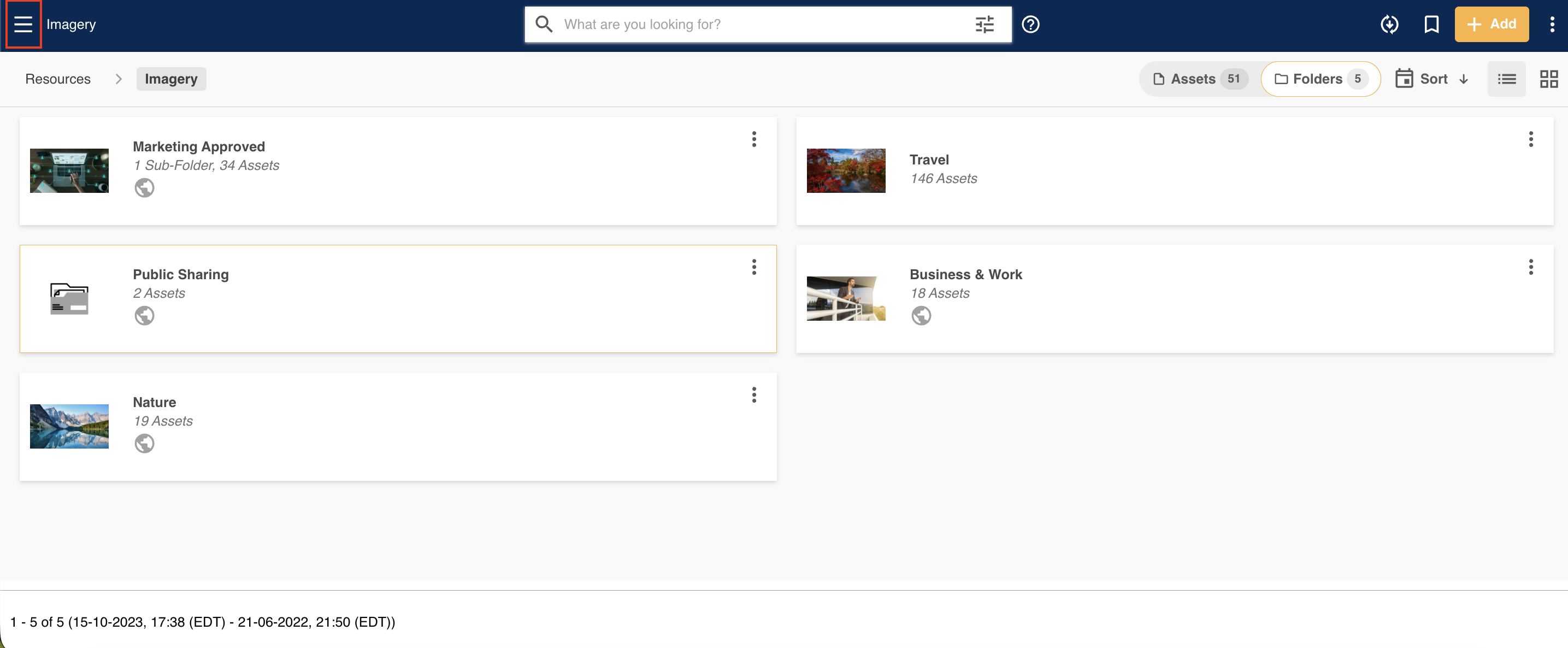
To open the folder side panel in your platform, click on the hamburger icon that appears in the upper-left side of the screen (highlighted below) in your Asset Library.
Browsing Folders using the Side Panel
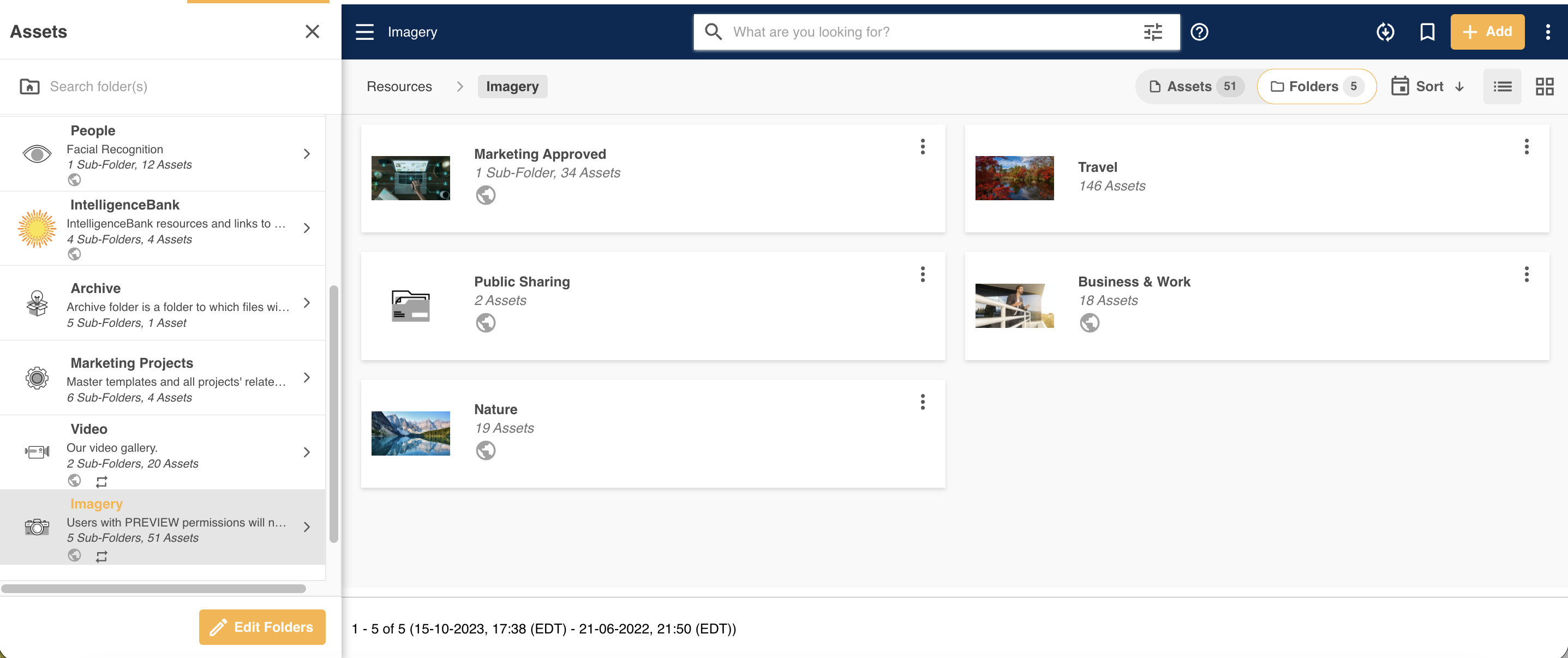
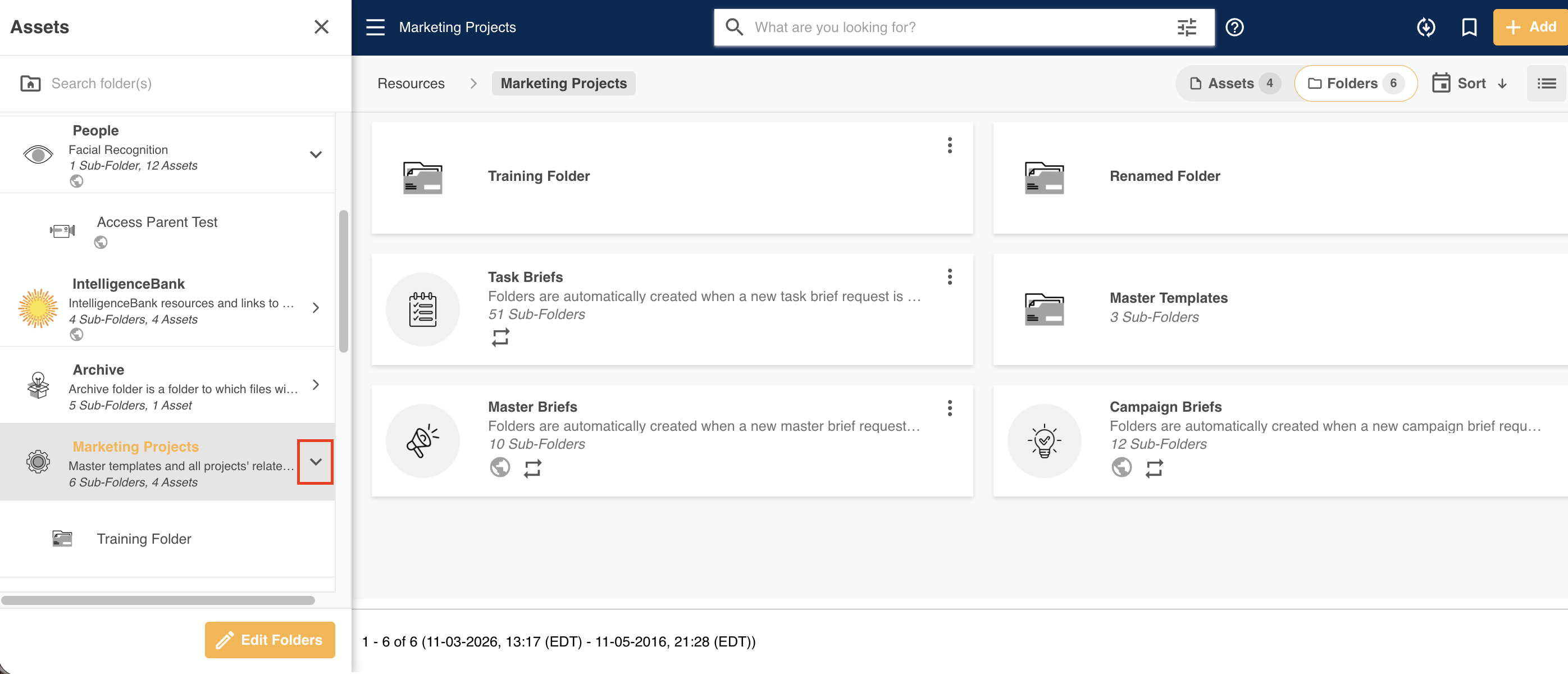
When the side panel is open, you'll be able to view and scroll through all of your folders. The initial view will be your top level (ie Root level) folders. Some of your folders may have an arrow pointing to the right, indicating there are sub-folders within that folder.
Searching for Folders
To search for folders, locate the search bar at the top of the folder side panel.
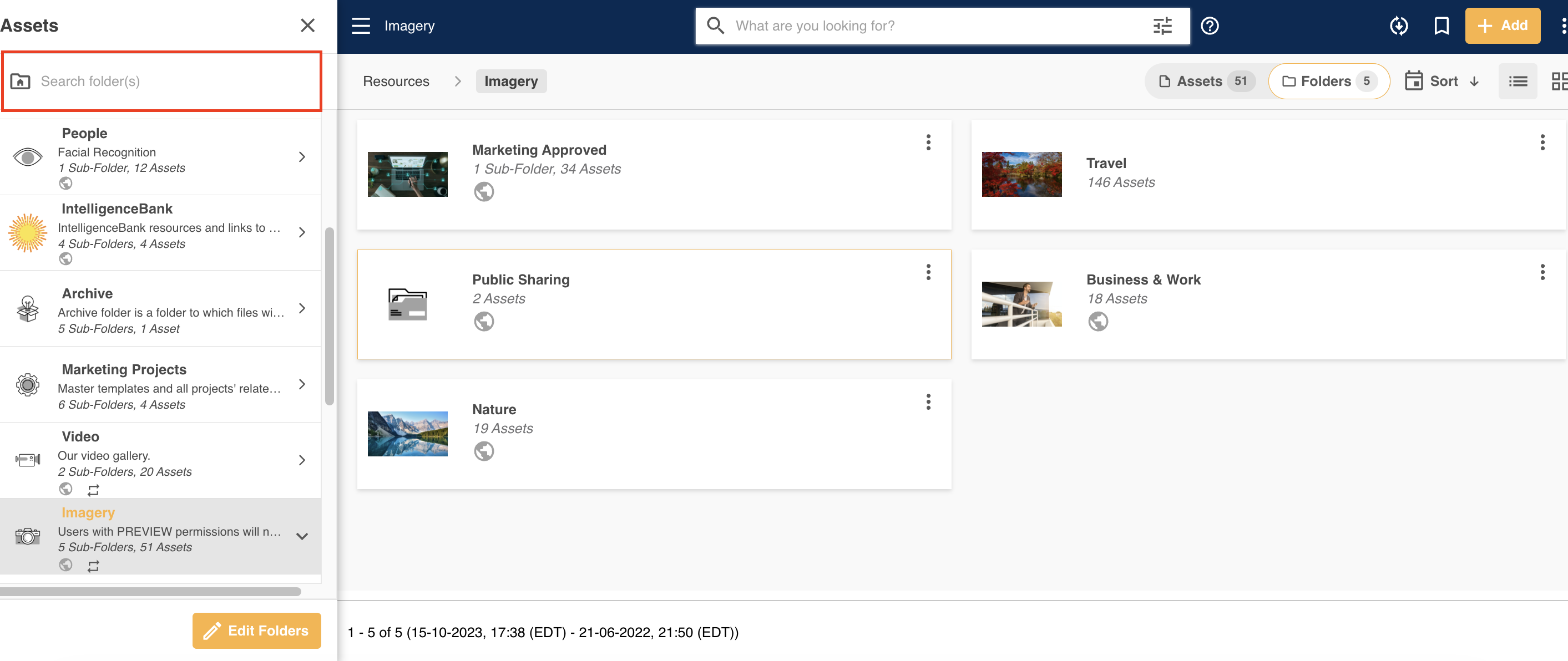
Type the name of a folder to see a list of all folders that match the search term.
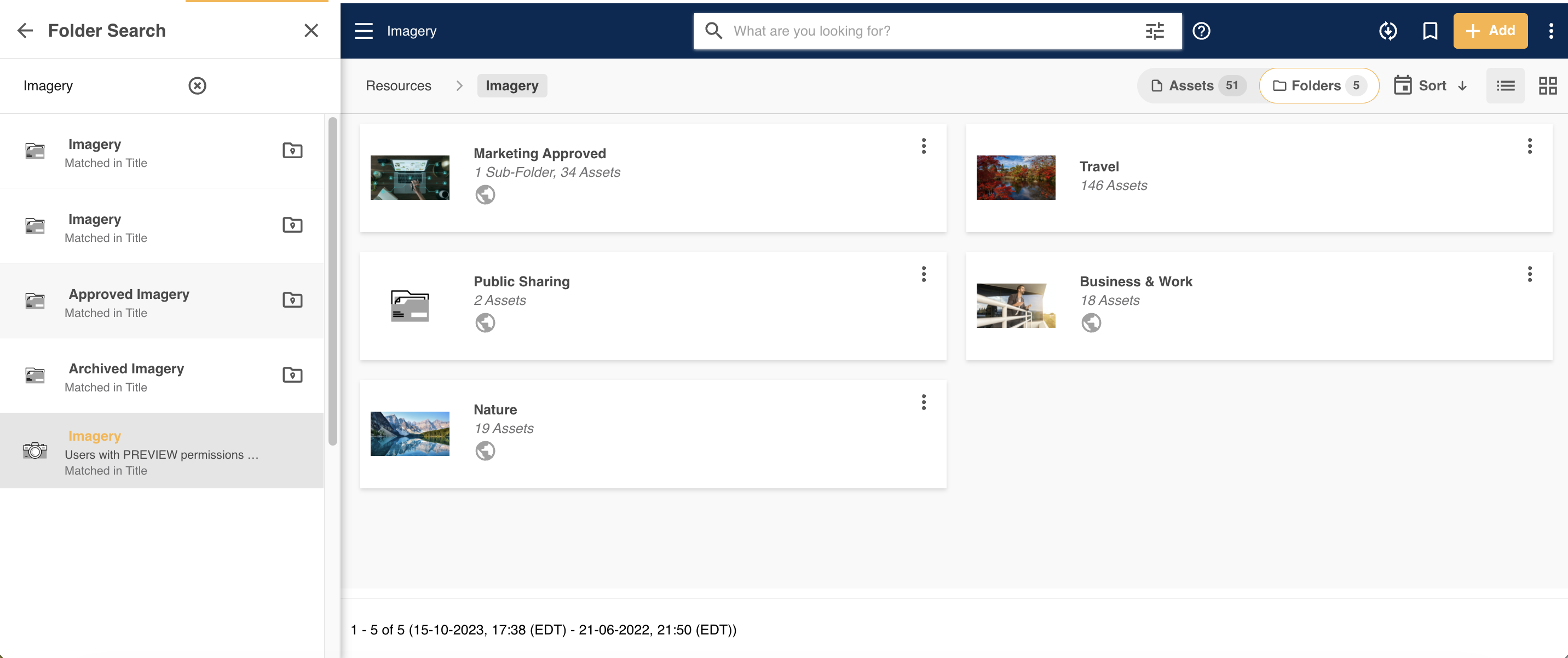
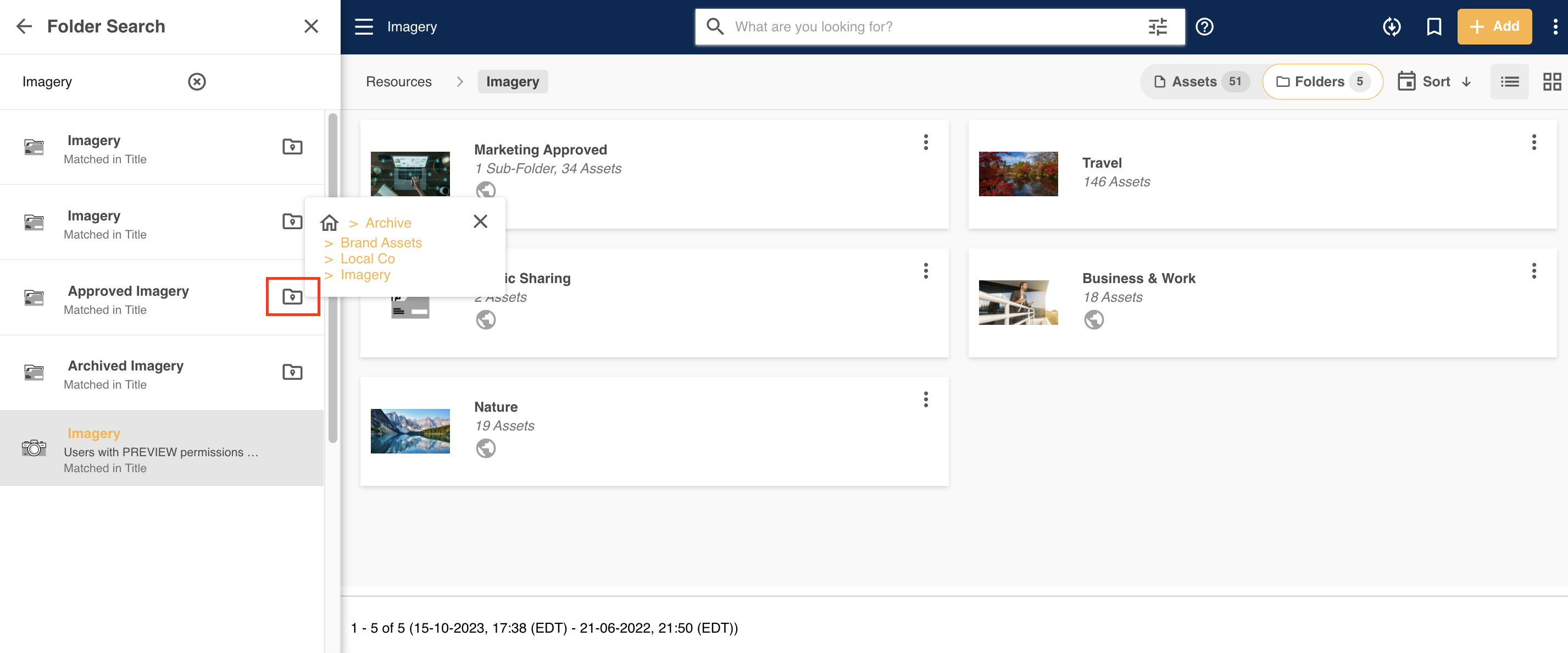
If you have multiple folders in the search results, you can select the icon indicated below to display a folder's full folder path. That will make it easier for you to determine the specific folder you might be looking for (mostly, in instances involving folder structures that follow similar templates, where you'll likely have folders with the same name).
Things to Note with Searching for Folders
Below are some things to keep in mind when searching for folders:
- Both folder name/title and folder description are searchable
- Searching within the folder side panel will return results for folders only. To search for assets, use the main search bar in your Asset Library
- Folder search is not case sensitive
- Automatic word variations and precision search are not supported for folder searching (only for asset search)
Was this article helpful?
That’s Great!
Thank you for your feedback
Sorry! We couldn't be helpful
Thank you for your feedback
Feedback sent
We appreciate your effort and will try to fix the article