IntelligenceBank offers three order options for sorting folders within the Asset Library:
- Alphabetical: By default, will display folders alphabetically by folder name (0-Z).
- Date Added/Created: by default, will display folders in order of most recently added to oldest.
- Custom: this allows Admins to manually order the folders in a custom order. For more information about how to arrange folders in a custom order, refer to this article.
Setting the Folder Sort Order
By default, the folder sort order across all folders is set by Main Admins in the Admin > Settings area of the platform. For more information about how to do this, click here.
Note: Any changes made to the default folder sort order will retroactively change the sort order of all folders in the platform. There is also not currently a way to set a default order on a folder by folder basis- whichever sort order is selected will apply across all folders/folder structures.
Individual users can choose to view folders in a different sort order by following the below steps:
| 1Navigate to the Asset Library | Go to your Asset Library where you can view folders/subfolders. |
| 2Locate the Sort Order icons |
In the upper right-hand side of the page, locate the Sort icon.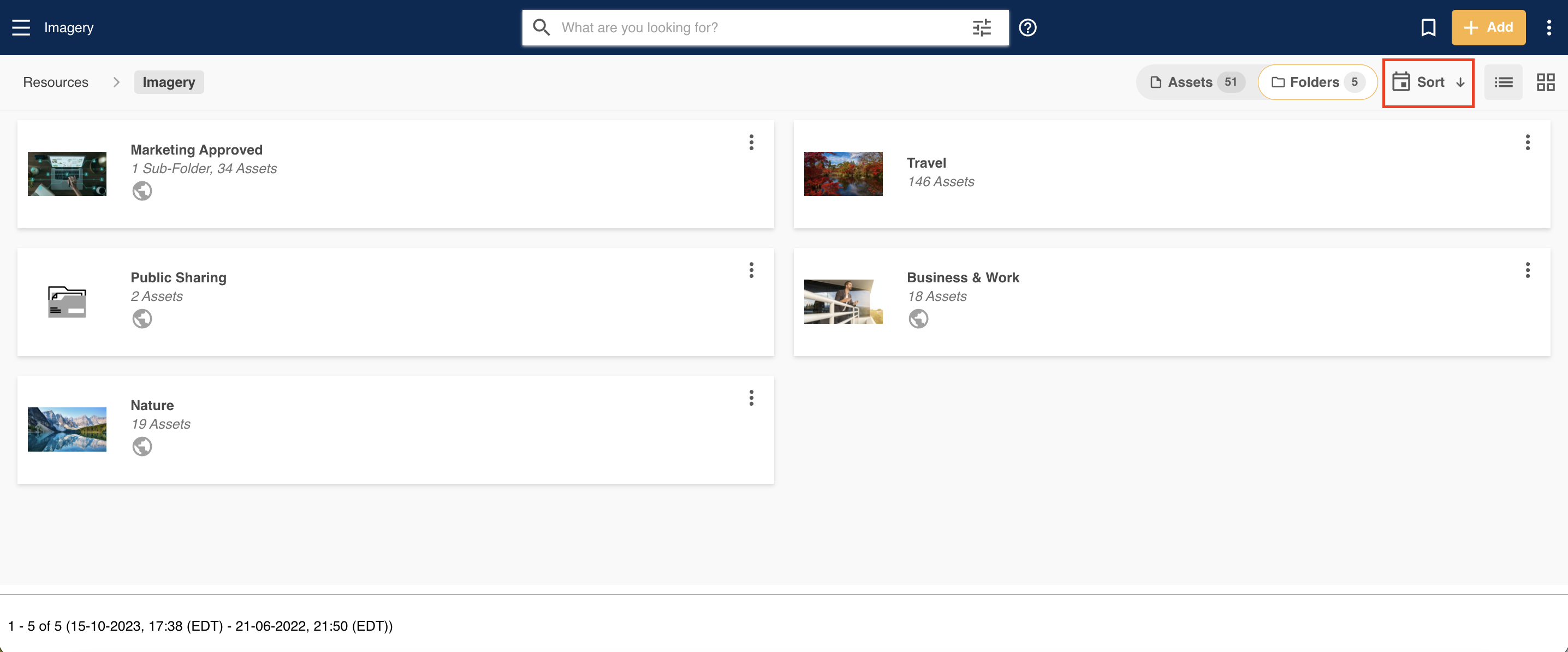
|
| 3Choose an order |
Select whichever sort order option you'd like to display folders in.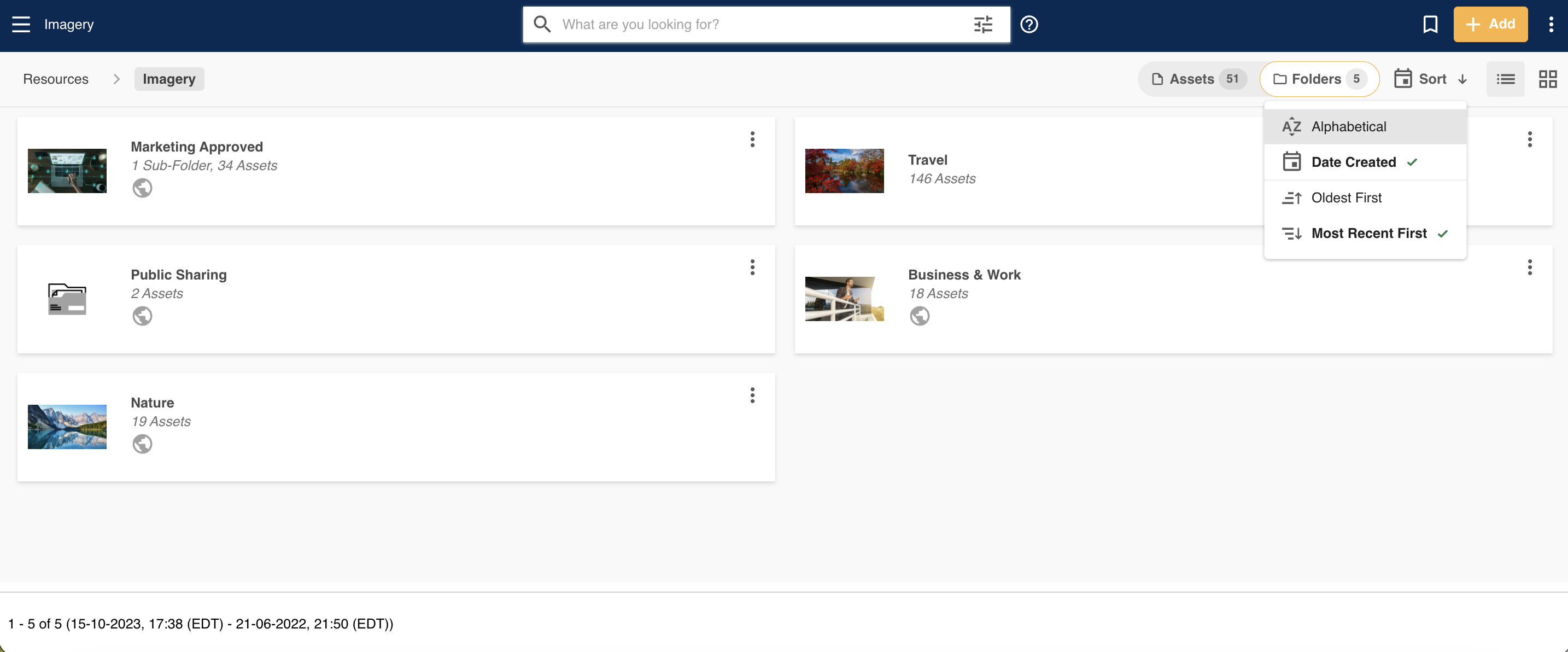
|
Note: Individual users cannot set their own default folder sort order. Switching the order this way only applies to the session you're currently in.
Was this article helpful?
That’s Great!
Thank you for your feedback
Sorry! We couldn't be helpful
Thank you for your feedback
Feedback sent
We appreciate your effort and will try to fix the article