This article outlines the steps involved in creating a new folder within your Asset Library and the various folder settings available.
Who Can Create Folders
The ability to create new folders is available to the following permission levels:
- Main Admins
- Asset/Resource Admins
- Folder Admins can add subfolders within the folders they administer
How to Create a New Folder
| 1Navigate to the Asset Library | Go to the Asset Library area of the platform. |
| 2Select the Add button | Select the + Add button in the upper right hand side of the screen at the root level to create a parent folder. If you're inside a folder, select the plus + Add button to create a subfolder.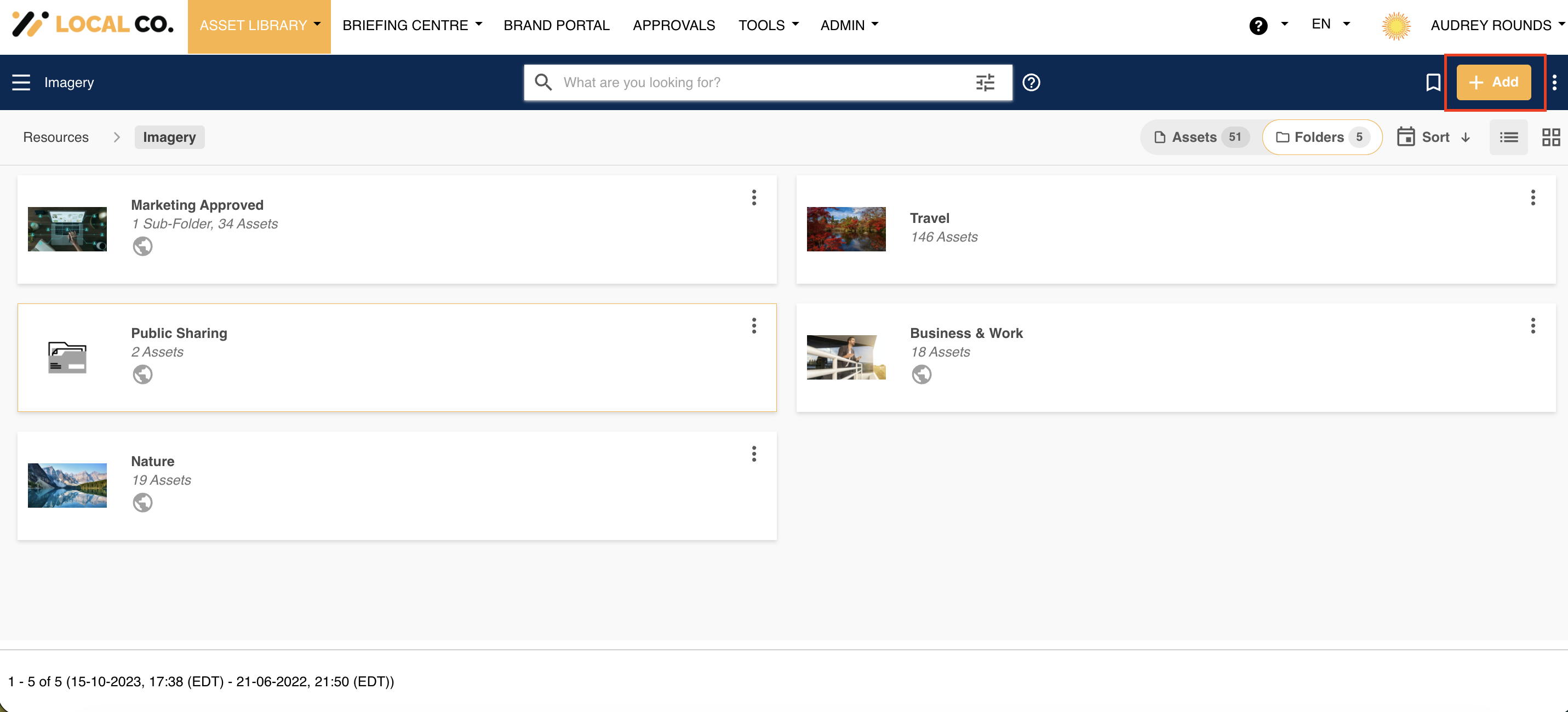 |
| 3Select Add Folder | Choose Add Folder.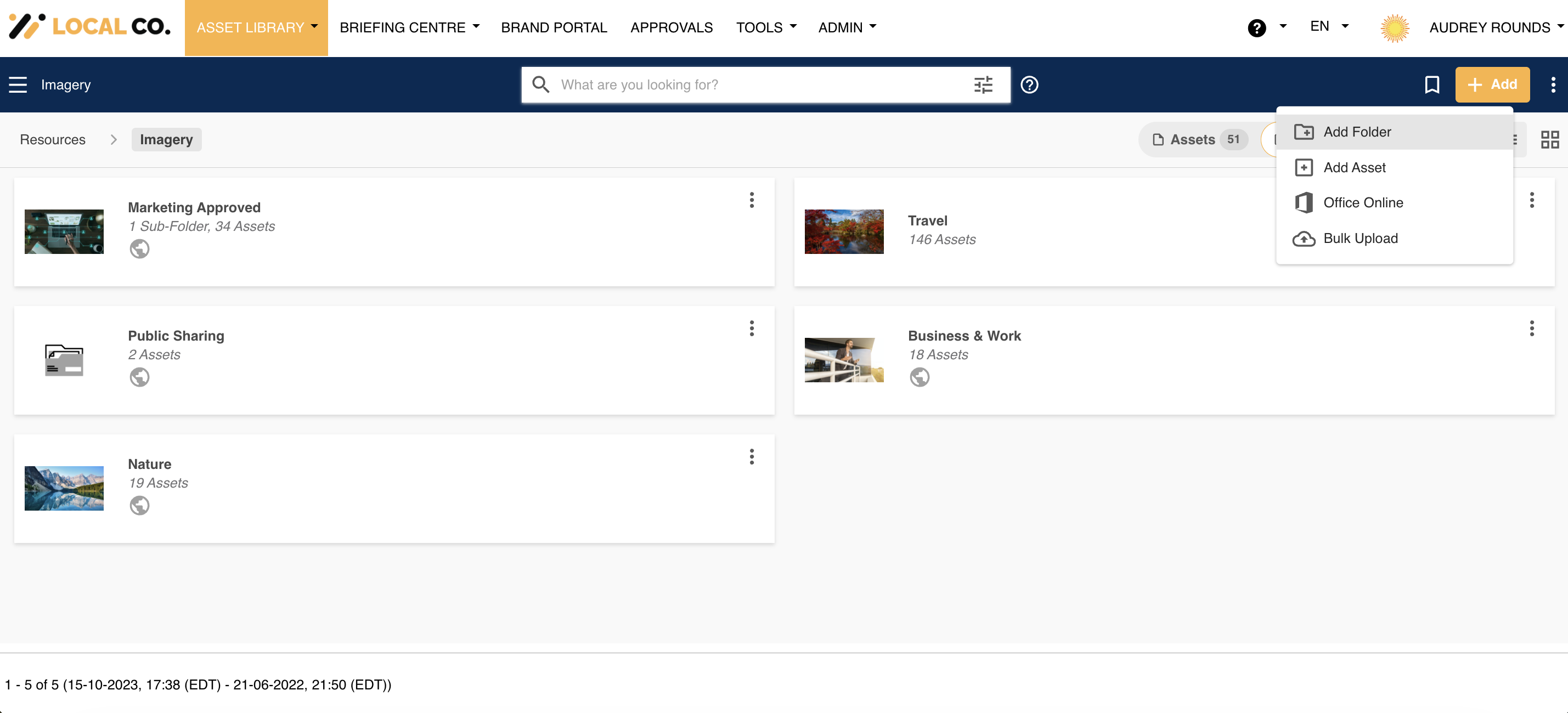 |
| 4Fill out the folder setting fields | Complete the Name, Description, and other folder setting fields (see below). |
| Field | Description |
|---|---|
| Name | Enter the name you want to give the folder in the platform. |
| Description | Add an optional description, which displays underneath the folder name. |
| Icon Type | Choose Default to use the icon stored in the Admin>Templates area of the platform, or choose Custom to upload your own. Selecting Custom reveals an Icon field where you can select a file to load your custom icon. |
Tip: A custom icon does not propagate to subfolders. If you want subfolders to use a custom icon that differs from the default, you'll need to set it individually on each folder.
Advanced Options
Select Advanced Options while creating or editing a folder to configure the following settings.
Review Date Settings
| Enable Review Date | Turns on a review date that displays on assets uploaded to this folder. Once enabled, the Review Date Settings options below become available. To learn more about Review Dates, refer to this article. |
| Applicable Settings: Global Default | Pulls the review date configuration from whatever is set in the Admin>Settings section of the platform. |
| Applicable Settings: Custom | Lets you modify the review date settings for this particular folder, if, for example, certain folders need different users notified when assets meet their review date, or need assets moved to different folders than the global default specifies. Custom gives you access to modify the mandatory review date, review date alerts, recipients, and actions fields. |
Display and Layout
| Default Order | Sets the order assets display in within the folder. Options are Asset Date, Last Updated, Alphabetical, or Custom. |
| Default Layout | Sets how assets display within the folder. Options are List, Images, or Card. |
| Allow Comments | Allows comments on assets within this folder. |
| Force Watermark | Choose between Force Display, Force Hide, or Asset Level. To learn more about watermarking, refer to this article. |
Sharing and Annotations
| Enable Public Sharing | This is typically enabled by default. Disable it if you don't want assets in this folder to be publicly shared to non-registered users of the platform. |
| Enable Annotations on Documents | Enables annotations on documents in this folder. |
| Enable Annotations on Images | Enables annotations of image files within this folder. |
Note: Enable Annotations on Documents and Enable Annotations on Images are not related to the proofing/markup annotations used in publish or feedback approval workflows. Those are separate annotation features, unaffected by these settings.
Templates and Workflows
| Enable Template Creation | Only visible if you have embedded templates purchased. Enable this so embedded templates can be created within this folder. |
| Workflow | Add any download, feedback, or publish approval workflows that should apply to this folder. If global workflows are enabled in the Admin>Workflows area, they will show on the folder automatically, labeled "(Global)" in parentheses, and can't be removed on a folder level. |
Permissions
| Details | Selecting Details lets you assign group permissions for this individual folder. |
| Do Not Populate Custom Rules From Parent Folder Automatically | If you're creating a subfolder, this field will display. Check this box if you don't want any custom permission rules that have been applied to the parent folder to carry through to this subfolder. |
Saving Your Folder
Once you're done making your selections for the folder settings, select Save. This creates the folder within your platform.
Was this article helpful?
That’s Great!
Thank you for your feedback
Sorry! We couldn't be helpful
Thank you for your feedback
Feedback sent
We appreciate your effort and will try to fix the article