IntelligenceBank offers the ability to edit, move, and delete folders in bulk from the Asset Library. This makes it more efficient to adjust settings on several folders or remove folders that may no longer be needed.
The ability to bulk edit, move, or delete folders is available for:
- Main Admins
- Asset/Resource Admins
How to Perform Bulk Actions on Folders
To Edit, Move or Delete multiple folders at once, open the folder side panel.
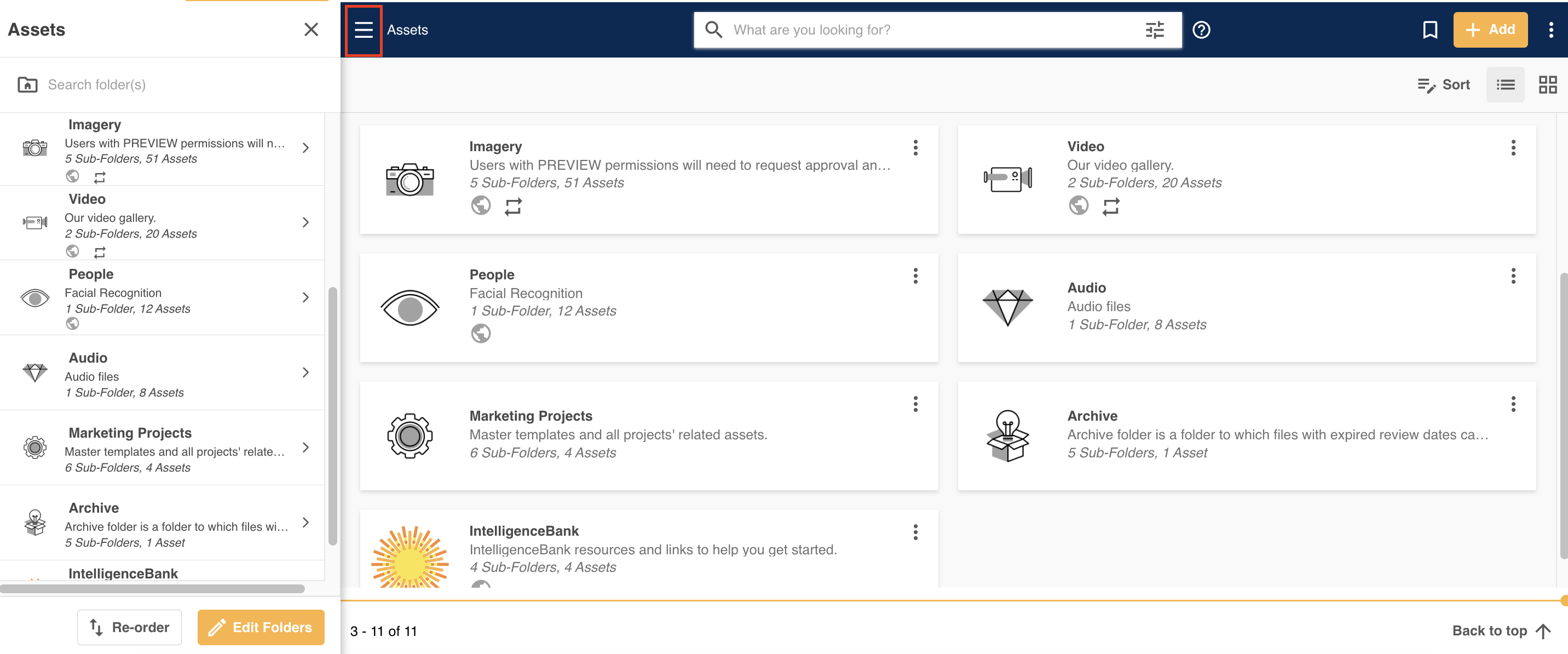
Click on the Edit Folders button at the bottom of the panel.
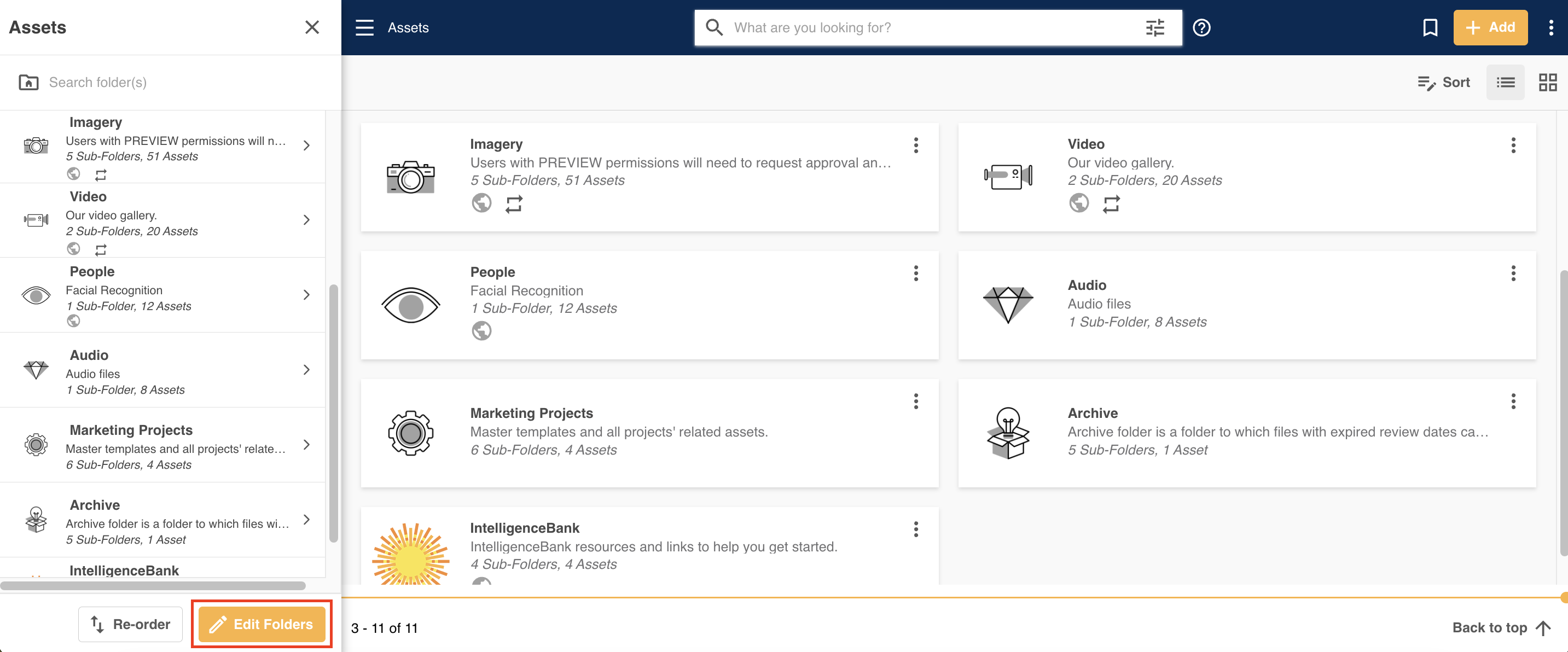
You'll then see small, selectable squares display next to the folder names. Select whichever folders you'd like to perform actions on in bulk.
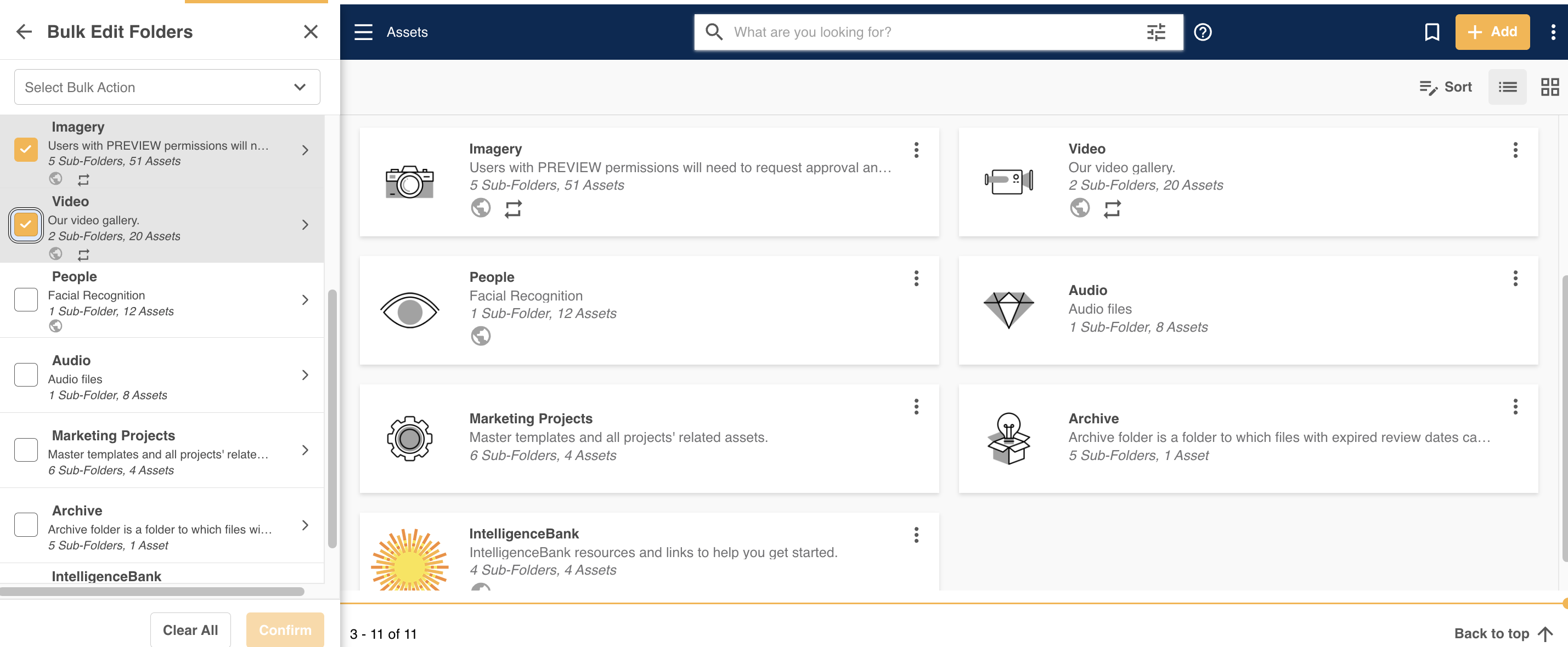
At the top of your view will be a dropdown menu.
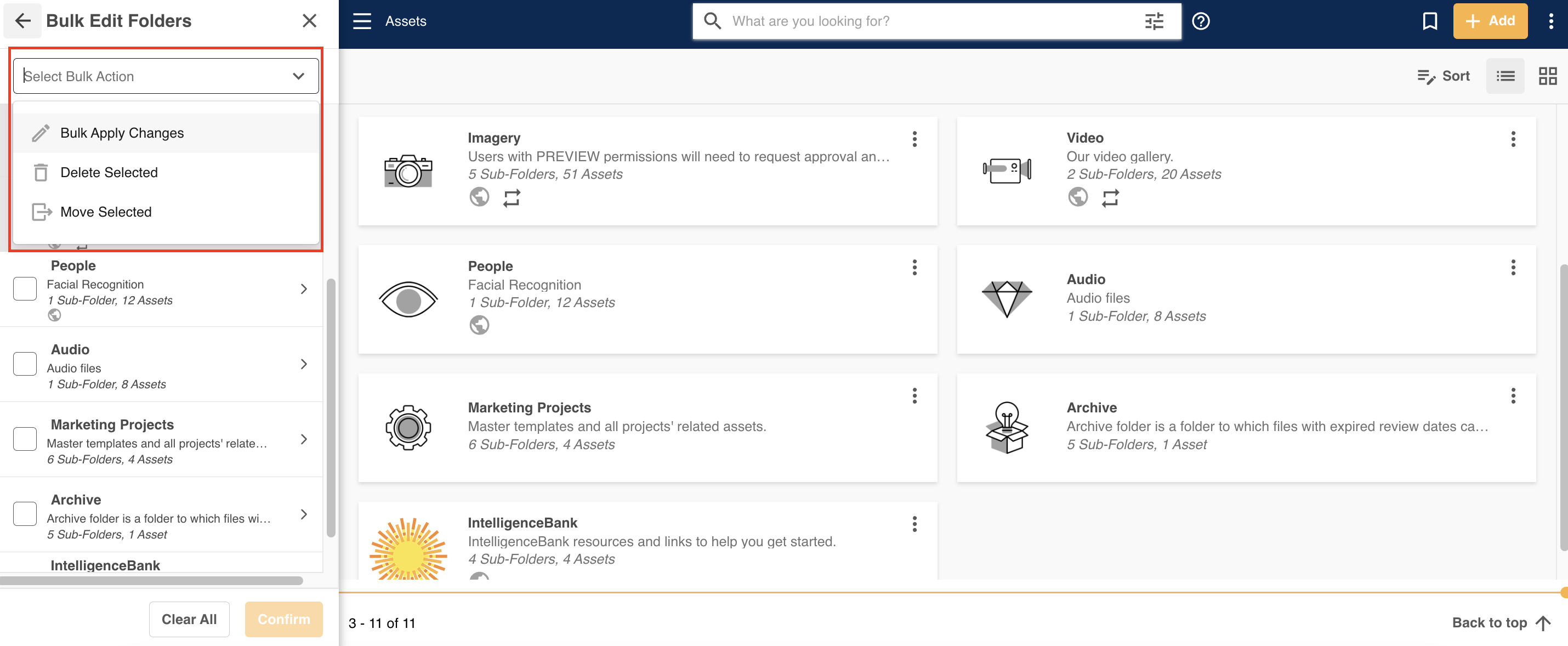
Bulk Actions include:
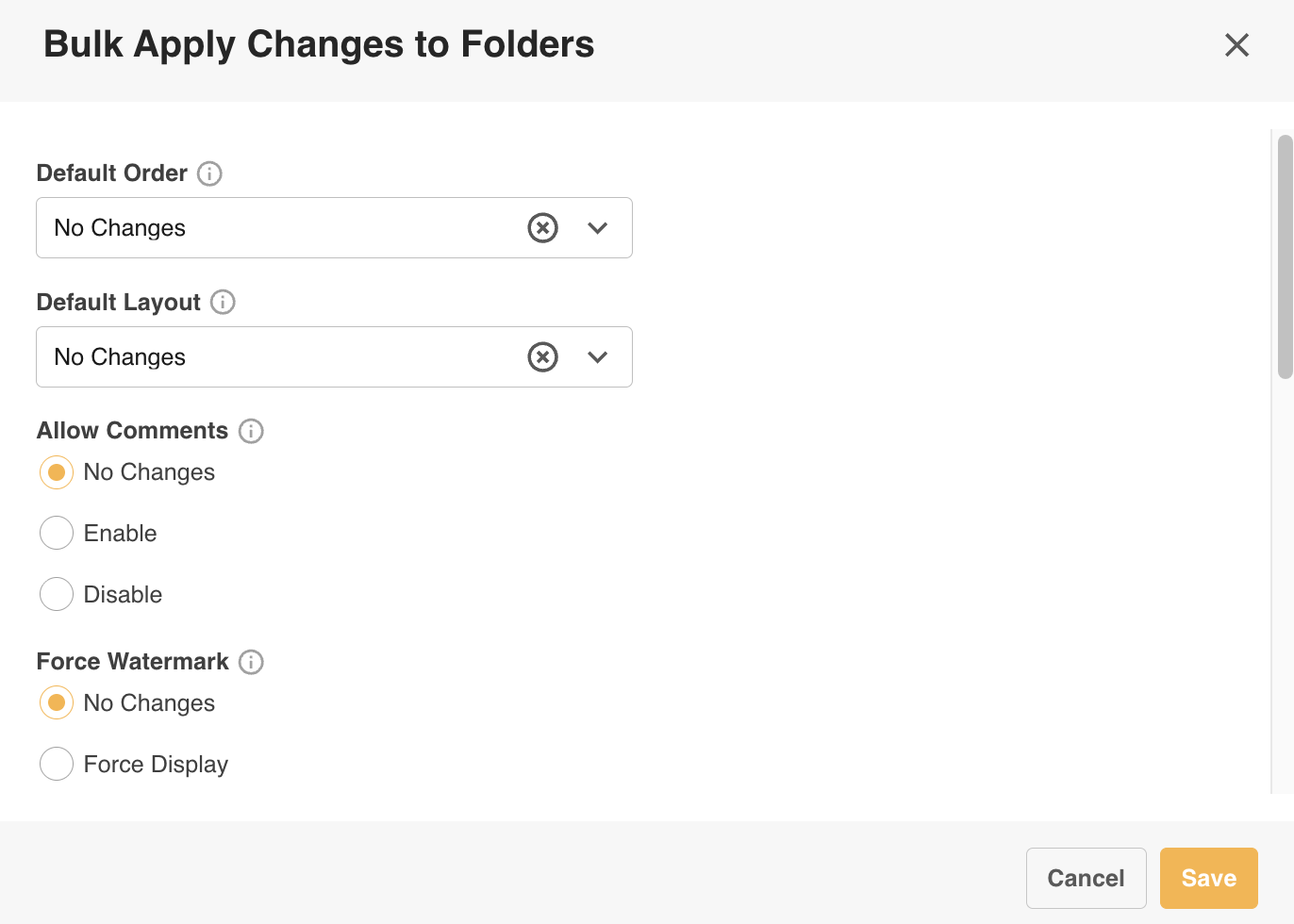
- Bulk Apply Changes - Selecting this option, then Confirm, will open a popup and allow you to make bulk changes to the selected folders' settings, such as Default Order, Force Watermark, Public Sharing and Enable Annotations. Select Save from the window, which will then save those folders' new settings.
- Delete Selected - IMPORTANT: This will delete all selected folders, as well as all asets and sub-folders within.
- Move Selected - This will allow you to select another location to move these folders, potentially changing them from parent to sub-folders or vice-versa. If selected, click the Confirm button. You will then be able to select your destination folder.
Was this article helpful?
That’s Great!
Thank you for your feedback
Sorry! We couldn't be helpful
Thank you for your feedback
Feedback sent
We appreciate your effort and will try to fix the article