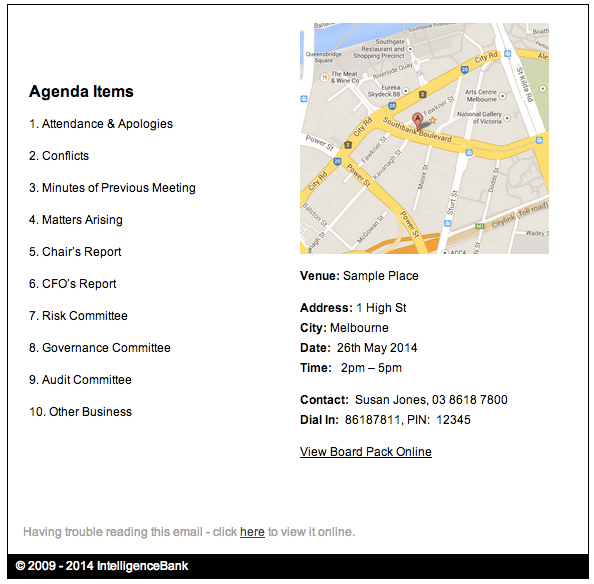
The News Tool enables users to publish articles to be shared with other users, and to solicit real-time feedback and sharing of social knowledge. News articles are listed by the most recently added, and can be structured by themes, displayed as menu tabs. If enabled, comments and ratings can be added to each article. It can also function as an HTML email newsletter tool as the articles full content can be sent via emails to other users of the platform.
Table of Contents
How to Add a News Article
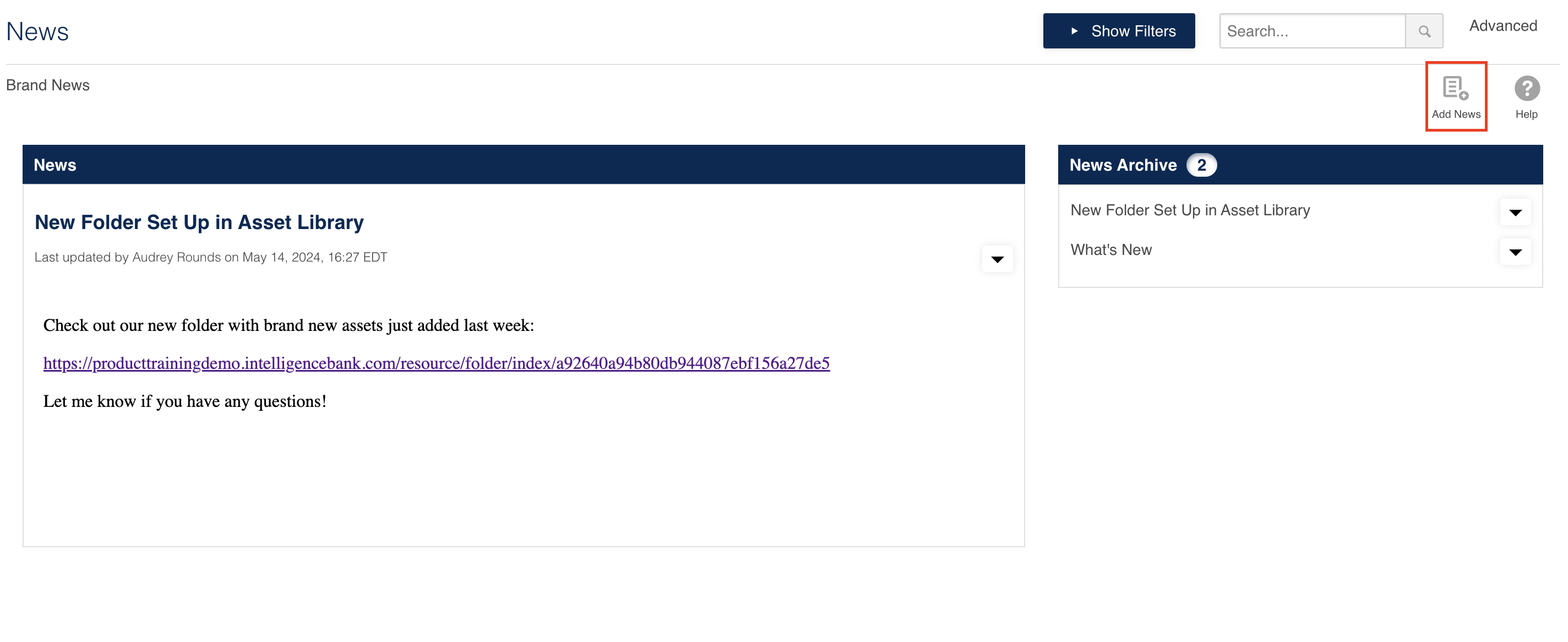
Users with the appropriate permissions to create News articles (ie: Create permission on the News module) can do so by following the below steps. To add a new news article:
| 1Navigate to News | Navigate to News and click on the Add News icon.
|
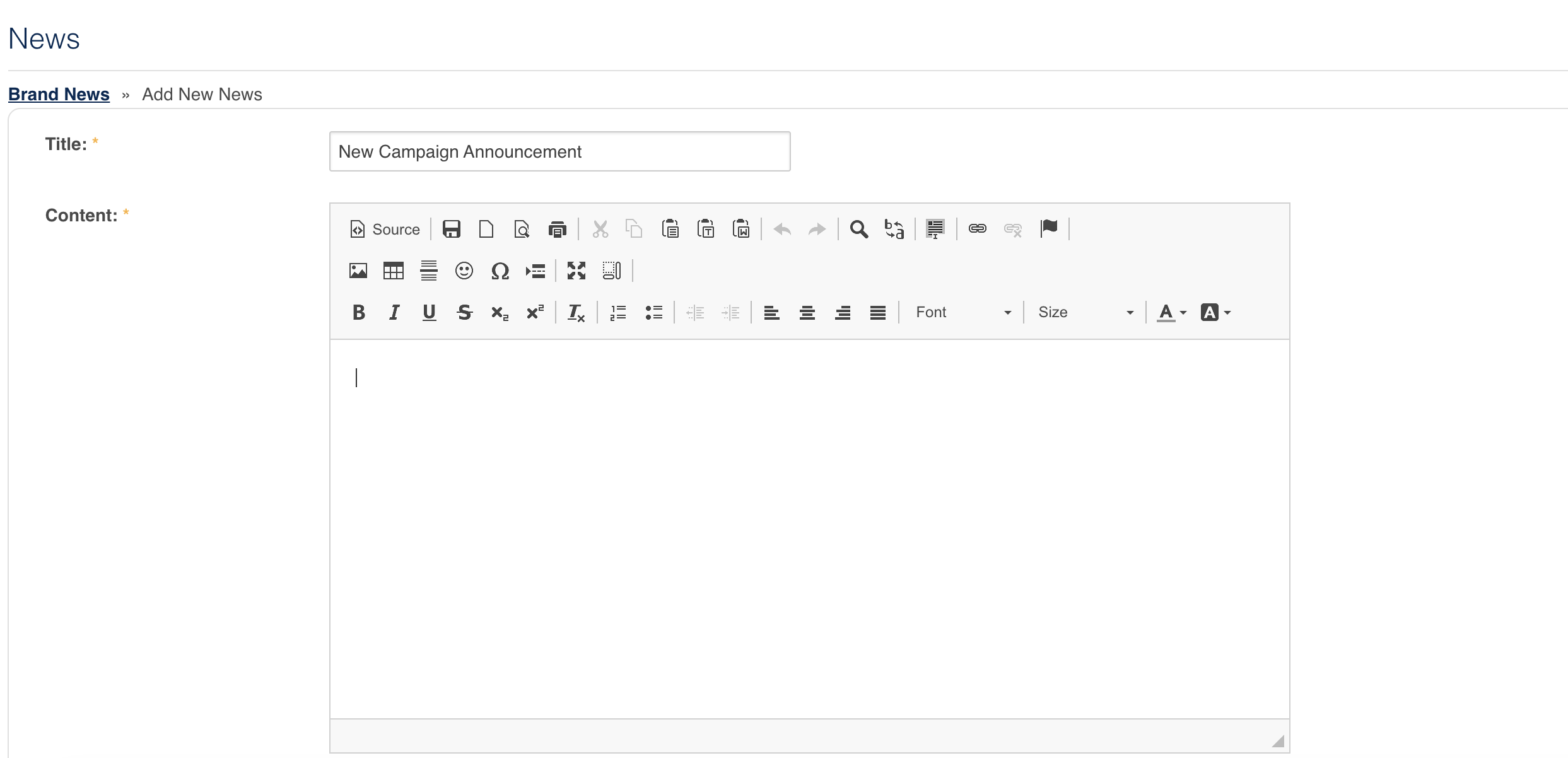
| 2Fill in the article | You will be presented with a field to add a Title, and a wysiwig editor to add text, insert images and/or multi-media. While creating the new article, you will also be prompted to assign Access Permissions, enable Comments, and to categorise the article into a pre-set filter (if filters have been enabled for News).
|
| 3Save | Once you're done creating your news article, select Save. |
How to Edit an Article
To Edit a News article:
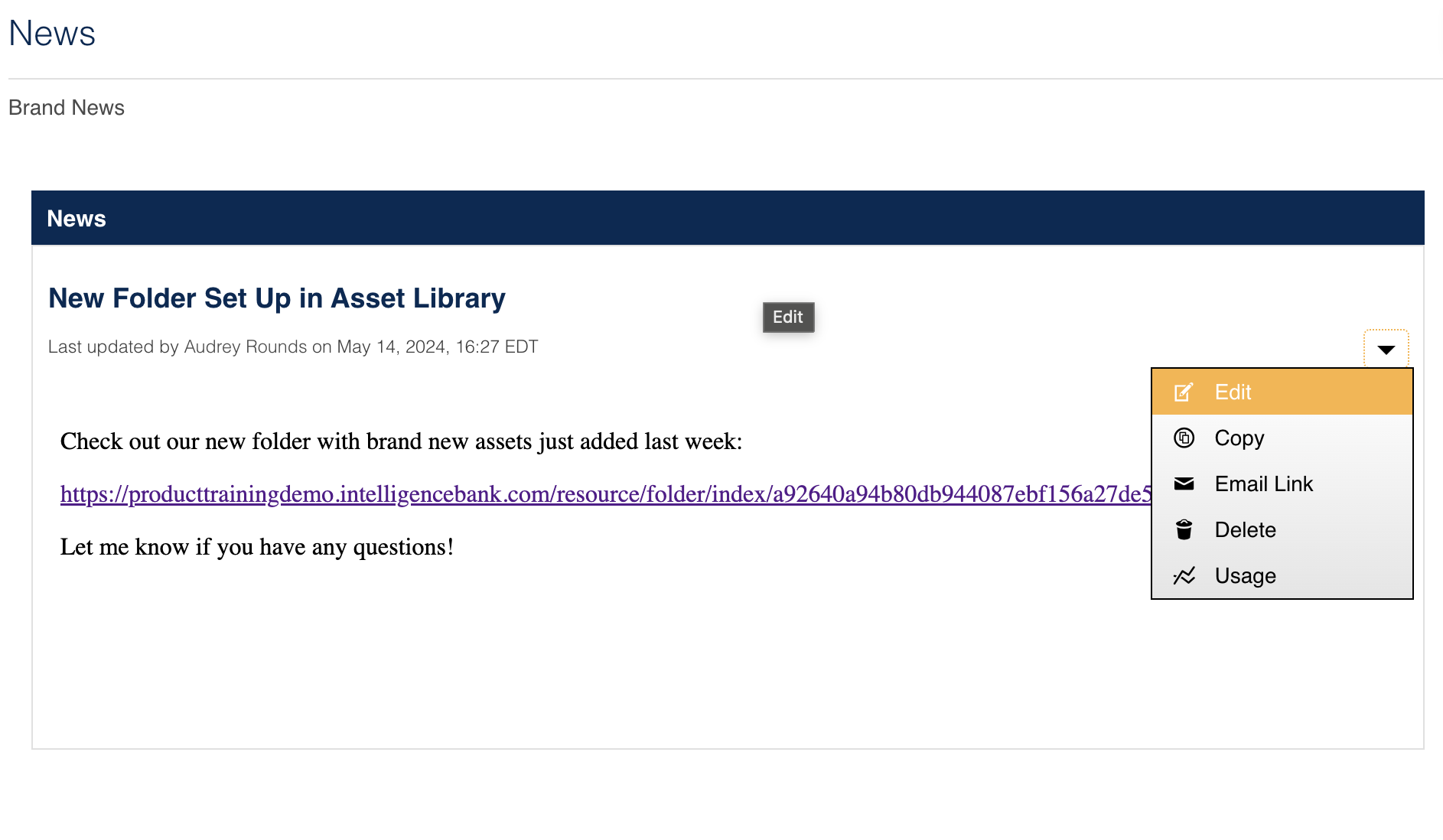
| 1Open the actions menu | Navigate to News and click on the triangle icon for the article you want to edit. Then select Edit from the actions menu.
|
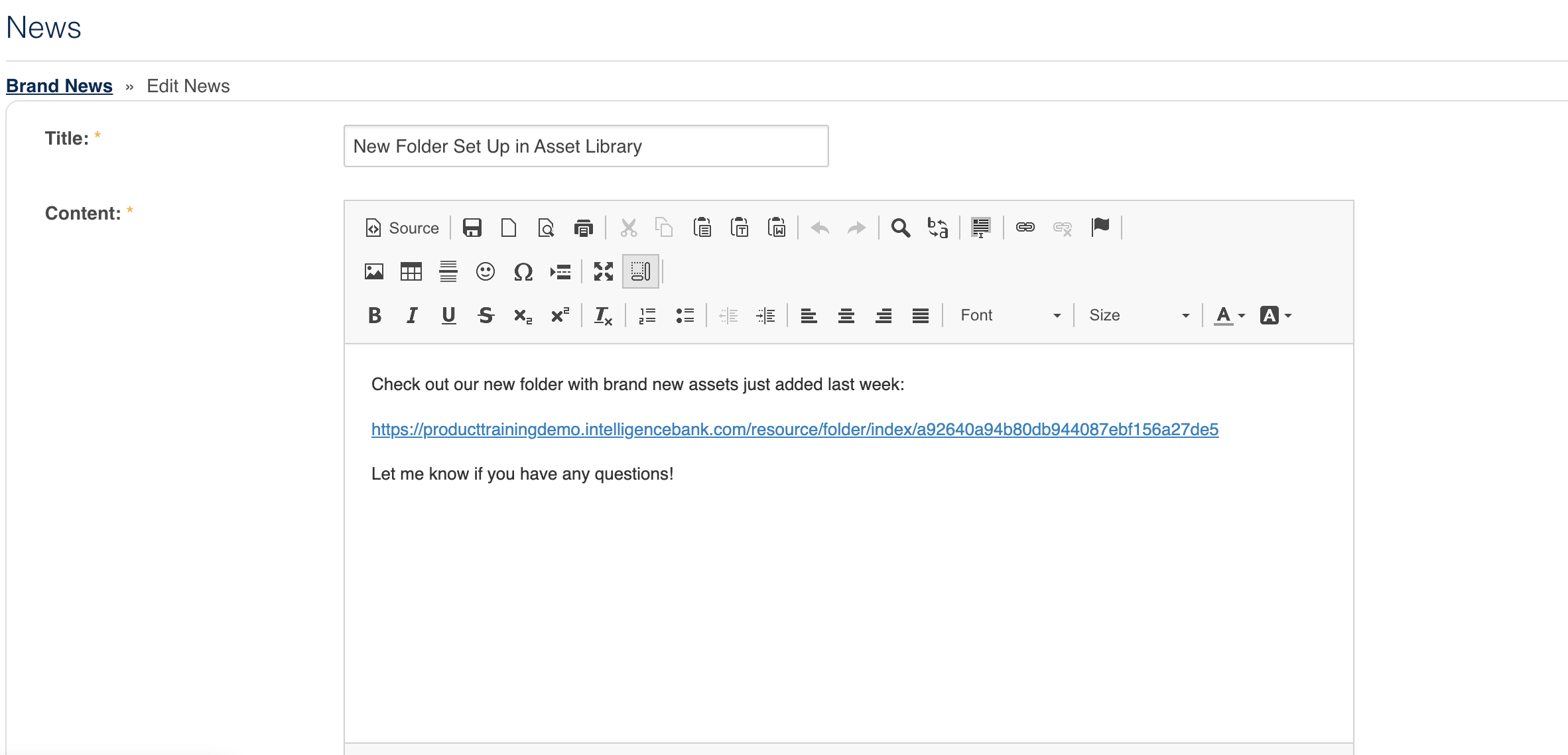
| 2Make your changes and save | This will open up the article in an editable format. Make your adjustments, then select Save.
|
How to Delete an Article
To Delete a News Article:
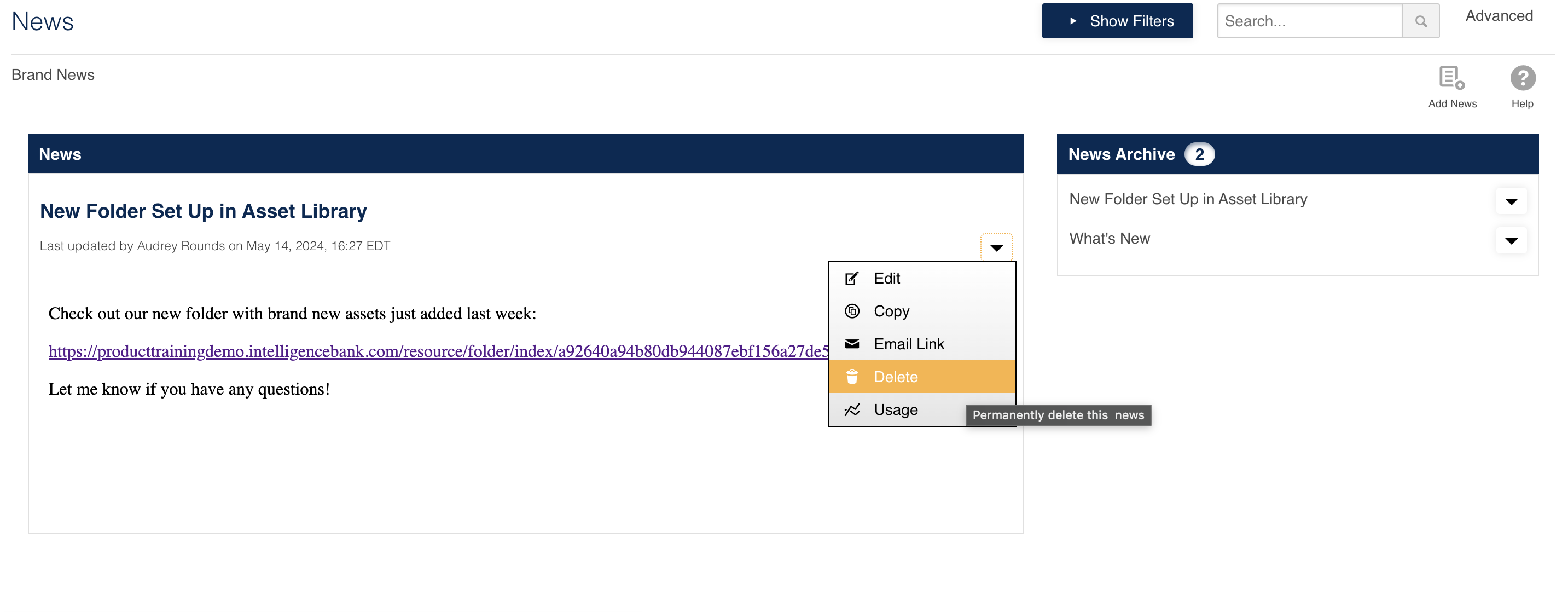
| 1Open the actions menu and delete | Navigate to News and click on the triangle icon for the article you want to delete. Then select Delete from the actions menu. Confirm you're sure on the subsequent pop up window, and the article will then be deleted.
|
Comments on News Articles
Comments, if enabled, can be added by anyone with permission to view the article.
To make a comment:
| 1Navigate to News | Navigate to News. |
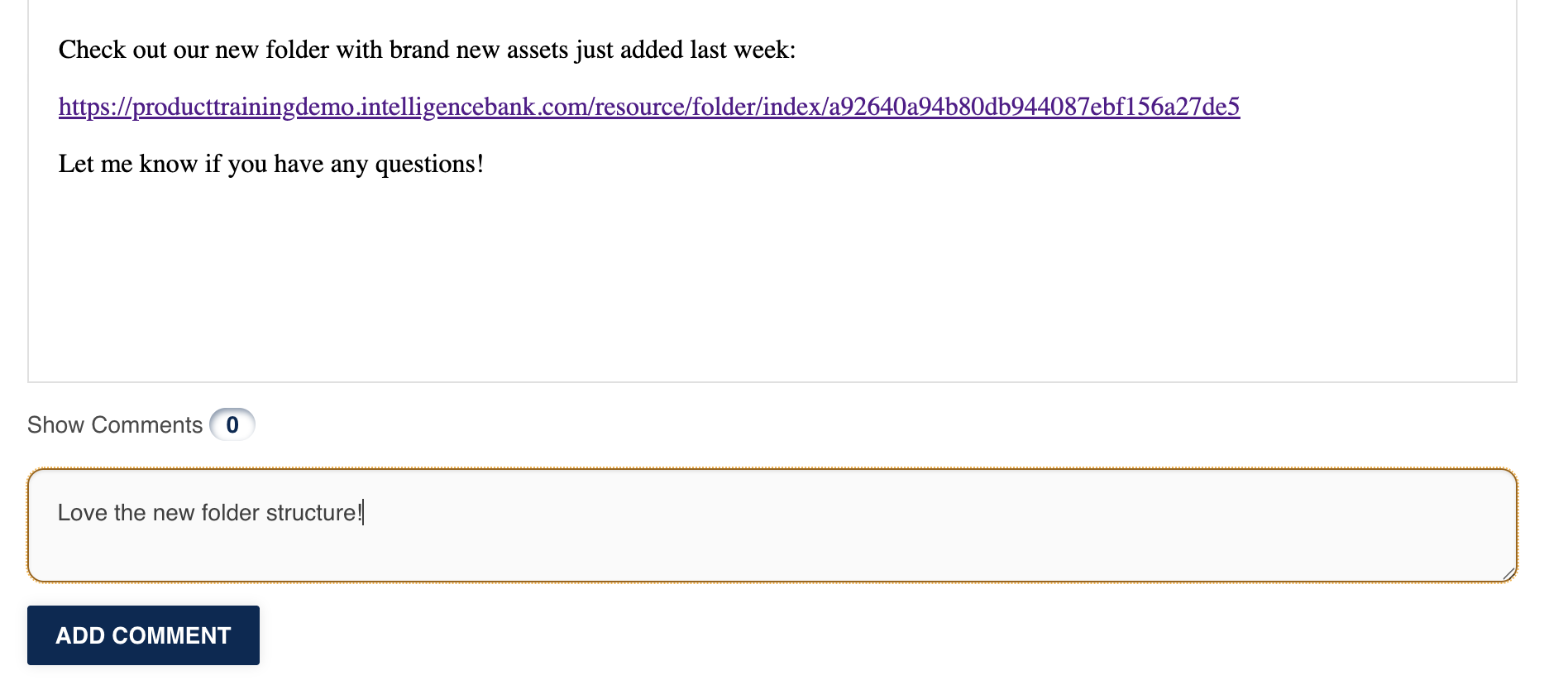
| 2Add your comment | Go to the article and type in your comments in the area illustrated below. Click on Add Comment to leave your comment.
|
How to Email an Article
A Newsletter can be emailed to other users or groups that have Access permission to the item.
To email a link to a newsletter:
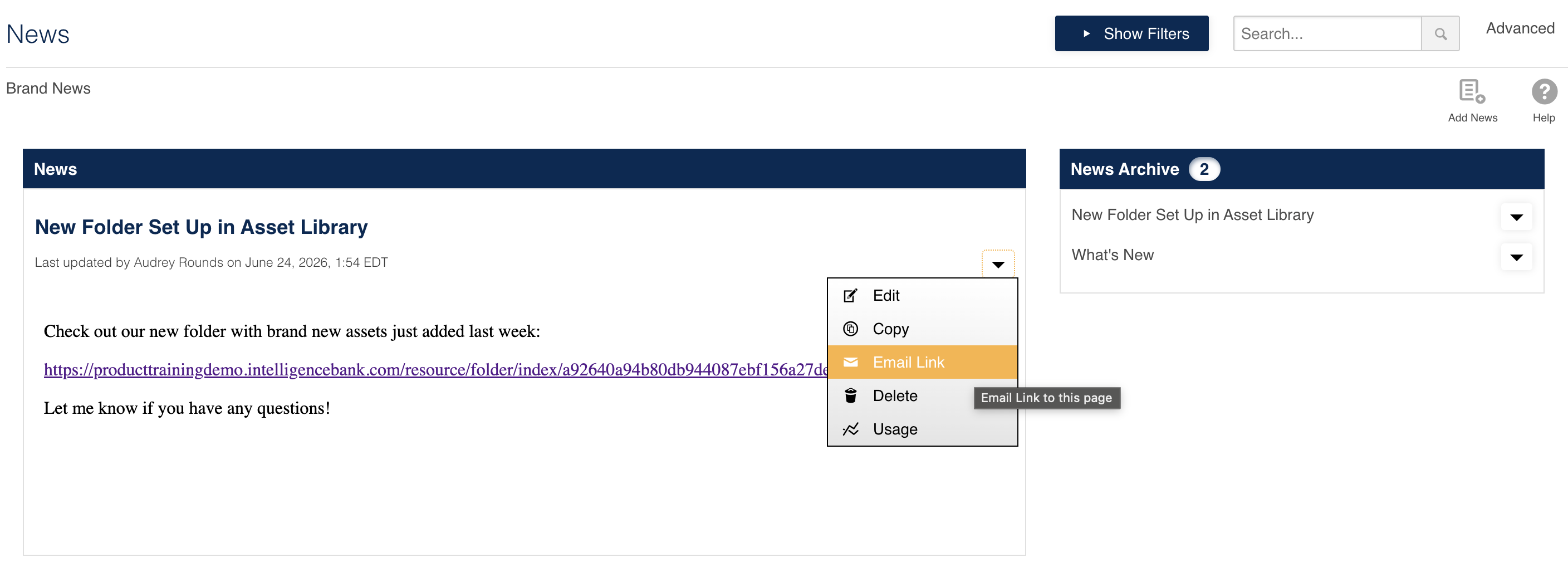
| 1Open the actions menu | Navigate to News and click on the triangle icon for the article you want to email. Then select Email Link from the actions menu.
|
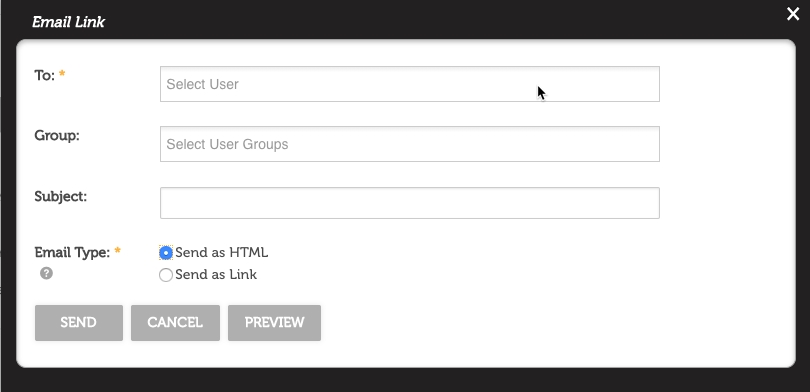
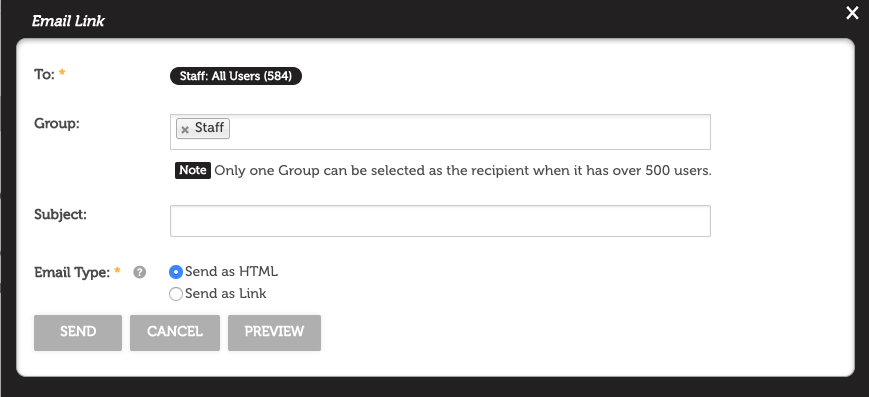
| 2Select recipients | In the pop up window that appears, select the User(s) or Group(s) you'd like the email the newsletter to. When emailing a newsletter, you can either email a link to it in the platform, or have the content of the article (text, images, video, etc) in the body of an HTML email to end users. |
| 3Preview the newsletter | You can email an article by going into the newsletter item and the email link icon. Click on the Email Type HTML button to then allow you to preview the newsletter before sending.
|
| 4Send | Once you're ready to send, select Send. |
Was this article helpful?
That’s Great!
Thank you for your feedback
Sorry! We couldn't be helpful
Thank you for your feedback
Feedback sent
We appreciate your effort and will try to fix the article