Groups and permissions allow you to manage which areas of the platform users can access, as well as what permission level they have to each area and its content.
Setting up groups and permissions play a key role in maintaining governance over content within your organisation. You can make sure your users only have access to the platform areas that are appropriate for their role.
For example, there may be specific folders in your Asset Library that users who are a part of a particular brand or department should not access, upload to, or be able to download assets from. Or perhaps you want to restrict users' ability to see other users' submissions when filling out a form or brief.
Users can be segmented/organized into different groups based off of what they should be able to see and do within your platform. Permissions are generally set on a group level and this is where you can determine the specific access areas and permission levels per group.
The central area to manage groups and permissions is located under Admin > Groups.
Table of Contents
Groups List
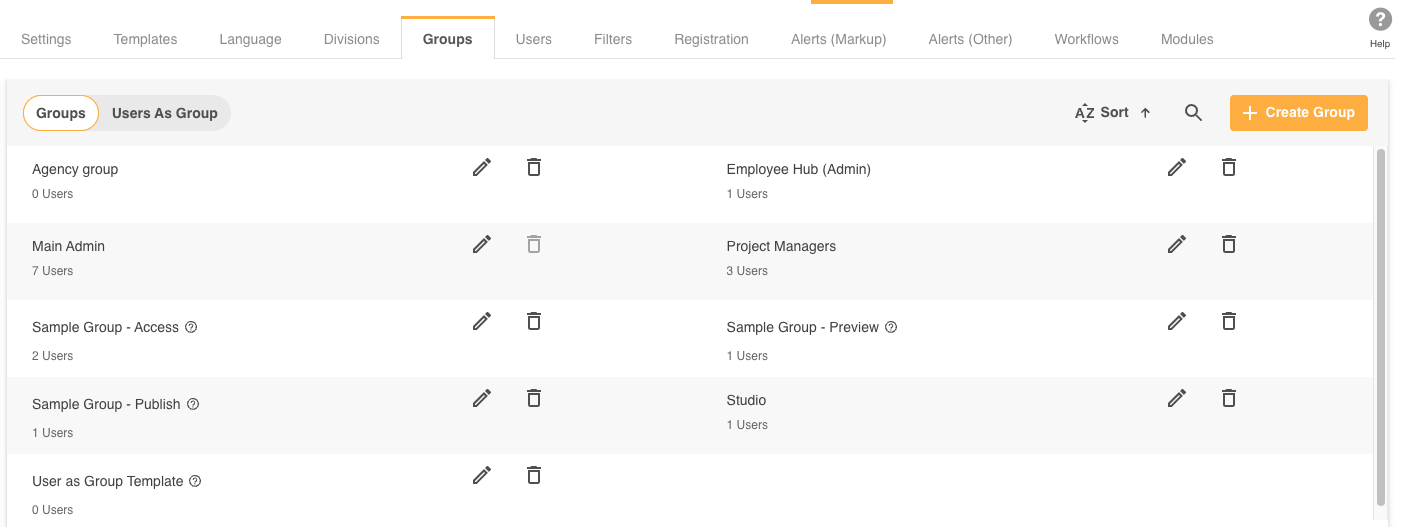
You can order your groups using the dropdown menu or search for the name of the group. Results are displayed instantly, and the search icon will be highlighted if a search is still active.
If you have a lot of groups, you can use the horizontal scroll bar to navigate through the list. The information in brackets will match the ordering option selected.
You can view Users as Groups by clicking this tab option on the top left.
Adding a New Group
To add a new group, click the +Create Group button in the top corner.
There is a 3-step process to creating a group and granting permissions.
Main Details Tab
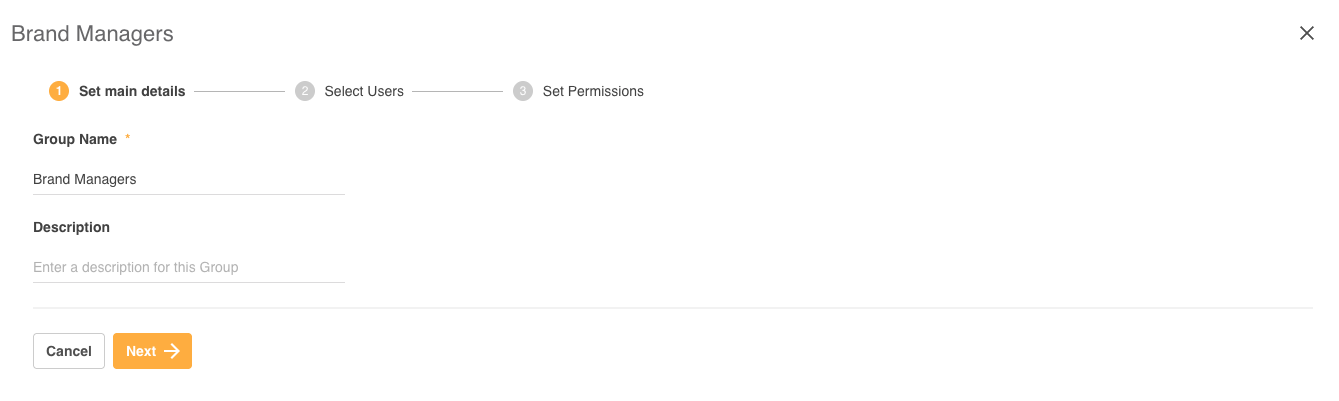
On the Main Details tab, enter the Group Name and an optional description. Once done, move to the Users tab to select which users will belong to the group.
Users Tab
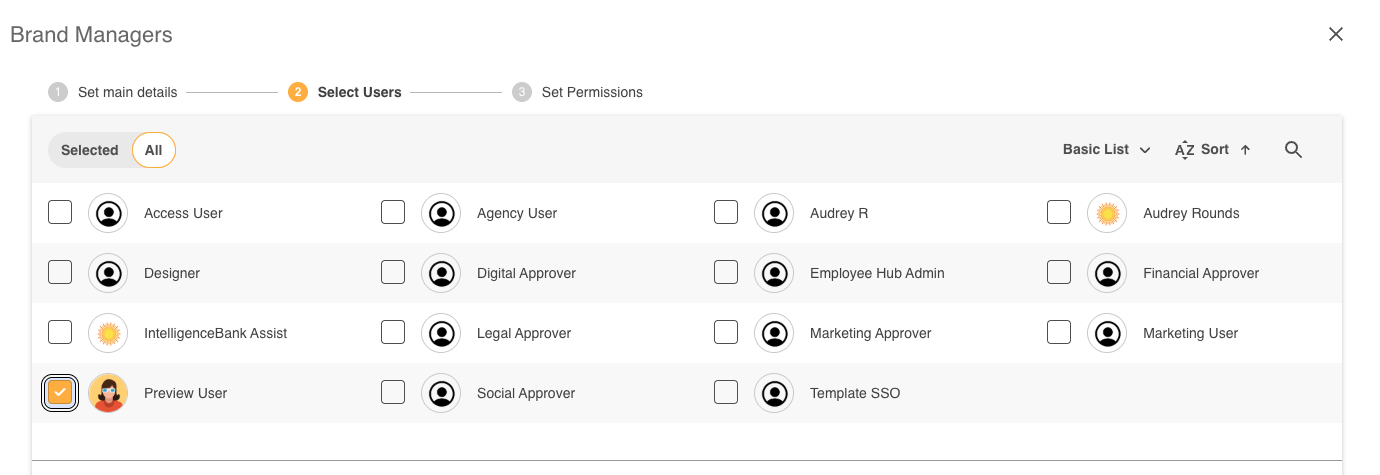
You can view a basic or detailed list of all users in the platform. Search for users by name and sort using the options in the dropdown. To select a user, click the checkbox - selected users will appear in the Selected tab. Once done, click the Permissions tab to grant permissions for your platform. Note that you do not need to add users to a new group to create one- you can just select Next to take you to the Permissions tab.
Permissions Tab
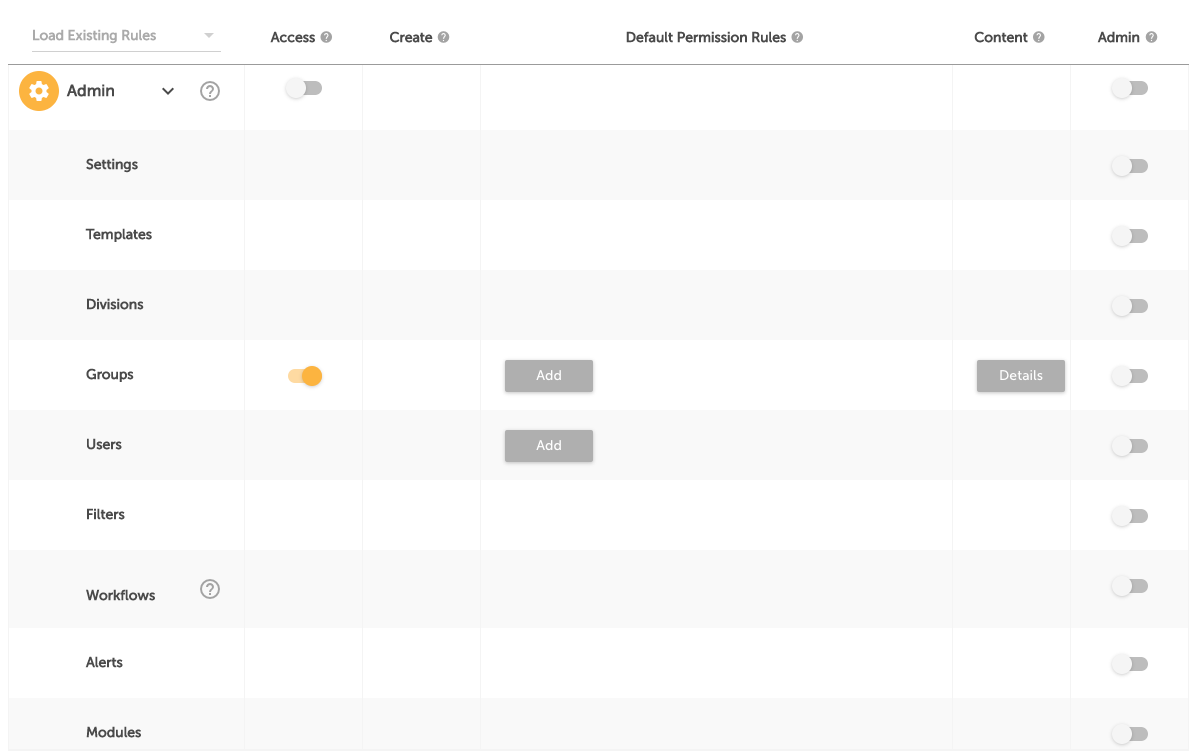
In this view, you can see all of the modules available in the platform.
- To enable a module so users can view it on the navigation menu and access it, click the switch in the Access column.
- Create and Admin level permissions are both activated by clicking the switch in the relevant column. As the highest level of permission available, the Admin switch overrides all other options.
- You can hover over the tooltip next to each module name to see what each permission level corresponds to, or view the details in the Module Permissions section below.
- After enabling a module, you can grant default permission rules for All content, or for specific content based on the creator, such as Group Created, using the dropdown menus.
- You can also apply custom permission details by clicking the Details button under the Content column. Custom permissions will override any default rules applied (also referred to as the General Rule- please see more below about permission hierarchy).
To finish creating your group, click Save & Exit.
Module Permissions
Different permission levels are available for each module, depending on the module. These are described below.
Admin Module
- Access: This gives users access to the Admin module.
- Admin: This gives full access to the module and associated administrative functionality. You can give Admin on all areas at once by enabling the top level switch.
- Groups: You can give Assign or Manage permissions on default or custom rules for Groups. Assign allows you to restrict which groups can be selected when adding users to the system. Manage allows you to manage the permissions of the groups where it is enabled, noting that users managing these groups can never grant permissions higher than their own. You might consider giving non-Main Admin groups the ability to manage group permissions if you need additional support with group management, or you want to allow these groups more autonomy on setting group permissions.
Resources/Assets Module
- Access: This gives users access to the Asset Library area where files are uploaded and made available for download or online preview. Rules and/or custom permissions should also be given to individual folders separately (see Rule permission levels section below).
- Create: This allows users from this group to create folders at the parent/root level. To create sub-folders, the user will need Admin permission on the parent folder, which you can assign either as a default permission rule or as a custom rule on particular parent folders.
- Admin: This gives full access to the module and its content independently of other rules or custom permissions. This is the highest level of permission. Admin permission on the Asset Library module allows users to, for example, manage metadata mapping, set up custom upload fields, manage presets, and edit folder settings in bulk.
Rule permission levels (applied at a folder level):
- 1. Preview: Users can preview files. If a download workflow is enabled, users can request approval to download the original assets in that folder. Note that a low resolution preview image (maximum 800 x 800 px) can still be downloaded when available at this permission level. If watermarking is enabled, the preview image will be watermarked.
- 2. Access: Users can preview and download files.
- 3. Publish: Users can preview, download, upload/edit, and delete files.
- 4. Admin: Users can preview, download, upload/edit, and delete files, manage folder settings, and create sub-folders.
Version Control Module
- Access: This allows users to view previous versions of files, when available.
- Admin: This allows users to delete previous versions of files, when available.
Version Control is located under the Resources/Assets module.

Ad Hoc Transformations Module
- Access: This allows users to apply Ad Hoc Transformations on assets they have at least access permission on, when transformation options are available. This includes the option to download assets in different file formats, apply cropping, etc.
This setting is located under the Resources/Assets module and is typically enabled by default.
Transformation Presets Module
- Access: This allows users to use Transformation Presets when downloading or generating share/embed links to assets.
- Admin: This allows users to create, use, and manage all Transformation Presets.
This setting is located under the Resources/Assets module.
Dashboards Module
- Access: This gives users access to this module and the main dashboards area.
- Create: This allows users from this group to create new dashboards.
- Admin: This gives Manage access to all dashboards that are not set to Private, independently of other rules or custom permissions. This is the highest level of permission. Manage access gives users the ability to rename or delete dashboards.
Rules permission levels (applied on a dashboard level):
- 1. View: Users can view the dashboard and widgets set up.
- 2. Edit: Users can view and edit the content of the dashboard, including adding or deleting widgets.

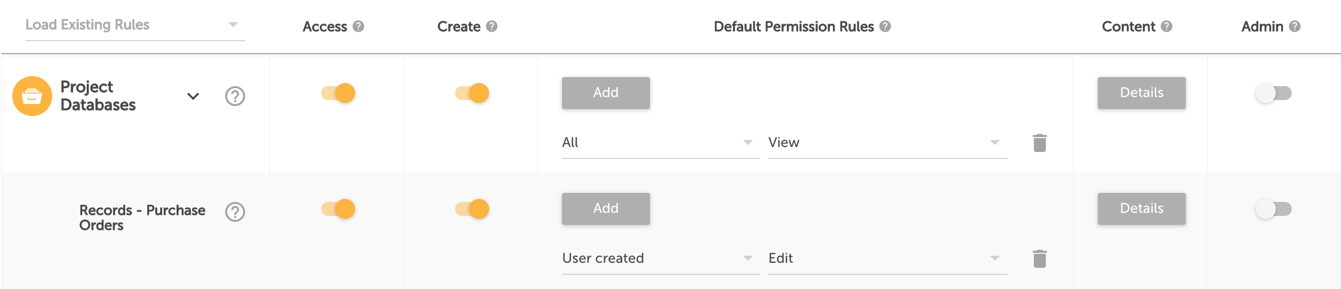
Databases Module
- Access: This gives users access to this module and the main databases/forms listing area.
- Create: This allows users from this group to create new databases/forms.
- Admin: This gives Manage access to all databases, independently of other rules or custom permissions. This is the highest level of permission and includes the ability to manage all database settings and delete databases.
Rules permission levels (applied on a database level):
- 1. View: Users can view the database listed in the main area.
- 2. Manage: Users can view the database listed in the main area and manage its settings.
Database Records Module (available for each database created)
- Access: This gives users the ability to view the records in databases, and users can be given access to individual records via custom or general rules.
- Create: This allows users to create new records.
- Admin: This gives full access to all records, independently of other rules or custom permissions. This is the highest level of permission and includes the ability to delete or manage permissions on records and import/export records.
Rules permission levels (applied on a record level):
- 1. View: Users can view records.
- 2. Edit: Users can view, edit, and delete records.
Surveys Module
- Access: This gives users access to this module and the main Surveys area.
- Create: This allows users from this group to create new surveys.
- Admin: This gives Manage access to all surveys, independently of other rules or custom permissions. This is the highest level of permission.
Rules permission levels (applied on a survey level):
- 1. View: Users can be invited to participate in the survey.
- 2. Manage: Users can view and manage the survey.
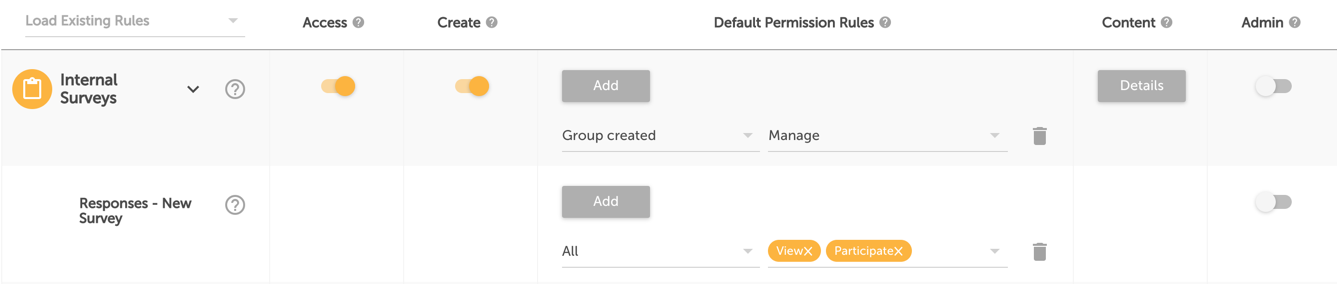
Survey Responses Module (for each survey created)
- Access: This gives users access to the responses area.
- Admin: This gives full access to the responses area and to all responses.
Standard Survey Responses
- Participate: Users from this group are invited to participate in the survey and submit one or multiple responses.
- View: Users from this group can view their response(s) after submission.
- Delete: Users from this group can delete their response(s) after submission.
Hierarchical Survey Responses
Users that take part in a hierarchical survey are automatically granted permission to the survey module and their responses. Note that permissions apply across all survey campaigns.
You can also choose as a survey option whether users can only see:
- Their own response.
- Response(s) of Hierarchy Direct Created (users just below them in the hierarchy).
- Response(s) of Hierarchy Extended Created (all users below them in the hierarchy).
- All Responses.
You can also add custom permissions for users who are not part of the hierarchy but need access to hierarchy participants' responses:
- Participate: Users from this group can participate in the surveys area (i.e. complete other hierarchy users' responses).
- View: Users from this group can view responses after they are submitted.
- Delete: Users from this group can delete responses after they are submitted.
Calendars Module
- Access: This gives users access to the module. Permissions to individual calendars can then be granted.
- Create: This gives users the ability to create new calendars. Users will need Publish permission on individual calendars to create events within them.
- Admin: This gives users the ability to access the entire Calendars module and its content independently of other rules or custom permissions. This is the highest level of permission.
Rules permission levels (applied on each calendar):
- 1. View: Users can view events for this calendar. If Invitation type events are set to private, users can only view the ones they are invited to.
- 2. Publish: Users can create events for this calendar. Only organisers can update or cancel the events they create.
- 3. Admin: Users can create events for this calendar and also update or cancel other users' events, including Invitation type events set to private. This is the highest level of permission for calendars.

Agenda Module
- Access: This allows users to access the Agendas area and view Agenda items in their parent folders. Permissions to individual agendas must then be added.
- Create: This gives users the ability to create new Agendas. The content that can be added to each agenda will depend on the creator's access to folders and files.
- Admin: This gives users the ability to access and edit all agenda items independently of other rules or custom permissions. This is the highest level of permission.
Rules permission levels (applied on each agenda):
- 1. View: Users can view the agenda. The entire listing of items within the agenda will be visible, however only items the user actually has access to will be clickable for downloading or opening in the online reader, unless the option to restrict content display to a user's permissions is enabled.
- 2. Publish: Users can edit and update the content of this agenda. The user can only add folders and files to the agenda that they have Publish permission on.

News Module
- Access: This gives users access to the module's main area, where users can post and email news updates to other users. Rules and/or custom permissions should also be given to individual news items separately.
- Create: This allows users from this group to create news items.
- Admin: This gives full access to the news tool and its content, independently of other rules or custom permissions. This is the highest level of permission.
Rules permission levels (applied at a single item level):
- 1. View: Users can view the news item.
- 2. Edit: Users can view, edit, and delete the news item.

Custom Pages Module
- Access: This allows users to be given access to individual custom pages, typically either welcome pages or BrandHub pages.
- Create: This allows users to create new custom pages. This also gives access to the Manage Pages area where all custom pages the user has access to are listed.
- Admin: This gives full access to the custom pages area and its content, independently of other rules or custom permissions. This is the highest level of permission.
Rules permission levels (applied at a single item level):
- 1. View: Users can view the custom page item.
- 2. Edit: Users can view, edit, and delete the custom page item.

Stats/Data Reports Module
- Access: This gives access to the data reports area, where users can report on data available in the platform.
- Create: This allows users from this group to create new data reports.
- Admin: This gives full access to the data reports area and its content, independently of other rules or custom permissions. This is the highest level of permission.
Rules permission levels (applied at a data report level):
- 1. View: Users can view data reports.
- 2. Edit: Users can view, edit, and delete data reports.

Approvals/Workflow Module
- No permissions: A group or user with no enabled permissions on this module will only see Requests where they are either the Requester or a selected Reviewer.
- Access: This allows users to view all approval requests (pending or completed) within the Workflow area, regardless of whether they personally were a Requester or Reviewer. Note that permission on the actual item reviewed is not granted automatically (ie: in order for a user with Access permission on approvals to review the specific asset, form, etc. under review, they would need separate/additional permission to be set up on those items).
- Admin: This allows users to view all approval requests (pending or completed) within the Workflow area, as well as approve any pending request even if they are not directly involved (either as submitter or nominated approver). This is the highest level of permission. Note that permission on the actual item reviewed is also not granted automatically.

People Module
- Access: This allows users to view the People tool, which lists all existing users in the platform.

Usage Analytics Module
- Access: This gives access to the usage reporting of items they have Admin permission on (or Edit/Publish where no Admin permission exists on the associated module items), as well as individual user usage data, provided they have Admin access to the Admin > Users area.
- Admin: This gives access to the general usage reporting area, where users can report on how frequently other users are accessing the platform or what the most popular content is across each tool available.

Authenticator Module
- Access: This allows users from this group to configure additional authentication methods such as SAML or Active Directory. This should only be accessed by users with technical expertise in authentication methods within your organisation.

Default Rules
For each module, you can add default permission rules so that access levels are set automatically based on these rules when new content is added.
Setting up default permissions rules is highly recommended and is useful when the group you're creating should have the same permission level across the majority of items (ie: a given group should be able to download assets from all or most folders). Default permission rules help you govern and set permissions more efficiently in these scenarios.
You can also select an existing group as a template and load their existing rules. Note that this does not apply any of their custom rules permissions content. This is helpful and efficient if you plan on adding a large number of groups that all should have the same or similar "baseline" permission levels.
An overview of all available rules:
- All: The selected permission level will automatically apply by default whenever a new item is created (ie: all folders, forms, data reports, etc).
- User Created: The selected permission level will automatically apply for the creator of the item only.
- Direct Report Created: If Leader details are added to user profiles, a user will automatically have this permission level on items created by their Direct Report(s).
- Extended Report Created: If Leader details are added to user profiles, a user will automatically have this permission level on items created by their Direct Report(s) and their own Direct Report(s) across multiple levels down to the bottom of the hierarchy.
- Group Created: The selected permission level will automatically apply to the entire group that the creator of the item belongs to at the time of creation.
- Division Created: The selected permission level will automatically apply to the entire division that the creator of the item belongs to at the time of creation.
- Direct Sub-division Created: If sub-divisions are created, a user will automatically have this permission level on items created by users from sub-divisions directly below their own division.
- Extended Sub-division Created: If sub-divisions are created, a user will automatically have this permission level on items created by users from sub-divisions below their own division across multiple levels down to the bottom of the hierarchy.

Custom Rules
Custom permission rules are helpful for scenarios where a given user group's permissions on specific items (ie: folders, databases, etc) should not follow the default permission rule.
For example, you may have particular groups that should only have permission to a select number of items (ie: just a few folders or databases,) or you may need to adjust the default permission on a few items (ie: a group should have Publish permission to the majority of folders, but Access level on a particular folder structure.)
To set up custom rules:
- Select the Details button in the Content column of the permissions area. This will open a new page with all configurable content for that area (module), e.g. for Resources/Assets, this will display your folders.
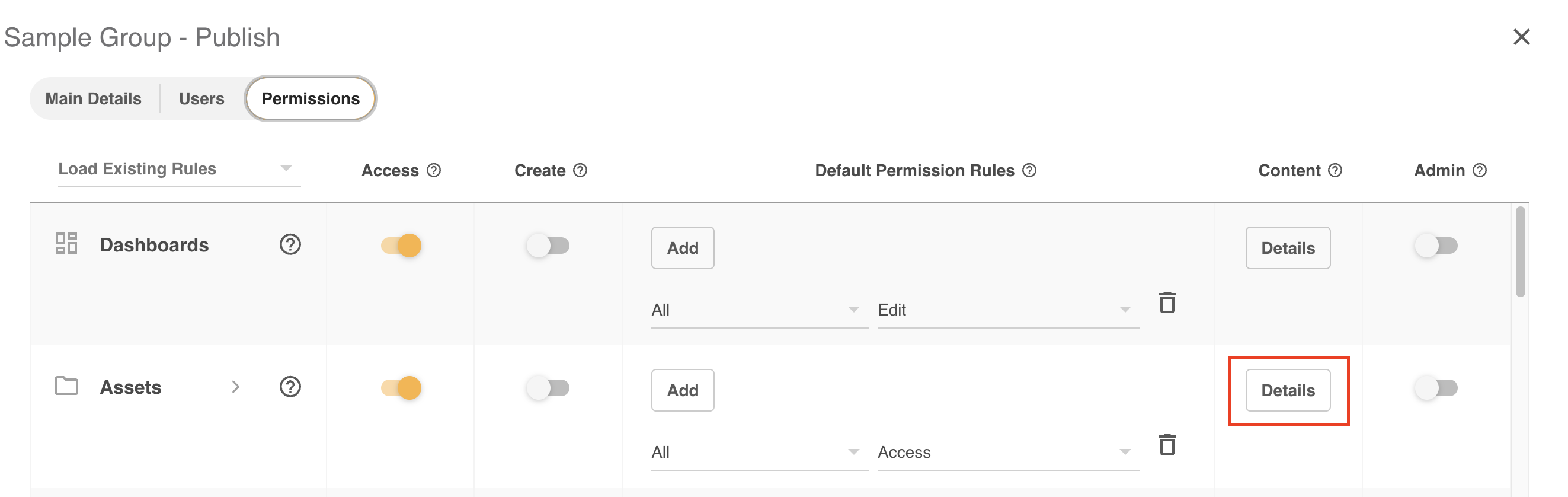
- Select the desired permission level for each of your folders (including any sub folder — click on the arrow to expand the selection).
Note that the dash (–) within the permission checkbox indicates that it is drawing from a default permission rule. If you see a checkmark, the permission indicated is a custom rule.
If you do not want a group to have permission to view a specific folder, do not select any of the 4 options (which may involve double clicking on the permission level checkbox.)
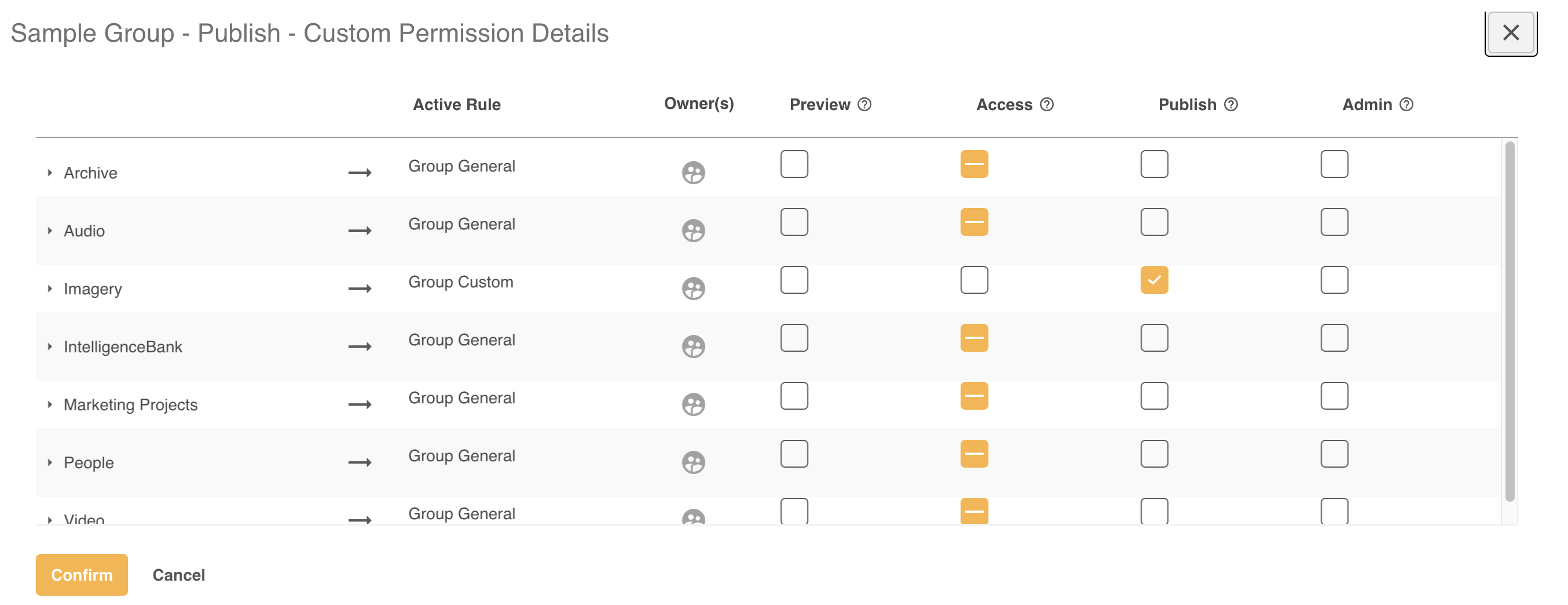
When you are done setting up custom rules, select Confirm which will take you back to the main permission setting area.
Hierarchy for Cross Group Permissions
There could be scenarios where a given user is assigned to multiple groups. For example, maybe you've decided to organize your user groups by brand, and a particular user works across multiple brands. You could assign that user to each relevant brand group, but you may wonder how this impacts their permission levels in the platform.
Below outlines how cross group permissions work in terms of when certain permissions override/take precedence over others:
- The highest permission from General rules wins across groups (ie: if a user is a part of a group with general Access permission on folders and is also a part of a group with general Publish access, that user will be granted Publish permission since this is the higher level of permission)
- Custom permissions always win over general rules, including across groups.
- The permissions hierarchy across groups is Preview, Access, Publish, Admin (using Resources/Assets as an example).
- User As Group permissions always override Group permissions.
- For example: if a user is granted Admin on a folder by a group they belong to, but they are granted Access on that same folder as a User As Group permission, Access will become the applicable permission.
- A Denied User As Group Custom permission wins over Preview/Access/Publish/Admin group custom permissions (using Resources as an example).
Edit a Group
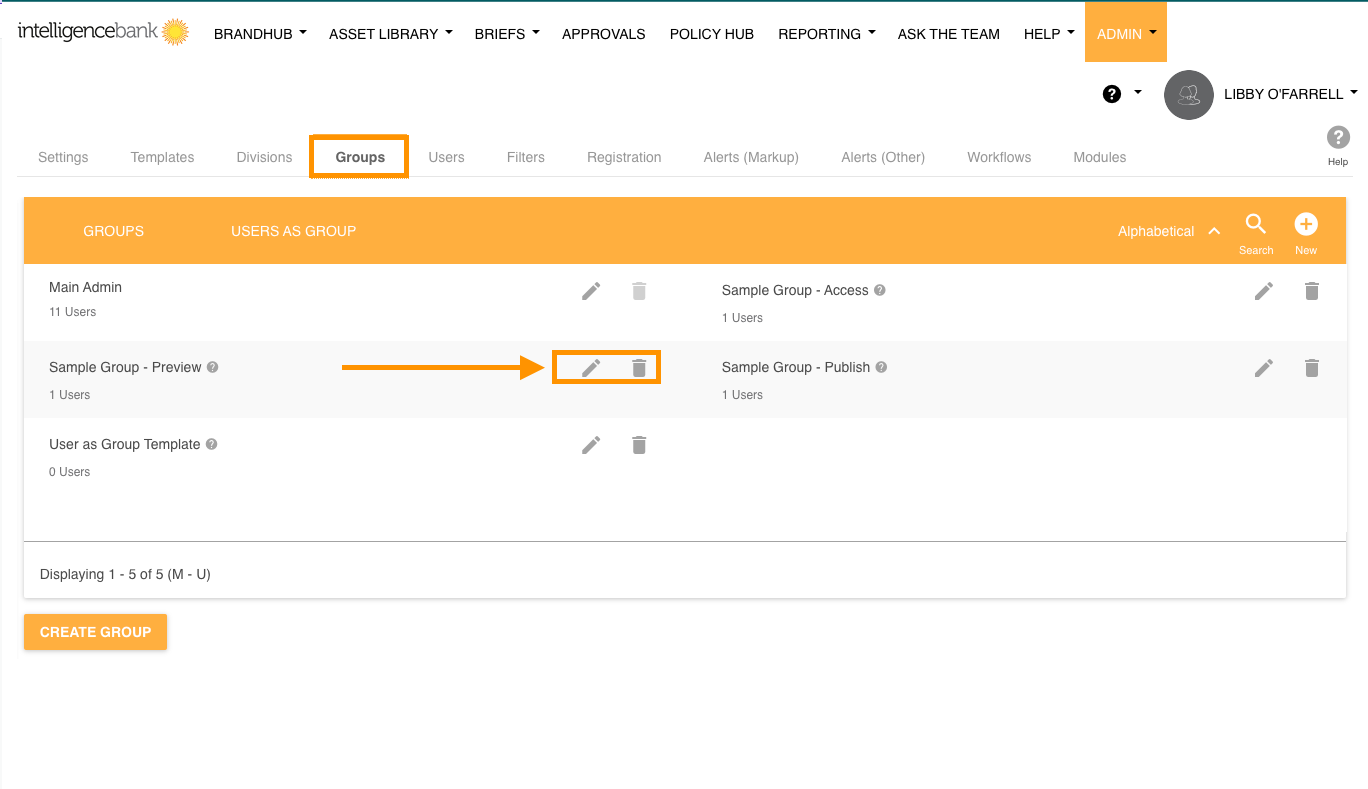
To edit a group, go to Admin > Groups and click on the name of the group you want to edit. You can also click the pencil icon (highlighted below). From here you will be able to update and edit any of that group's information.
Delete a Group
To delete a group, go to Admin > Groups and click the Delete (bin) icon next to the group.
Was this article helpful?
That’s Great!
Thank you for your feedback
Sorry! We couldn't be helpful
Thank you for your feedback
Feedback sent
We appreciate your effort and will try to fix the article