This article outlines how to export, import, and make updates to records* in a database from an excel sheet.
This feature is particularly useful if you need to create or make adjustments to a large number of records/briefs/tasks within a database. Rather than having to create or edit them one at a time, it's possible to do so via an excel sheet en masse.
The ability to export, import, and make updates to records via Excel is available for:
- Main Admins
- Users with Admin permission on records in the database (and either View, Manage, or Admin permission on the database itself)
Table of Contents
Limitations & Things to Note
Below are some things to keep in mind with this feature:
- There is no way to export a filtered list of your briefs/tasks/project records using this feature (ie: you will always export a complete list of published records from the database (including archived records). Note however that draft records will only be included in an export for General Use. Any records pending approval will not be included in the exported list.
- If a database is staged, you can export a list of records, but importing records is not supported.
- Calculation fields cannot be updated via import (these will be automatically updated based on other field values)
- Upload fields cannot be supported in import
- Sequence ID fields are excluded from import as these are system generated
- Fields in duplicable sections are not supported for import
- If any database alerts have been set up (for example, alerts going to particular people when new records are published or updated) these alerts will still trigger upon updates or adding new records via an excel import. If your database has these alerts enabled, and you're considering importing a large number of records that could trigger them, it may be recommended that you disable the alerts for the duration of the import, then re-configure them in order not to send a high number of alert notifications to the recipients.
- If the database has version history enabled, updates to records made via importing from excel will not create new versions that are reflected in a record's version history. The records will be updated, but not reflected as a new version.
How to Export Records
To export records into an excel sheet:
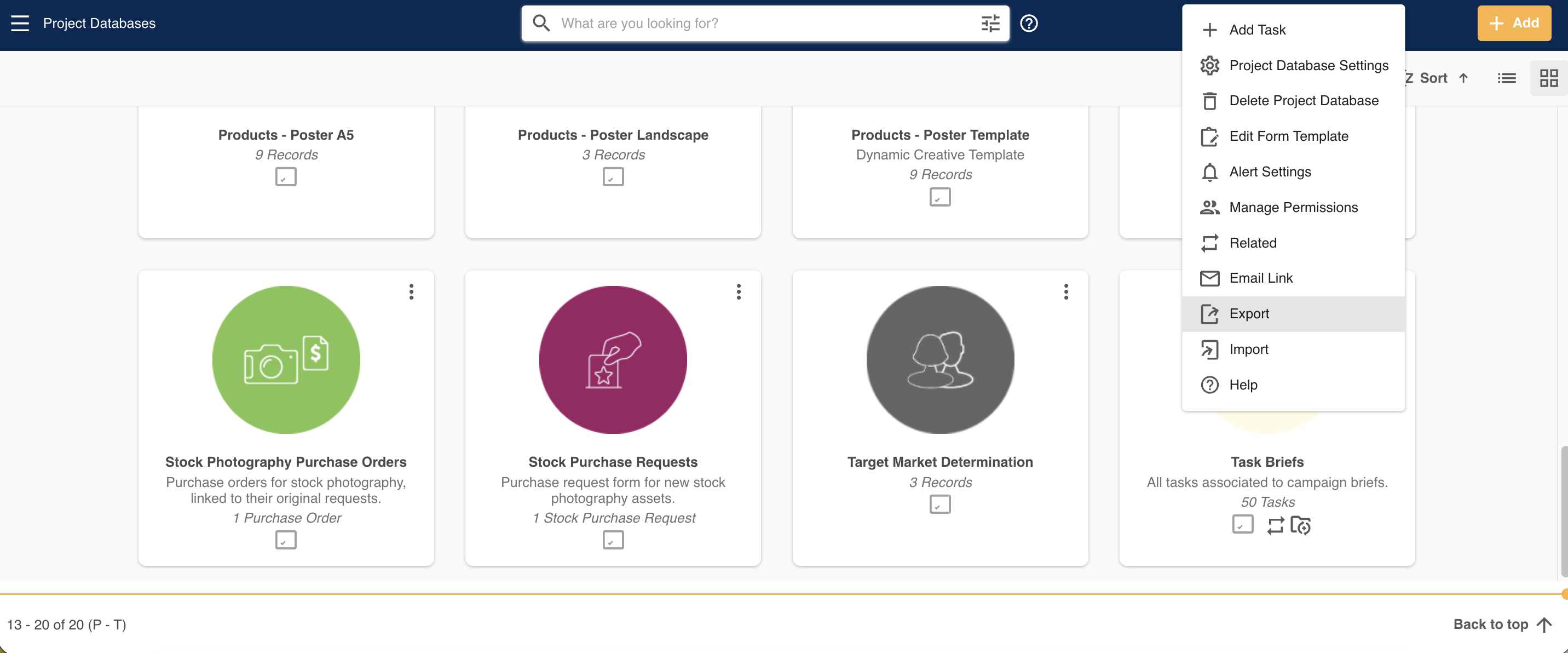
1Navigate to the database you'd like to export records from. Select the three vertical dots to access the databases's action menu, then select Export.
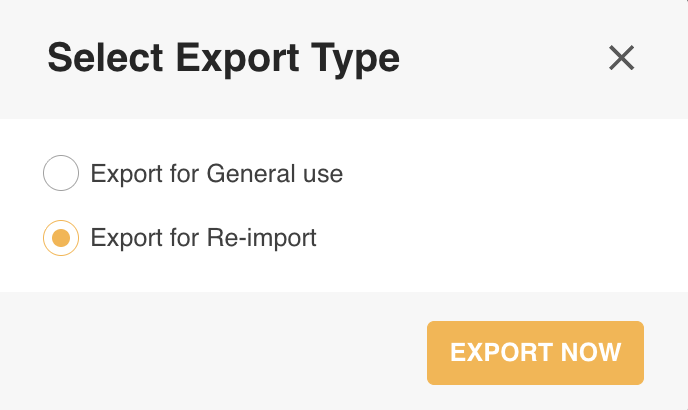
2If the database is staged, the excel sheet will directly download to your computer. If the database is single, you will be able to choose from the following:
- Export for General Use- recommeded if you just need the list of records for your own internal use or reporting, but you don't need to make any updates to records from it.
- Export for Re-import- this is the option to choose as the first step when you want to make updates to existing records. (see more details in the section below).
3Once you've made your selection in the step above, click on Export Now to export the records and it will download as an Excel spreadsheet to your computer.
How to Make Updates to Records by Importing from Excel
If you'd like to make updates to a large number of existing records, it may be easier to do this via an excel sheet, which you can import into the platform with these changes.
To do so:
1Follow the instructions outlined in the How to Export Records section above, making sure to select the Export for Re-import option.
2Once the excel sheet has downloaded to your computer, open it up. You'll see the records displayed in rows, and a column for each form field in the excel sheet. Critically, the first column will feature the records' UUID number. This is the unique identifier for each of the records in the database, and is how the system knows which record any updates in the sheet is tied to. It is very important that you do not update the UUID number for your records within the excel sheet, or the update will not run successfully.
3You can then edit existing field information in the spreadsheet (excluding the UUID field). Note that there are some formatting considerations you need to keep in mind around certain field types i(ie: Date and Select fields, etc) that are outlined in this article here.
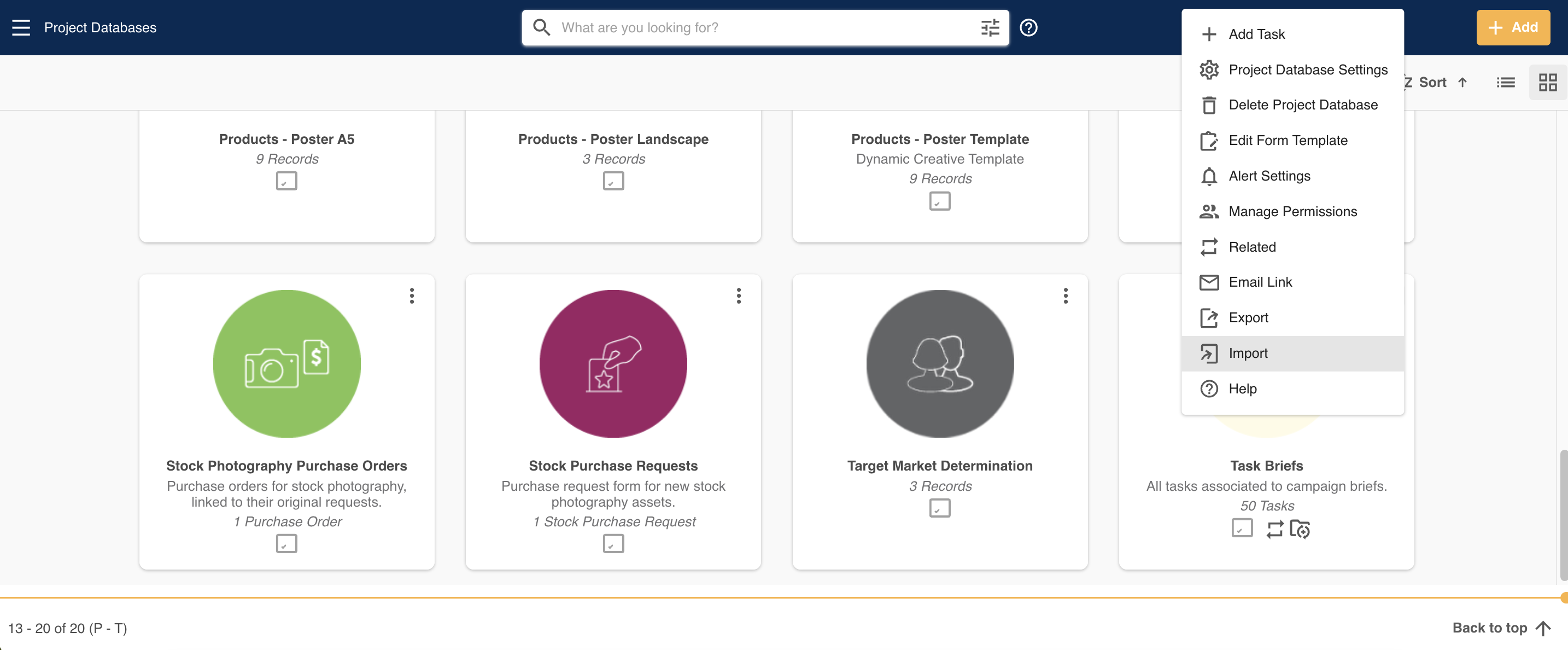
4Save your changes in the excel sheet. Then, back in your IntelligenceBank platform, navigate back to the database and select Import from its action menu.
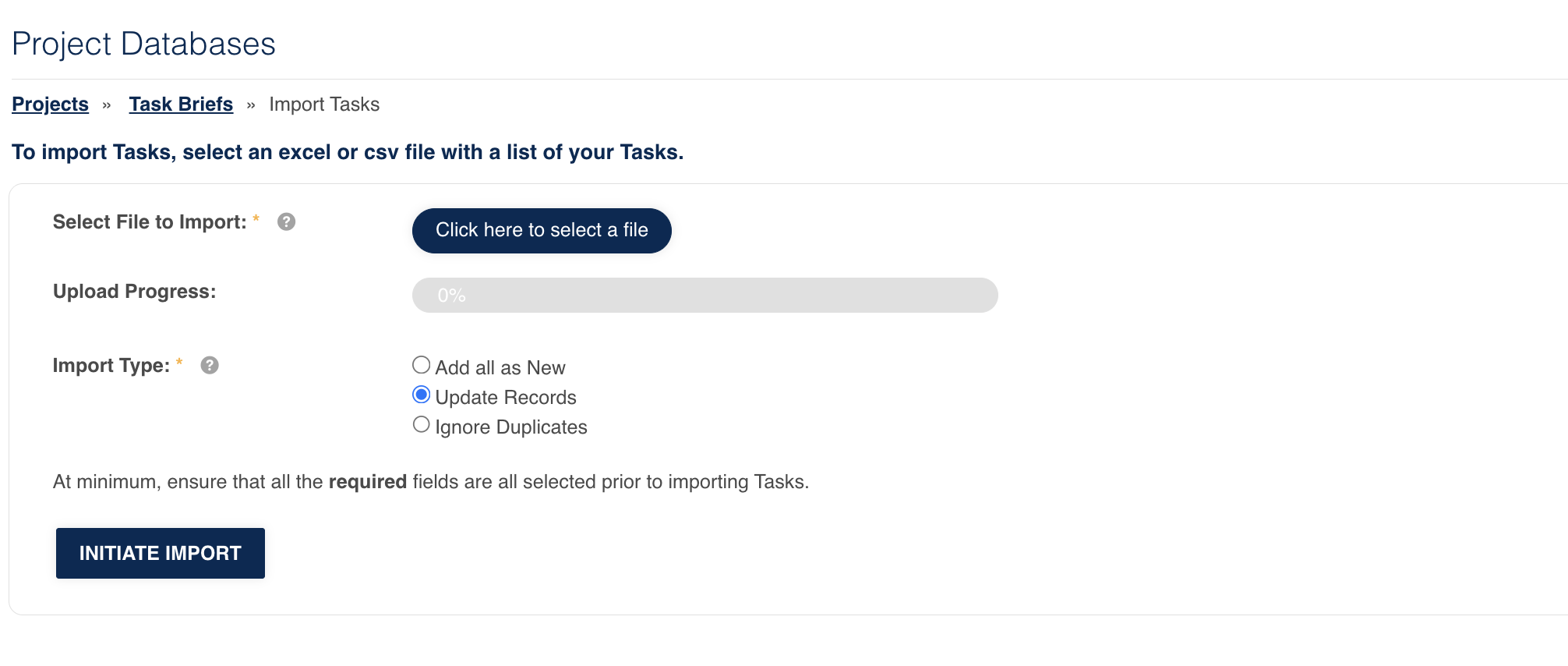
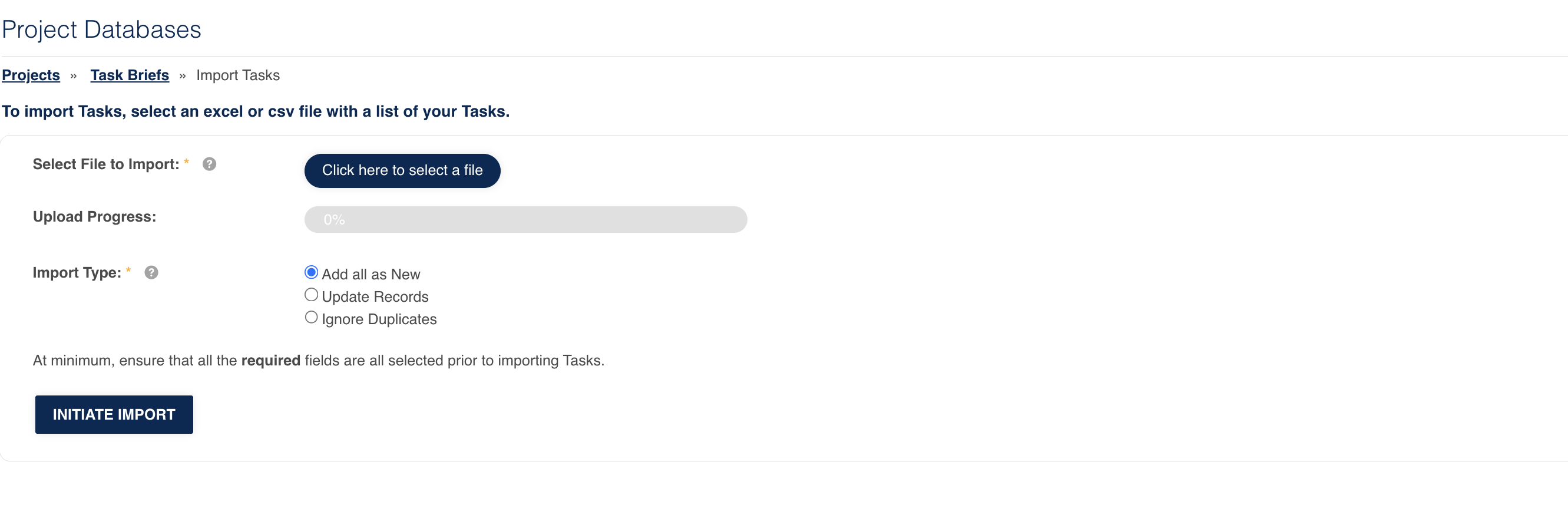
5Select the Click here to select a file button to locate and add the excel sheet you made the updates to. In the Import Type field, ensure that Update Records is what's selected. Then, select Initiate Import.
6Check that the relevant fields are mapped to the columns in the sheet. Some may be detected already, but for any that say Map Field, you'll want to select the dropdown and locate the field name that matches that column. This ensures that each column on your spreadsheet matches a field within the database. Note that if the database features any Sequence ID or Upload fields, these will not be mappable, so those field types can be left as Map Field.
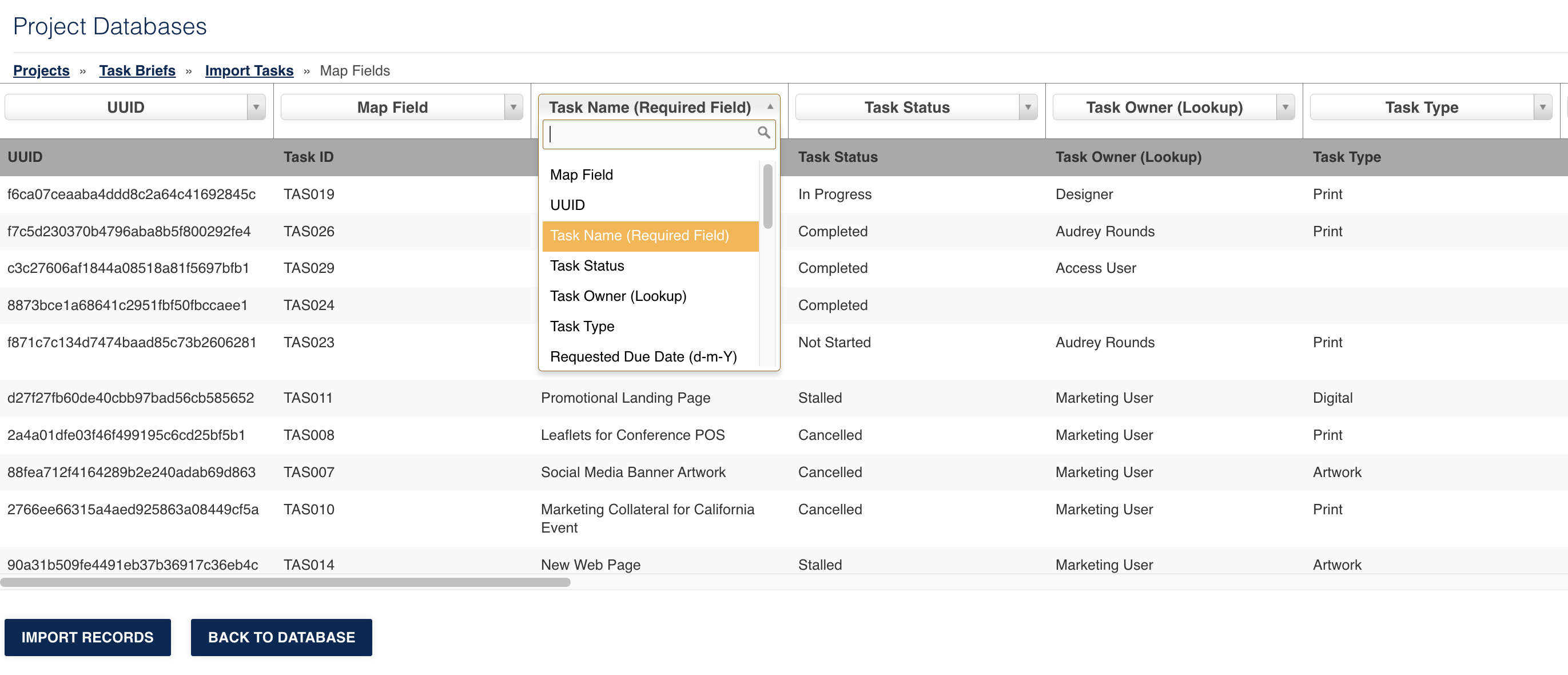
7Once all fields have been mapped, click Import Records down the bottom left of screen.
8The import will begin to process. If all import correctly, you'll be taken back to the database. Note that if the database has a Publish approval process in place, making updates via this manner will bypass that approval process.
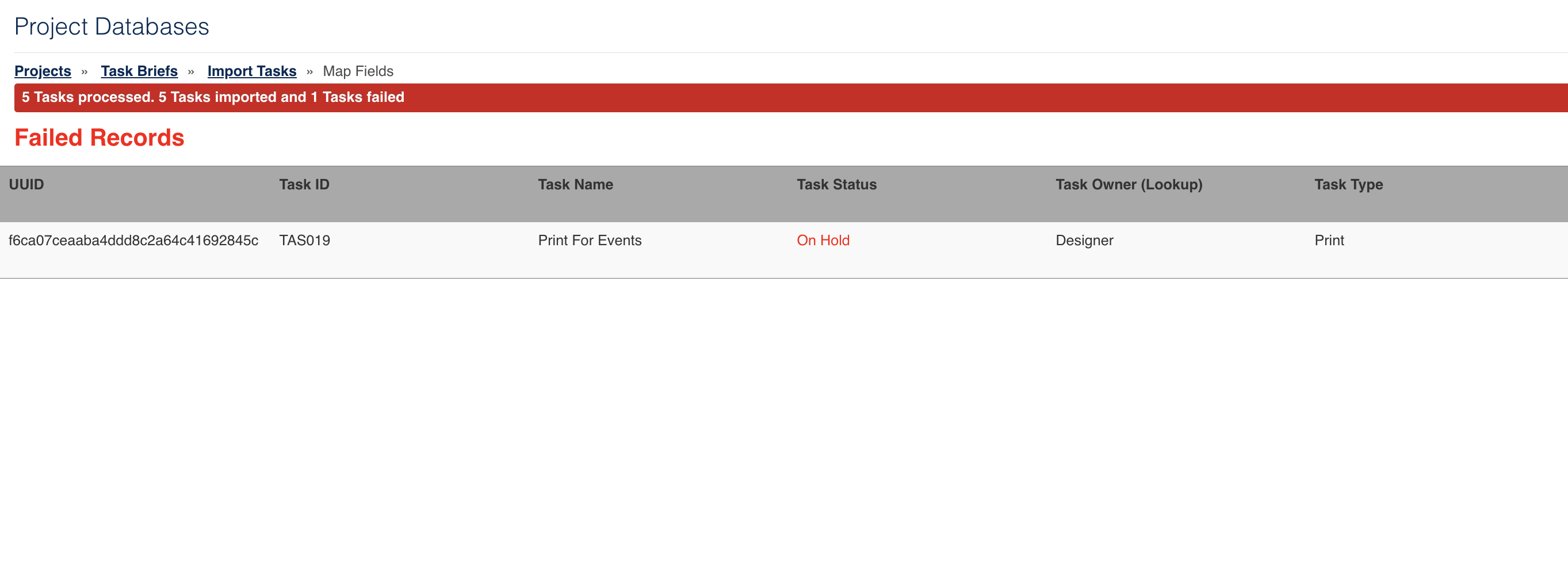
9Note that fields have to match precisely or they might fail to map. Any failures will be displayed on the results page after you Import. There's also a Comments field as the last column on this screen which typically gives an indication/explanation of why particular records failed to import (ie: the values don't match, aren't supported, etc). For a more detailed list of troubleshooting tips, please refer to this article.
How to Import New Records from Excel
If you need to create many new records/tasks/briefs within a database, it's often easier to do so via an excel sheet, versus having to create them through the form one by one.
To import new records from an excel sheet:
1The typical first step is to ensure that the excel sheet of new records you'd like import is in the correct format. The easiest way to find the correct format is by following the instructions outlined in the How to Export Records section above, selecting the Export for Re-import option.
2The excel sheet that downloads will contain existing records, but it contains the fields required to import brand new records, so as long as the columns in your excel sheet matches the column names from the exported sheet, you can use that as a template to work off of, or to reference as you format your list of new records. Note that the UUID field and any fields that aren't mappable (ie: Sequence ID, Upload fields, etc) shouldn't be included in the excel sheet when creating new records. There are also considerations on how to format certain field types, or the import may fail. Please refer to this article for more details.
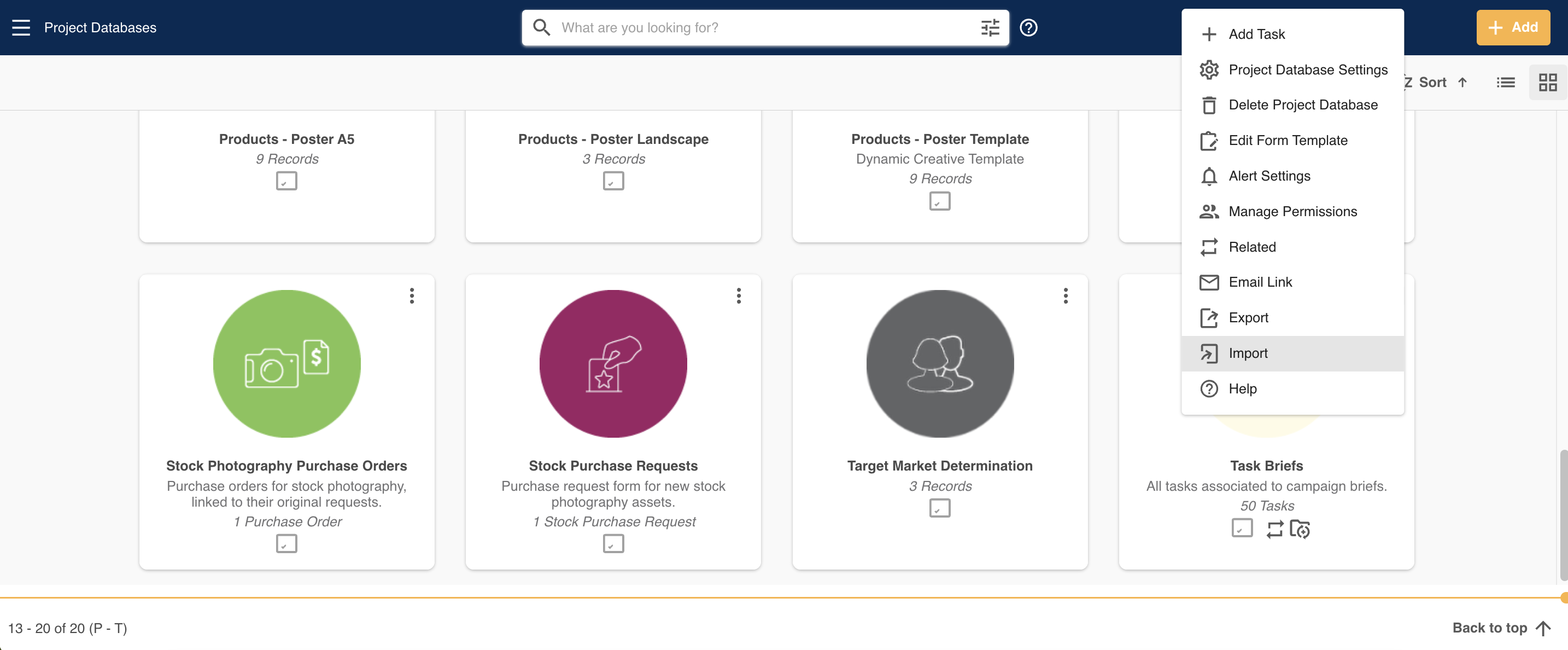
3Once you have your excel sheet ready, navigate to the database you need to import records in and select Import from its action menu.
4Select the Click here to select a file button to locate and add the excel sheet with your new records. In the Import Type field, ensure that Add all as New is what's selected. If your sheet contains a mix of already existing and new records, you could also select the Ignore Duplicates option, which will import just the records from your sheet that don't already exist, matching by the record's Title field. Then, select Initiate Import.
5Check that the relevant fields are mapped to the columns in the sheet. Some may be detected already, but for any that say Map Field, you'll want to select the dropdown and locate the field name that matches that column name. This ensures that each column on your spreadsheet matches a field within the database.
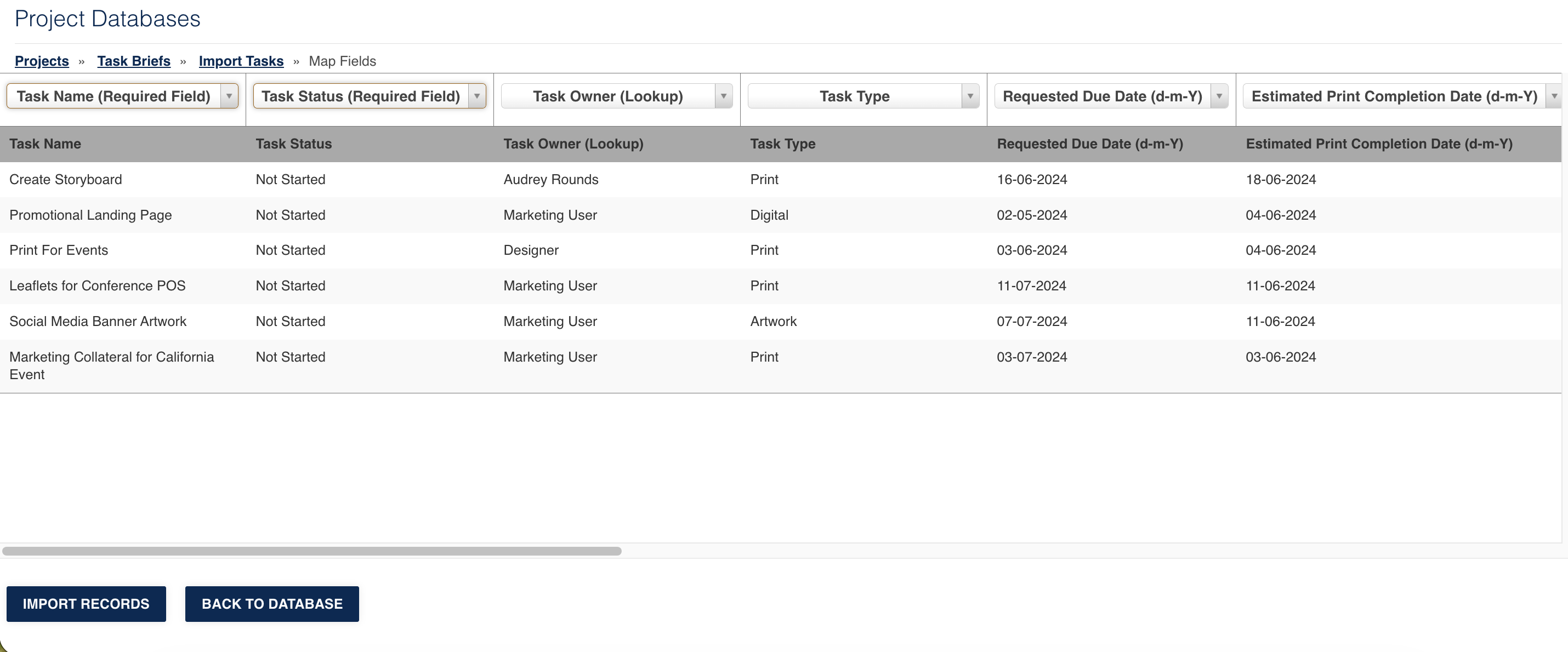
7Once all fields have been mapped, click Import Records down the bottom left of screen.
8The import will begin to process. If all import correctly, you'll be taken back to the database and the new records will have populated. Note that if the database has a Publish approval process in place, creating new records via this manner will bypass that approval process.
9Note that fields have to match precisely or they might fail to map. Any failures will be displayed on the results page after you Import. There's also a Comments field as the last column which typically gives an indication/explanation of why particular records failed to import (ie: the values don't match, aren't supported, etc). For a more detailed list of troubleshooting tips, please refer to this article.
Was this article helpful?
That’s Great!
Thank you for your feedback
Sorry! We couldn't be helpful
Thank you for your feedback
Feedback sent
We appreciate your effort and will try to fix the article