Overview
The LinkrUI Adobe Connector makes it easy to access your approved IntelligenceBank DAM assets directly from within Adobe Premiere Pro or Adobe After Effects.
The Connector also automatically synchronizes assets between Adobe Premiere Pro, Adobe After Effects, and IntelligenceBank.
Installation Instructions
The IntelligenceBank LinkrUI Connector for Adobe Premiere Pro & After Effects is a premium add-on and an upgrade of the free LinkrUI Connector for Adobe InDesign, Photoshop, and Illustrator.
Your email address must be registered by your IntelligenceBank Customer Success Manager, who will provide you with an activation code to input on registration before you can start using the Connector.
To download the Connector, choose your platform:
How To Use
In addition to the overview below, see the LinkrUI User Guide and LinkrUI Video Tutorials for further detail. You can also learn more about LinkrUI at santacruzsoftware.com/linkrui.
- Within Adobe Premiere Pro or Adobe After Effects, go to Window > Extensions and click LinkrUI.
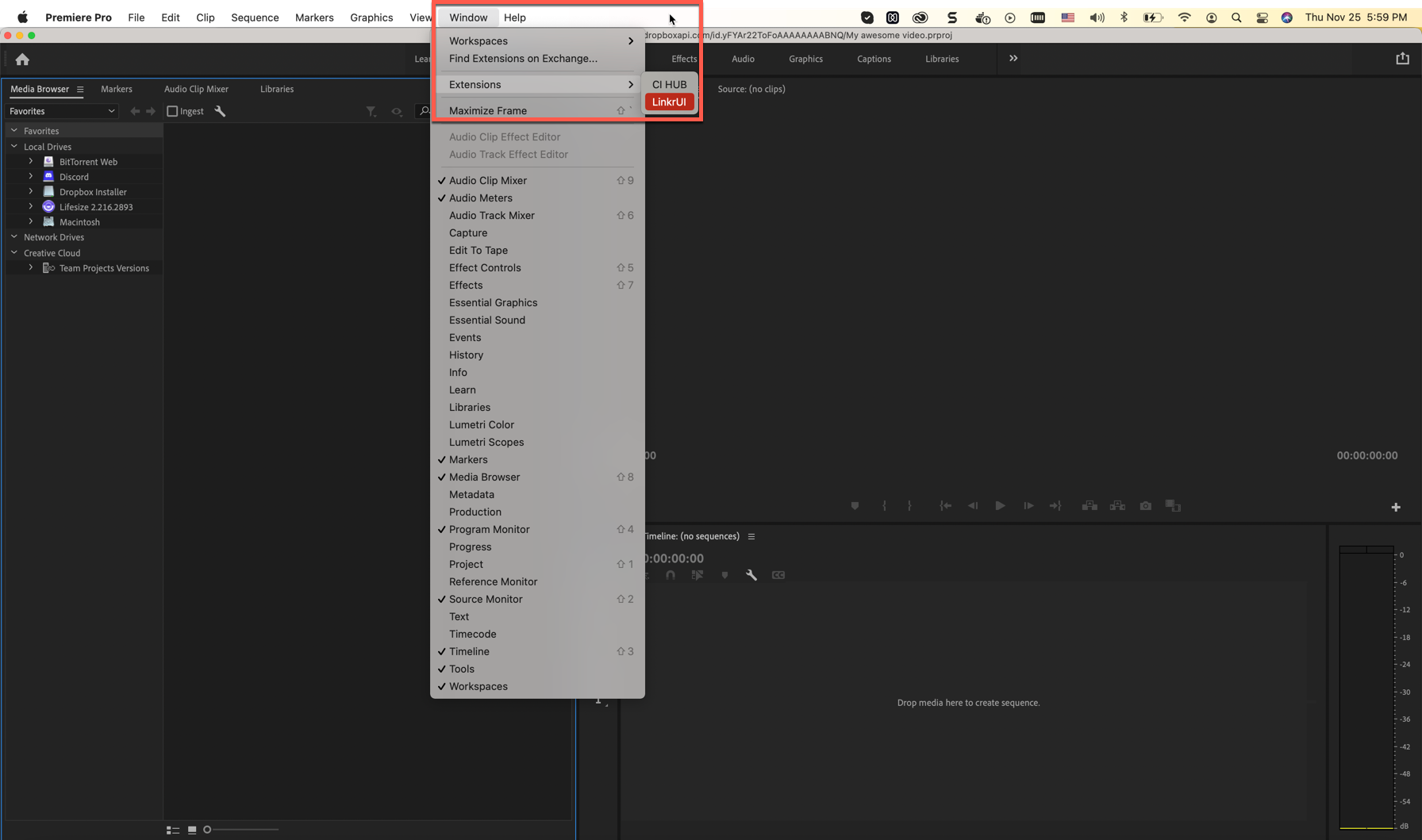
- If this is the first time using the plug-in, you will be asked to enter your name, email address, and the activation code provided by your IntelligenceBank Customer Success Manager.
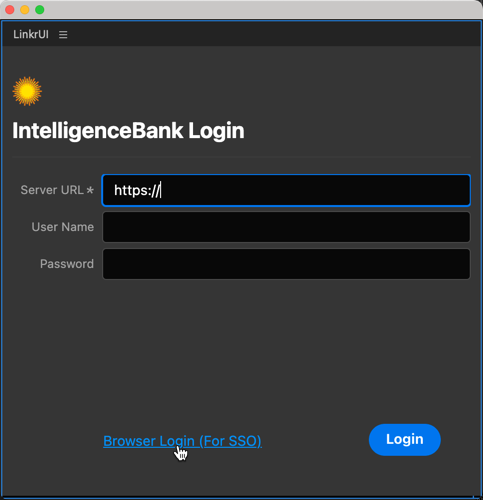
- Once the plug-in is activated, you will be prompted to authenticate to your IntelligenceBank platform. Enter your platform URL, username, and password. To log in using Single Sign On, enter the platform URL and click Browser Login to initiate the process.
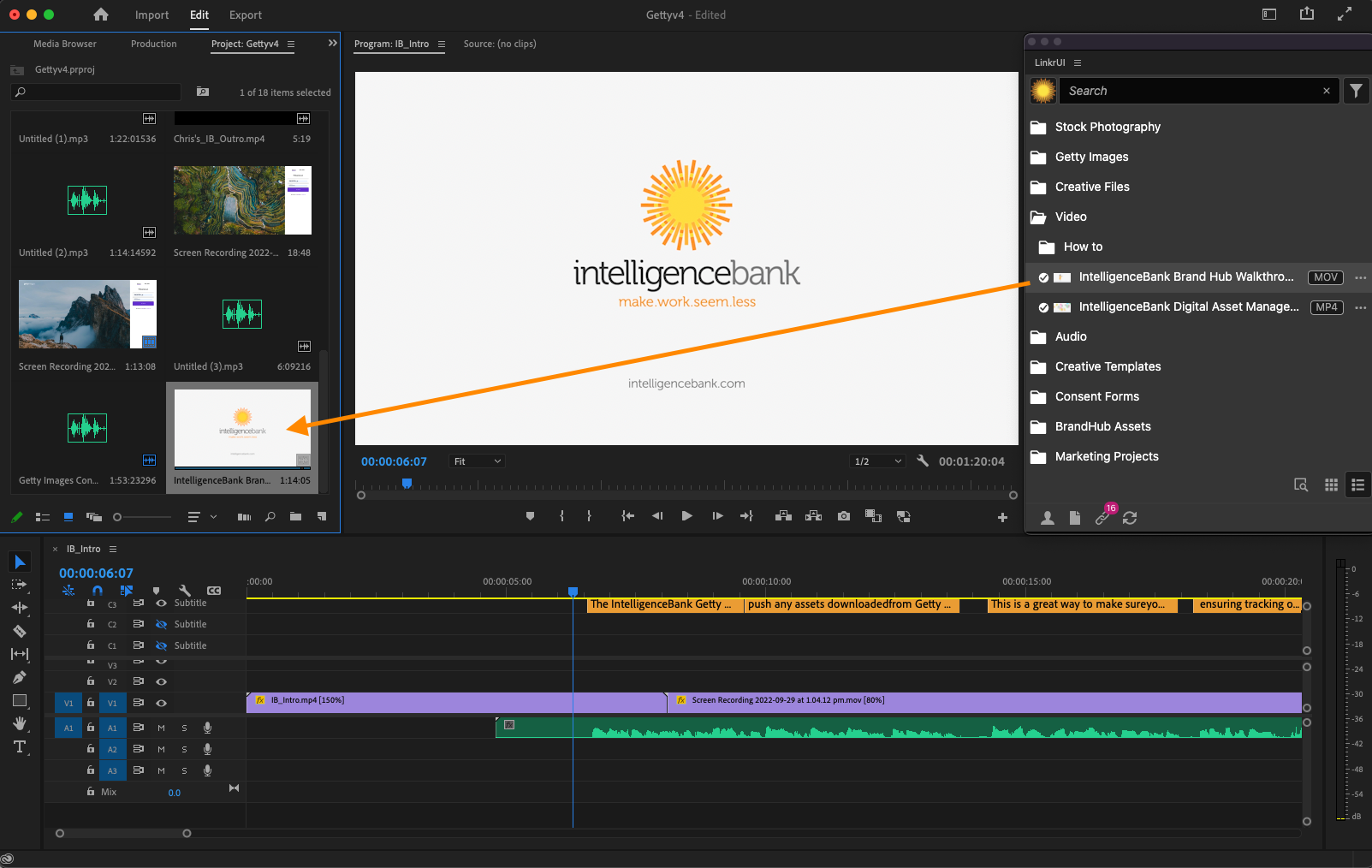
- Once authenticated, you can browse folders and search for assets.

- Right-click any asset and click Place to import it into your Project library. Once imported, it can be used in the project as per native Adobe functionality.
- If you make changes to an imported file (including in other software), you can Update those changes back to IntelligenceBank directly from the extension. You can also Reset the file, which re-downloads the IntelligenceBank version and replaces the modified version on your desktop.
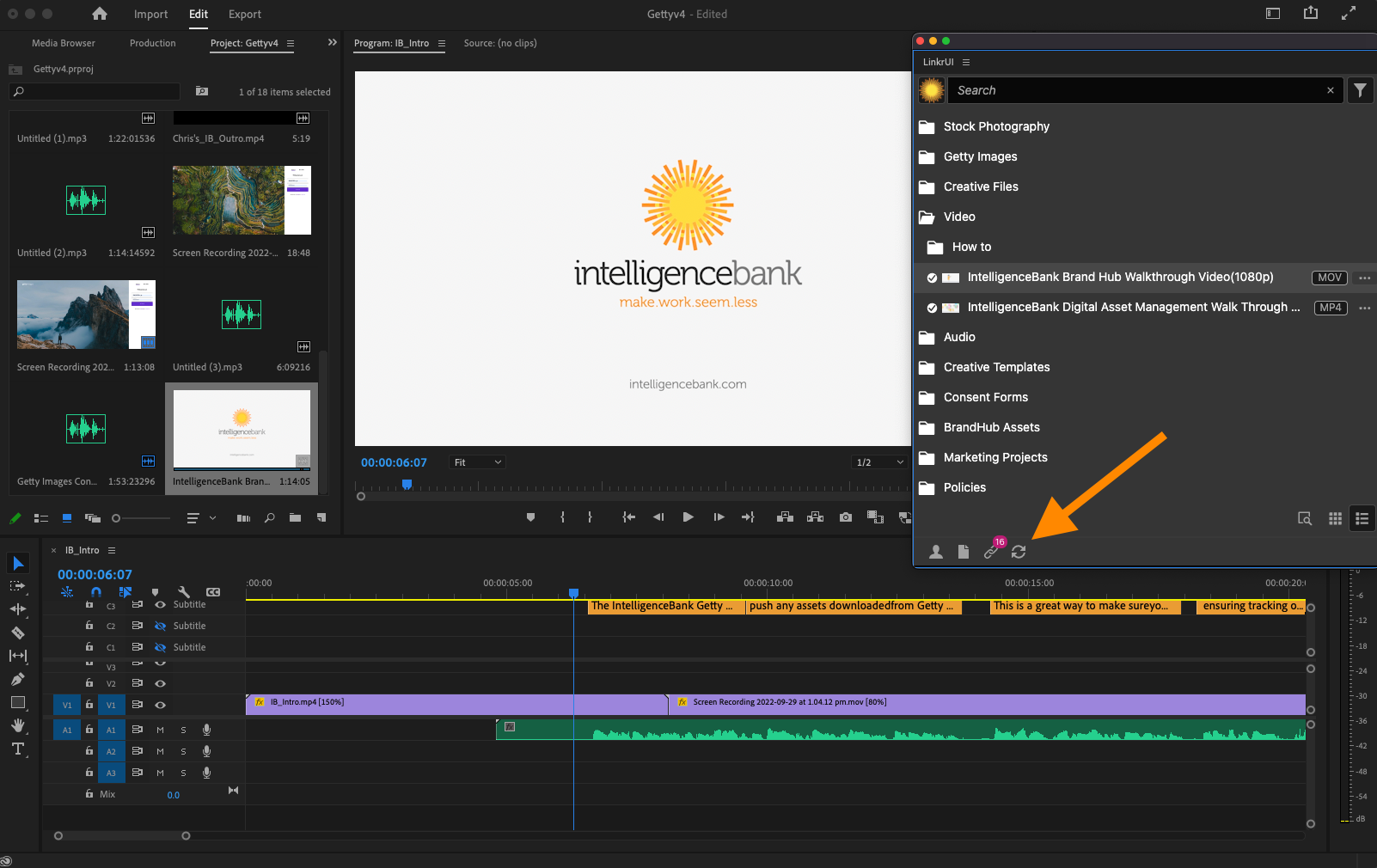
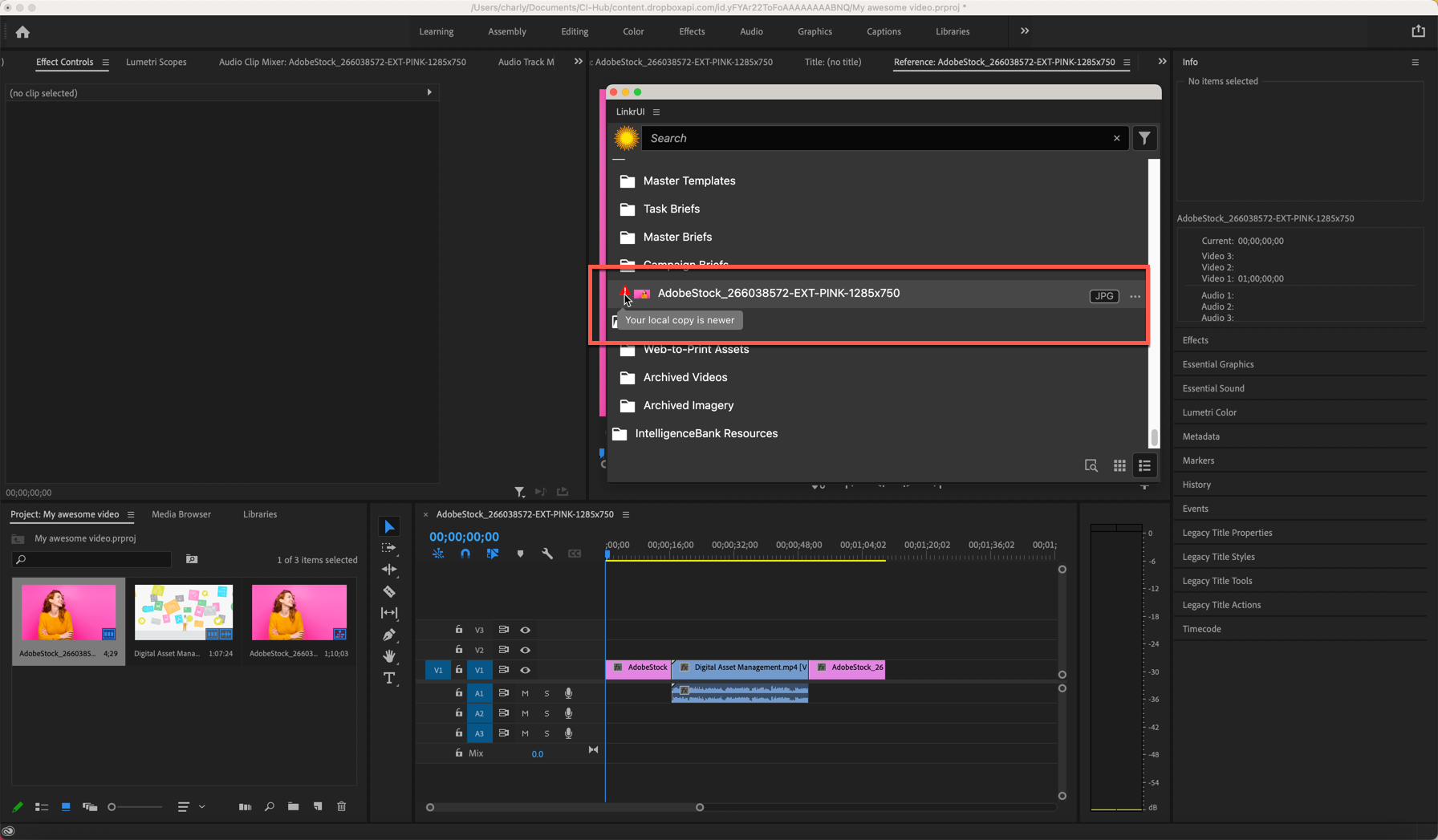
- When a local version is newer than the version in IntelligenceBank, a warning indicator will appear next to the file in the extension. Click Update in the dropdown for that item to push your more recent local version.
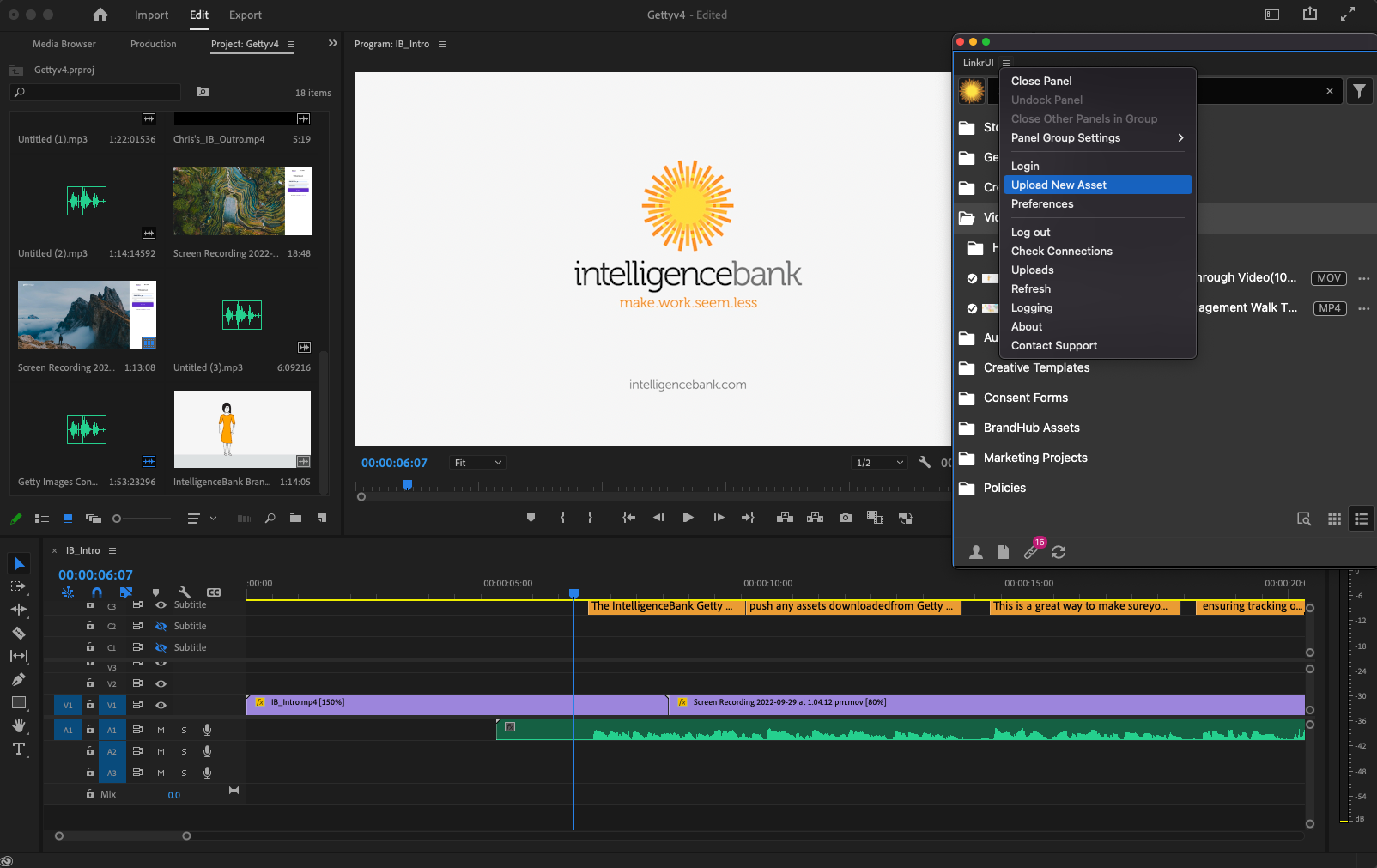
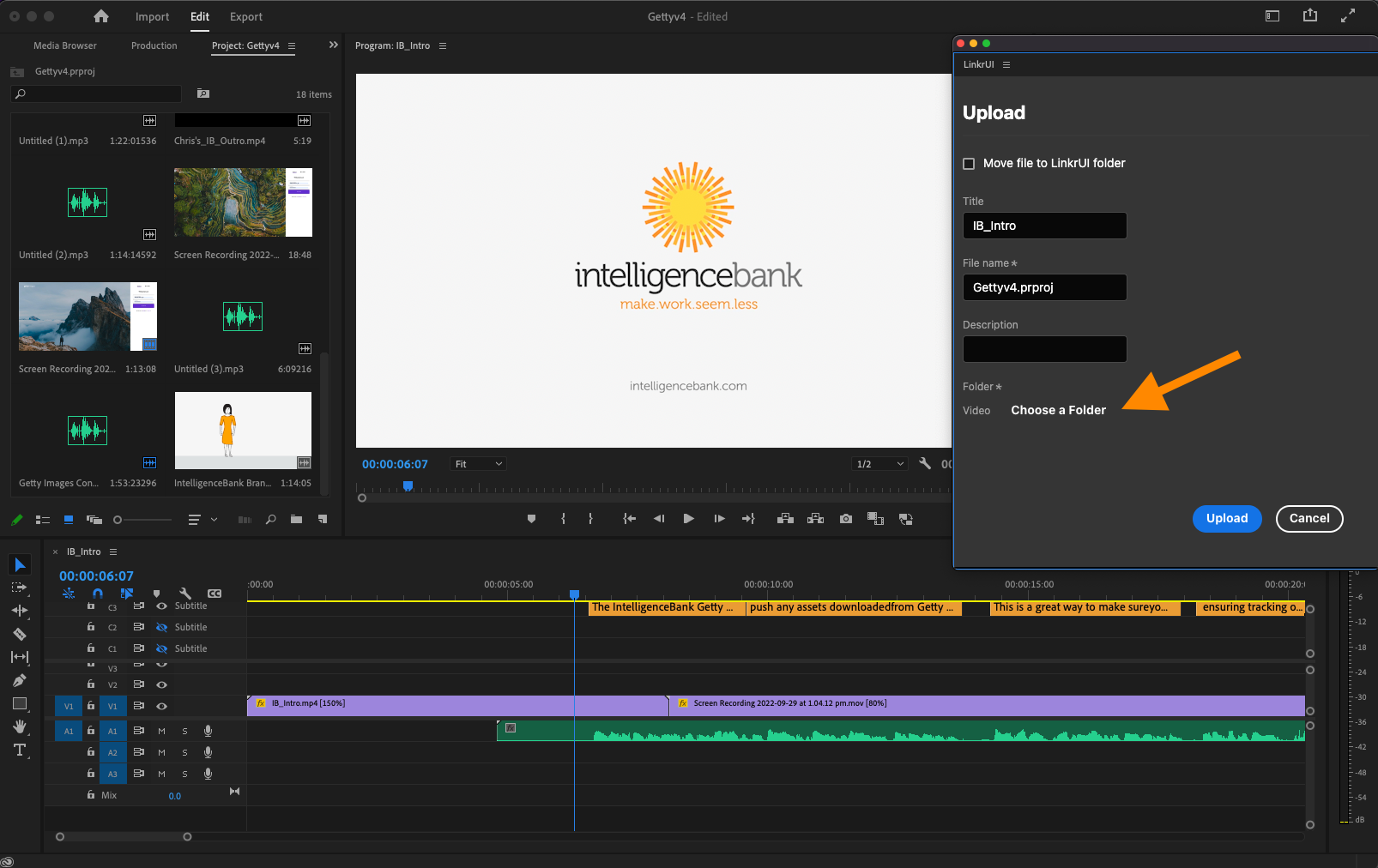
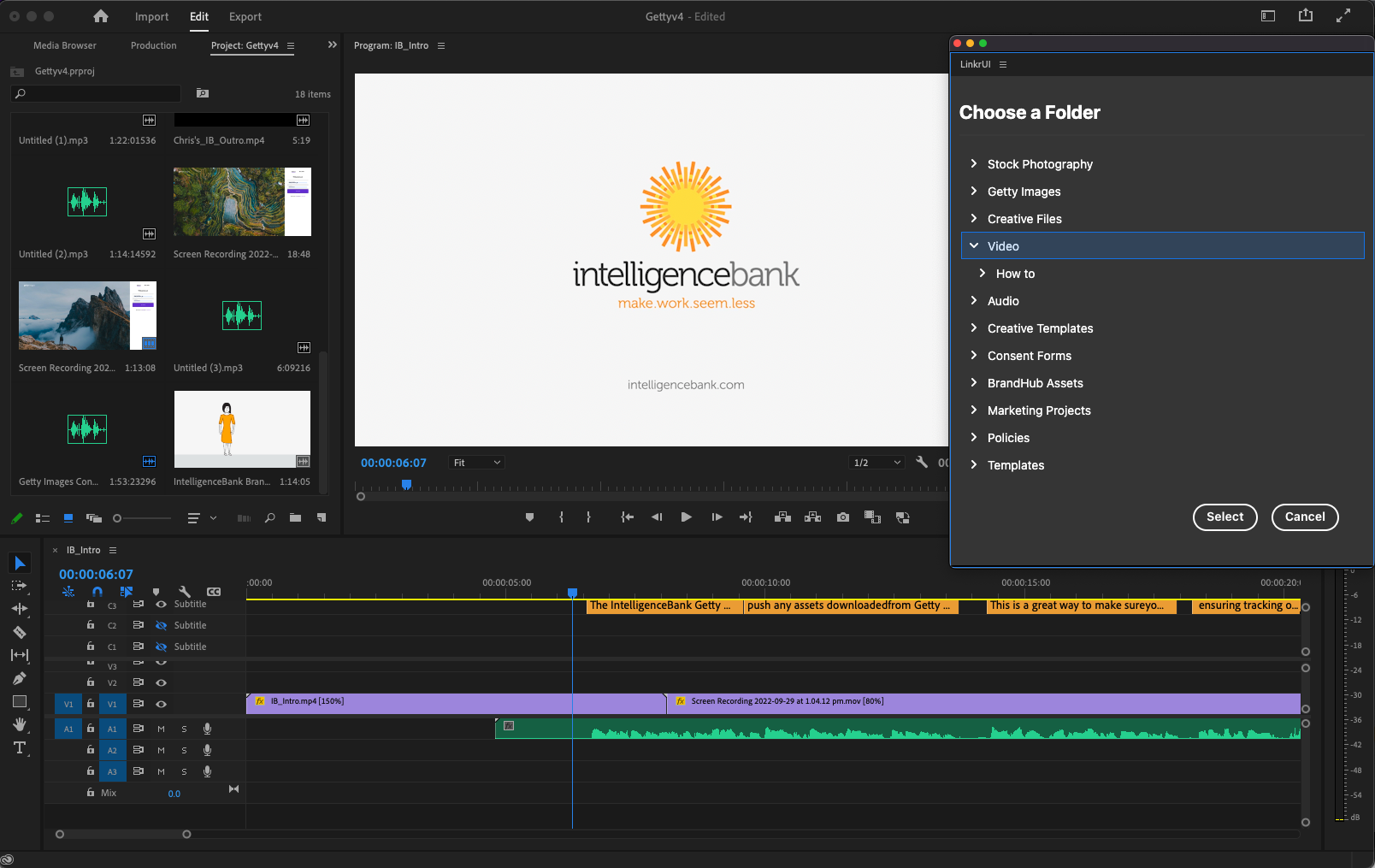
- You can Upload your project file into IntelligenceBank from the main menu.
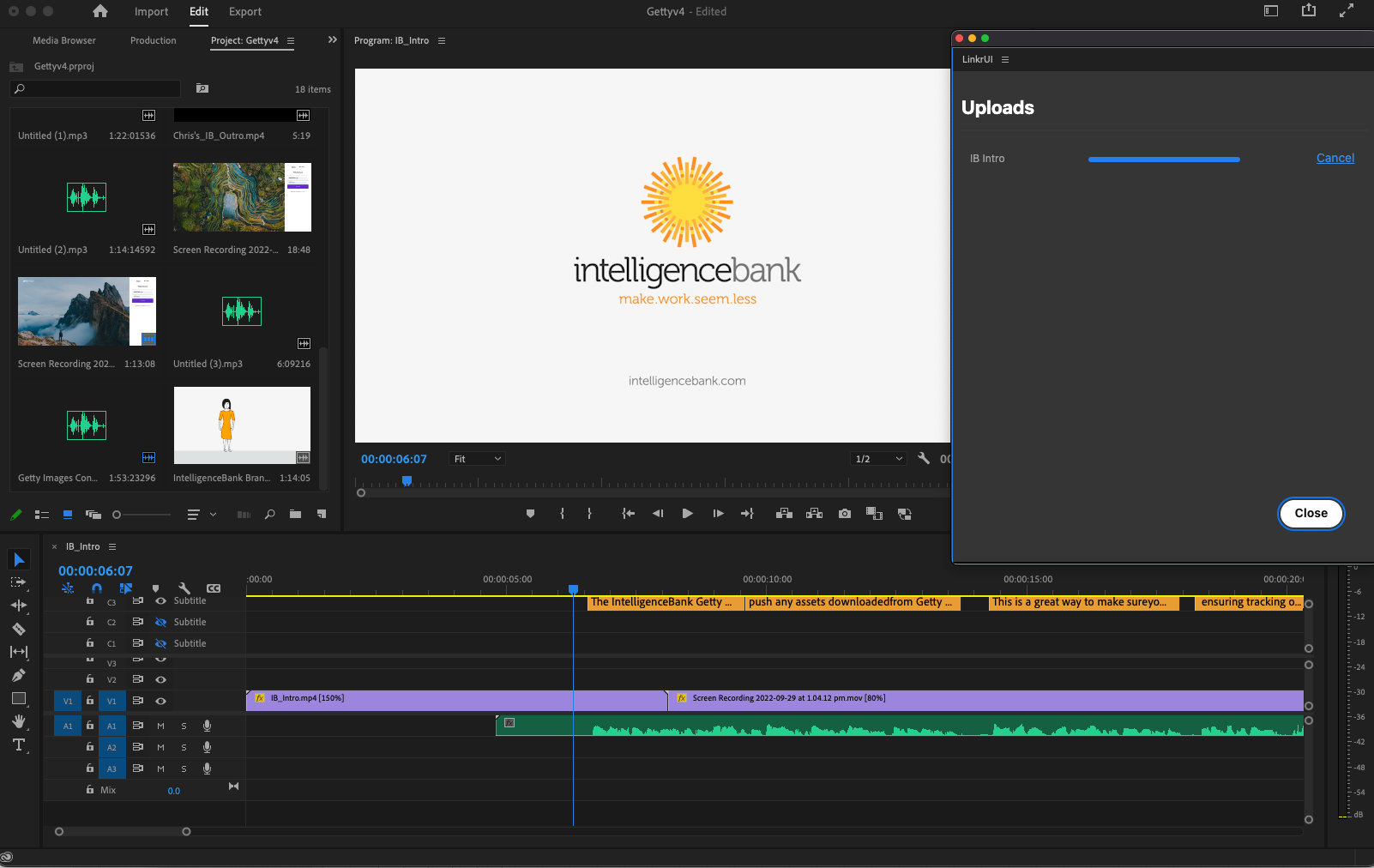
- If the project is updated locally or in IntelligenceBank, a warning will display against the Project Resource in its folder location while browsing the Connector.

Was this article helpful?
That’s Great!
Thank you for your feedback
Sorry! We couldn't be helpful
Thank you for your feedback
Feedback sent
We appreciate your effort and will try to fix the article