Table of Contents
About
The IntelligenceBank Assets Plugin for Figma (Web & Desktop) makes it easy for designers to search, browse, and insert approved image assets from IntelligenceBank into their design files while working within Figma.
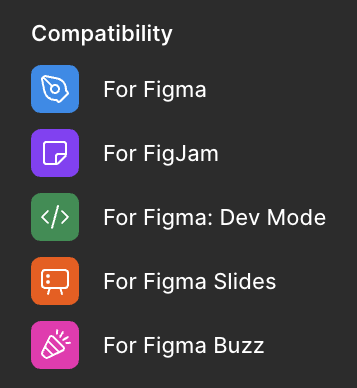
The plugin is compatible with the following Figma products:
Installation
You can install the IntelligenceBank Assets Plugin for Figma from the Figma Community marketplace at this location, or by searching for 'IntelligenceBank'.
How To Use
- To open the plugin, go to the plugin menu and select IntelligenceBank Assets.
- Authenticate to your IntelligenceBank platform. If you are a Single Sign On user, enter your platform URL and select the Browser Login option from the login page.
- Use search or browse through folders to find the asset you want to use in your design file.
- Once you have identified the image, use the dropdown to select whether to insert the Original or an existing Transformation Preset (Single or Global, if available).
- If a top-level frame or section is selected at the time of insertion, the layer will be placed within it and the layer name will use the resource name.
- If a layer within a top-level frame or section is selected at the time of insertion, the selected layer will be filled with the asset. If the selected layer was an image or video, the layer name will automatically be updated with the new resource name. This does not apply to SVG files, as they cannot be used as a fill.
- If nothing is selected at the time of insertion, the asset will be placed by itself at the viewport centre.
- Supported image formats for insertion: PNG, JPEG, GIF, and SVG.
- Supported video formats for insertion: WebP, MOV, and MP4, with a maximum file size of 100 MB.
- While browsing or searching, the connector will only display images that are in one of these formats, or can be converted to a supported format on the fly using a Transformation Preset.
Release Notes
Version 1.0.7
- Support extended to additional Figma products: FigJam, Slides, and Buzz.
- Added support for video insertion (MP4, MOV, WebM) for files under 100 MB. Pro plan or above required.
- Added support for native SVG insertion.
- Transformation Presets can now be used for insertion of non-natively supported image formats.
- Improved insertion behaviour: when a top-level frame or section is selected, images, videos, and SVGs are inserted as their own layer (not as a fill), and the layer name is automatically set to the resource name.
- When inserting an image or video into an existing image or video layer, fill replacement still applies and the layer name is now also automatically updated to the new asset's resource name.
Was this article helpful?
That’s Great!
Thank you for your feedback
Sorry! We couldn't be helpful
Thank you for your feedback
Feedback sent
We appreciate your effort and will try to fix the article