Presets let you build a reusable set of transformation parameters and apply them to an image resource. Global Presets are useful when a transformation is needed more than once, for example when sharing to a social media channel that has specific dimension requirements.
Using the Share / Embed, Single, or Bulk Download overlays, users can create Global Presets that are available to everyone (with permission) when downloading resources or sharing and embedding images.
Table of Contents
Presets List Page
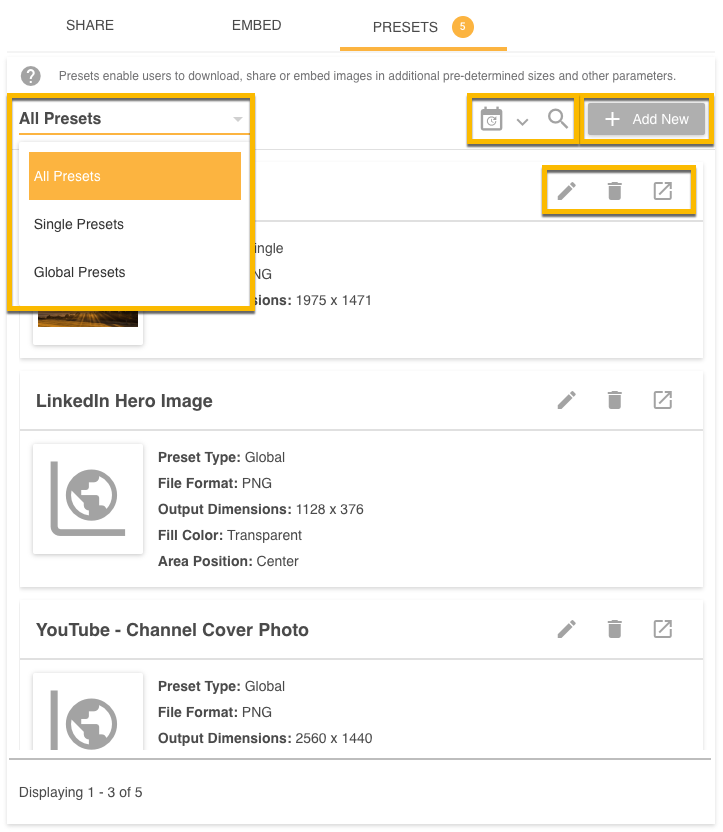
This page lists all Global Presets on the platform, along with any Single Presets for the current resource, and shows the transformations each preset applies when selected for Share / Embed. From this page you can:
- Filter by preset type (Single, Global, or All) using the dropdown at the top left.
- Search and order the list using the Date or Search icons next to the Add button.
- Add a new preset with the Add New button at the top right (only available to users with permission to add presets).
- Edit or delete a preset using the pen or bin icons on its box.
- Preview a preset with its transformations applied using the open-in-tab icon (next to Delete), which opens a preview in a new browser tab.
Add a New Preset
The Add New Preset page is where you create your presets. Once Global is selected as the Preset Type, you can choose between Basic and Advanced presets, with Basic loaded by default. Advanced presets add further transformation options. The fields for both, and how they behave, are listed below.
The presets created here are Global Presets and can be accessed by anyone with permission on the platform. Only users with Admin permission on Resources can add a preset.
Basic Presets
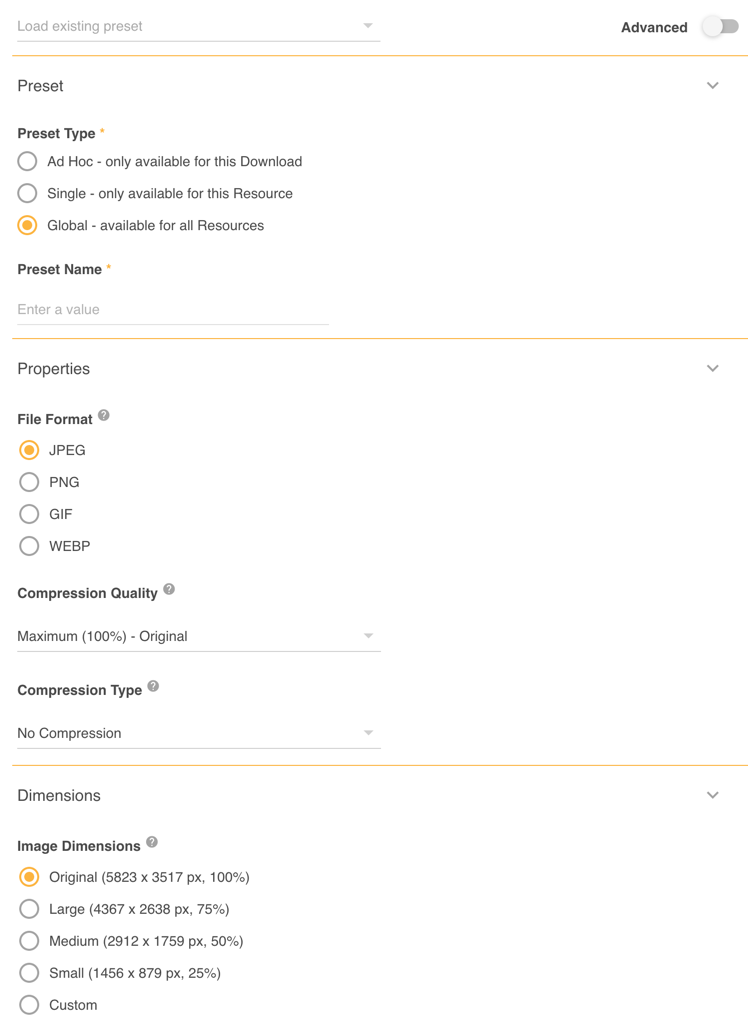
The Basic options are split into three sections: Preset, Properties, and Dimensions. The full view is shown below.
Preset
| Preset Type | Mandatory. Determines the other options below. Select Global to make the preset available on all Public Resources. Select Single to make it available for one specific resource, with a different set of transformation options. Learn more about Single Presets. |
| Preset Name | Mandatory. A custom, unique name for the preset. It cannot reuse a name already used by another preset. |
Properties
Properties control the file format and quality of your image.
| File Format | The format the image is exported in. The options are JPEG, PNG, GIF, and WEBP. Some options reveal additional fields. |
| Compression Quality | Reduces file size at the cost of quality, from Low (10%) to Maximum (100%, the original). Appears only when the file type is JPEG or WEBP. |
| Compression Type | Helps reduce file size with varying impact on quality. The options depend on the format, and this field appears only when the file type is JPEG, GIF, or PNG. |
Dimensions
Dimensions set the width and height of your image when it is shared or downloaded.
| Image Dimensions | Set the width and height by choosing Original, a percentage of the Original, or a Custom Dimension. |
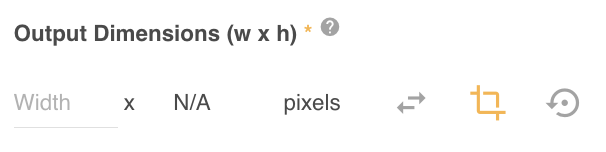
| Output Dimensions (w x h) | Shown when Custom Dimension is selected. Enter the exact pixel dimensions you need, for example to meet a social channel's banner requirements. Enter one value, or click the Crop icon to set both width and height (use the arrows to switch between them). |
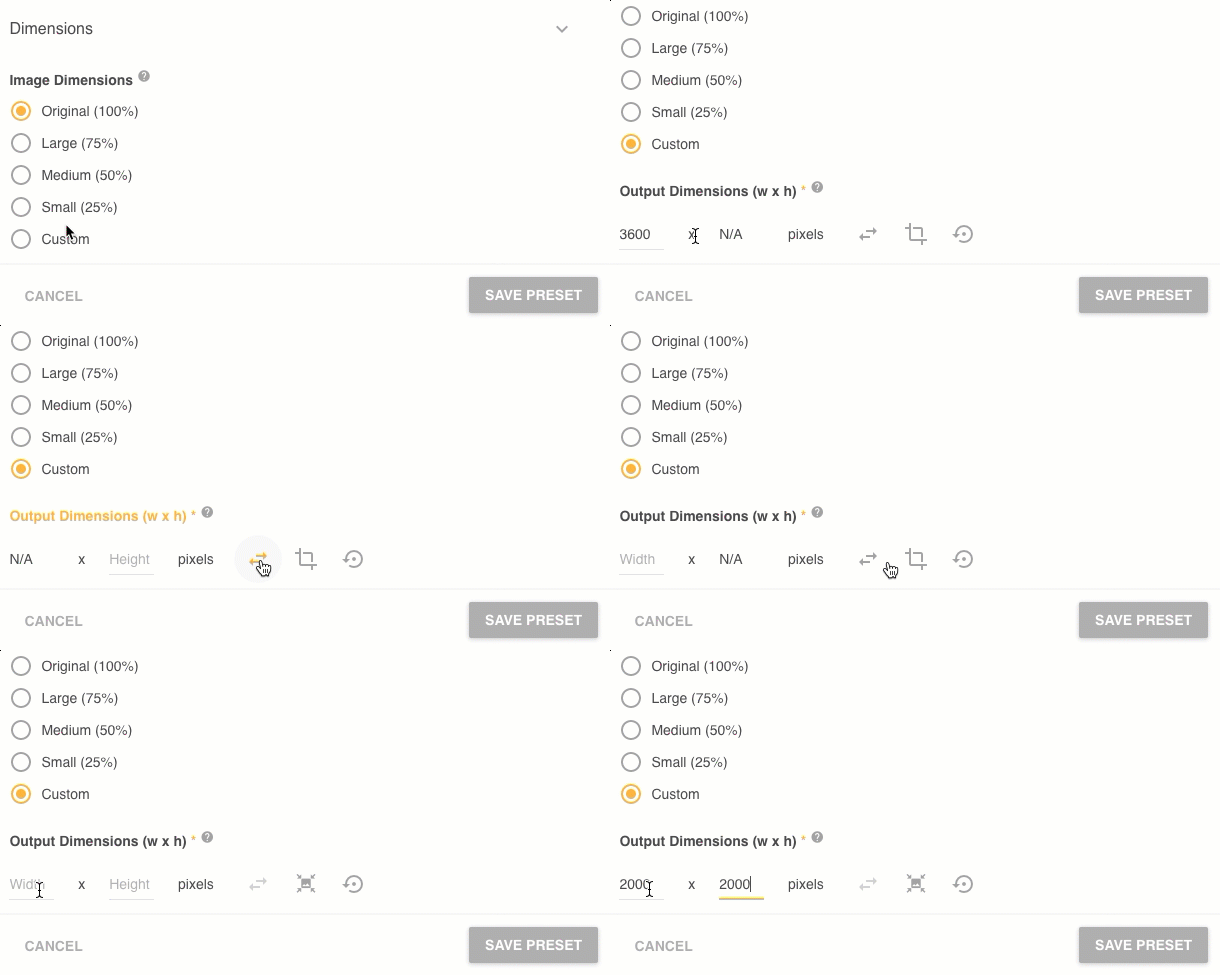
Basic Presets with custom dimensions fall back to default rules based on how the requested dimensions compare to the original. To choose your own defaults, enable Advanced presets (below).
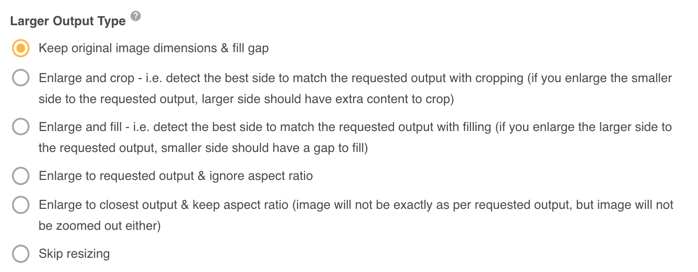
- Larger Output (output larger than the original): keep the original image dimensions and fill the gaps.
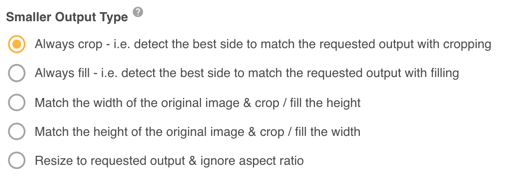
- Smaller Output (output smaller than the original): always crop, detecting the best size to match the output.
- Mixed Output (one side smaller, one side larger): always crop, detecting the best side to match the requested output.
Advanced Presets
Advanced Presets add more transformation options and let you choose the default behaviours for your preset. All of the Basic options remain available; the extra options are listed below.
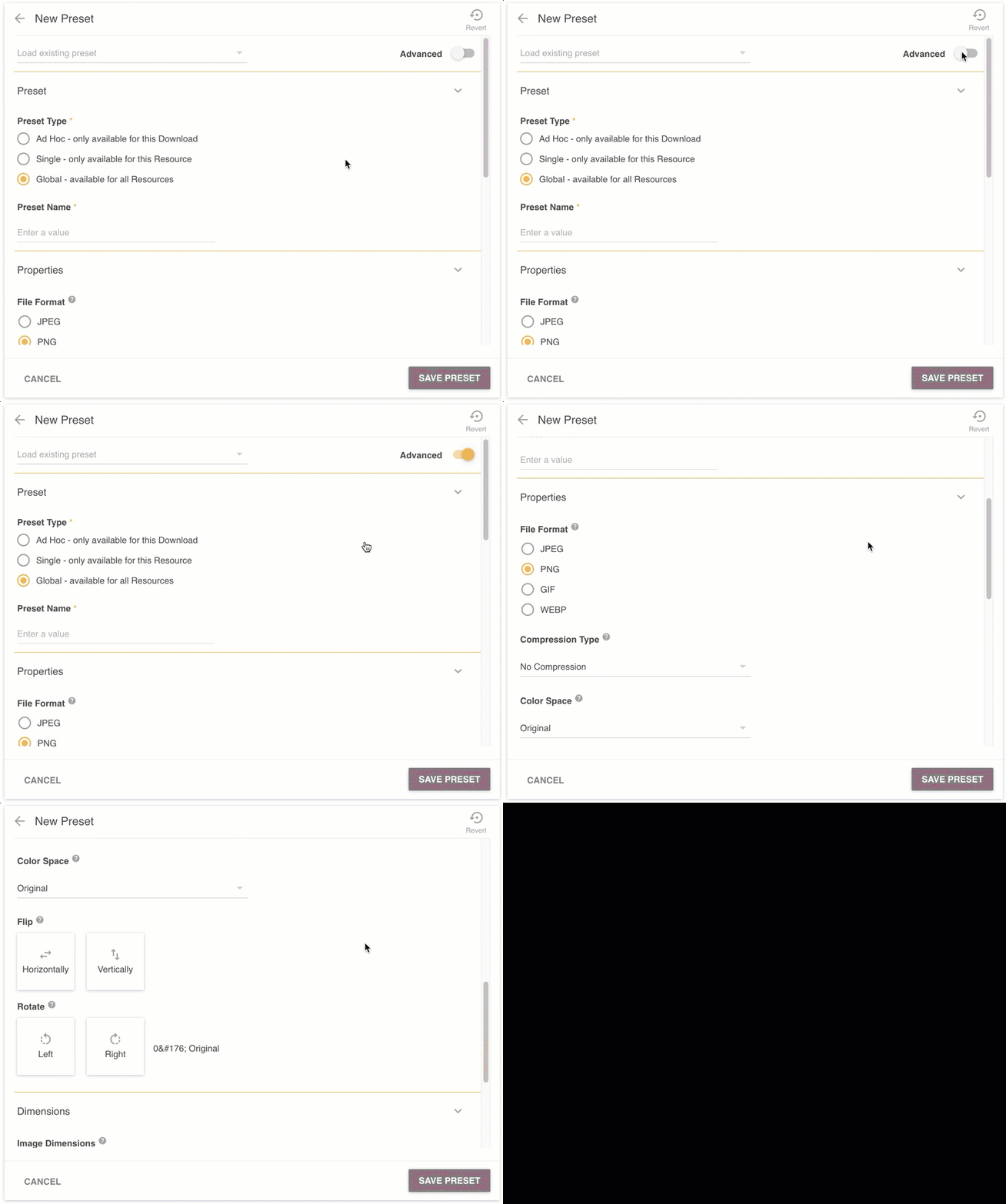
To enable them, click the Advanced toggle at the top right of the Add Presets page. The extra options appear automatically, as shown below.
Properties (Advanced)
Advanced Properties add Color Space, Flip, and Rotate.
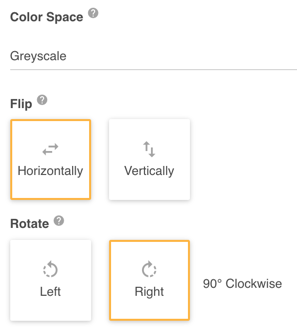
| Color Space | Changes the color space. The options are Original (default), RGB, CMYK, and Greyscale. To hide the Greyscale option for all users, contact your Customer Success Manager. |
| Flip | Flips the image horizontally or vertically. If you are also cropping (entering custom dimensions), the flip is applied first and then the image is cropped. |
| Rotate | Rotates the image in 90 degree increments. This also updates the output dimensions (if enabled). |
Dimensions (Advanced)
As in Basic Presets, you set the Image Dimensions and can enter a custom Output Dimension. Advanced presets also let you choose how the image is treated based on the original dimensions and the requested output.
Use Area of Interest for Crop: when cropping occurs and this is enabled, the crop is centred on the area of interest in the image. This applies to Bulk Download and Sharing only, and can be enabled on any Global Preset.

Smaller Output Type: applies when the original image's width and height are larger than the requested output. The default is Always crop.
Larger Output Type: applies when the original image is smaller than the requested output. The default is to keep the original dimensions and fill the gap (choose the fill type below). You can also choose to skip resizing entirely.
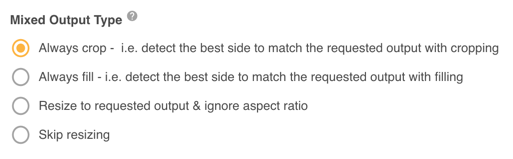
Mixed Output Type: applies when the original image is larger on one side and smaller on the other. The default is Always crop.
Fill Type: if the requested output leaves clear background space, choose the fill: Transparent or a Solid Color. If the file format does not support transparency, this defaults to white.
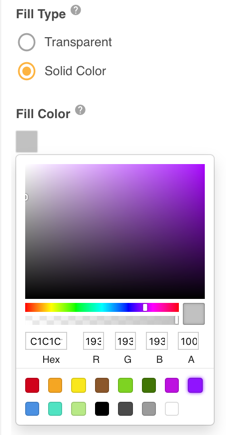
Fill Color: if Solid Color is chosen, the Fill Color field appears so you can pick the background color from the picker below.
Area Position: determines where the image is placed if it is smaller than the output, or where the crop occurs if it is larger. The options are Center (default), Right, Bottom Right, Bottom, Bottom Left, Left, Top Left, Top, and Top Right.
Loading an Existing Preset
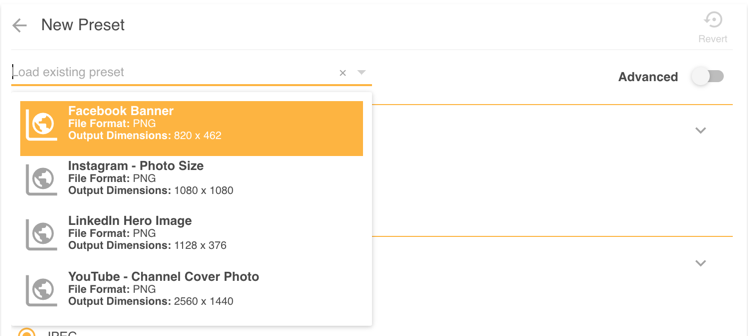
The dropdown above the fields lets you load an existing preset, which is useful when you need a similar set of conditions with only a minor change.
Saving your Preset
Click the Save Preset button at the bottom right of the Add Presets page. If any mandatory fields are missing, error messages appear on those fields. Click Cancel at the bottom left to discard, or the Revert icon at the top right to clear all options back to the original settings.
Editing your Preset
Click the Edit icon on the Presets List page. The preset loads so you can change the required fields.
Global Preset Invalidation
When you edit a Global Preset, IntelligenceBank automatically invalidates the affected public assets on the CDN, so the updated transformations are applied the next time each asset is requested. If you need to force a full refresh of a folder's public assets, you can disable public sharing under Admin > Settings (or on the parent folder) and then re-enable it.
Adding a Preset Demonstration
You can see an example of how to add a preset below.

Related Articles
- Browse the other Public Sharing articles.
- Learn how to Share your Public Resources.
- Learn more about Downloading your Resources.
- The 'Resources' terminology above may appear differently in your platform, as these are customisable terms. See the alternatives here.
Was this article helpful?
That’s Great!
Thank you for your feedback
Sorry! We couldn't be helpful
Thank you for your feedback
Feedback sent
We appreciate your effort and will try to fix the article