Presets let you build a reusable set of transformation parameters and apply them to an image resource. Single Presets are used when a specific transformation is needed for a specific image.
Using the Share / Embed, Single, or Bulk Download overlays, Admin users can create Single Presets that are available to everyone for those actions.
Table of Contents
Presets List Page
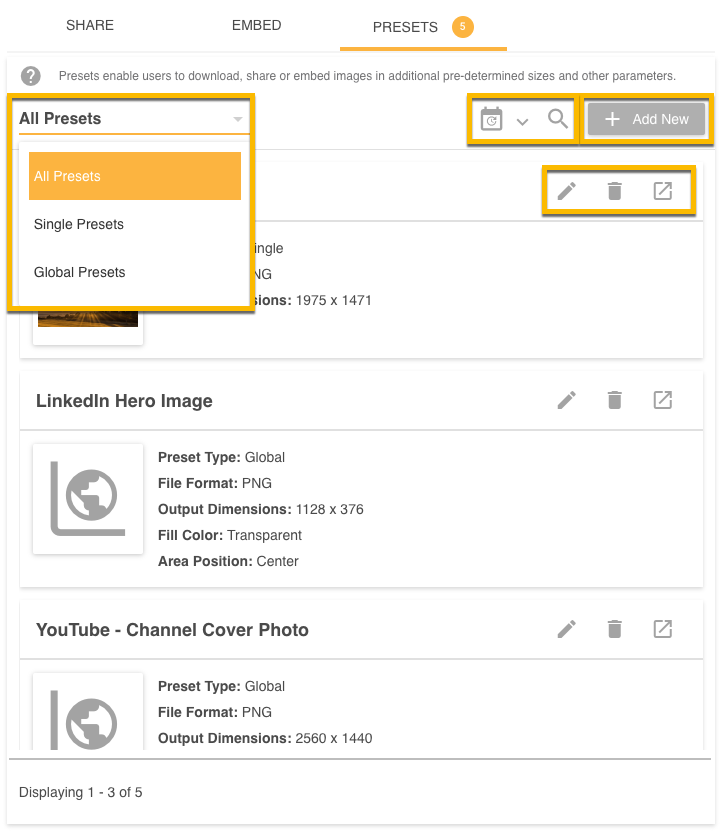
This page lists the Single Presets for the current image (shown on the left) along with all Global Presets on the platform, and shows the transformations each preset applies when selected for Share / Embed. From this list you can:
- Filter by preset type (Single, Global, or All) using the dropdown at the top left.
- Search and order the list using the Date or Search icons next to the Add button.
- Add a new preset with the Add New button at the top right (only available to users with permission to add presets).
- Edit or delete a preset using the pen or bin icons on its box.
- Preview a preset with its transformations applied using the open-in-tab icon (next to Delete), which opens a preview in a new browser tab.
Add a New Preset
The Add New Preset page is where you create your presets. Once Single is selected as the Preset Type, more options appear. For Single Presets, Advanced options are available by default.
To use only the Basic options, uncheck the Advanced toggle at the top right. Basic options are: Preset Type, Preset Name, File Format, Compression Quality, Compression Type, Image Dimensions, and Output Dimensions.
Single Presets apply to just one image, the one shown as you create the preset. Only users with Admin permission on Resources can add or edit a preset.
Preset
In this section you set the type of preset to create and give it a name.
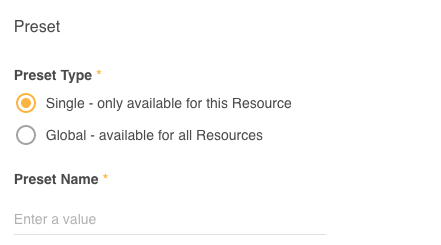
| Preset Type | Mandatory. Determines the other options below. Select Single to make the preset available only for this resource, with a different set of transformation options. Select Global to make it available for all Public Resources. Learn more about Global Presets. |
| Preset Name | Mandatory. A custom, unique name. It cannot reuse a Global Preset name or another Single Preset name for this image. |
Properties
Properties control the file format and quality of your image.
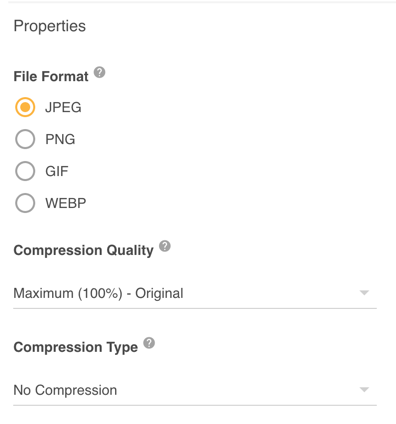
| File Format | The format the image is exported in. The options are JPEG, PNG, GIF, and WEBP. By default, your image's existing file type is selected if it is one of these. |
| Compression Quality | Reduces file size at the cost of quality, from Low (10%) to Maximum (100%, the original). Appears only when the file type is JPEG or WEBP. |
| Compression Type | Helps reduce file size with varying impact on quality. The options depend on the format, and this field appears only when the file type is JPEG, GIF, or PNG. |
| Color Space | Changes the color space. The options are Original (default), RGB, CMYK, and Greyscale. Only greyscale is applied to the Image Preview on the left; other options are applied once the image is publicly distributed. To hide the Greyscale option, contact your Customer Success Manager. |
| Flip | Use the buttons to flip the image horizontally or vertically. |
| Rotate | Flip the image in 90 degree increments using the buttons. |
Dimensions
Dimensions set the width and height (in pixels) of your image when it is shared or downloaded.

Image Dimensions
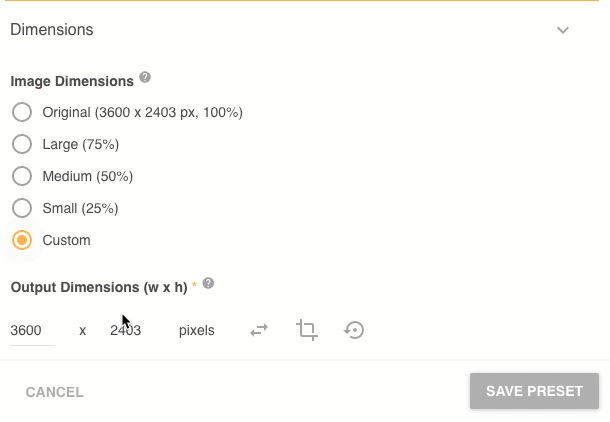
Set the width and height by choosing your Original file's dimensions, a percentage of the Original, or a Custom Dimension.
Output Dimensions (w x h)
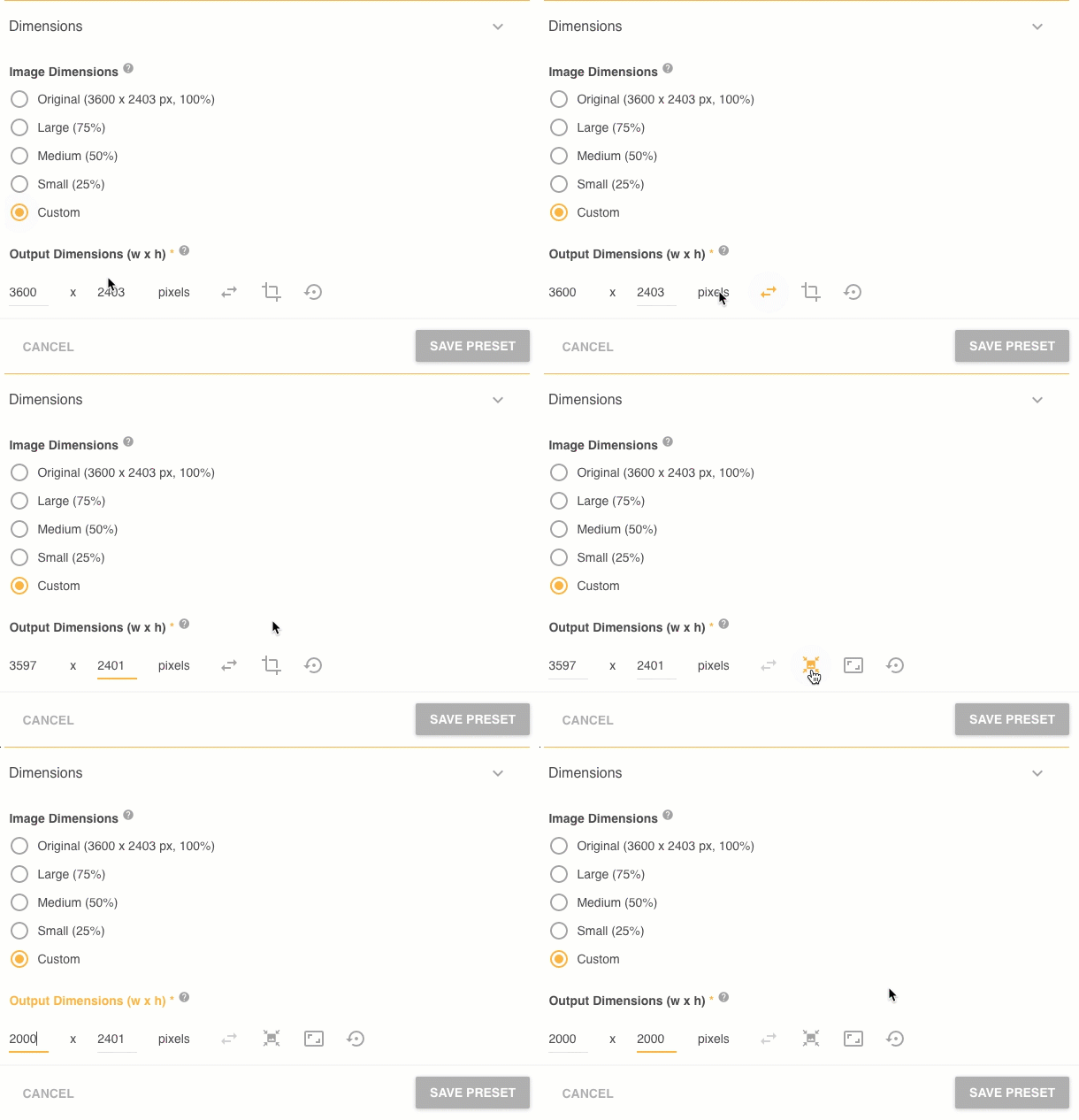
Shown when Custom Dimension is selected. Enter the pixel dimensions you need, for example to meet a social channel's banner requirements.
Resize option: available by default when Custom is selected, and also via the Resize icon when you are in Crop mode. You can change one value (width or height); use the arrows icon to switch between them. The other value updates automatically to keep the aspect ratio so the image is not distorted.

Crop option: to enter specific values for both width and height, click the Crop icon to enable both fields. More settings then appear, and you can adjust values on the Image Preview.
Aspect Ratio
Next to the Crop / Resize icon, choose a specific aspect ratio to apply to your output dimensions. Once selected, the ratio is applied as you update the dimensions on the preview, and the values update automatically when you drop the selection. Hold the SHIFT key to maintain the size, or switch back to Free to remove it. The options are Free (default), 1:1, 2:3, 4:3, and 16:9.
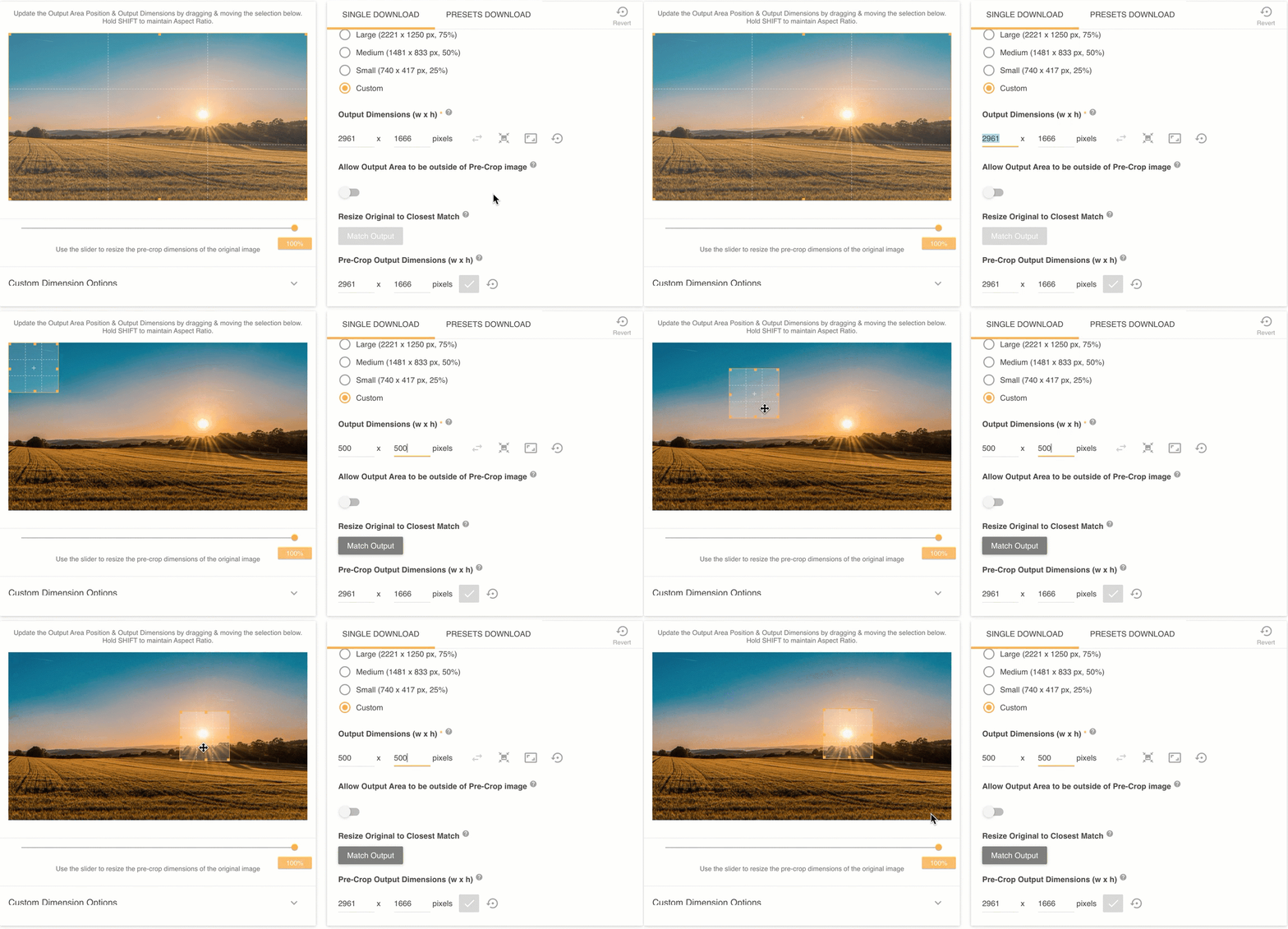
Allow Output Area to be outside of Pre-Crop Image
Determines the other options that appear and whether the output area can be moved or made larger than the pre-crop dimensions. When disabled (the default), updating the Output Dimensions keeps the Image Preview view (the image is not zoomed out) so you always see the largest possible preview, and you cannot move the output area beyond the image border. Some aspect ratio options are unavailable while this is disabled.
When enabled, you can create outputs larger than the pre-crop, for example to add a border around the image.
Resize Original to Closest Match
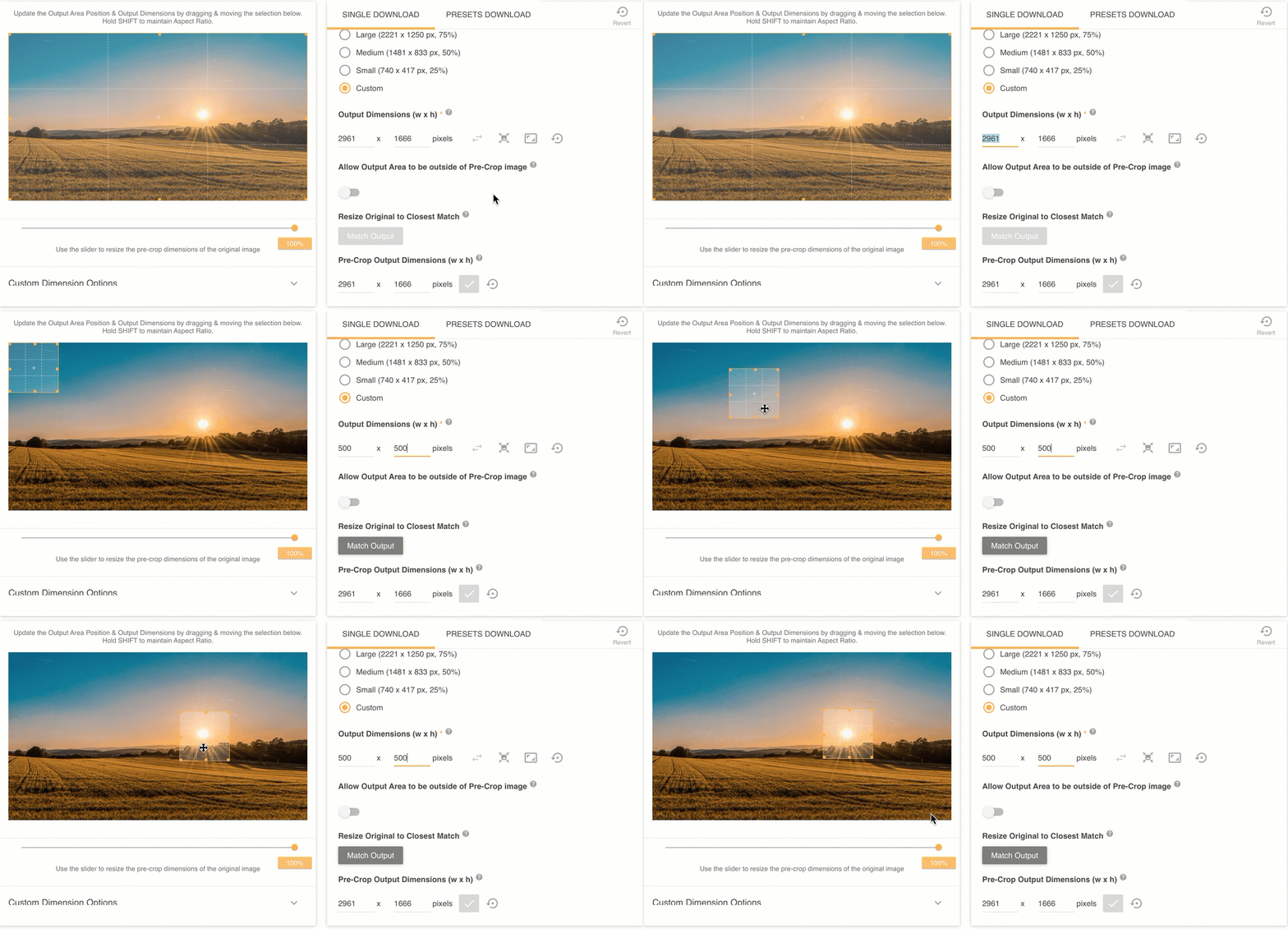
Available only when the Allow Output setting above is disabled. Update the Output Dimensions and click the Match Output button, and the Pre-Crop Dimensions are matched as closely as possible to the output. An example is shown below.
Auto-Resize Original to Closest Match
Appears when Crop is enabled for the Output Dimensions field (so you can customize both width and height) and the Allow Output setting is enabled. When on, this toggle automatically resizes the original image dimensions to most closely match the output dimensions you entered, without distorting the image.
Pre-Crop Output Dimensions
When Auto-Resize Original to Closest Match is disabled, you can enter Pre-Crop Dimensions. These define the new size of the original image that the Output Dimensions are then applied to. The dimensions always maintain aspect ratio, so the image is not distorted.
Fill Type
If the requested output is larger than the original file dimensions and there is a fill area, choose the fill type: Transparent (PNG files only) or a Solid Color. If the file format does not support transparency, this defaults to white.
Fill Color
If Solid Color is chosen above, the Fill Color field appears so you can pick the background color from the picker below.

Image Preview Area
Once Advanced Presets is enabled and Crop is enabled in Custom Dimensions, the preview on the left updates so you can drag and manipulate the image, giving a better indication of the output. Note that this is only a preview.
You also see a smaller, zoomed preview of the output, which is useful when the Output and Pre-Crop Dimensions are small. This smaller preview does not include Fill Color.
Custom Dimensions - Image Preview
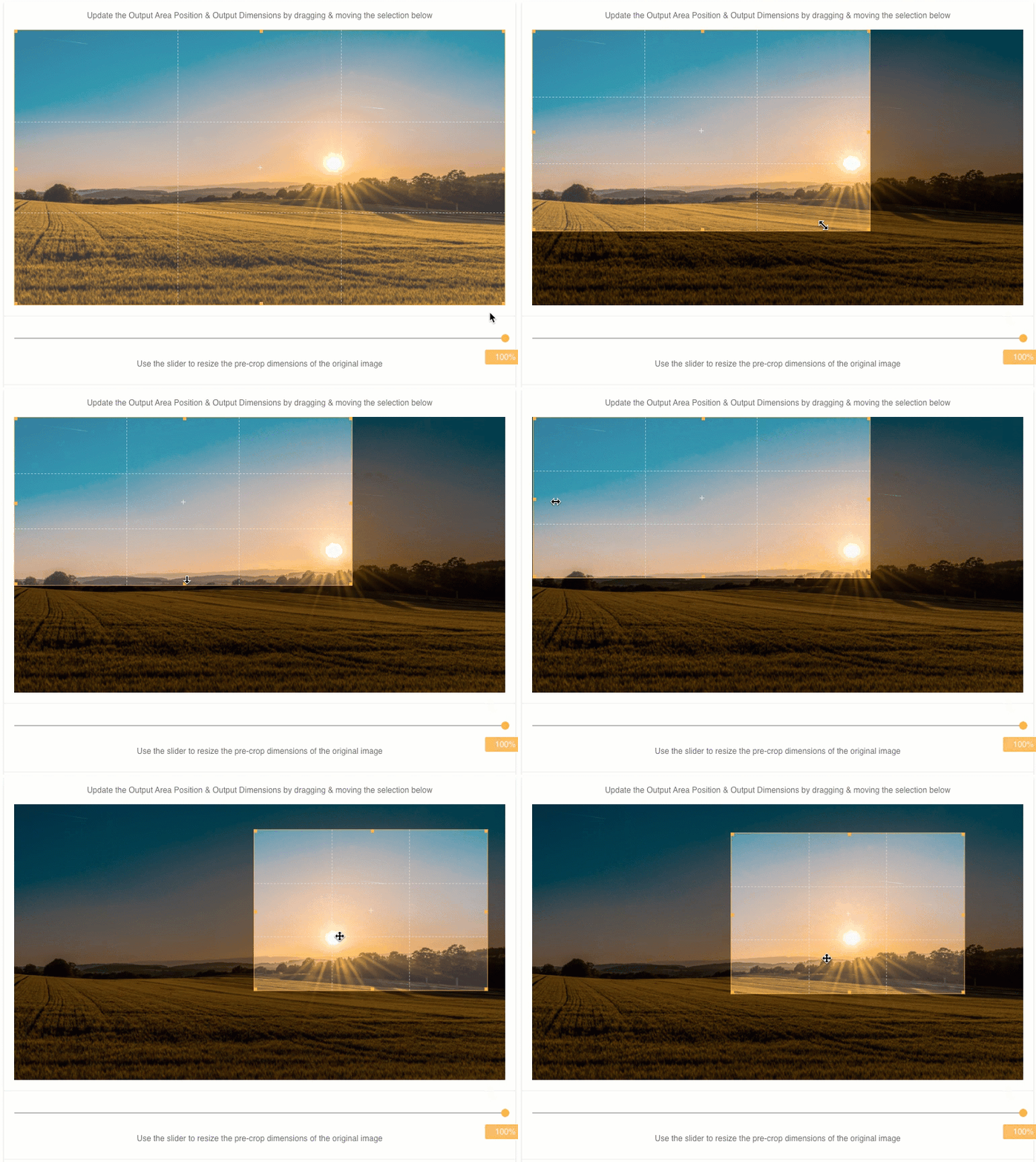
To update the Output Dimensions, click and drag any corner or side of the highlighted border around the image. The Output Dimensions fields update with the new values as you drag.
Pre-Crop Output Dimensions - Image Preview
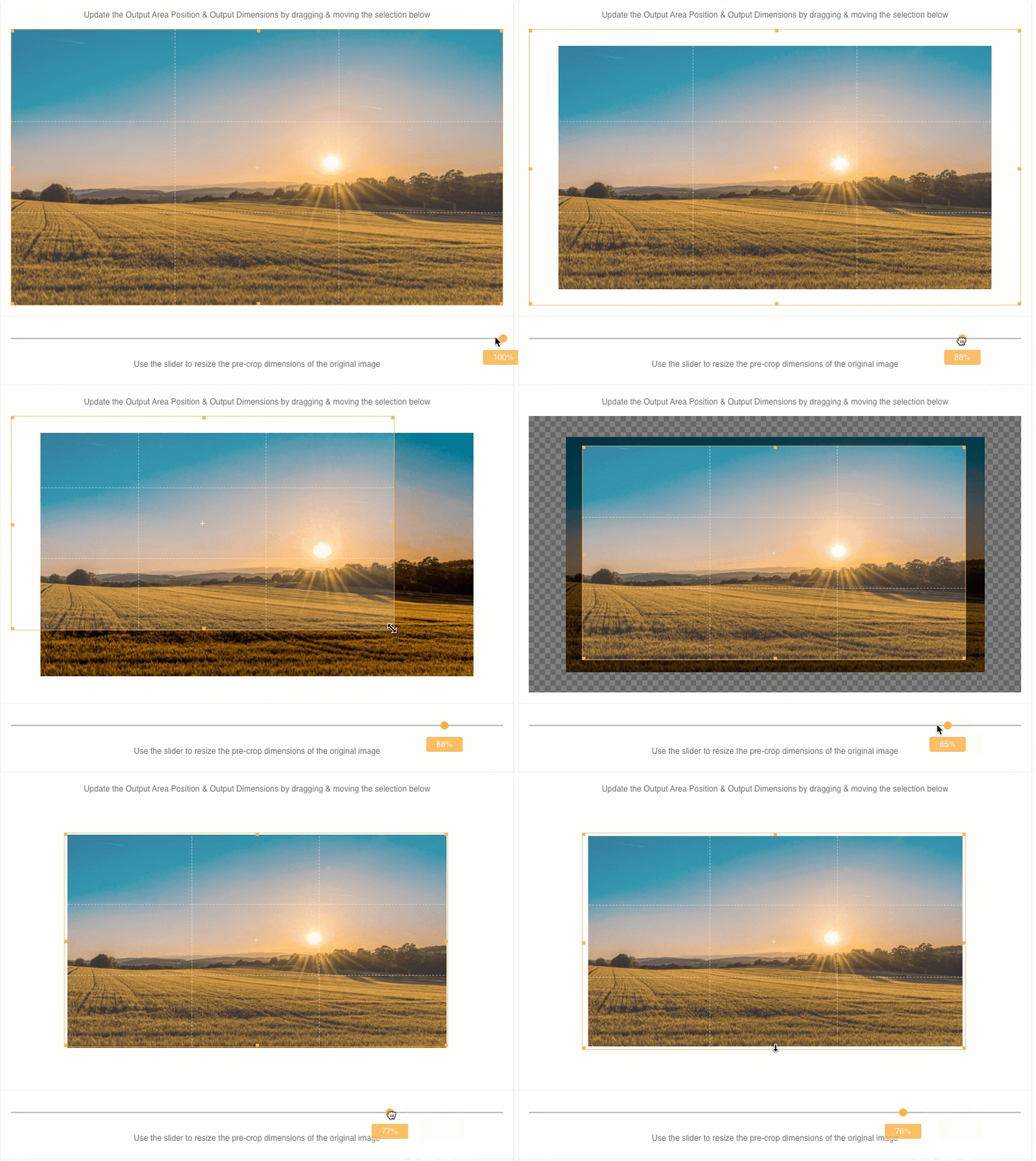
Drag the slider beneath the Image Preview to decrease the dimensions of the original image. This is useful when you need a smaller version without cropping, or a border around the edge. Aspect ratio is maintained so the image is not distorted, and the form values update as you drag.
Area Position
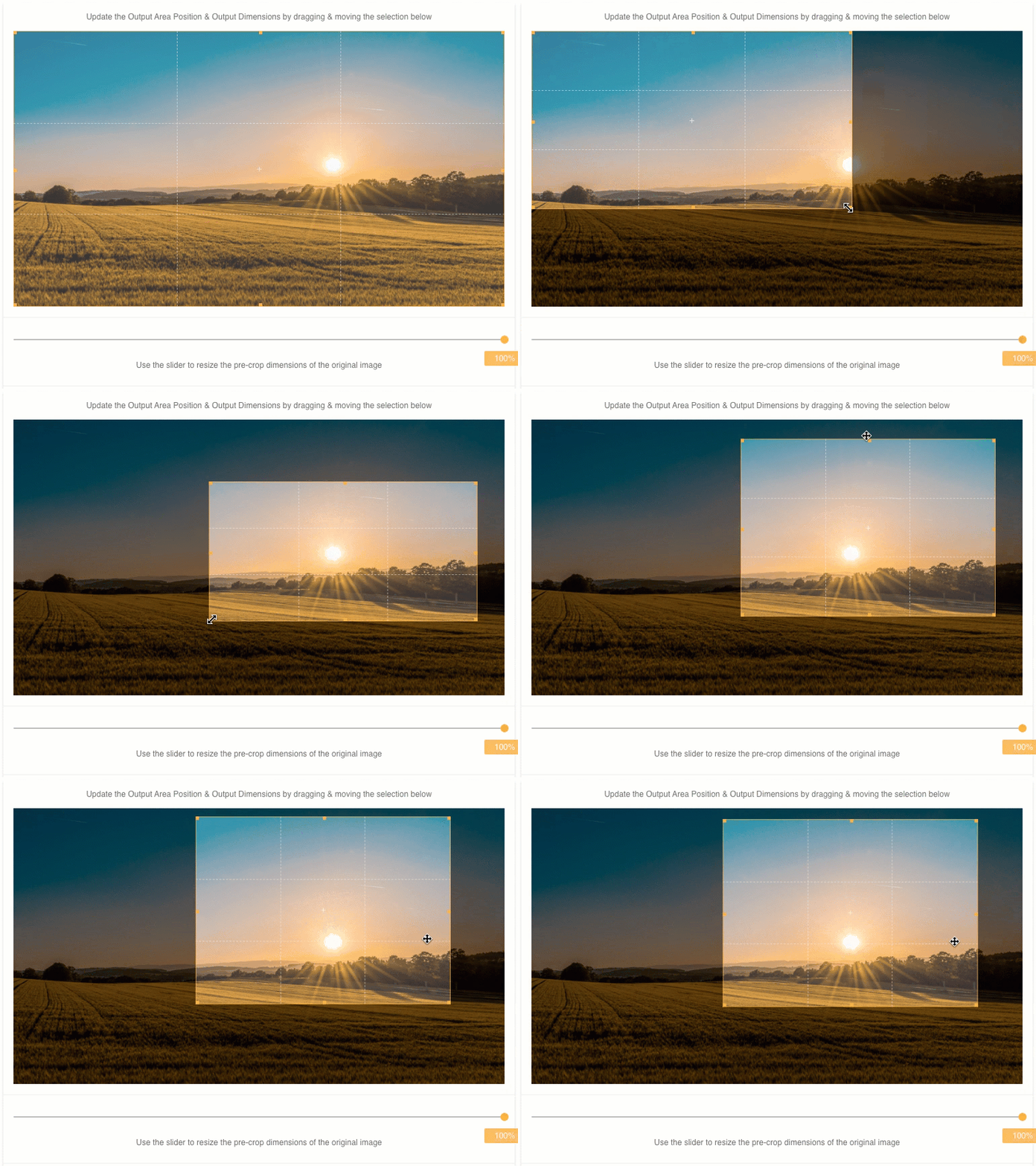
To change the output position, drag the highlighted area on the Image Preview. Click anywhere within the highlighted area and drag it to a new location. This lets you select the specific part of the image to include in the Share / Embed action.
Loading an Existing Preset
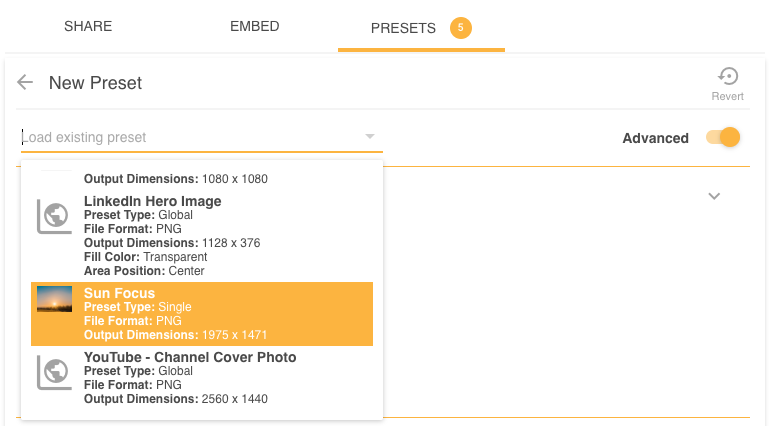
When creating a new preset, this dropdown lets you select an existing preset, loading all its options onto the form so you can make minor changes.
Saving your Preset
Click the Save Preset button at the bottom right of the Add Presets page (highlighted below). If any mandatory fields are missing, error messages appear on those fields.

Click Cancel at the bottom left to discard, or the Revert icon at the top right to clear all options back to the original settings.
Editing your Preset
Click the Edit icon on the Presets List page. The preset details load so you can change the required fields.
Related Articles
- Browse the other Public Sharing articles.
- Learn how to Share your Public Resources.
- Learn more about Downloading your Resources.
- The 'Resources' terminology above may appear differently in your platform, as these are customisable terms. See the alternatives here.
Was this article helpful?
That’s Great!
Thank you for your feedback
Sorry! We couldn't be helpful
Thank you for your feedback
Feedback sent
We appreciate your effort and will try to fix the article