If your platform has Public Access enabled, you can enable for non-registered users to be able to view select Custom Pages without requiring to login to the platform. This might be useful to set up if, for example, you want to make your BrandHub pages publicly accessible, so freelancers or the media can reference without needing a login.
To enable access to your Custom Pages to Public users, enable access to the Custom Pages module for the Public Access User As Group under Admin > Groups.
Public Access is treated as a "Public User", which is why permissions are set via a User As Group and not a standard Group (which are designed for multiple users).
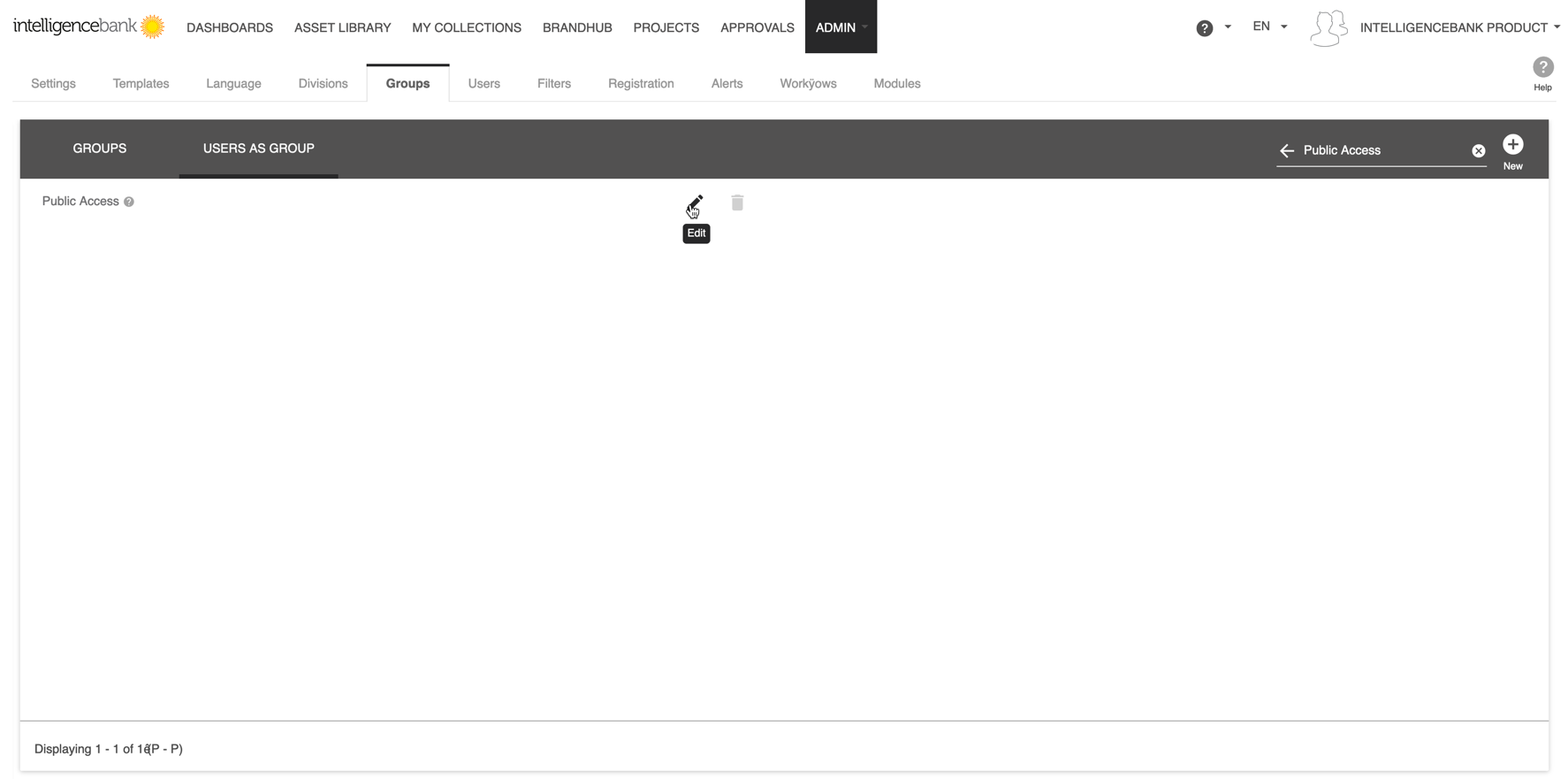
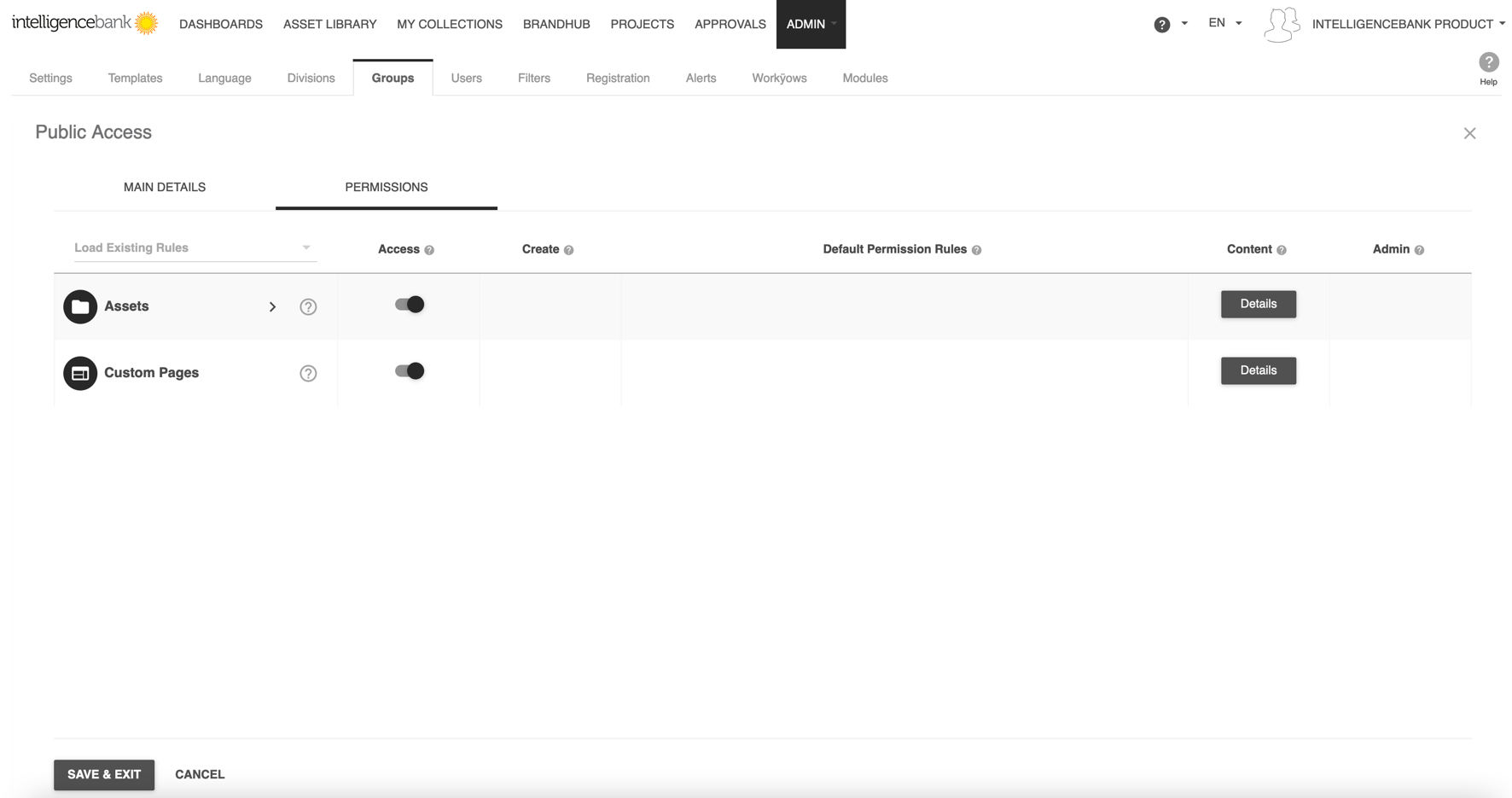
You can then enable access to specific Custom Pages by clicking Details under the Content column. You can also apply permissions directly within a Custom Page Settings permissions (under the Public Access User as Group).
Note that only View permission is available for the Public Access user.
Once Public Access user permissions are enabled, you can send the relevant page link to non-registered users and they'll be able to view the page
You can also set your platform's root domain URL to direct Public users directly to one of these Custom Pages by default.
This means whenever a non-registered user navigates to your platform's URL, they'll see the page you've made public-facing first (instead of the Login page).
To do this:
1. Navigate to Admin>Templates and create a navigation tab for the relevant page.
2. Then, navigate to Admin>Divisions, then edit the Public Access division.
3. Select the page in the Select Default Homepage field and check Use as Login Page checkbox.
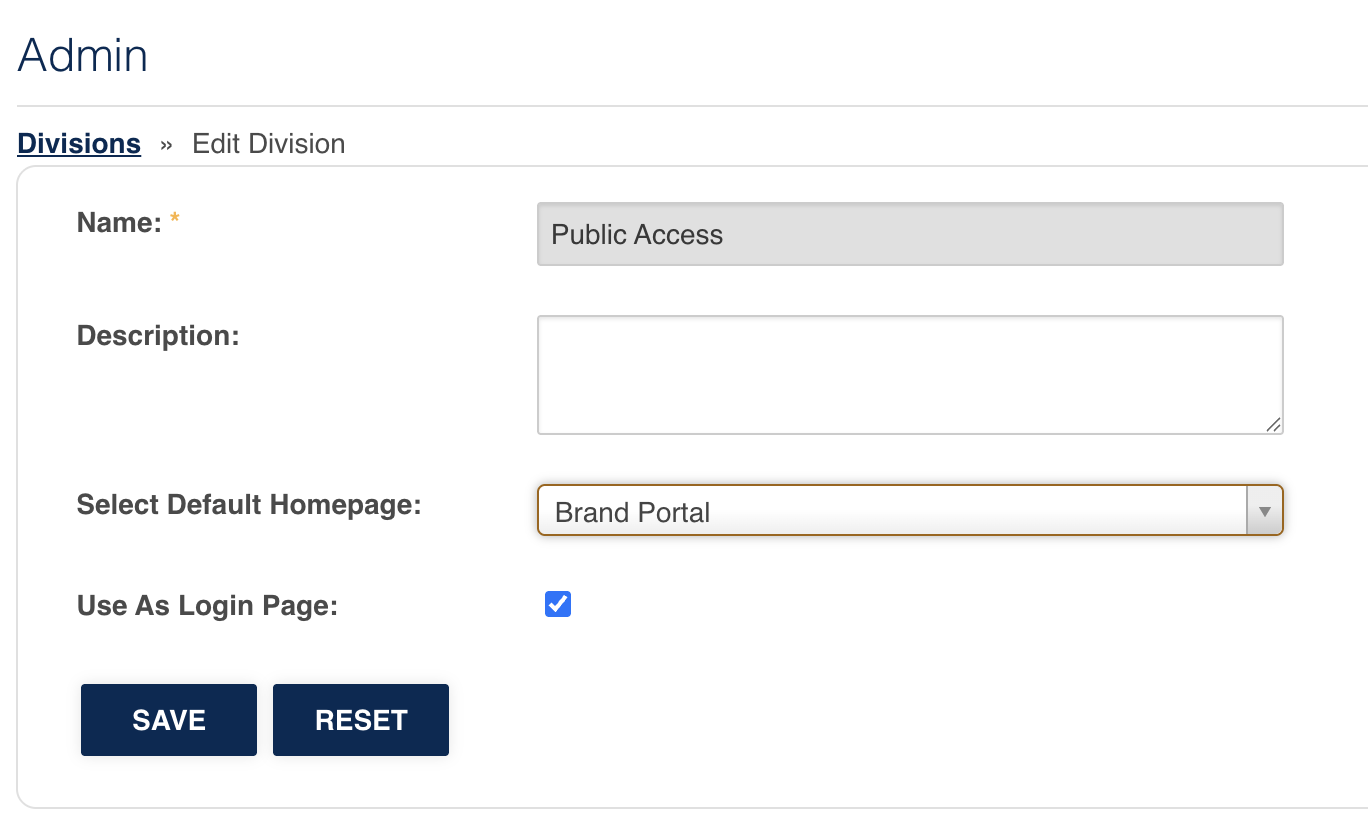
4. Select Save to save your changes.
Was this article helpful?
That’s Great!
Thank you for your feedback
Sorry! We couldn't be helpful
Thank you for your feedback
Feedback sent
We appreciate your effort and will try to fix the article