Reusable Templates can save you time when creating Custom Pages, allowing you to import previous pages into a new page as a base to edit.
This is primarily helpful if, for example, you want to create multiple welcome pages for different teams/brands and you want a base page template to work off of, while just editing a few elements to make each one unique to each audience.
Following the steps outlined in this article, create your template Custom Page and enter a suitable name in the Heading field: such as 'Template 1'.
You can make this Custom Page Template as short or as long as you need. Remember to Save your work when complete.
Then, when creating or editing another Custom Page you can import this Template into that page.
To do so, ensure you have selected the HTML editor.
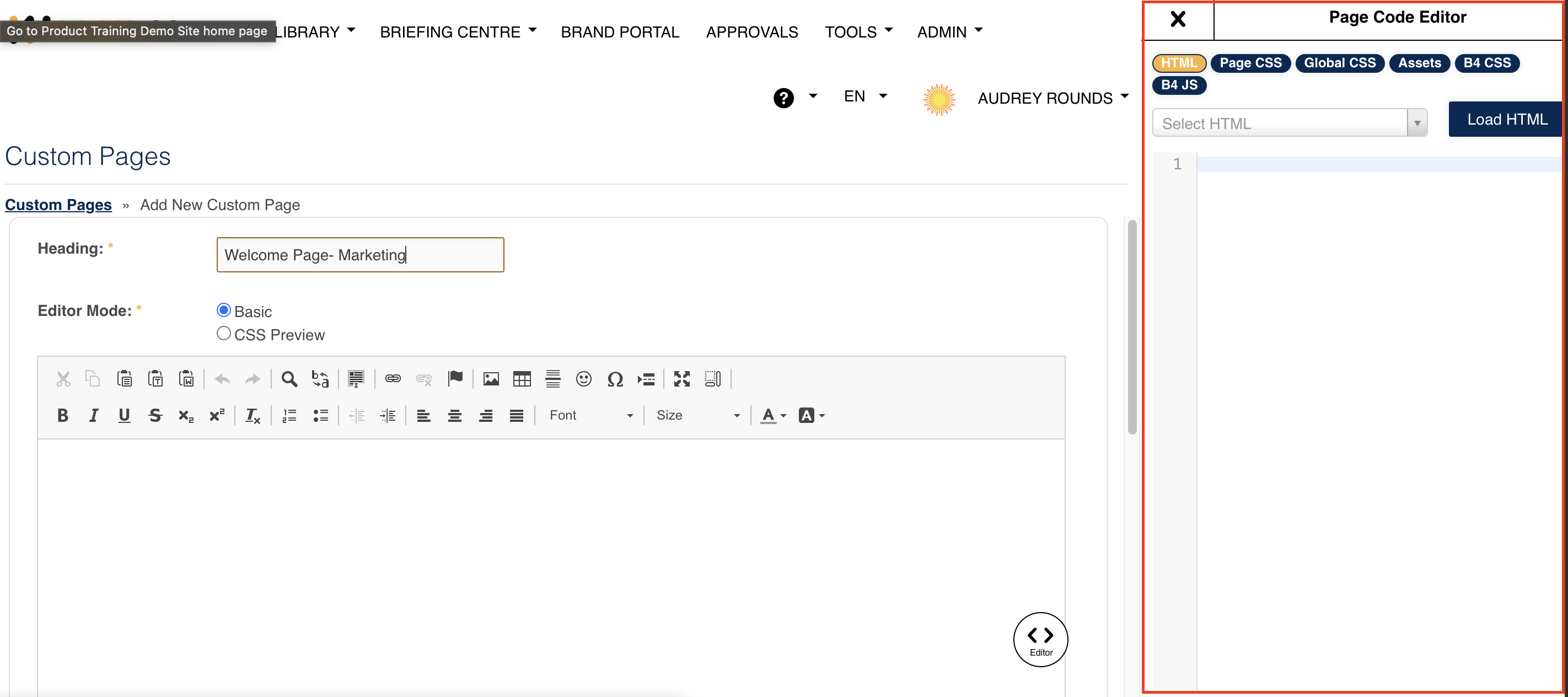
If the editor side-bar does not automatically appear, click the Editor button on screen:
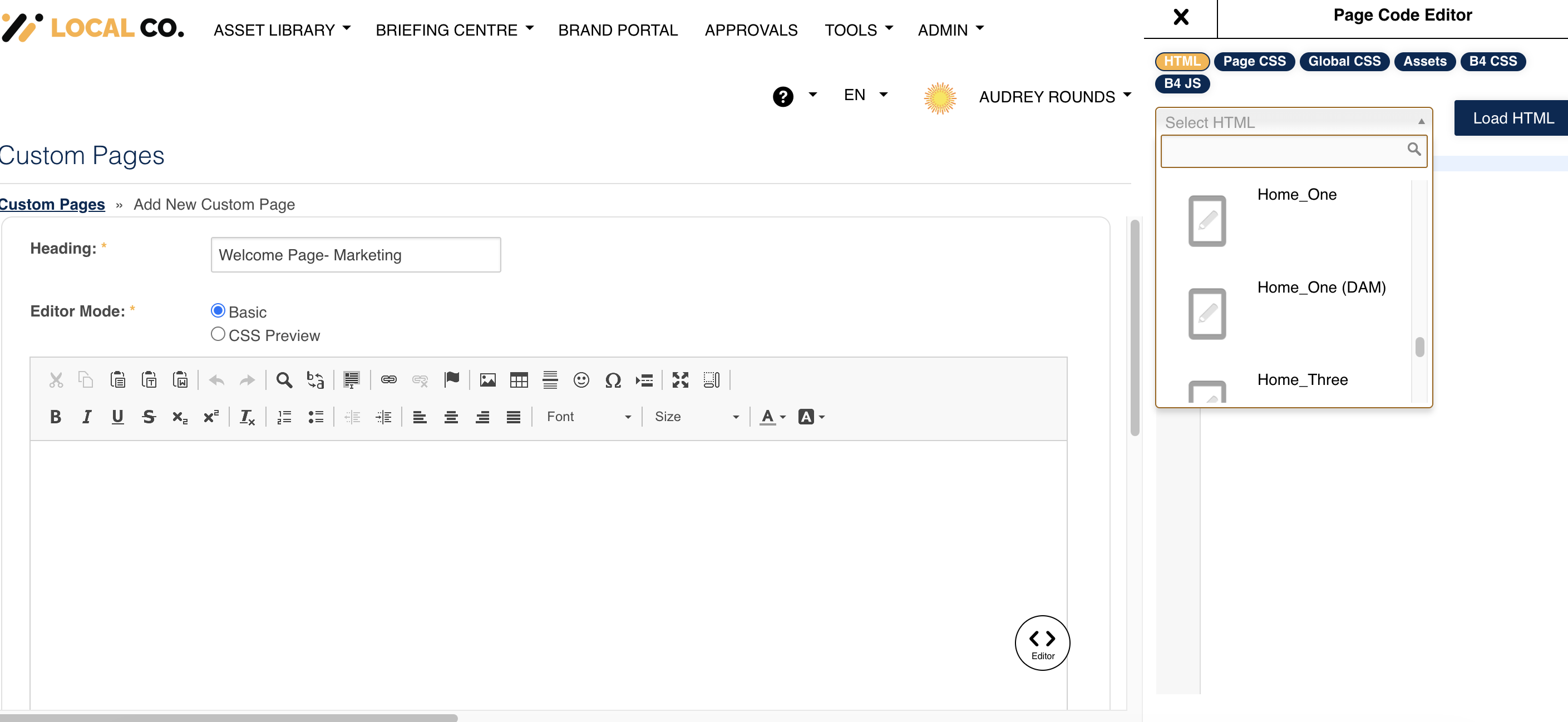
Up the top of the right-hand side-bar you will find a drop-down field titled Select HTML.
Click into this and wait for all your previously created other Custom Pages to show, then select the Template name and click the Load HTML button.
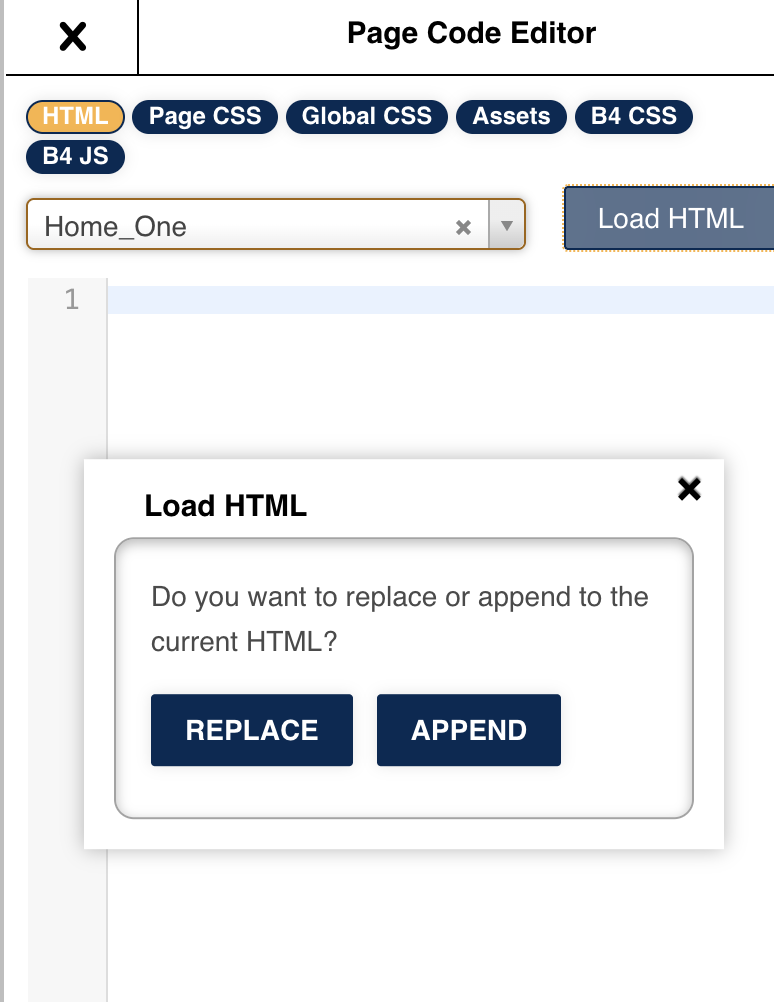
You will then see a message asking you if you want to append or replace any existing HTML that might already be saved on the Custom Page. Make your selection by clicking one of those options.
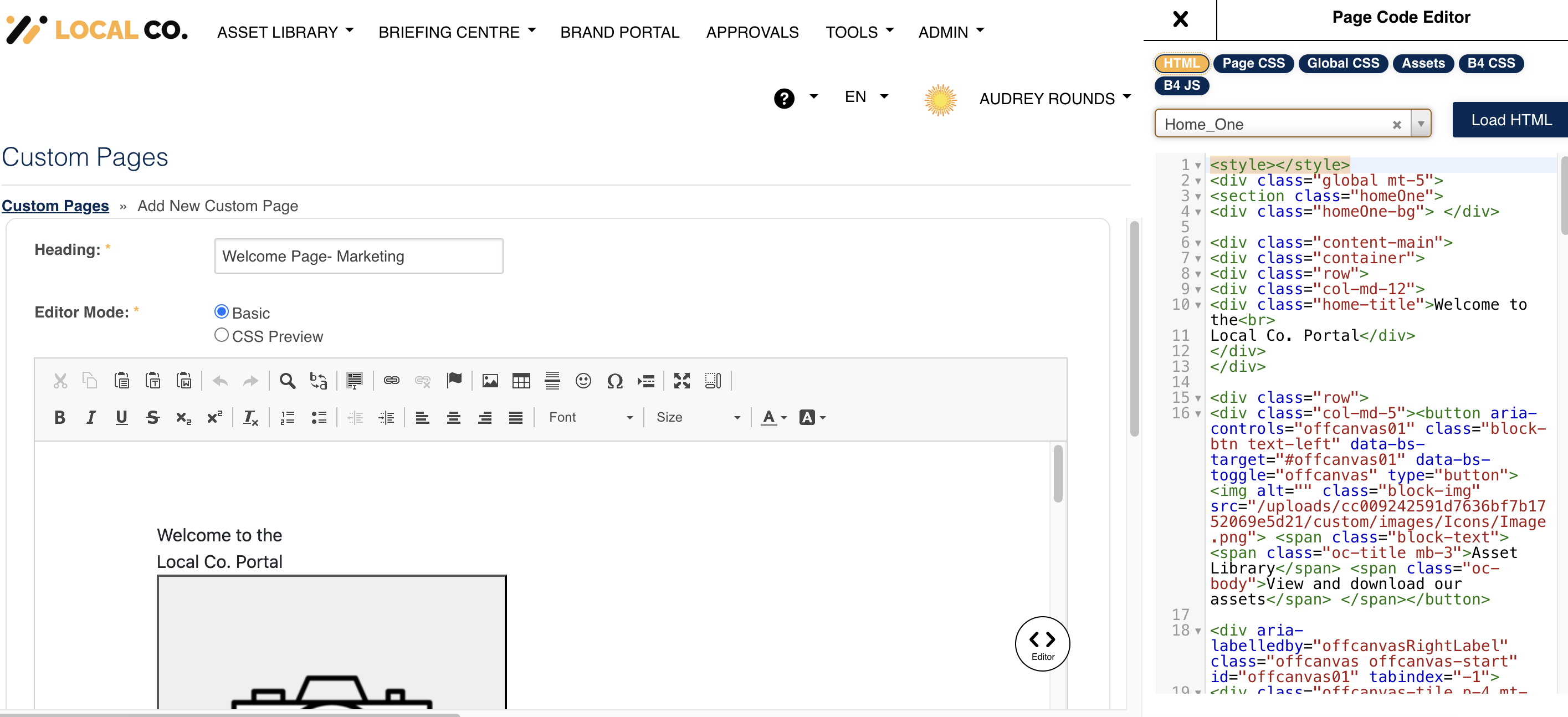
You'll then see the HTML code from your template page populate in the HTML Editor.
Was this article helpful?
That’s Great!
Thank you for your feedback
Sorry! We couldn't be helpful
Thank you for your feedback
Feedback sent
We appreciate your effort and will try to fix the article