Table of Contents
Overview
IntelligenceBank provides Two-Factor Authentication (2FA) as a paid add-on feature for customers who want the ability to add a second level of security or authentication to the login process to IntelligenceBank. This feature works for non-Single Sign On users (ie: for users who set their passwords and login through IntelligenceBank, as opposed to within their Single Sign On provider).
How to Set Up
If Two-Factor Authentication is included in your platform, Main Admins will be able to easily set this up within their platform by following the steps below:
| 1Navigate to Global Settings | Navigate to the Admin>Configuration>Global Settings area of the platform. |
| 2Configure the 2FA setting |
Scroll down to the field called, "Two-Factor Authentication (2FA)". There are three options to select from:
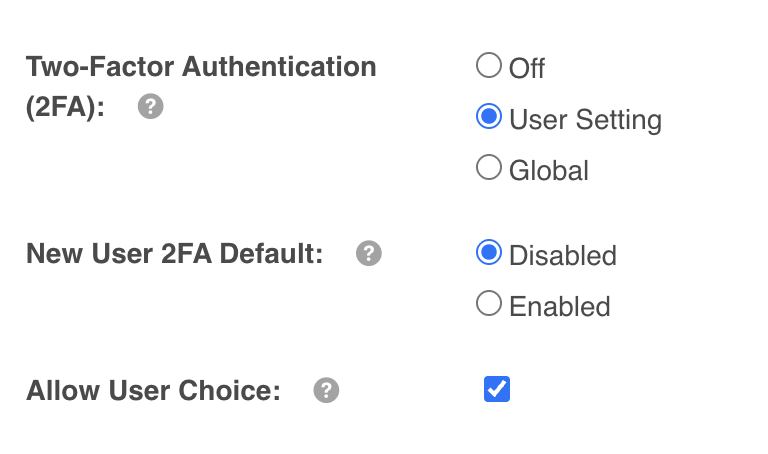
If User Setting is selected, two additional fields will populate - "New User 2FA Default" and "Allow User Choice". "New User 2FA Default" will appear with the options of "Disabled" and "Enabled". This setting is meant to create efficiencies and reduce potential error for Admins when adding new users who may have different 2FA requirements. For example, you may have a scenario where not all users will need 2FA login, but perhaps the majority of your users will need it, or for scenarios where 2FA is only required for a small number of users. Selecting "Disabled" means that when Admins add new users in the platform, Two-Factor Authentication will not automatically be enabled when creating the new user's profile, though it can still be enabled by manually selecting the "Two Factor Authentication" checkbox as it appears in the example below. This might be the preferred setting if only a small subset of users within your platform will need 2FA enabled. 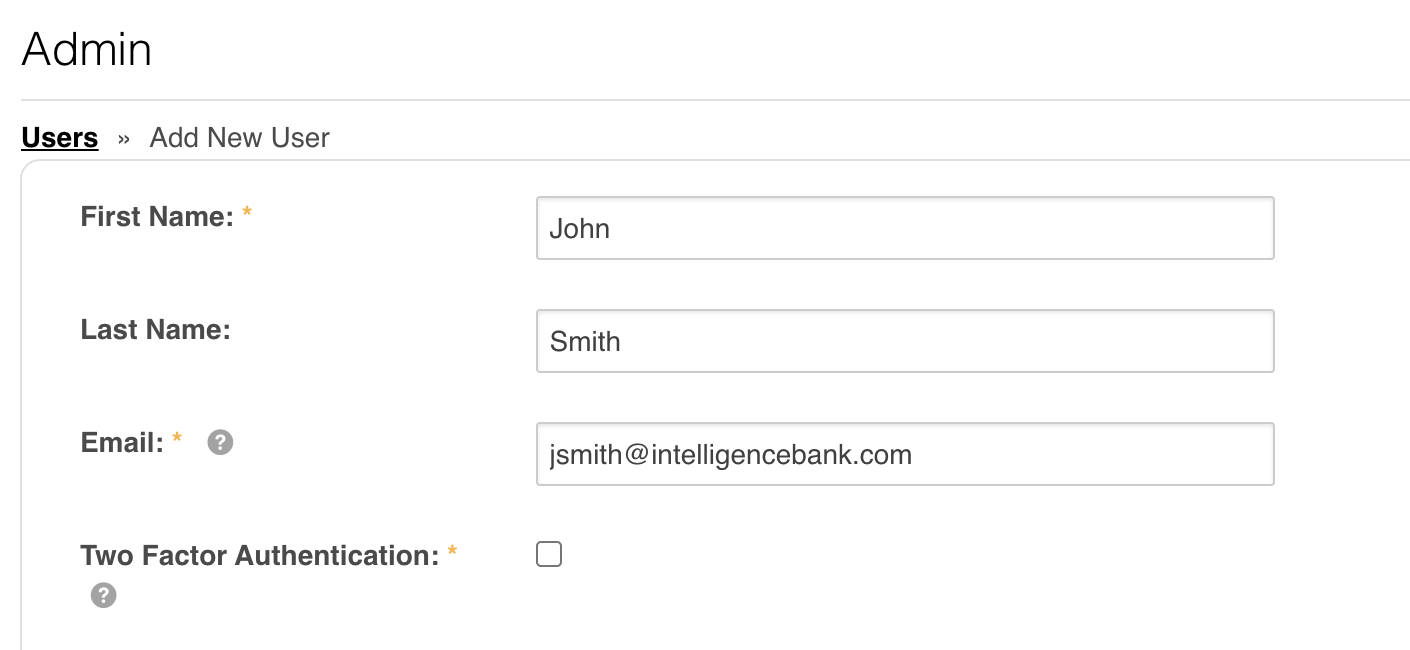
Selecting "Enabled" means that when Admins add new users, this Two Factor Authentication checkbox will be automatically checked by default. The checkbox can be manually unselected against the user profile, if that particular user does not need to login via 2FA. This might be the preferred setting if the majority of your users will need to login via 2FA. "Allow User Choice" will allow individual users the ability to turn on/off Two-Factor Authentication in their My Account page. This setting might be something to consider enabling if you want to give users the freedom to determine for themselves whether they want to use the feature. |
| 3Select a 2FA Type |
Then, select which method of authentication you'd like set up in the platform in the "2FA Type" field.
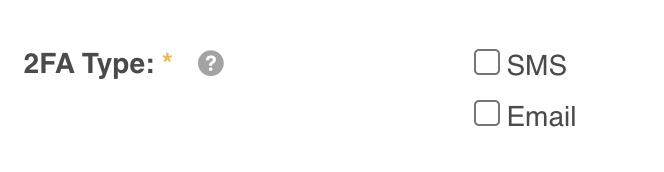
The methods IntelligenceBank currently supports are:
*Note: The SMS option does require users to have mobile numbers saved in the "Mobile" field of their user profile. This field will become mandatory for any user who is enabled for Two-Factor Authentication, if SMS is selected as the 2FA Type.
You can select one 2FA type option or both. If both are selected, users will receive the verification code via text and email simultaneously. They will only have to authenticate through one method (ie: through email or SMS). |
| 4Save your settings | Once you have made your desired settings, scroll to the bottom of the page and select "Save". |
How to Enable Two-Factor Authentication on Existing Users
The process for enabling Two-Factor Authentication on existing users varies slightly depending on how the Two-Factor Authentication settings were enabled in the Admin Settings area. Main Admins should consider both the "Two-Factor Authentication (2FA)" and the "2FA Type" options they selected.
If the "Two-Factor Authentication (2FA)" is "Global" and the "2FA Type" is "Email," there's little work a Main Admin has to do in the platform from there (since 2FA will automatically be applied across all users,) other than perhaps communicating to their end users that there's been a change to the login process.
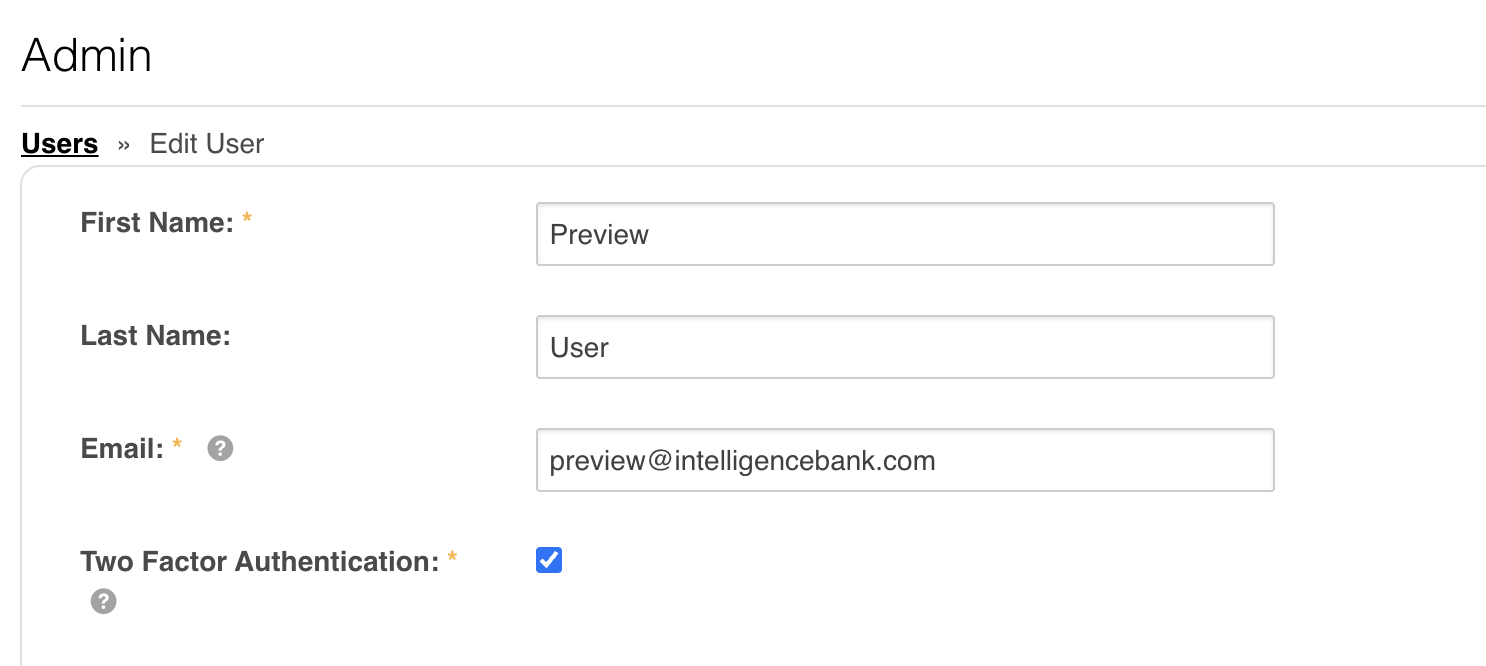
If the "Two-Factor Authentication (2FA)" is "User Setting" and the "2FA Type" is "Email," then Main Admins will be able to enable 2FA on existing users by going to their Admin>Users area of the platform, selecting an existing user, and selecting the "Two Factor Authentication" checkbox that appears (see example below). Once the user profile is saved, that user will then be required to login with 2FA.
If the "Two-Factor Authentication (2FA)" is "Global" and the "2FA Type" is "SMS," you will need to ensure there is a Mobile number saved for every user on the platform, or they will not be able to use Two-Factor Authentication. If this is your desired setting, the mobile number field will become a mandatory on each users' profile page, and it's generally recommended that you ensure all your users have their mobile numbers set up beforehand for the smoothest possible rollout of this feature.
If the "Two-Factor Authentication (2FA)" is "User Setting" and the "2FA Type" is "SMS," you will need to ensure there is a Mobile number saved for any user on the platform who you determine should be using 2FA, or they will not be able to use Two-Factor Authentication. For any user where 2FA is enabled against their user profile, the Mobile number field will become mandatory.
Frequently Asked Questions (FAQs)
| Is Two-Factor Authentication a paid add on? | Yes, Two-Factor Authentication is a paid add on. If you are an existing customer and are interested in purchasing Two-Factor Authentication, please reach out to your dedicated Customer Success Manager who can discuss options and pricing. |
| What are the different authentication methods IntelligenceBank supports? | IntelligenceBank currently supports two methods of authentication - Email and SMS. |
| Can different users have different 2FA types? | No, the 2FA type(s) are enabled as an overall Admin setting, so you can't have some users with just email and some with just SMS as their authentication method. |
| Can users select their own 2FA Type? | No, users can select whether they use 2FA overall if "Allow User Choice" is enabled, but not the 2FA Type, which is locked down within the Admin setting. |
| Can I change the 2FA type at a later time? | Yes, Main Admins can adjust the 2FA type at any point. Just note that if you're going from Email to SMS, you will need to ensure your users have Mobile numbers saved in their user profiles. |
| Can IntelligenceBank's Two-Factor Authentication be enabled on Single Sign On users? | No, IntelligenceBank's Two-Factor Authentication only works on users who use IntelligenceBank for their login process. |
Was this article helpful?
That’s Great!
Thank you for your feedback
Sorry! We couldn't be helpful
Thank you for your feedback
Feedback sent
We appreciate your effort and will try to fix the article