This article outlines some advanced actions and information related to IntelligenceBank's data reports feature.
For more general information on our data reports, please refer to our About Data Reports (Stats) article.
Table of Contents
Selecting All vs. Specific Approvals or Databases
When selecting Approval/Workflow Requests, Approval/Workflow Responses, or Databases as the report Tool, you will have the option to report on all, or on specific approval workflows or databases set up in your platform.
For approvals, you may find it helpful to report on "All Approvals" if you want data that's common across all approvals in your platform - such as any open or pending requests regardless of which approval process they're related to. These kinds of reports are helpful for a more general, bird's eye view.
For databases, reporting on all database records will give you different reportable fields than reporting on individual databases, since each database is configurable and can have different, customised fields. Consequently, the types of fields available on an All Databases report tend to be fairly high level - such as Creator (which user created the record), Created Time, Record UUID, and Record Name.
You may want to pull a report on all databases if you're mainly looking for a general understanding of how many records have been created and by whom. For a more detailed report, consider configuring separate reports for each database to get more specific information.
Filtering Assets by Folder UUID
There might be instances where you only need to report on assets from a particular folder in your Asset Library. You can configure this as a condition on your data report, but first you'll need to locate and copy your desired folder's UUID number. To find your folder's UUID:
| 1 | Navigate to the folder in your Asset Library you'd like to report on and click into it. |
| 2 | In the browser URL, you'll see a string of characters at the very end of the URL after the "index/" portion. This is the folder's UUID number. |
| 3 | Copy just the string of characters that appear after "index/". |
Then, navigate to the data reports page to set up your report's condition:
| 1 | Select Add next to Data Conditions. |
| 2 | In the condition dropdown field, select Folder UUID. |
| 3 | Paste the UUID number you copied in the earlier steps.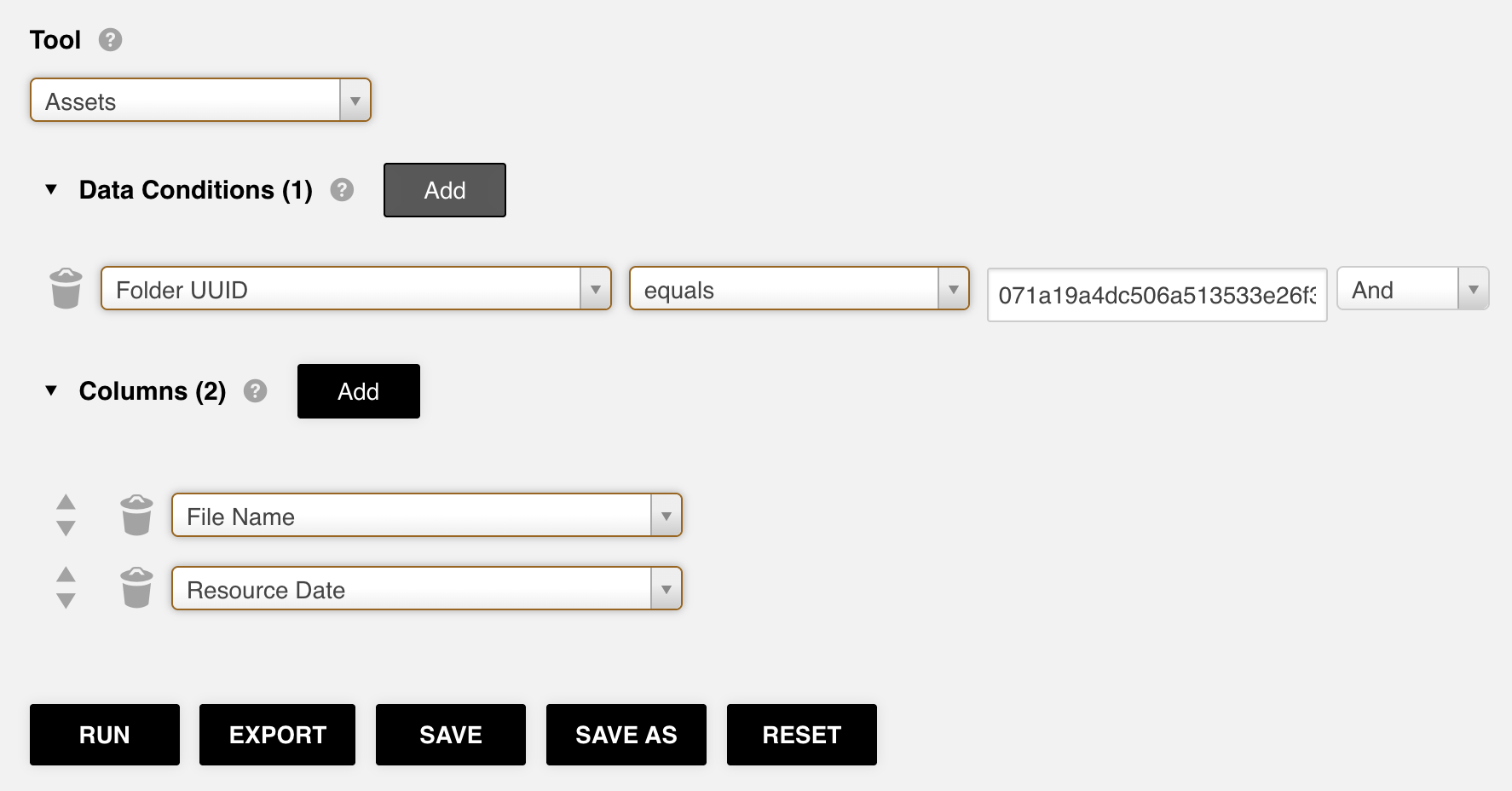 |
| 4 | Add any other applicable conditions and run or export the report. |
Reportable Options for Multi-Upload Fields in Database Forms
If you're using a database form that features a multi-upload field (allowing users to attach multiple files within a record, brief, or task), there are several options you can report on relating to the assets within that field:
| Option | Description |
|---|---|
| File Count | Displays the number of files uploaded to the field. |
| File Name(s) | Displays the name of the file(s) uploaded to the field. |
| Type | Displays whether what's attached to the field is a file or a web URL. |
| File URL | Displays the actual web URL link (for web URL types only). |
| Creator Name | Displays the name of the user who uploaded the file(s) to the field. |
| Creator Email | Displays the email address of the user who uploaded the file(s) to the field. |
| Created Time | Displays the date and time the file(s) were uploaded to the field. |
| Approval Status | If a record file approval process is configured, displays the approval status (pending / approved / declined / canceled) against the file(s) uploaded to the field. |
| General Markup Comments Revisions | If General Markup Comments is configured, displays the number of revisions added using General Markup Comment revisions against file(s) uploaded to the field. |
| File Approval Revisions | If a record file approval process is configured, displays the number of revisions added during that approval process against file(s) uploaded to the field. |
| Total Revisions | If configured, displays the combined total of General Markup Comments revisions and record file approval revisions. Note: the original file itself also counts toward the total revisions calculation. |
| Published Location (UUID) | If Publish to Folder is configured, displays the UUID of the folder that the file(s) are published into from the record. |
| Published Location (Name) | If Publish to Folder is configured, displays the name of the folder that the file(s) are published into from the record. |
How to Return a Specific List of Assets by UUID
There might be times when you only need to report on a specific list of assets. The most reliable way to do this is to report on their UUID numbers - unique identifiers assigned to each asset when it is uploaded to the platform.
To find an asset's UUID number:
| 1 | Navigate to the folder your desired asset is in, or locate it via search in your Asset Library. |
| 2 | Click on the asset's thumbnail or select Info from the asset's actions. |
| 3 | Scroll down to the Unique ID field within the asset's info panel. This is the asset's UUID. Copy it for use in your data report. Repeat for any additional assets you need to report on.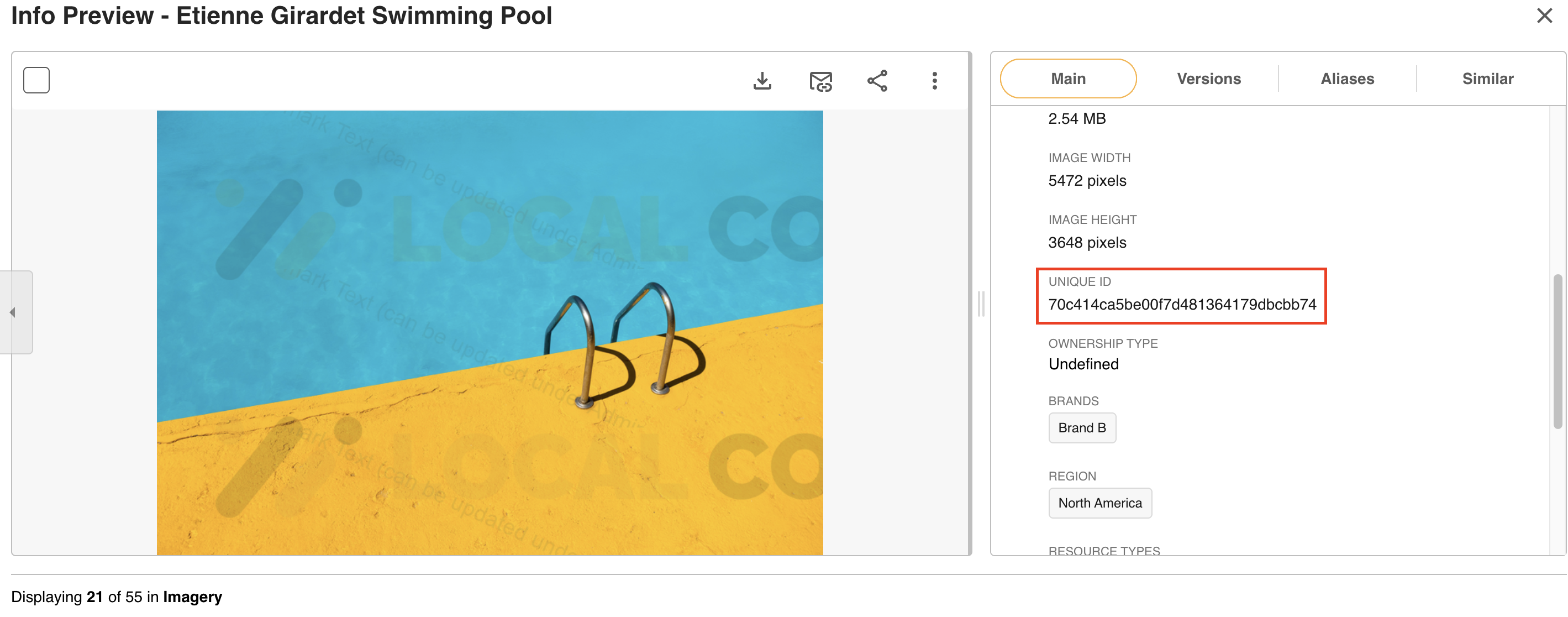 |
To configure this in your Data Report:
| 1 | In the Data Conditions area, add UUID from the dropdown and select the contains search parameter. |
| 2 | Enter all the UUIDs you wish to return, separated by a space or the boolean value OR. |
| 3 | Add UUID as a column (along with any other data points you'd like to report on) in the Columns area, then select Run. The report will return all assets with those specific UUIDs.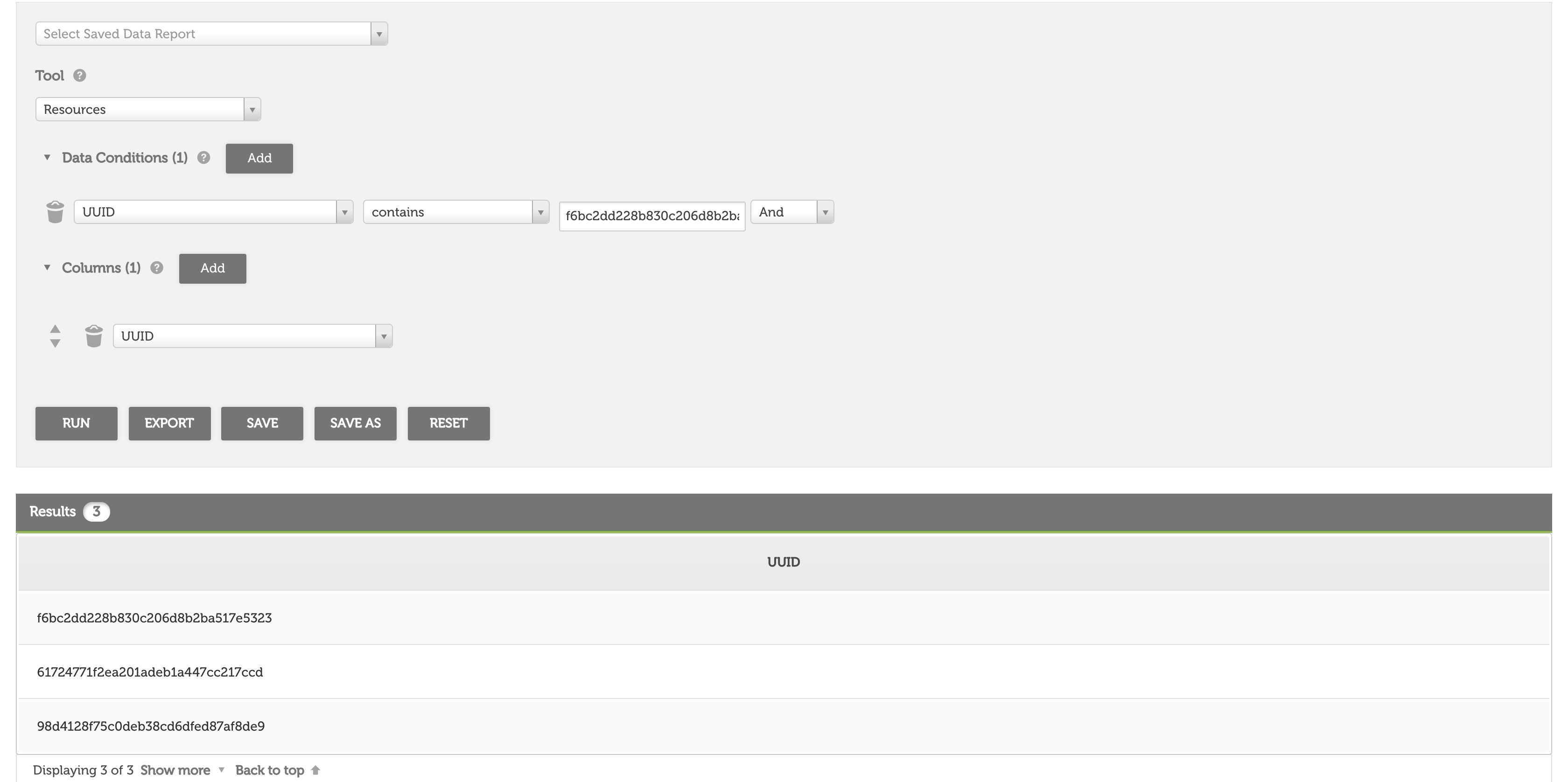 |
Was this article helpful?
That’s Great!
Thank you for your feedback
Sorry! We couldn't be helpful
Thank you for your feedback
Feedback sent
We appreciate your effort and will try to fix the article