IntelligenceBank allows Main Admins to customize the navigation menu at the top of the platform, giving users quick access to the folders, databases/forms, custom pages, and other areas that matter most to them.
Table of Contents
Overview
The navigation menu runs across the top of your IntelligenceBank platform and can serve as the primary way users move between different areas. By customizing this menu, you can create direct shortcuts to folders, databases/forms, custom pages, and other areas that your users access the most - reducing the number of clicks it takes to get where they need to go.
Navigation tabs can be set up as top-level/main menu items or nested as sub-navigation tabs under a parent tab, giving you flexibility to organize the menu in a way that reflects how your team uses the platform.
Getting Started
You must be a Main Admin to configure the navigation menu. To access these settings, navigate to Admin and then select Templates. The Navigation section appears as the top section of the Templates page, where all navigation customizations are made.
Once you have finished making changes, select Save at the bottom of the page to apply them.
Navigation Settings
The following settings control the overall appearance and behaviour of the navigation menu.
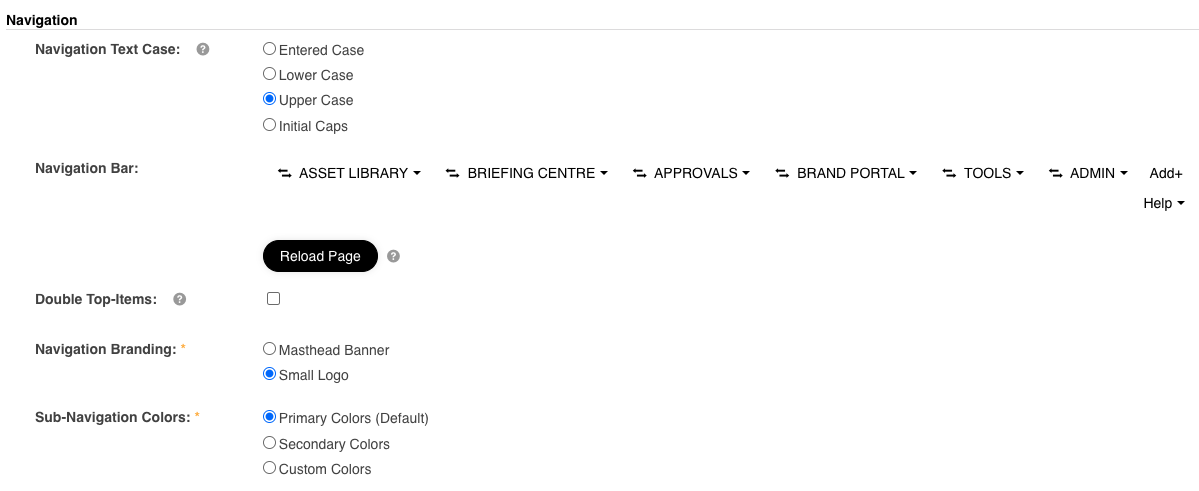
Navigation Text Case
Controls the casing applied to navigation tab labels, regardless of how the names were entered. The four options are:
- Entered Case - displays the tab name exactly as you typed it.
- Lowercase - converts all tab names to lowercase, regardless of how they were entered.
- Uppercase - converts all tab names to all caps.
- Initial Caps - capitalizes the first letter of each word in the tab name.
Double Top-Items
When this setting is enabled, any top-level menu item in the navigation bar will also appear as the first item in its own submenu. This is useful for ensuring that users who tend to look in submenus can still easily find and click through to the main tab destination without having to navigate back up.
Navigation Branding
Choose whether to display the Small Logo or the Masthead Banner (heading banner) as part of the navigation. The small logo appears alongside the navigation bar, while the masthead banner sits above it. For details on setting up these images, see the About Templates article.
Sub-Navigation Colours
Controls the colour of any sub-navigation tabs within your navigation bar. Three options are available:
- Primary - uses the primary colour set in the Colours section of the Templates page.
- Secondary - uses the secondary colour set in the Colours section of the Templates page.
- Custom - allows you to enter a specific hex code for both the sub-navigation background colour and the sub-navigation text colour. As with other colour pairings, a high level of contrast between the background and text colours is recommended for readability.
Adding Navigation Tabs
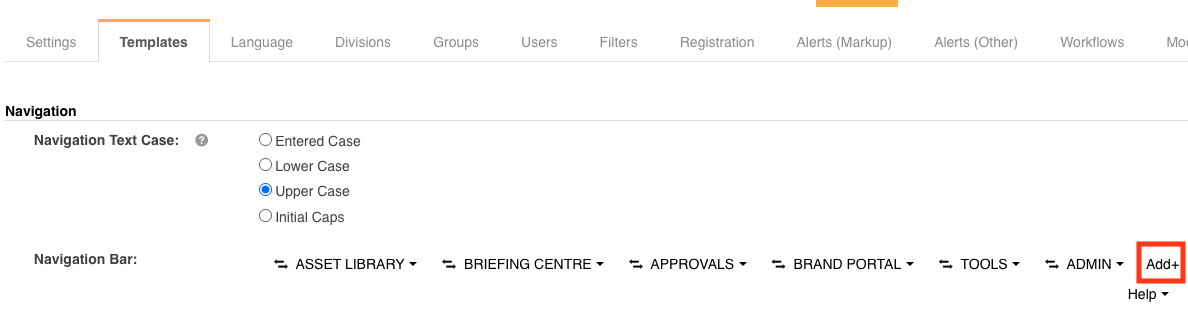
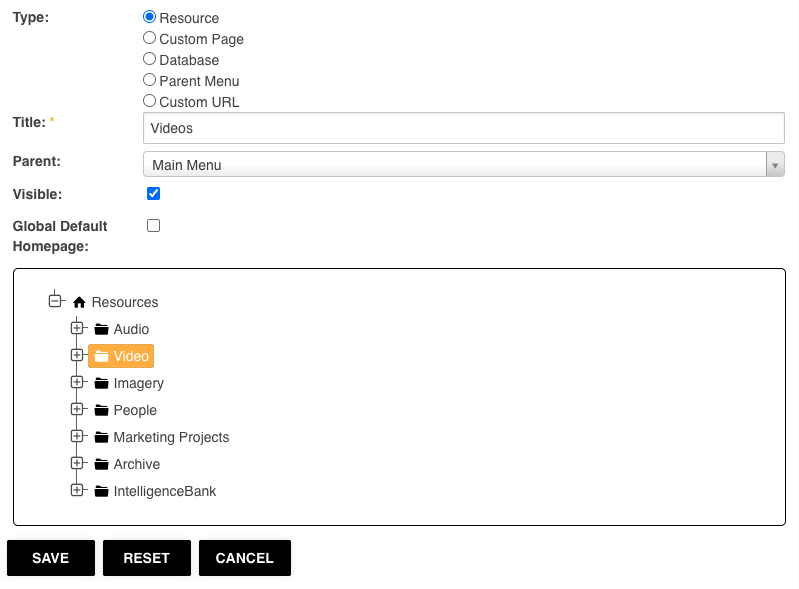
To add a new tab, go to the Navigation Bar setting within the Templates page and select the Add+ button. A window will open where you configure the tab. The key fields are:
- Type - determines what area of the platform (or external URL) the tab links to. See the tab type descriptions below.
- Title - the label that appears on the tab in the navigation bar. This can be any text, though it is generally recommended to use the name of the destination for clarity.
- Parent - controls where the tab sits in the navigation bar. Select Main Menu to make it a top-level tab, or select an existing tab to nest it as a sub-item.
- Visible - checked by default. Uncheck to hide the tab from users in the navigation bar (useful for setting a default homepage without surfacing the tab itself). Note that hiding the navigation tab does not take away access to the underlying destination (ie: folder, database/form, etc) for any user groups that have permission to access it. It only hides the navigation tab.
- Global Default Homepage - if selected, the destination this tab points to becomes the landing page for all users entering the platform. Enabling this reveals a secondary option: Force Apply on Divisions, which automatically updates the homepage across all divisions so you do not need to change each one individually. Note that permissions to view the page still need to be enabled on a group level for your users to view the page when logging in.
Once all fields are filled in, select Save in the window to create the tab.
Note that you can only have one tab per area it’s linked to (ie: you can’t create two separate navigation tabs that both link to the same folder, form, etc.)
Tab Types
| Type | What It Does |
|---|---|
| Resource / Assets | Links the tab to a specific folder or subfolder within the asset library. When selected, a dropdown of your folder structure appears so you can choose the desired folder. It is generally recommended to name the tab after the folder it points to. Navigation tabs of this type are filtered by group permissions - users who do not have permission to view the target folder will not see the tab in their navigation bar. |
| Custom Page | Links the tab to a custom page built within the platform (for example, a brand hub page). A dropdown lists all custom pages available in your platform. Group permissions apply - users without access to the custom page will not see this tab. |
| Database | Links the tab to a specific project database or custom form (such as a brief or request form). A dropdown lists all databases available in your platform. It is recommended to name the tab after the database it links to. Group permissions apply here as well. |
| Parent Menu | Creates a top-level grouping tab that acts as a container for sub-navigation items rather than linking directly to a destination. The parent should be set to Main Menu. You can choose whether the tab itself is clickable and, if so, whether it links to the first available sub-item beneath it. |
| Custom URL | Links the tab to an external URL outside of IntelligenceBank, such as your company website, intranet, or another software tool. Enter the full URL in the field provided. You can also choose to open the link in a new browser tab so users are not taken away from the platform. Note the permission behaviour described in the warning below. |
Managing Navigation Tabs
Reordering Tabs
To change the order tabs appear in the navigation bar, click the arrow icon on any tab and drag and drop it into the position you want. The navigation bar will reflect the updated order once saved.

Editing a Tab
Click on any existing navigation tab in the Navigation Bar setting to open its edit window. From here you can:
- Rename the tab by updating the title field.
- Change the parent to move the tab to a different location in the navigation bar.
- Update the destination to point the tab to a different folder, page, database, or URL.
Deleting a Tab
To remove a tab entirely, open its edit window by clicking on it and select the Delete button. This will remove the tab from the navigation bar across the platform.
Reset and Cancel
Within the edit window, the Reset button will undo any changes made during that editing session, but only if you have not yet saved. The Cancel button closes the window without applying changes.
Sub-Navigation Tabs
Adding a Sub-Tab to a Main Tab
Platforms with extensive folder structures, custom pages, or who simply wish to add more navigation options to their main menu can create a multi-level top navigation menu that goes up to four levels down.
There are two ways to add a sub-navigation tab. The first is to use the standard Add+ button and manually set the Parent field to the main tab you want the sub-tab to sit under.
The quicker method is to hover over the main navigation tab in the Navigation Bar setting and select the Add+ button that appears next to it. This opens the same window, but with the Parent field already pre-populated to that main tab - saving you the step of selecting it manually.

Adding a Sub-Tab to an Existing Sub-Tab
You can also nest tabs within sub-navigation tabs. To do this, hover over the main tab in the Navigation Bar setting - the existing sub-navigation tabs beneath it will appear in a list. Hover over the specific sub-tab you want to add a nested item to, and an Add+ button will appear alongside it. Click it to open the configuration window, fill in the required settings, and select Save. The new tab will appear nested within that sub-navigation tab in the navigation bar.

Need Help?
If you have questions about setting up or managing your navigation menu in IntelligenceBank, reach out to your Customer Success Manager or contact the support team.
Was this article helpful?
That’s Great!
Thank you for your feedback
Sorry! We couldn't be helpful
Thank you for your feedback
Feedback sent
We appreciate your effort and will try to fix the article