IntelligenceBank provides a range of configurable branding elements that allow Main Admins to tailor the platform's look and feel to match your organisation's brand style - covering logos, colours, fonts, icons, watermarking, and more.
Getting Started
To access the branding and template settings, navigate to Admin and then select the Templates tab. From here you can manage all of the configurable elements described in this article.
Once you have made your desired changes, select Save at the bottom of the page. This will apply and update your platform with the new branding, colours, fonts, and other settings.
Branding
Scroll to the Branding section of the Templates page to configure the visual elements below.
Mobile Navigation Alignment
Choose whether the navigation is center-aligned or left-aligned when users access the platform on a mobile device.
Small Logo
The small logo is displayed in the top left-hand corner of the platform. To set it, select Click here to select a file and choose your logo from your computer. Select Save at the bottom of the page to apply the change. The small logo should have a minimum height of 120 pixels.

Favicon
The favicon is the small logo that appears on browser tabs, typically to the left of the tab title. To upload a custom favicon, select Click here to select a file, locate your favicon image and add. The image should have a minimum height and width of 120 pixels.
Heading Banner (Masthead)
If Masthead Banner is selected as your navigation branding option, a heading banner will appear above the navigation bar rather than alongside it. The Heading Banner can also be used on your Login Page (see Login Background Display options below). The banner must be at least 964 pixels wide. Images larger than this will be scaled down automatically to fit the page. The maximum file size is 5 MB.

Email Banner
The email banner appears at the top of all emails sent from the IntelligenceBank platform. It must be no wider than 550 pixels and no taller than 100 pixels. Larger images will be scaled down automatically. The maximum file size is 5 MB.
Login Background
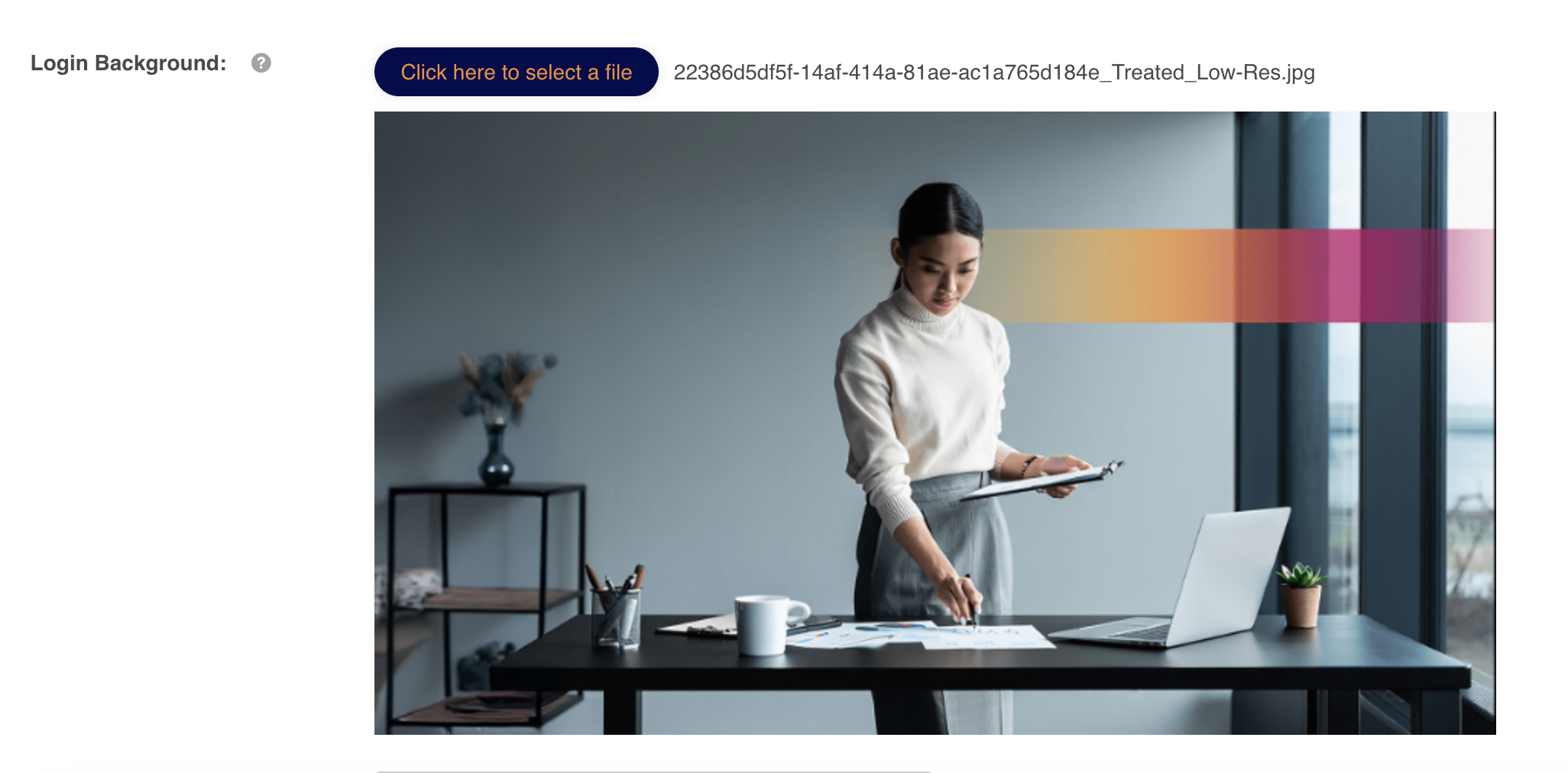
If you are using IntelligenceBank's standard login page, you can upload a company background image to use as branding. The maximum file size is 5 MB, and the recommended dimensions are 1920 x 1080 pixels (full screen).
You can also control how the image displays using the Login Background Display option. The available display modes are:
- Fit to screen - scales the image to fill the screen while maintaining aspect ratio.
- Stretch to fill screen - stretches the image to cover the full screen area.
- Center - displays the image centered without scaling.
- Tile - repeats the image across the login screen.
Login Layout
The Login Layout setting determines what displays on the login screen. You can choose to show just the login background, just the heading banner, both, or neither.
Login Text Colour
This setting controls the colour of footer text on the login page. Enter a custom hex code in the field. This is particularly useful for ensuring readability against your login background - for example, using a dark text colour on a light background image, or a light text colour on a dark one.
Icons
The following icon settings are available in the Branding section of the Templates page.
| Setting | Description |
|---|---|
| Enable Labels | When enabled (the default), the name of each action is displayed alongside its icon when viewing items in a List View. For example, the download icon will also show the word "Download", making it easier for end users to understand icon meanings. |
| User Icon | The default icon displayed on user profiles across the platform when a user has not set their own. Individual users can override this under their My Account settings. |
| Folder Icon | The global default folder icon used across all folders created within the platform. Individual folders can be assigned a custom icon at the folder level, but this setting controls the fallback used when no custom icon has been selected. |
| Asset/Resource Icon | A default icon for files when no custom thumbnail is available. Many uploaded assets generate their own thumbnail automatically (for example, an image file will display a preview of the image), but this icon is used when that is not possible. |
| Custom Page Icon | A default icon displayed for custom pages when no custom thumbnail is available. |
| Database Icon | A default icon used for databases and forms when no custom thumbnail has been selected. |
| Records Icon | A default icon used for records when no custom records icon or thumbnail has been selected. |
Colours
In the Colours section of the Templates page, you can apply your organisation's custom colour palette to the platform. Each field accepts a hex code value.
| Color Field | Where It Is Used |
|---|---|
| Primary Colour | The most prominent colour throughout the platform. Used for the navigation bar and most pop-up windows. |
| Primary Text Colour | Used to display text against the primary colour. A strong contrast between this and the primary colour is recommended for readability. |
| Secondary Colour | Used frequently alongside the primary colour. Most notably applied to section headers and buttons. This colour should complement - rather than clash with - the primary colour. |
| Secondary Text Colour | Displays text against the secondary colour. Contrast against the secondary colour should still be considered for easy readability. |
| Feature Colour | Used to highlight items such as icons, hyperlinks, and hover actions. |
| Feature Text Colour | The colour used for text in primary buttons. |
Typography
The Typography section allows you to configure font sizes and typefaces used across the platform.
| Setting | Details |
|---|---|
| Title Font Size | Controls the size of title text across the platform. The default is 14pt. The minimum size is 12pt. The maximum size is 16pt. |
| Primary Font Size | Controls the size of primary body text across the platform. The minimum size is 12pt. The maximum size is 16pt. |
| Title Font | Select a typeface for title text from the available options in the dropdown. A range of pre-loaded fonts is available to choose from. |
| Primary Font | Select a typeface for primary body text from the available options in the dropdown. |
Pagination
The Pagination Style setting controls how content is displayed and browsed within the platform. Two options are available:
- Show More - displays all resources on a single page. Users scroll down and load more content as needed.
- Paginated - allows users to navigate directly to a specific page of content. This option is also more appropriate for older browsers.
When Paginated is selected, you can also configure the Items Per Page setting. The available options are 10, 20, 50, 100, or 200 items per page.
Watermarking
If you are leveraging watermarking within the asset library, these settings allow you to control the appearance of watermarks applied to your content.
Watermark Logo
Upload an image to be used as the watermark logo on assets. For best results, use an image with a transparent or light background. The optimal dimensions for maximum coverage are 840 x 840 pixels, and the maximum file size is 5 MB. Opacity is applied to the image automatically, though you can customise this using the opacity setting described below.
Watermark Text
Enter custom text to display as part of the watermark on watermarked assets. Leave this field blank if you do not want watermark text to appear.
Watermark Lines
Check this setting to stamp diagonal lines over watermarked content.
User Details Watermark Type
This setting controls how user-specific watermark information (such as the viewing user's name) is displayed on the asset. Two patterns are available:
- Repeated - the user details display as diagonal lines repeated across the content.
- Central - the user details display as a single centered watermark.
Watermark Opacity
Set the opacity level for the watermark logo. This controls how faint or opaque the watermark image appears against your content. The minimum is 15% and the maximum is 99%.
User Details Watermark Opacity
Set the opacity level specifically for the user details watermark that displays on assets within your asset library. The minimum is 15% and the maximum is 99%.
Custom Pages
The Custom Pages section within the Templates area provides settings relevant to custom pages coded within the platform.
Custom Content Fonts
Choose which fonts are available in the web editor for custom pages. A variety of fonts can be selected from the options provided here.
Global Custom Pages CSS
Enter CSS code in this field to apply default styling across all custom pages - including colour scheme, fonts, and layout structure. This is useful for maintaining a consistent branding baseline across your custom page content.
Default Custom Page Layout
Control how custom pages are displayed visually when browsing the Custom Pages section. The options are List view or Images view.
Need Help?
If you have questions about any of the branding or template settings in IntelligenceBank, reach out to your Customer Success Manager or contact the support team.
Was this article helpful?
That’s Great!
Thank you for your feedback
Sorry! We couldn't be helpful
Thank you for your feedback
Feedback sent
We appreciate your effort and will try to fix the article