The IntelligenceBank AI Marketing Compliance Add-on for Google Slides brings your organization's compliance, legal, and brand checks into Google Slides. Open the sidebar on the deck you're working on, run an on-demand review across every slide, address the risks the panel surfaces, and - when you're ready - send the presentation to the selected Database, and if applicable, Record, in IntelligenceBank.
The Add-on is best suited for organizations that:
- Work heavily in Google Slides and want to run risk reviews directly within this environment.
- Want to address as many risks as possible before submitting content to IntelligenceBank for formal sign-off or approval.
- Need to collaborate with stakeholders who are Google Workspace users but perhaps not IntelligenceBank users.
- Prefer or require their collaboration workflow happen within Google Workspace rather than in IntelligenceBank.
Table of Contents
What the Add-on Does
- On-demand risk detection - check the entire deck against your organization's rule sets without leaving Google Slides.
- Risks grouped by slide - results are organized by slide, with click-to-jump navigation to the slide a risk appears on.
- Copy risk details - copy a risk's full write-up to your clipboard and paste it into a Google comment to share feedback with collaborators.
- Annotated PDF - download a PDF that shows the reviewed slides with the risks highlighted.
- Direct submission - once you're happy with the deck, send it to IntelligenceBank to create a record on the platform.
- Consistent rules - the same compliance, legal, and brand checks your team uses elsewhere in IntelligenceBank.
Requirements
- A Google account with edit access to the presentation, using Google Slides in a desktop web browser (the Add-on runs in the Slides editor sidebar).
- An active IntelligenceBank account with the Marketing Compliance feature enabled.
- An internet connection - signing in, running reviews, and sending presentations to IntelligenceBank are all online operations.
- Google authorization to the open file. Because reviews run on a PDF export of your deck, Google asks you to grant access to the current file only (not your whole Drive), using Google's file picker.
Installing the Add-on
Install the Add-on from the Google Workspace Marketplace. If your administrator has already deployed it to your organization, skip to How To Use - it will already be available under the Extensions menu.
- Open the IntelligenceBank AI Marketing Compliance listing on the Google Workspace Marketplace.
- Click Install and follow the prompts to grant the Add-on the access it needs.
- Open any Google Slides presentation. The Add-on appears under Extensions > IntelligenceBank AI Marketing Compliance.
Deploying the Add-on (Administrators)
Google Workspace administrators can install the Add-on for the whole organization or for specific groups so users don't have to install it individually:
- Sign in to the Google Admin console as an administrator.
- Go to Apps > Google Workspace Marketplace apps and find the IntelligenceBank AI Marketing Compliance listing (or add it from the Marketplace).
- Choose to install for everyone or for selected organizational units and groups, then review and accept the requested access.
- The Add-on then appears for those users under Extensions in Google Slides.
Authorizing the Add-on
The first time you open the Add-on in a presentation, Google asks you to authorize it before it can run. This is Google's standard one-time step for any Workspace add-on - you won't be asked again on that account unless you remove the access.
- When you see Authorization required - A script attached to this document needs your permission to run, click OK.
- Choose the Google account you want to use.
- On the permissions screen, tick Select all, then click Continue to finish.
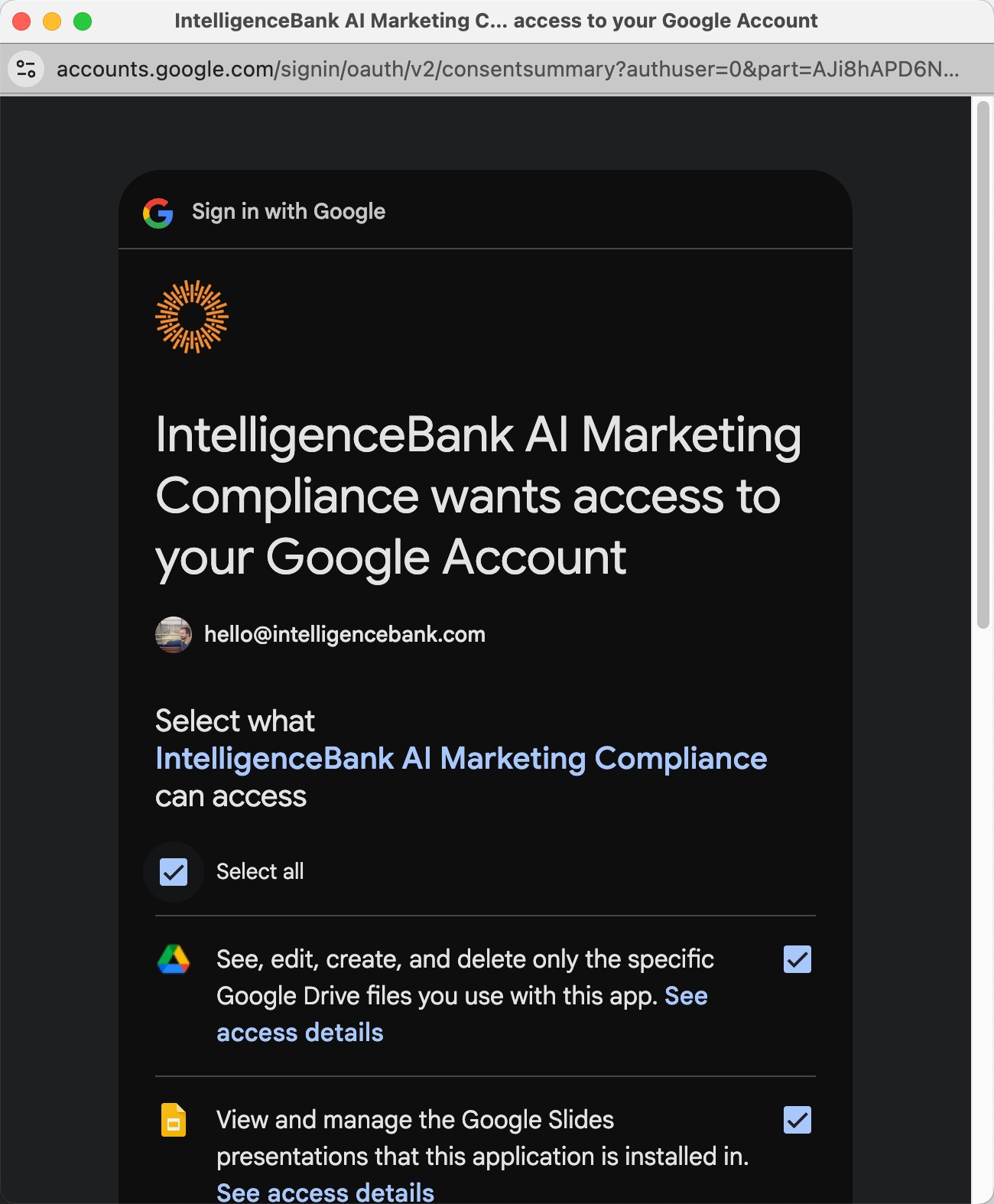
Each permission maps to something the Add-on needs to do its job:
- See, edit, create, and delete only the specific Google Drive files you use with this app - lets the Add-on read and export the presentation you're reviewing. It applies to that file only, not your whole Google Drive.
- View and manage the Google Slides presentations and documents this application is installed in - lets the Add-on work with the file you have open.
- Connect to an external service - lets the Add-on talk to your IntelligenceBank platform to run reviews and send content.
- Display and run third-party web content in prompts and sidebars - lets the Add-on show its interface in the Google Slides sidebar.
You can review or remove this access at any time from your Google Account at myaccount.google.com/permissions.
How To Use
| 1Open the Add-on | In Google Slides, go to Extensions > IntelligenceBank AI Marketing Compliance > Open. The Add-on opens in a sidebar on the right, starting at a Welcome screen. The first time you open it, Google asks you to authorize the Add-on - see Authorizing the Add-on above. |
| 2Sign In | Enter your IntelligenceBank platform URL in the Platform URL field and click Login to IntelligenceBank. A browser tab opens so you can complete authentication on your IntelligenceBank platform - SSO is supported if your platform has it configured. Once the browser tab confirms you're signed in, return to the sidebar and click Continue. If the browser tab didn't open, use copy the link on the confirmation screen to open the auth URL manually. After your first successful login, the Add-on remembers your platform URL and tenant branding so subsequent sign-ins are faster. Once you're signed in, the Add-on opens to the Create Review tab with your deck already selected - there's no separate file to upload or choose. |
| 3Configure Your Review | In the Risk Review Configuration section, choose your Database and set any required category filters, or select an existing Record to load its values. The Start Risk Review button stays disabled until every required filter is set. Category filters follow the conditional logic configured on your IntelligenceBank platform form: depending on your selections, a filter can appear or hide, become required or optional, and a filter's available values can narrow to match the value chosen in a parent filter (cascading filters).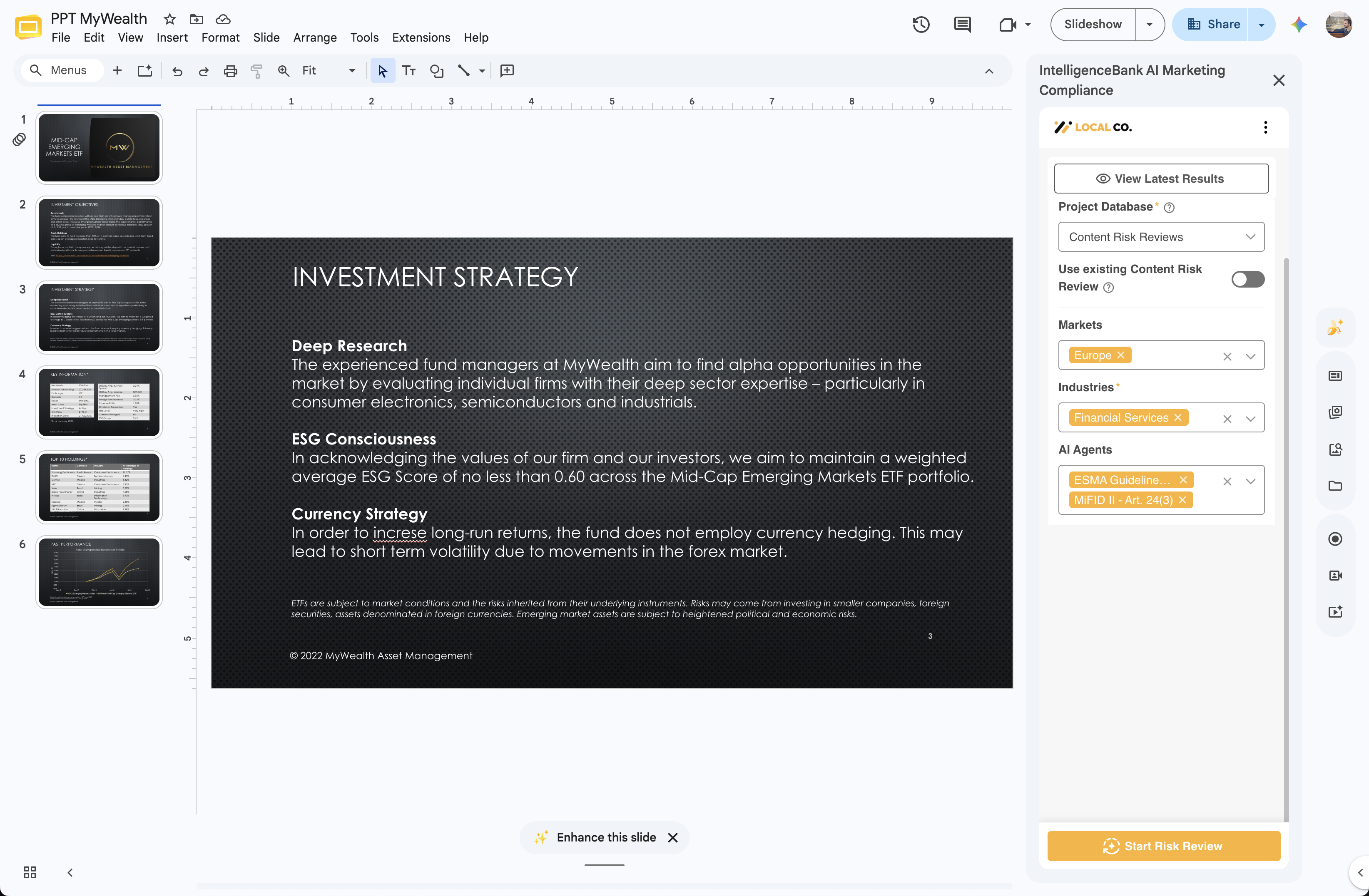 |
| 4Run the Review | Click Start Risk Review. If you haven't already, Google asks you to grant access to the current file so the Add-on can export it - the file picker pre-selects your open deck, so it's a single click. A processing screen then shows progress while the Add-on exports the deck as a PDF and runs the configured rules across every slide. When the review completes, the panel switches to the Latest Review screen. |
| 5View Results | The Latest Review screen presents identified risks in two sections: Detected Risks for everything still active and a separate Dismissed section for risks you've put aside. Risks are grouped under Slide dividers so you can scan by location. Each card shows the rule that triggered, a description, the matched text, and any recommendation. Click a risk to navigate to its slide so you can see it in context. Copy detected Risk details - copy the risk's full write-up to your clipboard to paste into a Google comment (see Sharing Risk Feedback on Slides below). Dismiss - move the risk to the Dismissed section. Dismissed risks can be brought back if you change your mind. Download PDF - download an annotated PDF of the deck with the risks highlighted. Useful for sharing review output with people who don't use Google Slides or the Add-on. 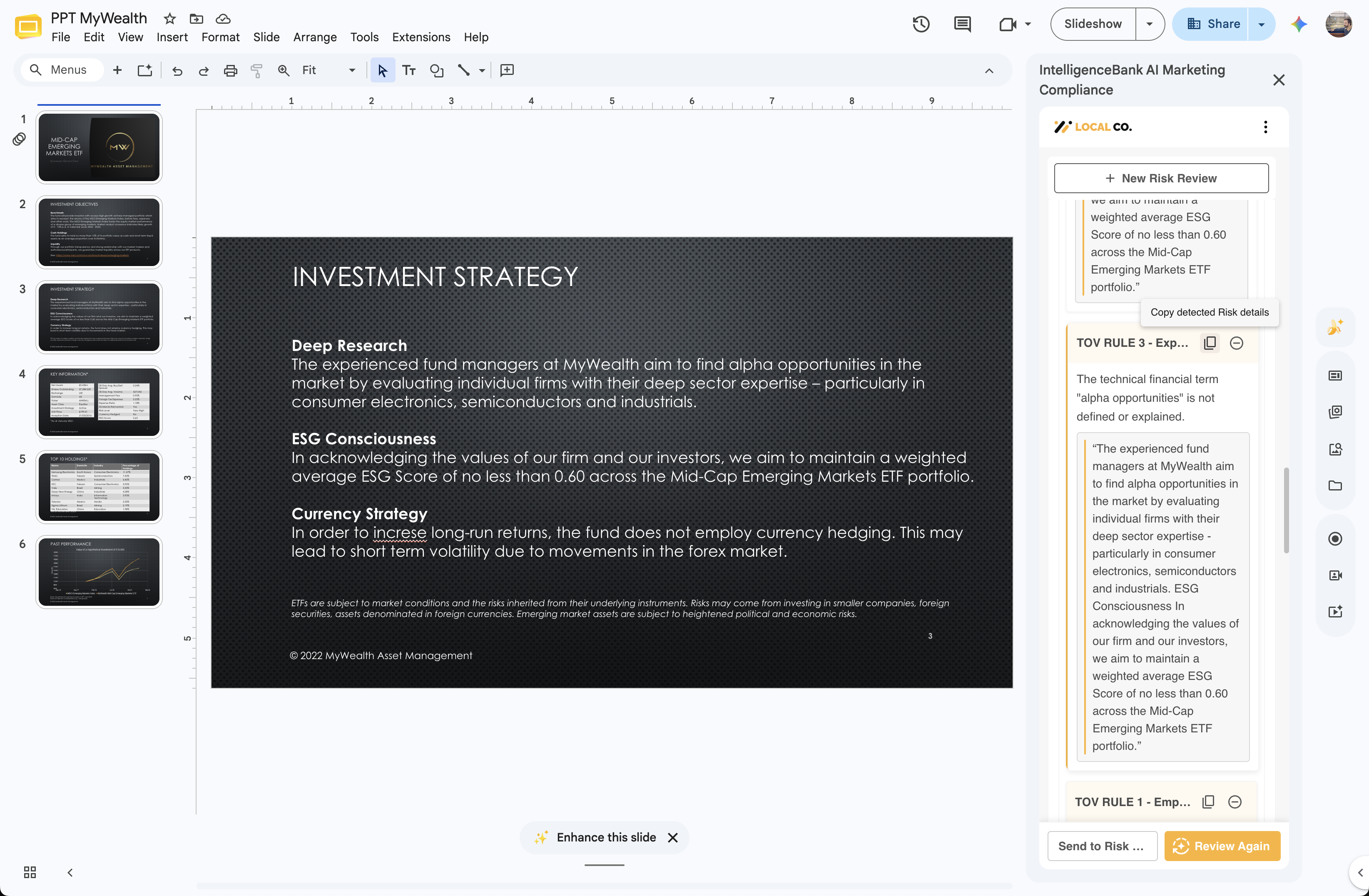 |
Sharing Risk Feedback on Slides
Google Slides does not allow add-ons to create native comments through its API, and Slides reviews run on a PDF export of the deck rather than on the live slide text, so the Add-on doesn't mark risks directly on your slides. Instead, it gives you two ways to share each risk:
- Copy detected Risk details - copies the risk's title, description, recommendation, and the quoted text to your clipboard. Go to the relevant slide, add a Google comment (Insert > Comment), and paste - the comment then carries the full risk write-up for your collaborators. Click the risk first to jump straight to its slide.
- Download PDF - download an annotated PDF of the deck with the risks highlighted, ready to share with reviewers who don't use Google Slides or the Add-on.
Send to IntelligenceBank
Sending to IntelligenceBank is an explicit, separate action - running a review does not automatically upload the deck to IntelligenceBank. Click Send to IntelligenceBank in the result actions footer once you're satisfied with the review and need to upload your content to an IntelligenceBank record for official sign-off or approval. The Add-on exports the presentation as a PDF and uploads it to your platform along with the review metadata. When you send a presentation to create a new record, the Add-on pre-fills that record's Title field with your presentation's name, so the new record opens already titled - this applies when the record's Title field is a Text field.
Settings
The menu in the sidebar header gives you Settings, Clear Results (visible once a review is loaded), Help & Support, and Logout. The Settings page lets you tailor what the Add-on shows. Changes save automatically and persist between sessions.
- Onboarding Help Banners - show or hide the help banners that walk you through the risk review process.
- Compact View - reduce font sizes and component spacing for a tighter UI, useful in the narrow sidebar.
- Send to IntelligenceBank - show or hide the button that sends reviewed content back to your platform. Hide it if your workflow doesn't require sending the deck.
- Download Review as PDF - show or hide the option to download the annotated PDF of the reviewed deck.
Data and Security
- Encrypted in transit - all communication with IntelligenceBank uses TLS.
- Your authentication - sign-in is delegated to your IntelligenceBank platform, including SSO if your organization has it configured. The Add-on does not store your credentials.
- Access to the open file only - the Add-on requests access to just the presentation you're reviewing, granted through Google's file picker. It does not ask for access to your whole Google Drive.
- Same platform controls - presentations sent to IntelligenceBank inherit the permissions, retention policies, and access controls already configured on your platform.
Frequently Asked Questions
How do I share risk feedback on a slide?
Use Copy detected Risk details to copy the full write-up, then paste it into a Google comment on the slide. For an offline or external audience, use Download PDF to share an annotated PDF of the deck with the risks highlighted.
Why can't the Add-on highlight risks directly on my slides?
Google Slides doesn't let add-ons create native comments through its API, and Slides reviews run on a PDF export of the deck rather than on the live slide text, so there's no reliable way to anchor a highlight to the exact spot. The annotated PDF shows where each risk is, and Copy detected Risk details lets you place a Google comment on the slide yourself.
What's the maximum file size?
See the latest file size limits here. The Add-on checks the file size before sending anything, so oversized decks are rejected up front with a message naming the file.
Can I use this on the Google Slides mobile app?
No. The Add-on runs in the Google Slides editor sidebar, which is available in a desktop web browser. The Google Slides mobile apps don't support editor add-ons.
Can multiple people review the same presentation?
Yes. Each reviewer's detected and dismissed lists are scoped to their own session, but any comments you paste in are part of the presentation and visible to anyone with access to it.
Do I need to be online?
Yes - signing in, running reviews, and sending presentations to IntelligenceBank all require an internet connection.
The Add-on isn't loading. What should I check?
- Confirm you have an internet connection.
- Close the sidebar and re-open it from Extensions > IntelligenceBank AI Marketing Compliance > Open.
- Reload the presentation tab in your browser.
- If the issue persists, submit a ticket.
Need Help?
To request that additional databases, filters, or rule sets be made available on your Site, contact IntelligenceBank. For all Add-on-related inquiries that need our team, you can submit a ticket.
Was this article helpful?
That’s Great!
Thank you for your feedback
Sorry! We couldn't be helpful
Thank you for your feedback
Feedback sent
We appreciate your effort and will try to fix the article