Collections allow you to group files from your DAM into curated sets that can be shared with both registered and non-registered users. Whether you are preparing a campaign kit, assembling approved assets for an external agency, or organising compliance documentation for review, Collections give your team a simple way to package and distribute the right content. Collections is a feature that is available and included in our DAM Essentials, DAM Pro, Brandhub, Marketing Operations, and Marketing Compliance product bundles.
Table of Contents
Key Benefits
Collections offer a space for users to gather assets that might need to be curated/organised and presented in a different way or for a unique purpose than how the assets are presented in your folder structure. For example, perhaps you want to showcase and send your "best and brightest" assets to a particular agency, or organise groups of assets that might be best used in certain situations. Collections can be easily accessed by the user who created them and shared with other registered users of the platform or out publicly.
Another key benefit of collections is that they can also be used internally for collaborative purposes. If, for example, you and your team members are working on a group project or campaign that will require gathering suitable assets to showcase, you can create a collection for that project/campaign, share it internally with your team as an editable collection, and then have your team add assets they come across in the asset library that they feel would be good to consider and leverage for this particular project/campaign.
Limitations/Things to Keep in Mind
Only assets within your DAM library can be included (ie: database records or custom pages can't be added to collections).
By default, each collection can be viewed by the user who created the collection and Main Admins. However, as mentioned above, users can choose to share their collections out internally (ie: to other registered users of the platform) or publicly if they choose to do so.
While there is no limit to the number of collections a user can create or share, you can add/share up to 3,000 assets within any given collection.
Sharing assets within a single collection is also limited to up to 3,000 users.
How to Access Collections
There are two ways to navigate to the Collections page:
- Within your Asset Library: Click the Collection Icon in the top right, to the left of the +Add button. This takes you directly to the Collections page.
- Collection tab/sub tab in your Navigation Bar: Navigate to the Collections page by clicking on the the tab/sub tab in the navigation bar. Please note, the navigation bar within IntelligenceBank is configurable, and your platform's navigation bar may not feature one. If you don't see this tab, please reach out to your site administrator for more information.
What Can You Do in Collections?
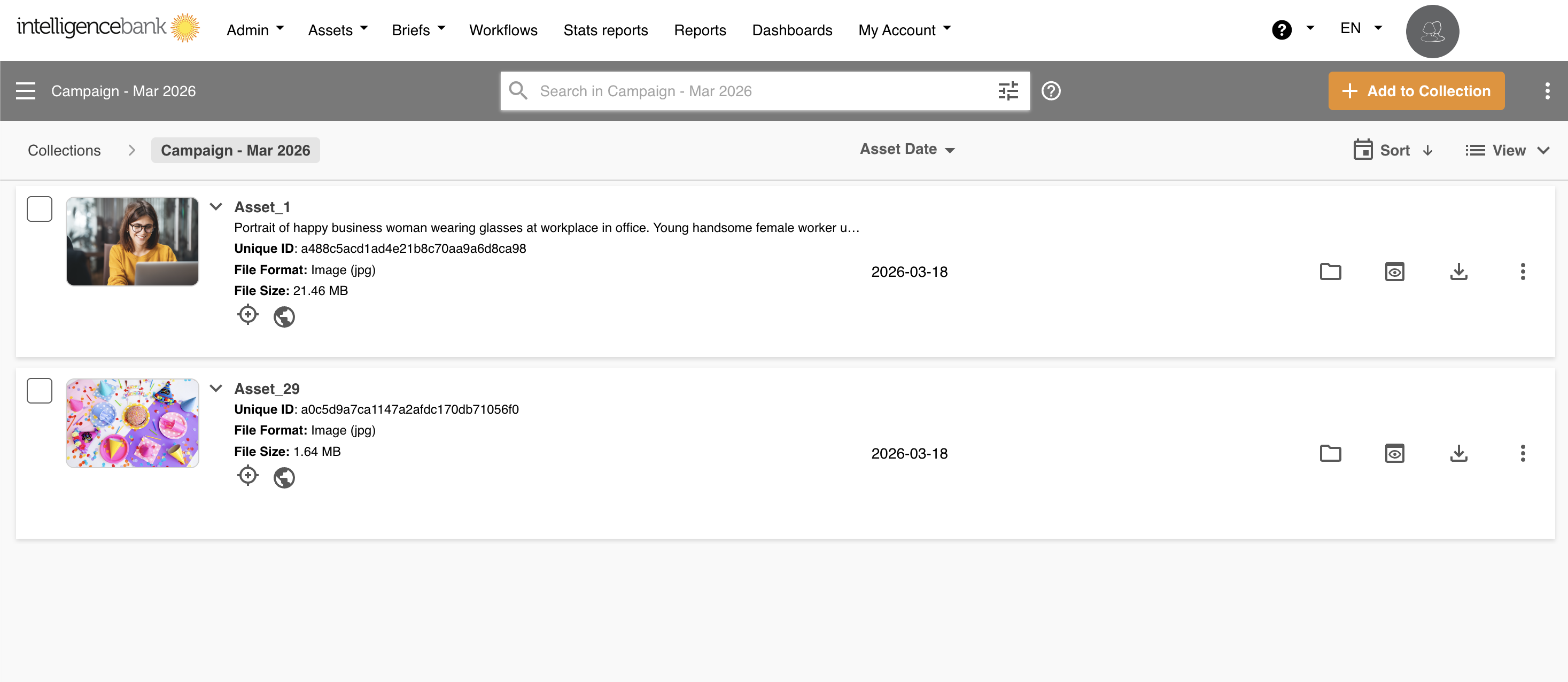
Once inside a collection, you can perform the same actions available in the resource module. This includes previewing, downloading, and managing individual assets as well as performing bulk actions, such as bulk download or bulk remove.
From the Collections list page, you can:
- Search for collections by name using the search bar.
- Create a new collection by clicking the + Add to Collection button.
- View collection details including asset count, owner, created and last updated dates, and sharing status.
- Share a collection internally or via a public link using the share icon.
- Add assets to an existing collection using the add icon.
- Manage a collection through the actions menu (rename, delete, or empty).
Creating a New Collection
There are two ways you can create a new collection: from within the dedicated collections page, or while you're selecting assets you'd like to create a collection for in your Asset Library.
To create a collection from the collections page:
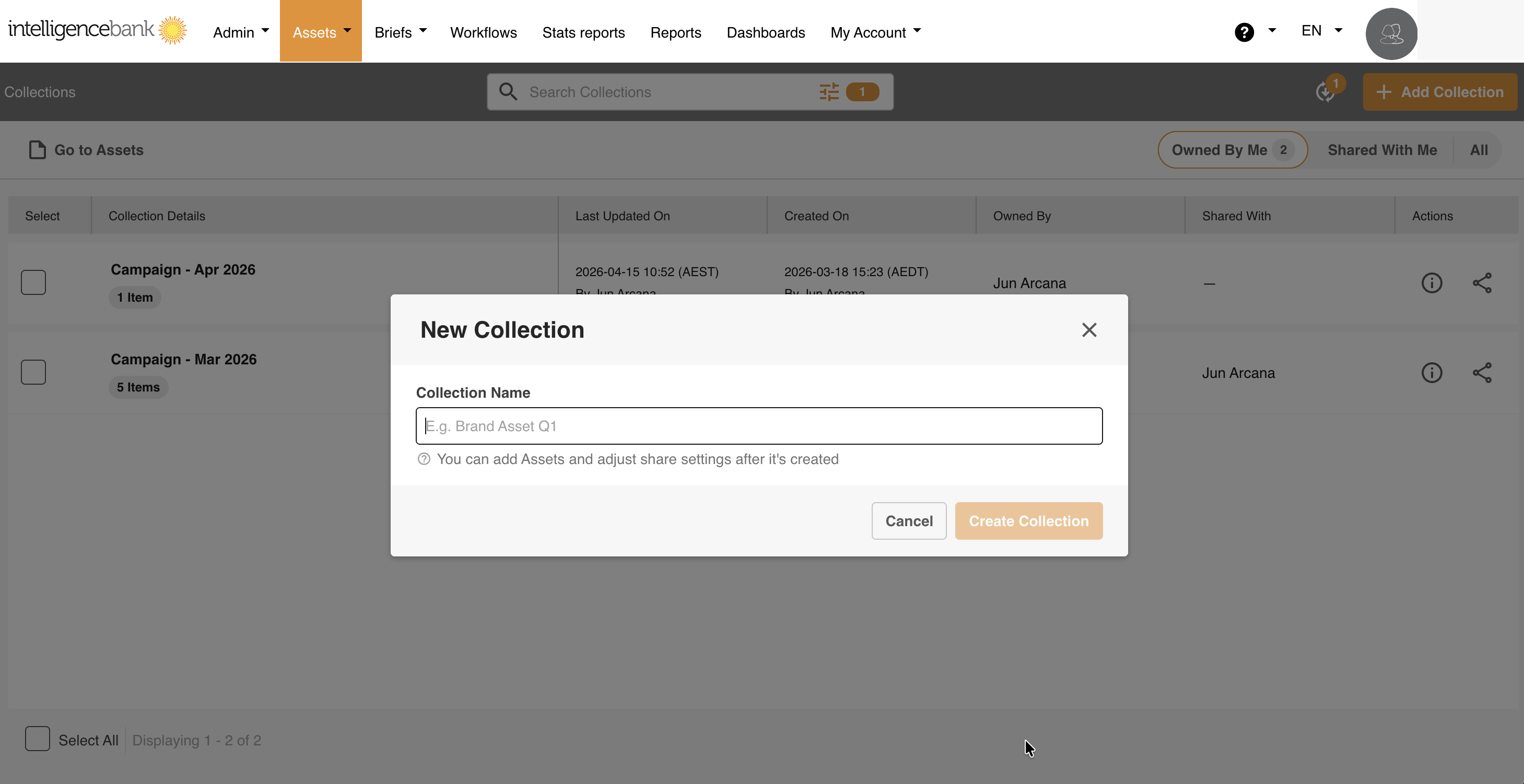
- Navigate to the Collections page (see how to access collections article section above).
- Click + Add Collection in the top right corner.
- Enter a Collection Name and click Create Collection.
- Once created, you can add assets and adjust share settings.
To create a collection from selecting your assets:
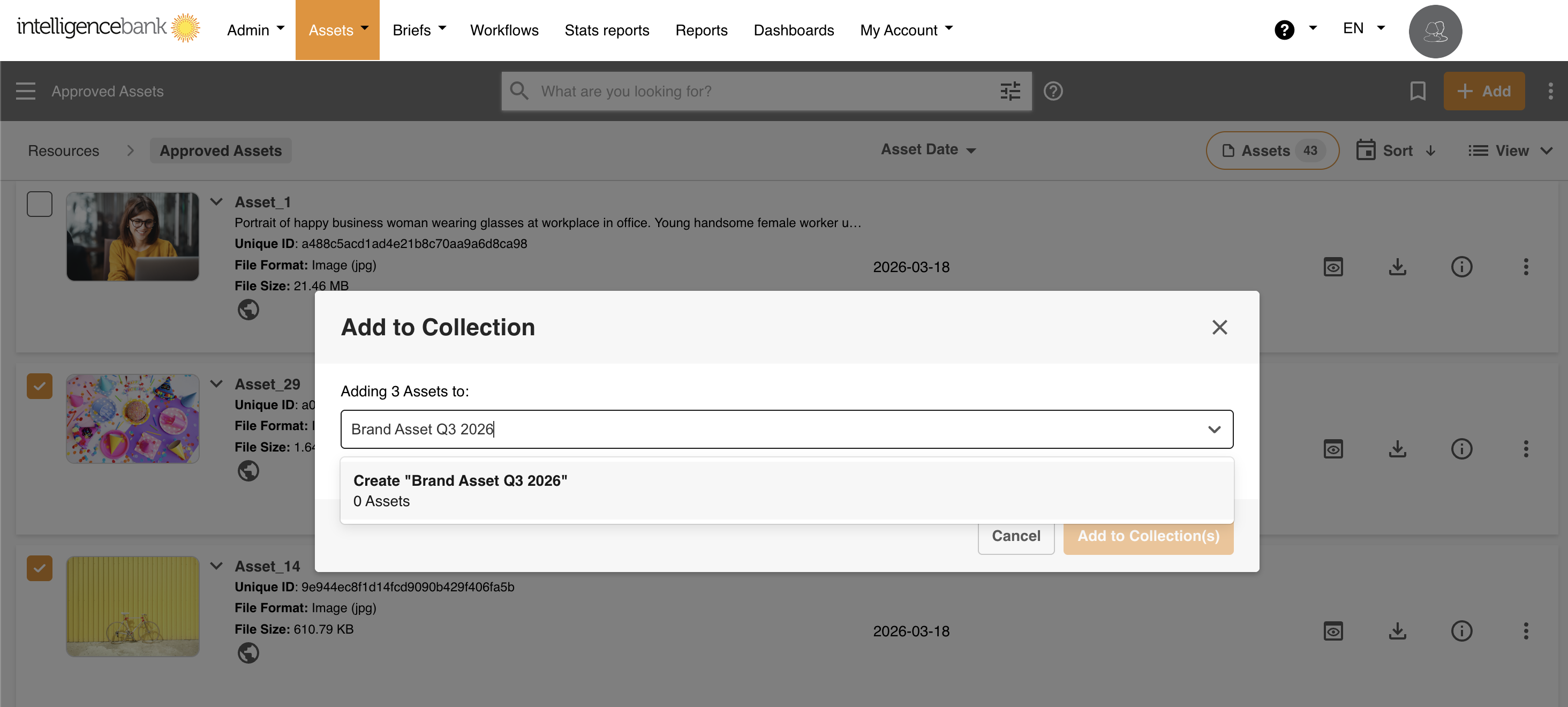
- Select one or more assets from your Asset library.
- Select Add to My Collection(s) from the asset's action menu (or, if assets were selected in bulk, from the bulk action menu).
- Type the name of the new collection you want to create in the Collection Name field.
- Select the Add to Collection(s) button to add the selected asset(s) to the collection you just created.
Adding Assets to a Collection
Users will be able to add assets to any collection they've created, or to collections that have been internally shared with them and made editable (please review our Sharing Collections article for more details on internal/editable collections). Main Admins will also be able to add assets to a collection, even if it hasn't been shared with them specifically.
Adding assets to a collection can be done from within the dedicated collections page, or within the Asset Library as a part of an asset's available actions.
To add assets to a collection from the collection's page:
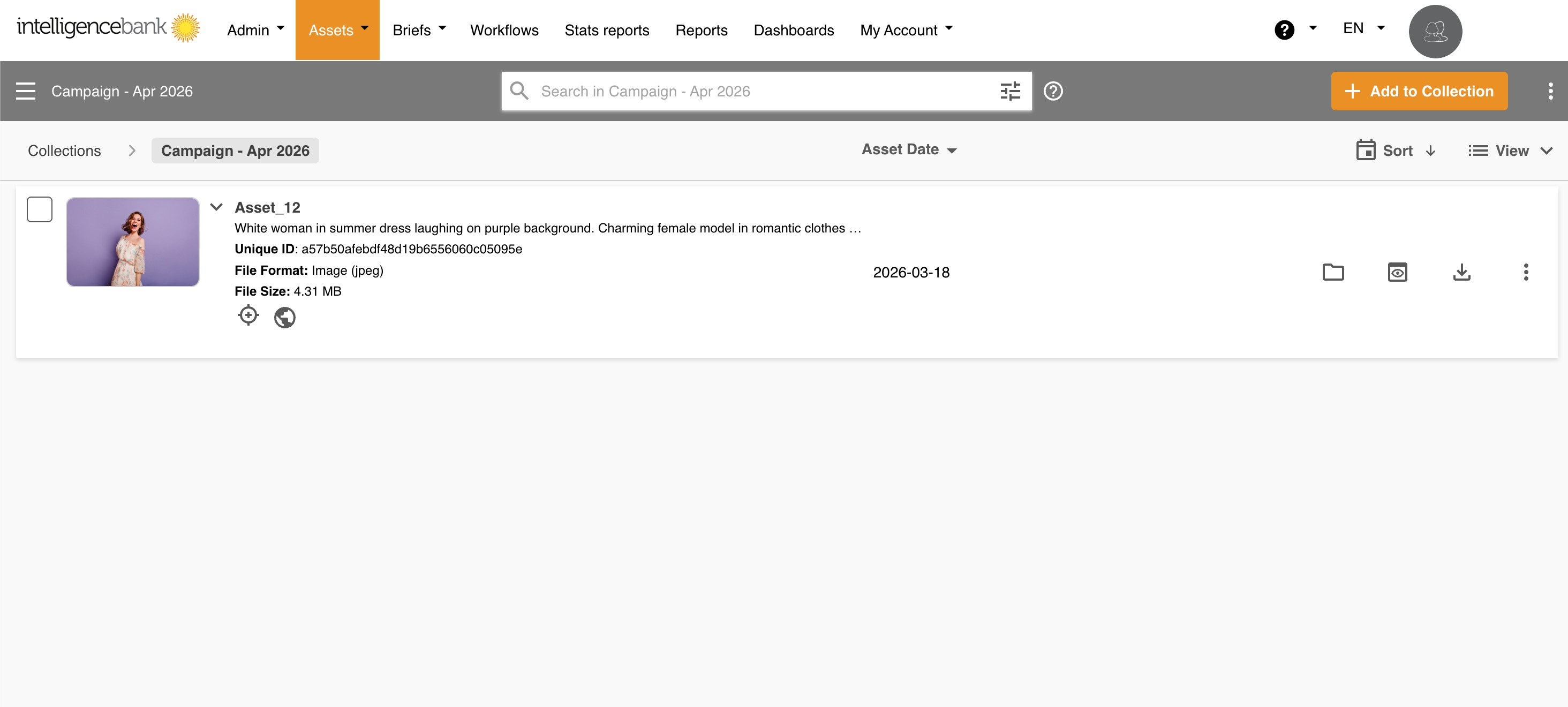
- Navigate to your Collections page and open the collection you want to add assets to.
- If the collection is empty, click + Add Assets in the centre of the page. If the collection already has assets, click + Add to Collection in the top right corner.
- Your available folders and assets will then display. Browse or search for the assets you want to add.
- Select the assets and click the ADD SELECTED button that appears in the bottom left corner of the page.
To add assets directly from an asset's actions within your Asset Library:
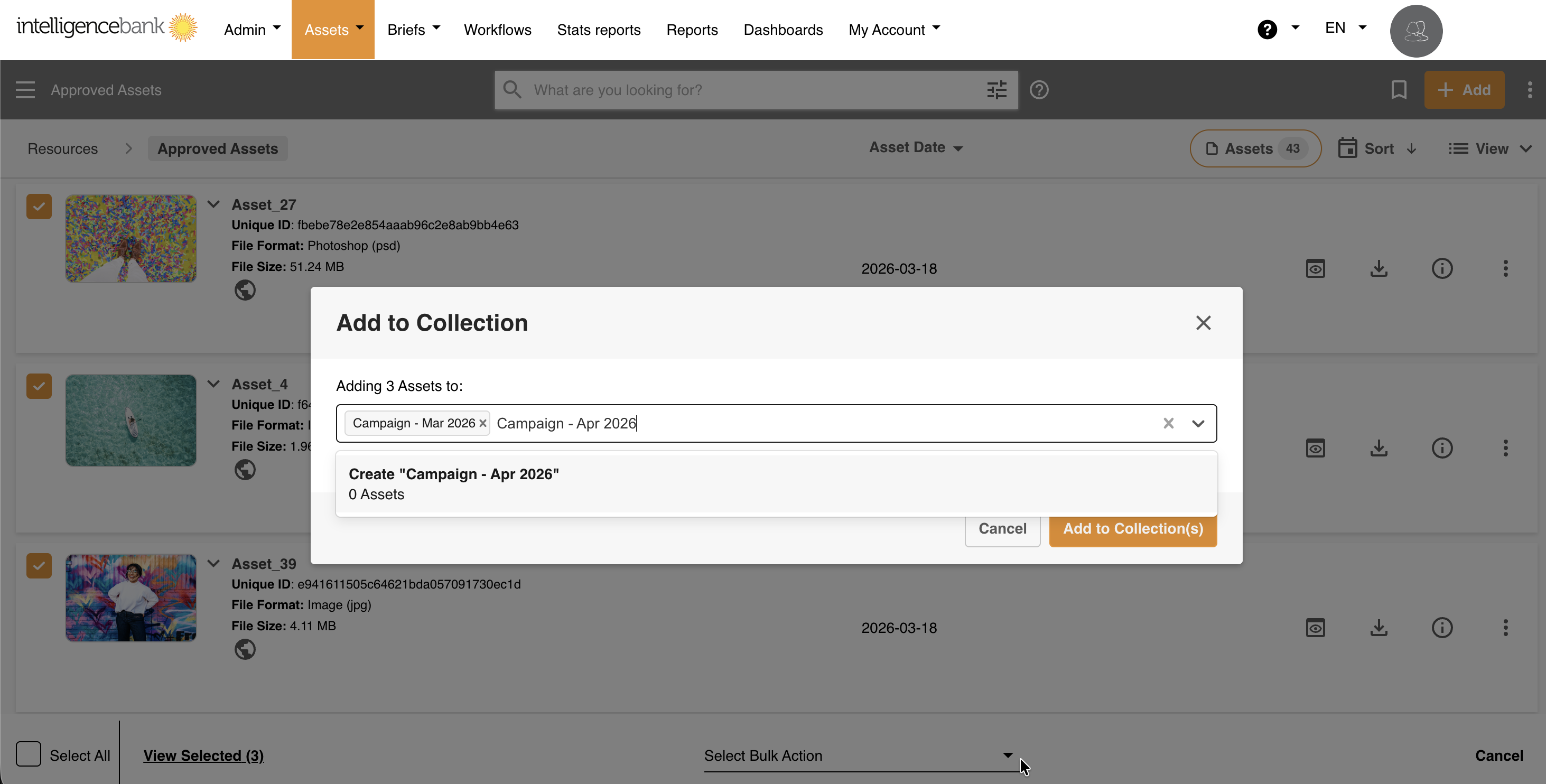
- Navigate to your Asset Library and select one or more assets, either within a folder or off of a search.
- Click the Select Bulk Action dropdown at the bottom of the page and choose Add to My Collection(s). Alternatively, you can click the individual actions elipsis if you only select one asset and choose Add to My Collection(s).
- An Add to Collection window will appear. Within the Adding Assets to field, click or type to search for an existing collection. You can also create a new collection at this juncture if desired (see Creating a new Collection article section above).
- You can add the selected assets to multiple collections at once (up to 30 collections max) by selecting or creating additional collections in the Adding Assets to field.
- Click Add to Collection(s) to confirm.
Transferring Collection Ownership
You can hand off ownership of a collection to any active user in the platform via share settings - internal share link. By default, you are the owner of any collection you create. Once transferred, the new owner takes full control.
To transfer ownership of a collection:
- Open the collection you own.
- Click the share settings.
- Make sure you are choosing the internal share link (registered user).
- Click the Change Owner button near the owner field.
- Search for and select the user you want to transfer ownership to.
- Click Update Share Settings to confirm and complete the transfer.
Filtering Your Collections
The Collections page now includes a filter to help you find what you need quickly. Quick-access filters at the top of the page let you switch between three views:
- Owned by Me: collections you created (default view)
- Shared with Me: collections others have shared with you
- All: collections you have access to. Admin will have access to all collections inside the platform
Use the filter panel to narrow results further by owner, shared status, and other criteria.
Frequently Asked Questions
Who can see my collections?
By default, collections are viewable by the user who created them and Main Admins, unless the user decides to share their collections out. For more information on sharing collections, please review the Sharing Collections article.
If I add assets to a collection, does it remove or move the asset from its original folder?
No, the assets will remain in their folder structure. Adding assets to a collection basically just creates a representation of those assets in a different, more personalised area of the platform.
If I remove assets from a collection, does this delete the asset from the Asset Library?
No, the assets will remain in the Asset Library. Removing assets from a collection just means they're no longer represented in that collection.
How many assets can I add to a collection in bulk?
You can currently add up to 300 assets to a collection at a time.
Is there a limit to the number of collections I can create, or share?
No, you can create and share collections without any limit.
Is there a limit to the number of assets I can add within a collection or share in a collection?
Yes, there is a limit of up to 3,000 assets that can be added/shared within any given collection.
Is there a limit to the number of users I can share a collection with?
Yes, you can share a collection with up to 3,000 users.
Can a collection include briefs and forms?
No, only assets can be included in a collection.
Can I transfer ownership of a collection?
Yes. By default, you are the owner of any collection you create. You can transfer ownership to any active user in the platform directly from the collection page.
Who can transfer ownership of a collection?
Only the current owner or Main Admins can initiate a transfer. If a collection has been shared with you, you will not have the ability to transfer its ownership if you are a non-Admin.
What happens after I transfer ownership?
The new owner takes full control of the collection. You will no longer have access to view or manage it, unless you have been added to the share list or are a Main Admin. If this is the case you can view the collection and the assets inside.
Can I filter my collection lists?
Yes. Use the quick-access toggles ("Owned by Me", "Shared with Me", "All") at the top of the Collections page to switch views, or use the filter panel for more granular filtering. Saved searches are not supported.
What happens when a new user joins a group I've shared a collection with?
They automatically get access, no action needed on your end. If someone leaves the group, their access is removed automatically.
Can I share a collection with a group but exclude certain members?
Unfortunately this is not supported. When you share with a group, all current and future group members receive access. If you need to exclude someone, share the collection individually with each user you want to include instead of using the group. This gives you precise control over access.
Was this article helpful?
That’s Great!
Thank you for your feedback
Sorry! We couldn't be helpful
Thank you for your feedback
Feedback sent
We appreciate your effort and will try to fix the article