Once you've created a collection, you can choose to share the collection internally with registered users in the platform or publicly with non registered users.
To learn more about collections in general, as well as the key benefits of sharing collections, please refer to our About Collections article.
Table of Contents
Accessing a Collection's Share Settings
First, navigate to the collection you want to share in your platform. There are two ways to open the Share Settings for a collection:
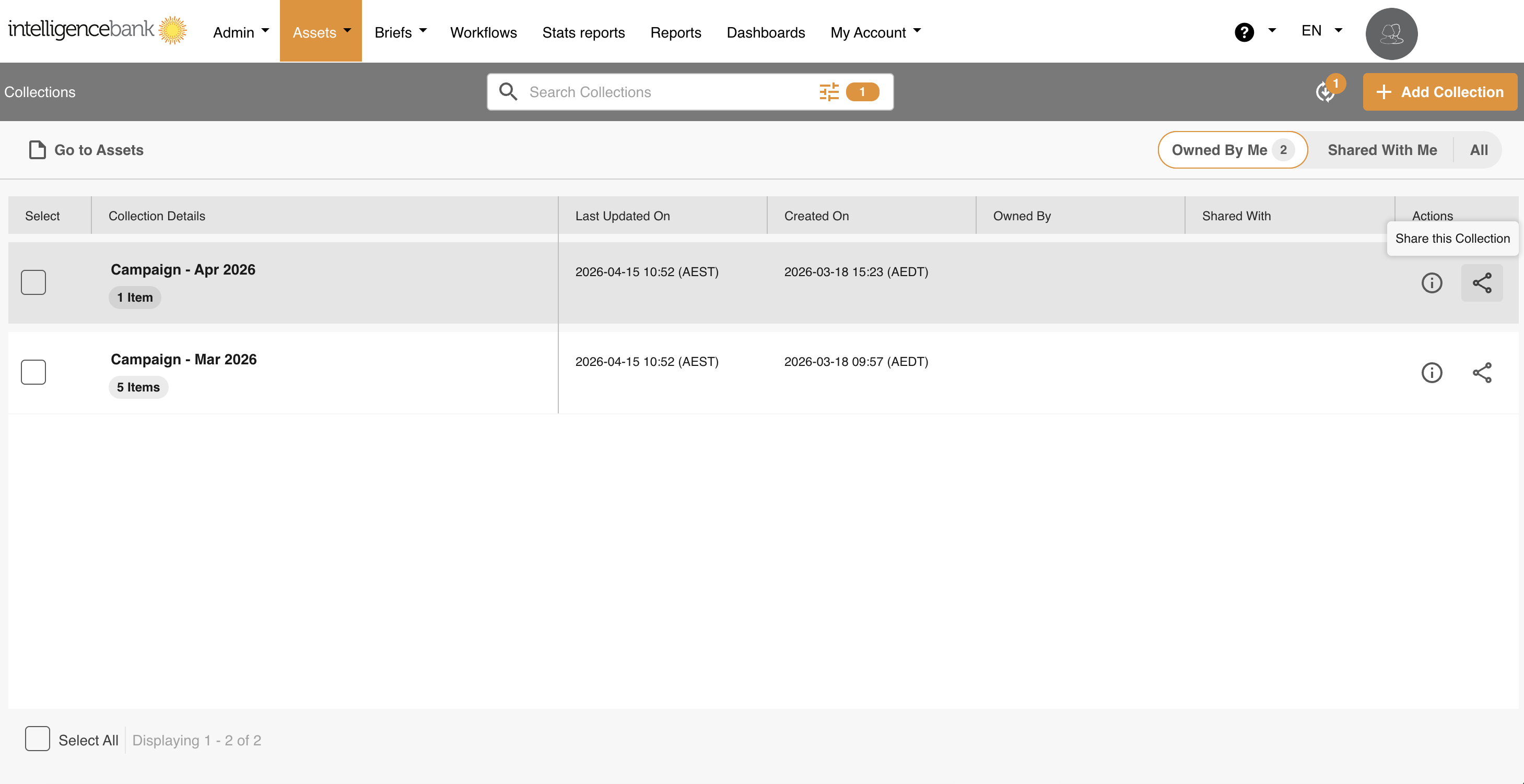
- From the Collections page, click the share icon in the Actions column next to the collection you want to share.
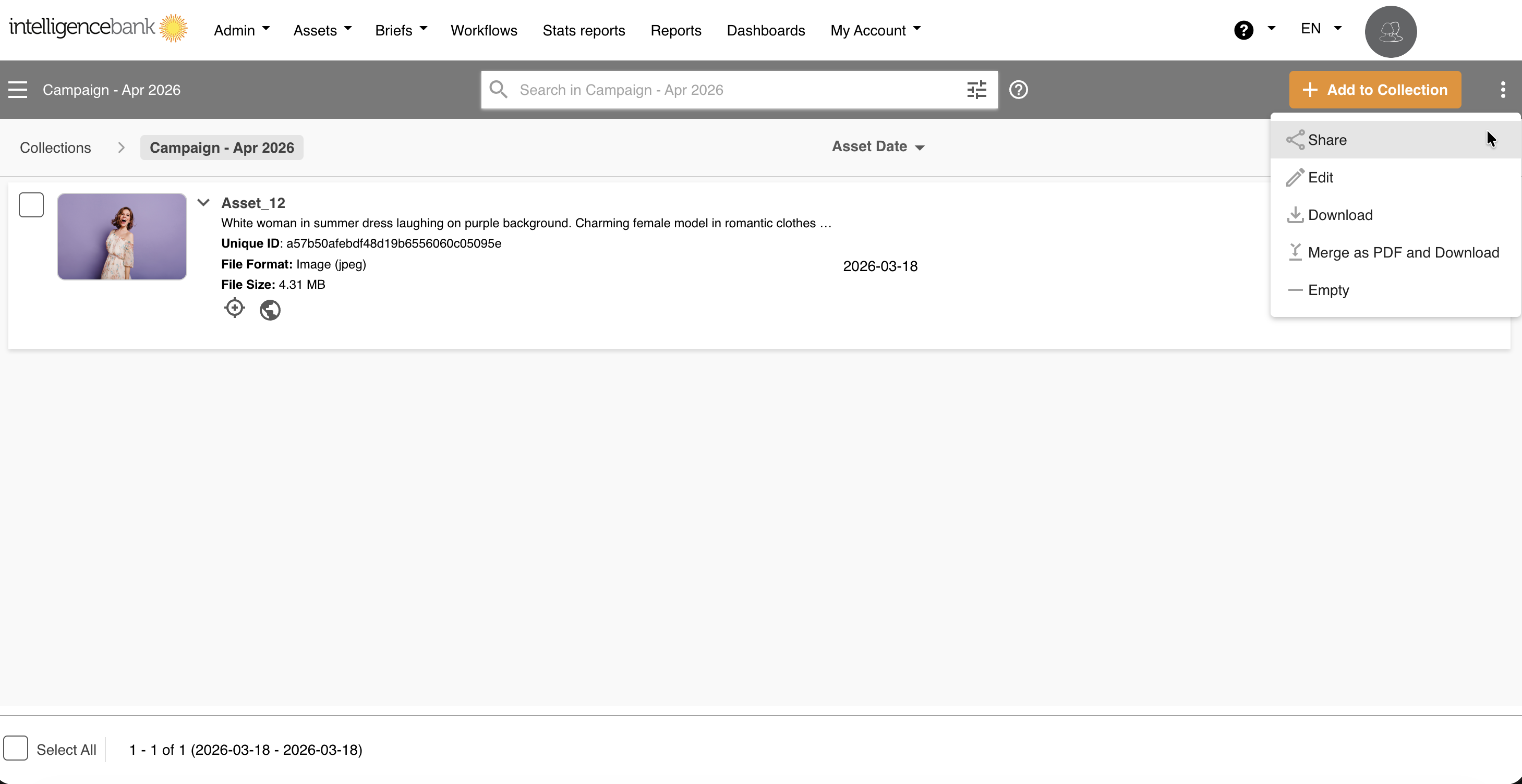
2. From inside a collection, click the ellipsis menu in the top right corner and select Share.
This opens the Share Settings page, which displays a preview of the assets in the collection on the left and the Share Options panel on the right. IntelligenceBank has two different share setting types:
-
Internal Share Link (Registered Users)
- This type is for people who are registered users of your platform. Users or groups can be selected.
-
Public Share Link (Non-Registered Users)
- This type is for non-registered users (ie: people who do not have a login or account for the platform). You can send non-registered users a public link to the collection and apply a link expiry date and time, if needed/desired on the collection. This expiry means that after that particular point in time, whomever you shared the collection with will not be able to access the assets off of that shared link.
- Please keep in mind that only assets that are uploaded to folders where public sharing is enabled will be available to be publicly shared in a collection. If any assets within the collection cannot be publicly shared, they will be removed from the shared collection that is sent if you decide to share a collection publicly
Sharing a Collection Internally
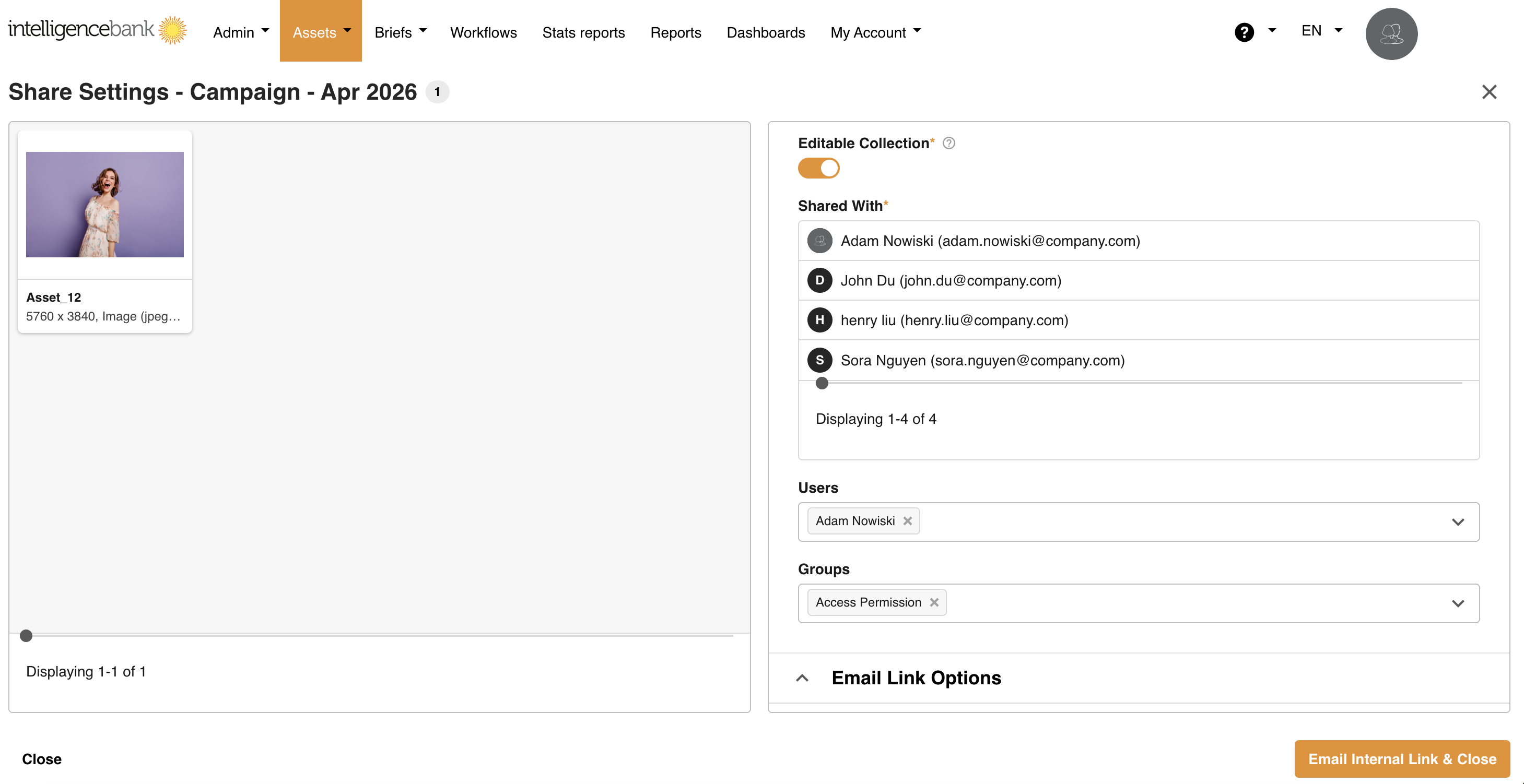
To share a collection with an internal user or registered user on the platform, select Internal Share Link, then:
- Enable Editable Collection, if desired. Making your collection editable will allow whomever you share this collection with to add or remove assets from the collection. This feature allows for better collaboration across users if they're using collections for shared projects, etc.
- Select the recipient/s in the user or groups drop-down
-
Once you have selected the user/group, select the Load Users/Load Groups button, to add them to the Recipients list. You may add more than one recipient.
- Sharing with a group: Access is automatically kept in sync with users under the group. New users added to the group will gain immediate access to the collection, with no resharing required. Users removed from the group will lose access automatically.
- Need to exclude someone from a group? This is not supported. All current and future group members receive access. If you need to exclude someone, share the collection individually with each user you want to include instead.
- Edit the email Subject and Message lines (if desired, and if using the Email Internal Link & Close option)
-
You can then select from the following:
- Copy Internal Link - This allows you to copy a direct link to share in your local email or messenger platform (ie: Slack/Microsoft Teams)
- Email Internal Link & Close - Allows you to send a direct email from IntelligenceBank to the recipients, with a link to the collection, and which notifies them that a new collection has been shared with them
Sharing a Collection Publicly
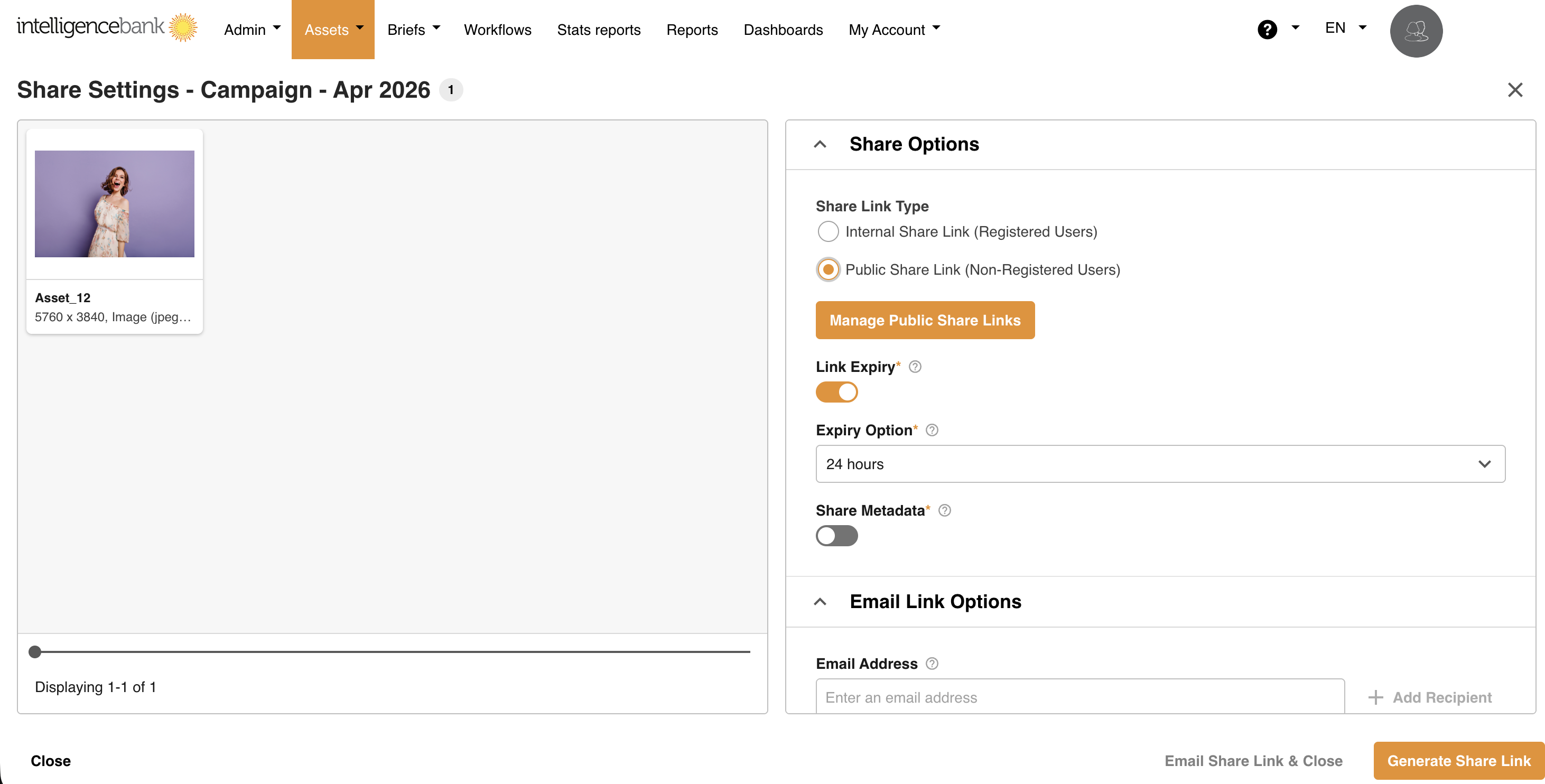
To share a collection publicly or to non-registered users on the platform, select Public Share Link (Non- Registered Users), then:
- Set up a Link Expiry period for the collection (if desired)
- Enable Share Metadata for the collection (if desired, which will share the assets' keywords, description, etc. along with the assets themselves in the collection)
- Enter the recipient/s email address
- Select the Add Recipient button, to add to the Recipients list. You may add more than one recipient.
- Edit the email Subject and Message (if desired, and if using the Email Share Link & Close option)
-
Select Generate Share Link and then choose from the following:
- Copy Link - Allows you to copy a direct link to share the collection in your local email or messenger platform (ie: Slack/Microsoft Teams)
- Email Share Link & Close - This allows you to send a direct email from IntelligenceBank to the recipients, with a link to the collection for them to access
A benefit of emailing the link to recipients via the platform is that a unique id will be added to the link generated for each user, which allows for tracking of which email address is associated with each download in the Usage Reporting. If the tracking id is not set, the actions will be lodged against a generic Public Access user but with no reference to any particular email recipient.
Updating Shared Collections
If you make any change to the Share Options, just click the Apply Share Link Changes button for the changes to be saved.
The Share Link page generated for the Collection is dynamic, which means that it will always reflect in real time the content that is available for Public sharing in this Collection at the time of access. So if you add or remove Resources to this Collection, this will be reflected immediately when Public users access the link.
Public Share Usage Restrictions
Note the following applicable usage restrictions:
- Each download done by a Public user will be counted towards your CDN Public Data Transfer monthly limit. This limit is set to 200GB by default. When the limit is reached, users will still be able to access the page, but will not be able to download files any longer until this limit is increased or the next monthly cycle starts. A "soft limit" may be applied on your platform during which users will still be able to download the files individually.
- While any number of files can be shared and viewed in the Share Link page, the default maximum size of files that can be downloaded at once (as a dynamically generated zip file) is 5GB.
- There is a maximum limit of concurrent users that can access the public page link at the same time. This limit is set to 50 by default. When the limit is reached, users will be placed in a queue to enter the public page.
Was this article helpful?
That’s Great!
Thank you for your feedback
Sorry! We couldn't be helpful
Thank you for your feedback
Feedback sent
We appreciate your effort and will try to fix the article