After your IntelligenceBank platform has been configured with Marketing Compliance capabilities by your Main Admin, you'll need to either create a new database or modify an existing database to use this feature. This guide will help you create and configure a database form with Marketing Compliance enabled.
Before You Begin
Ensure you have:
- Appropriate permissions to create or modify database forms and set permissions (if creating a new database)
- An understanding of which Filters will be used for risk reviews
- Knowledge of your organization's workflow requirements
Creating a New Database Form with Content Risk Reviews
- Navigate to your Databases/Forms area of the platform
- Click +Add, name your database, and set your other desired database settings
- Click Save and Create Form and configure your desired fields within the form template. Please review the "Adding Risk Review Filter Fields" and "Adding a Marketing Compliance Upload Field" sections below for specific, risk review relevant fields that need to be configured on your new form.
For detailed instructions on creating general database forms, refer to our help article: Creating a New Database Form Template
Note that appropriate group permissions will need to be enabled on whichever user groups will need to utilise this new database. For detailed instructions on how to configure group permissions, refer to the Database and Database Records Modules in our help article: About Group Rules & Permissions (Detailed Overview)
Enabling Content Risk Reviews on an Existing Database Form
- Navigate to your Databases/Forms area of the platform
- Find the relevant database, select the kabob icon, and then Edit Form Template
- Configure the specific, risk related fields required and outlined in the "Adding Risk Review Filter Fields" and "Adding a Marketing Compliance Upload Field" sections below
Adding Risk Review Filter Fields
Some Filters determine which compliance rules are applied to your content. If needed, contact your Main Admin to understand which filters you can use:
- Add Select Fields to your form for each Risk Filter you want to use
- Set Filters in the Source field, then select the corresponding filter configured for Risk Reviews in the Available Filters field
- For multi-select categories, enable the multi-select option
- Check the Allow Select All option if you want users to be able to Select All options
- Select Save & Close after adding each relevant Risk Filter to save them to your form template
- These 'Risk Filters' will determine which risk rules are applied to the content you upload
*Important Note: If you're enabling Content Risk Reviews on an existing form, your form might already have select fields that may be relevant to the risk review process you're setting up. If those fields were originally configured using Custom List values, you will need to first:
- Ensure that the Custom List values in your form and the Risk Filter values you need to use match exactly- you may need to verify this with a Main Admin
- Export your records for re-import in the database. This step is crucial so you can bulk update your records after you change the field's source. If you don't export your records before making the change, any existing records will lose data in the relevant select fields. For detailed information on how to export your database records, refer to our help article Exporting Database Records
- Edit the Form Template, click on each select field, and change the Source field from Custom List to Filters, then select the relevant Risk Filter in the Available Filters field
- Select Save & Close, and repeat the process for each select field you need to switch the source on
- Select Exit Form Builder, and then re-import your records with the exported report mapping the fields accordingly. This will update all your existing records and match the values they had before in the select fields. For more detail on how to re-import records, please refer to our help article Importing Bulk Records- Updating your Records
Please note, the instructions above are most suitable for Single databases. If your database is Staged, please reach out to IntelligenceBank Support before making any changes, who can provide guidance on the best course of action.
Adding a Marketing Compliance Upload Field
- Add a Multi-Upload field to your form
- The multi-upload field doesn't have to be in the same section (or even on the same page) as the Risk Filters
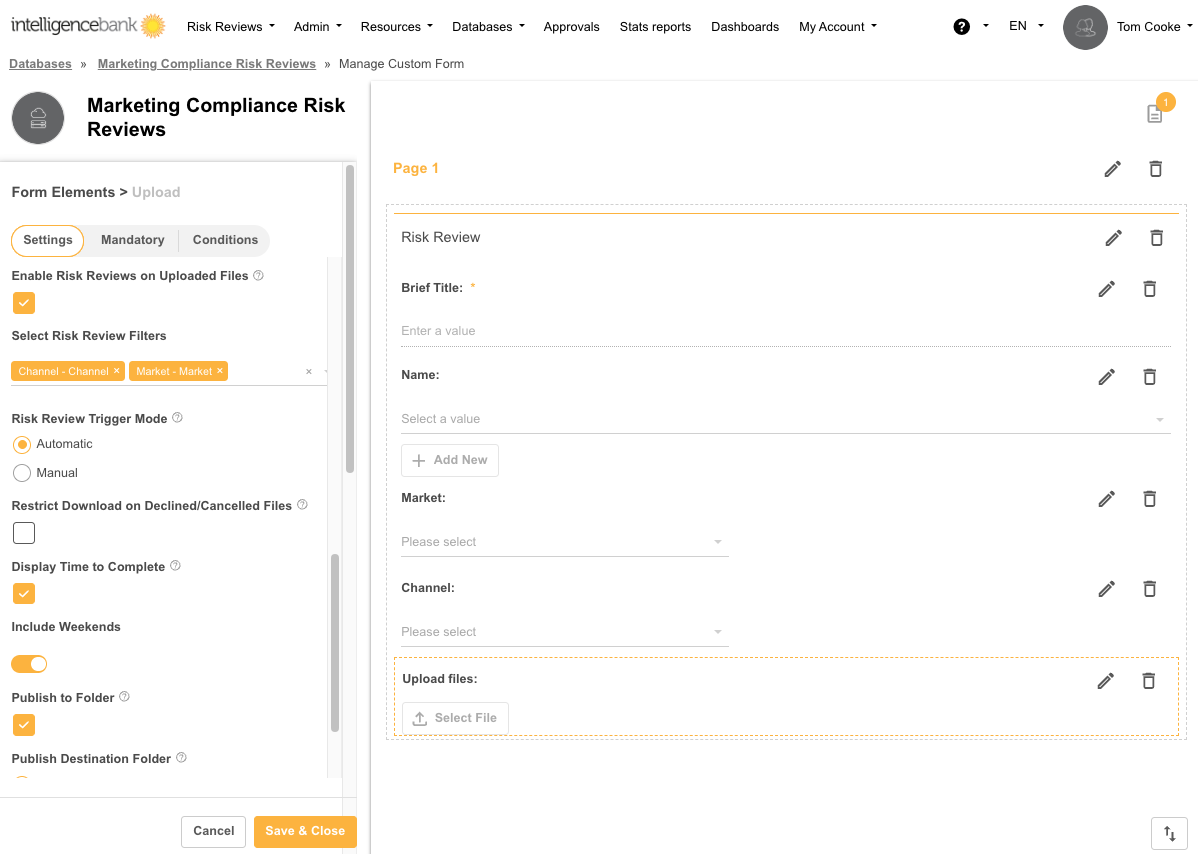
- In the field settings, enable one or both:
- General Markup Comments on Uploaded Files - Allows users to add comments/annotations on documents
- Enable Workflows on Uploaded Files - Creates an approval process for uploaded documents, within which comments/annotations can be added as a part of the official approval process
- Enable Revisions under Markup Configuration to allow users to add new revisions after reviewing Risk Review comments
- If enabling workflows, configure your approval workflow as needed
- Select Enable Risk Reviews on Uploaded Files to automatically scan files for compliance issues
- Select which Risk Filter fields should be used for Risk Reviews
- Choose the trigger mode:
- Automatic - Risk review starts immediately upon upload
- Manual - Users must click the "Risk Review" button to initiate the risk review
- Set file limits as needed (current maximum is 50 files per upload field)
- Select Save & Close to save the multi-upload field to your form template
Your database should now be ready to run content risk reviews.
General Tips for How to Structure your Form
- Use Clear Field Labels: Use descriptive labels for Risk Filter fields to help users understand which options to select
- Required Fields: Make important Risk Filter fields required to ensure proper rule application
- Help Text: Add help text to fields explaining how selections affect risk reviews
- Organized Layout: Group related fields together for a more intuitive user experience
Tips for Risk Filter Selection
- Risk Filters directly determine which compliance rules are applied to your content
- When users create a record and select multiple Risk Filter values, more rules may be triggered, resulting in more comprehensive reviews
Next Steps
After setting up your database form, you're ready to:
- Create new records in your database
- Upload marketing materials for compliance review
- Review identified risks
- Collaborate with team members on addressing compliance issues
For more detail on how the content risk review feature works once it's been configured on your database, refer to our help article Submitting Content for Marketing Compliance Review.
For any questions about advanced configuration options, please contact your Main Admin or support@intelligencebank.com.
Was this article helpful?
That’s Great!
Thank you for your feedback
Sorry! We couldn't be helpful
Thank you for your feedback
Feedback sent
We appreciate your effort and will try to fix the article