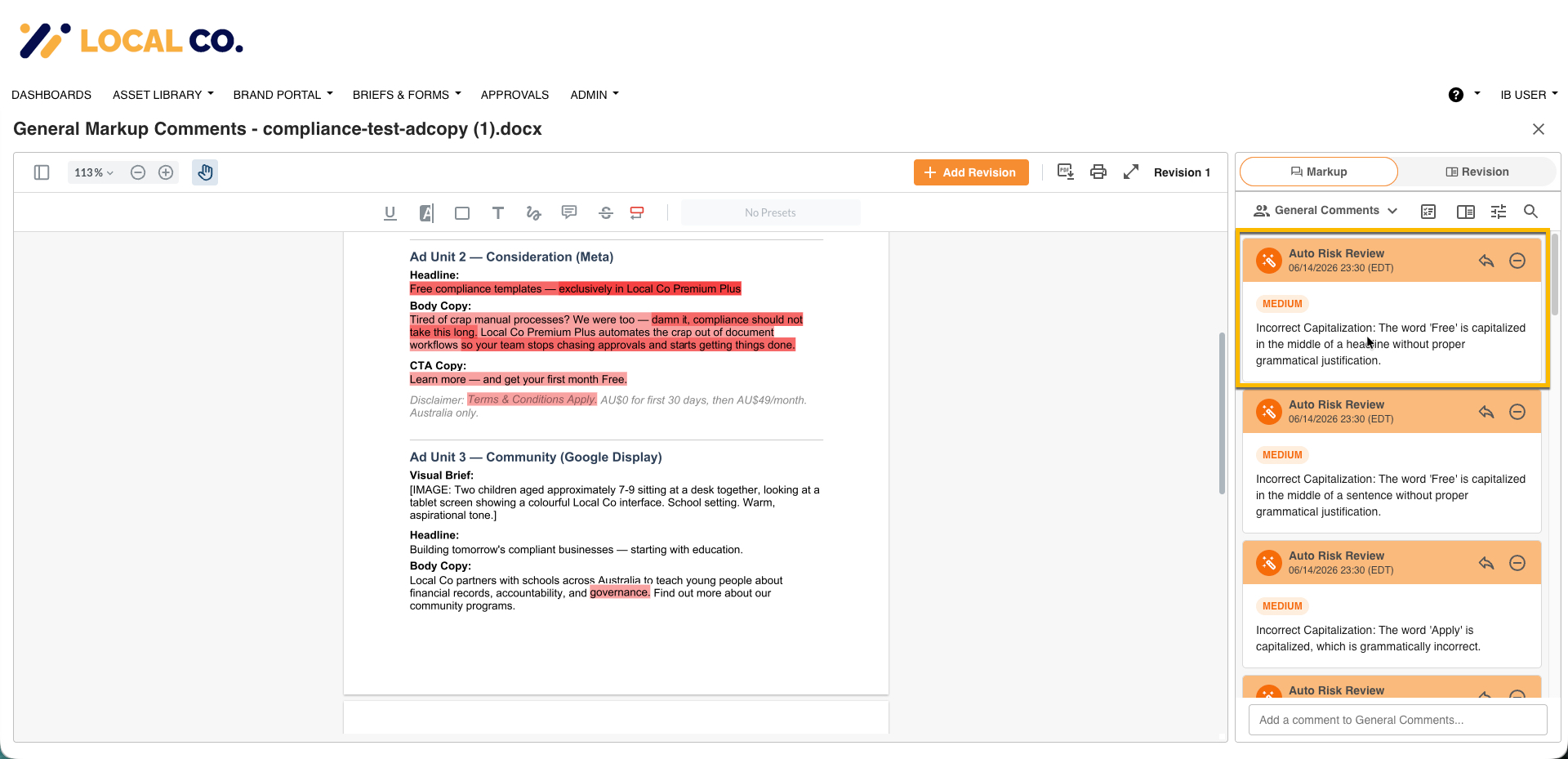
Risk Level Ratings let your Main Admin assign a priority level (High, Medium, Low, or Advisory) to each compliance rule in your platform. When content is reviewed, every flagged issue shows its priority label, so reviewers can work through the most critical items first instead of treating every flag the same.
Table of Contents
How Risk Level Ratings work
Each compliance rule in your account can be assigned one of four priority levels:
| Level | What it means |
|---|---|
| High | Address first - typically legal or regulatory rules. |
| Medium | Address after High - typically brand compliance rules. |
| Low | Address last - typically formatting and style guidance. |
| Advisory | No urgency level set. The flag still appears in reviews but carries no priority indicator. This is the default for any rule that has not been assigned a level yet. |
Getting started
Setting up Risk Level ratings involves two steps, which your IntelligenceBank implementation team or Customer Success Manager completes with you:
| 1Enable at platform level | Your IntelligenceBank team enables Risk Level ratings at the platform level. You don't need to do anything for this step - contact your Customer Success Manager to get started. |
| 2Turn on per database | Enable Risk Level ratings on each database where you run content reviews. See the next section for step-by-step instructions. |
Once both steps are in place, your Main Admin can begin assigning priority levels to your compliance rules.
Enabling Risk Level ratings on a database
Risk Level ratings must be activated on each database where you want priority labels to appear in reviews. Databases where you don't enable it continue to work normally - flags appear, but without priority labels.
| 1Open the database | Go to the Database in IntelligenceBank. |
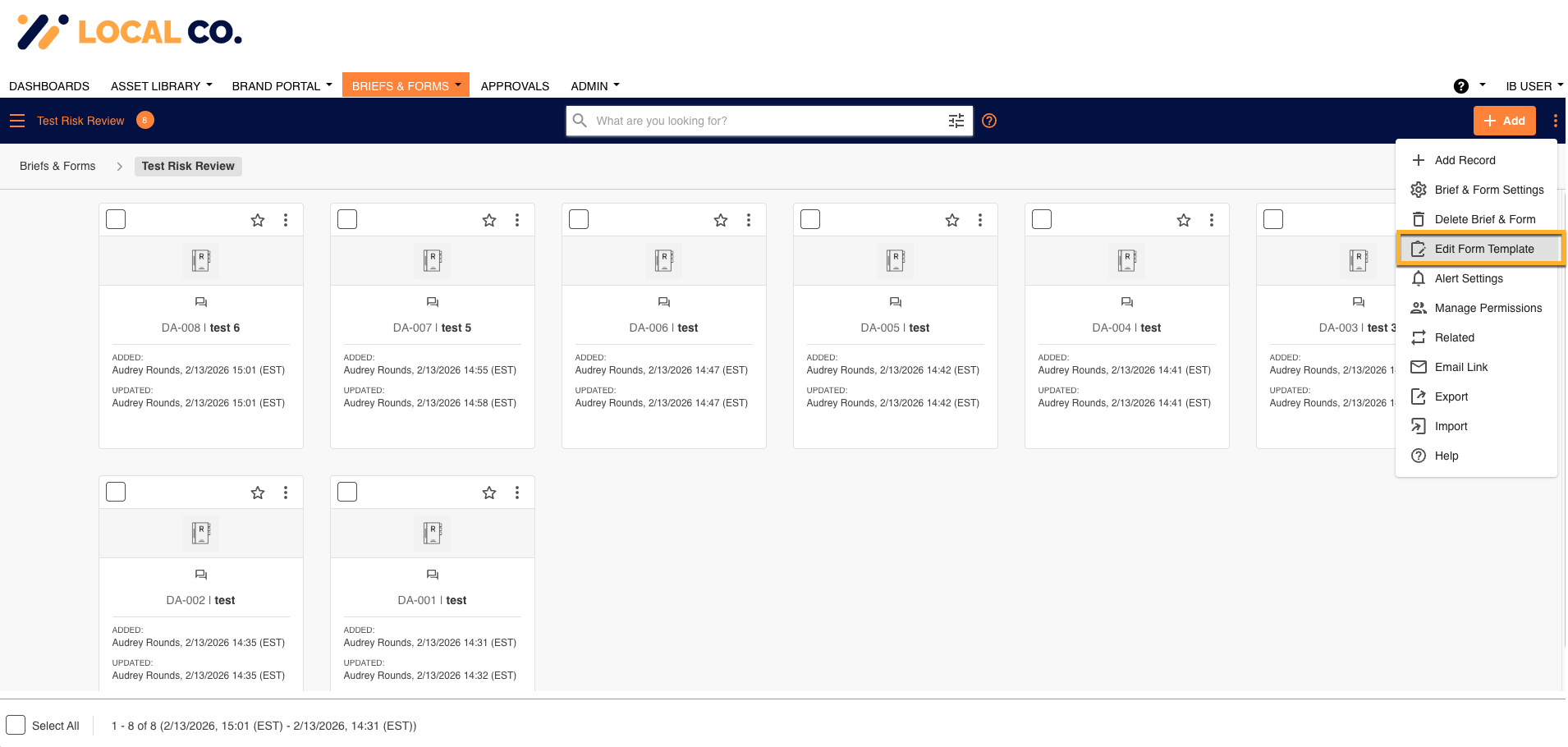
| 2Open the database menu | Click the menu icon (⋮) on the database tile. |
| 3Select Edit Form Template | Select Edit Form Template from the menu. |
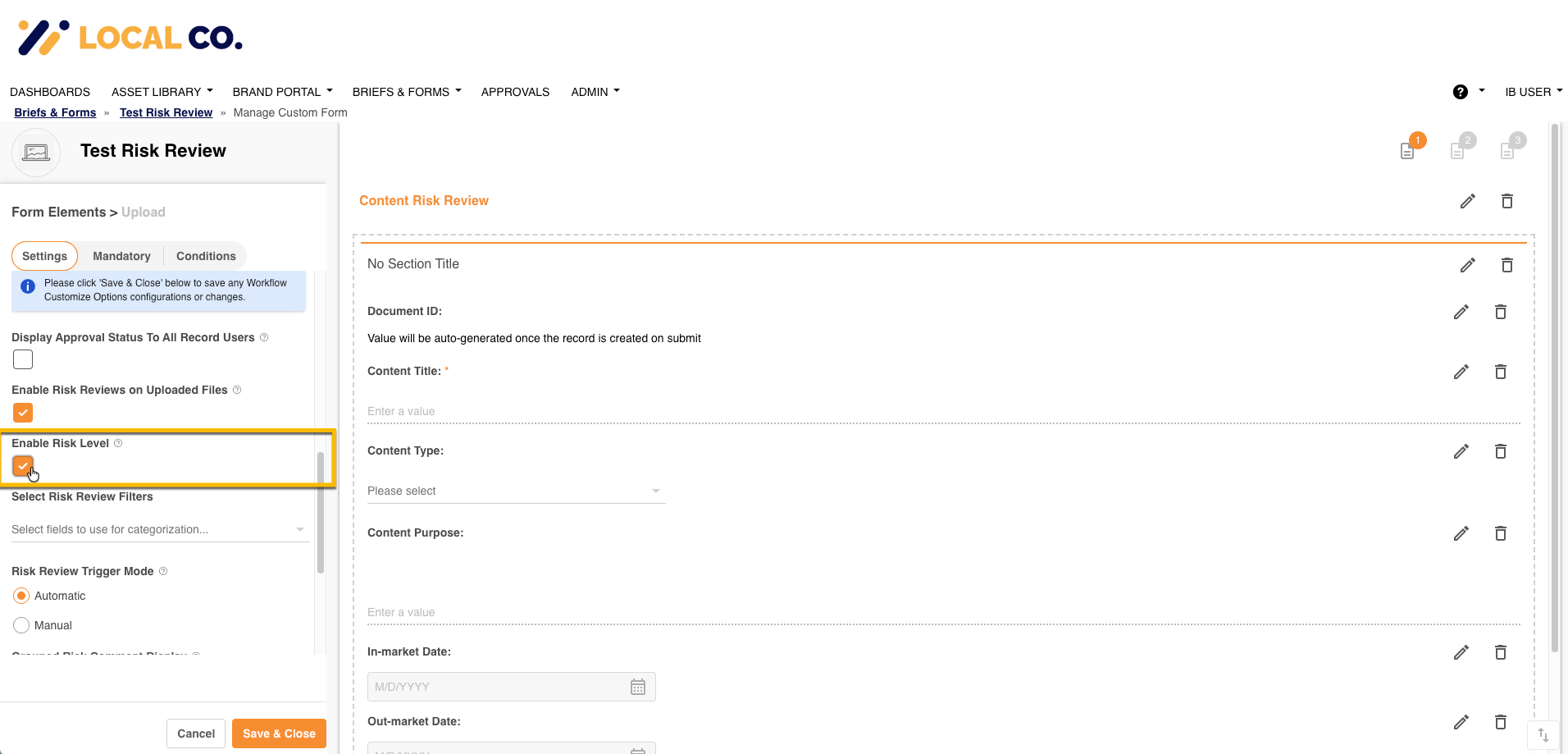
| 4Edit the upload field | Find the upload field used for content reviews and click its edit icon. |
| 5Enable Risk Level ratings | In the Form Elements panel on the left, check Enable Risk Level ratings. (Note: Enable Risk Review on Uploaded Files must be active before the setting will appear.) |
| 6Save the form template | Save the form template to apply the change. |
Repeat these steps for each database where you want priority labels active.
Assigning priority levels to rules
Once Risk Level ratings are enabled, your Main Admin can assign a priority level to each compliance rule. Rules are configured one at a time in the View Rules panel.
| 1Open View Rules | Go to View Rules in the admin panel. |
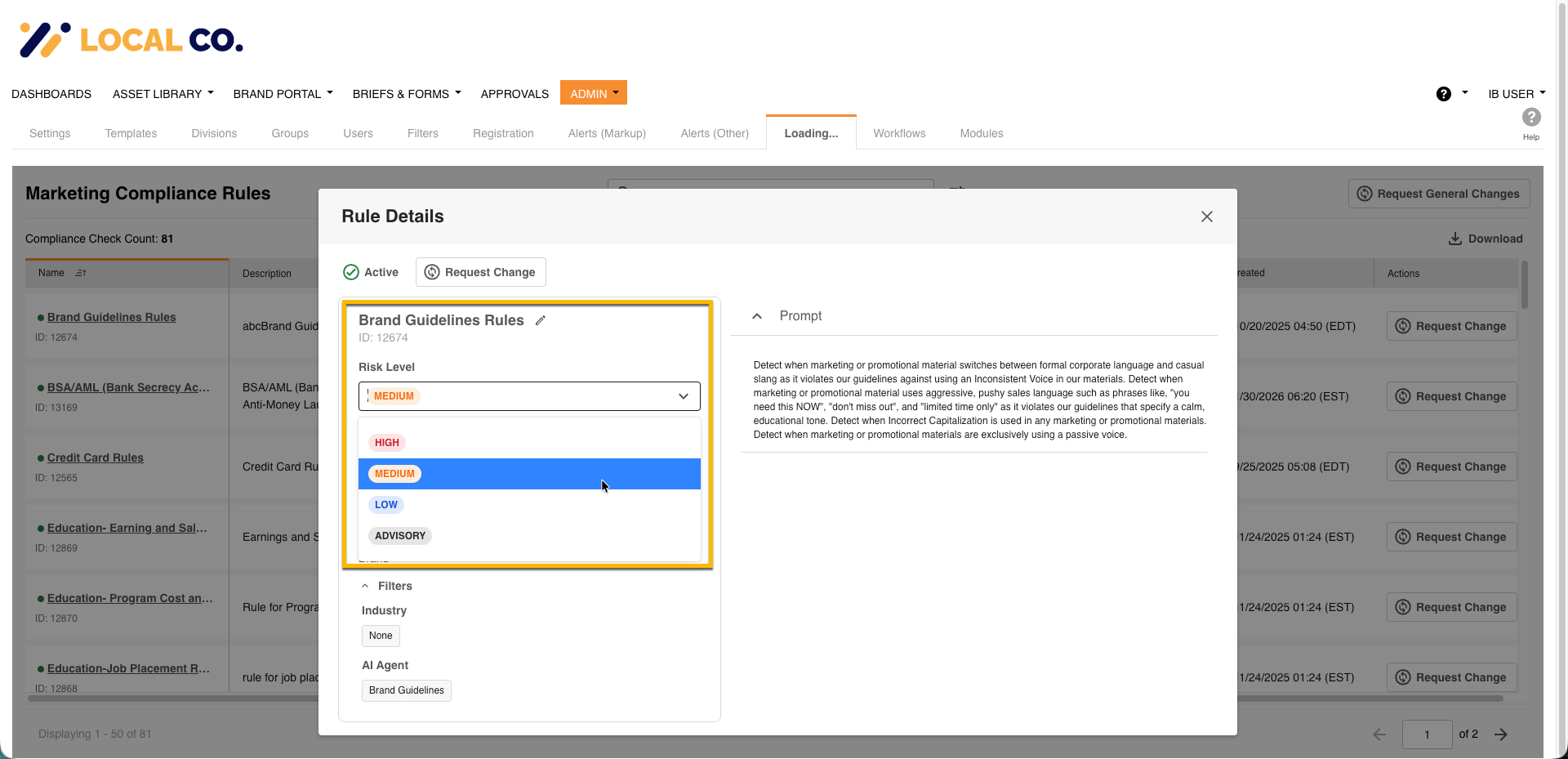
| 2Open the rule | Find the rule you want to configure and open its edit modal. |
| 3Select a priority level | Select a priority level: High, Medium, or Low. |
| 4Save the rule | Save the rule to apply the priority level. |
Repeat for each rule in your account. You don't need to configure all rules at once - you can start with your most critical rules and work through the rest over time. A useful starting point:
- Legal and regulatory rules (disclaimers, regulated claims) - assign High
- Brand compliance rules - assign Medium
- Formatting and style guidance - assign Low
Reviewing content with priority labels
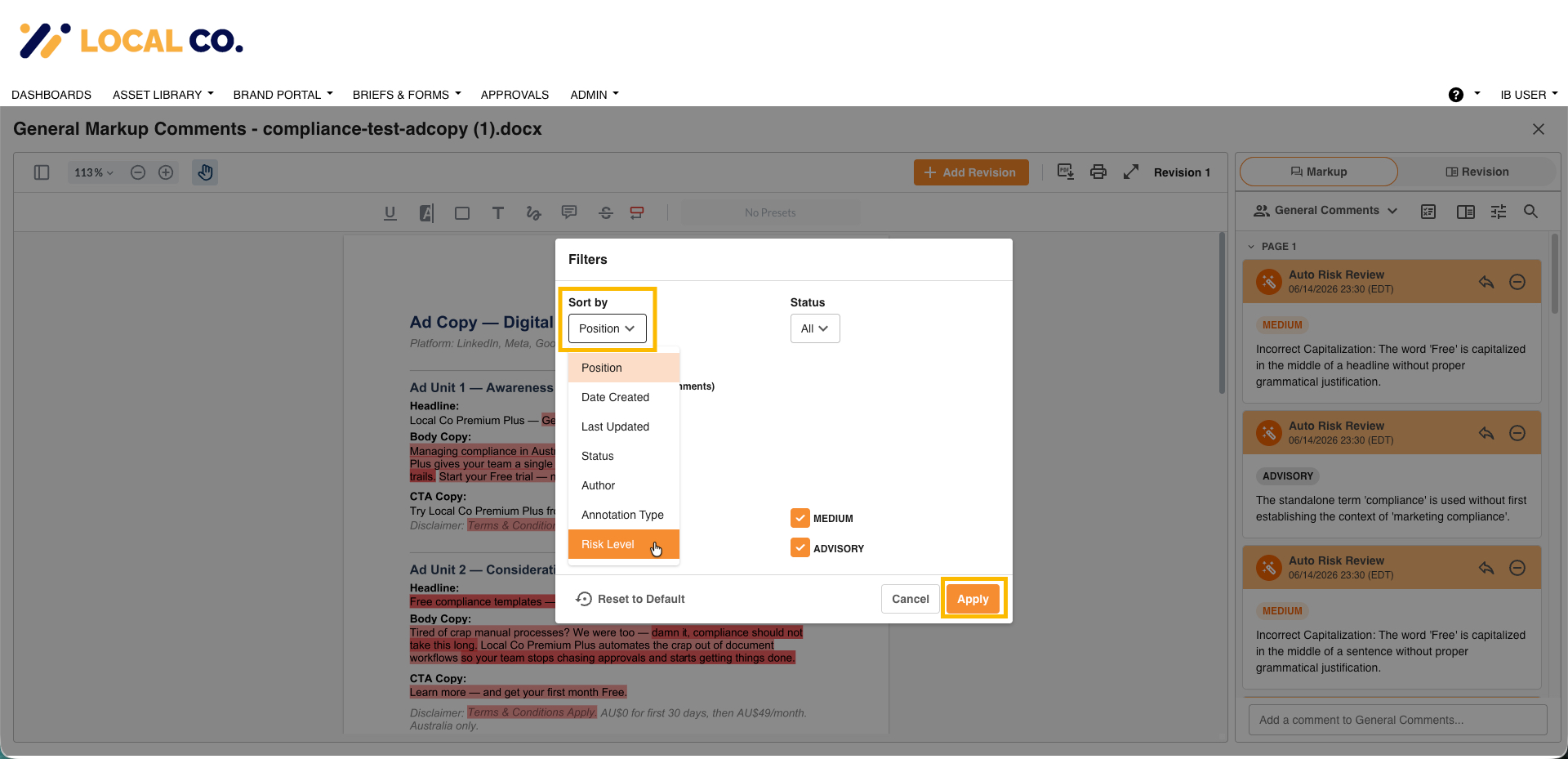
Once rules have priority levels assigned, reviewers see a priority label on each flagged issue in the Content Risk Review panel.
- Sort or filter by priority level to bring the most critical issues to the top.
- Work through High priority flags first, then Medium, then Low.
- Advisory flags (rules without a priority set) still appear in the review - they just don't carry an urgency level.
Every flag, regardless of priority, should be reviewed and resolved according to your team's process.
Permissions
Only Main Admins can assign or update priority levels. End users can see priority labels in the review panel but cannot edit them.
| Role | Set or change priority levels | View priority labels |
|---|---|---|
| Main Admin | Yes | Yes |
| Reviewer | No | Yes |
Was this article helpful?
That’s Great!
Thank you for your feedback
Sorry! We couldn't be helpful
Thank you for your feedback
Feedback sent
We appreciate your effort and will try to fix the article