Within a folder, there are three layout options for visually displaying your assets: List, Images, or Card layout.
You can also choose the sort order of assets within folders (ie: the order your assets display by default). Those options are by Asset Date, Last Updated, Alphabetical, and Custom.
Adjusting the Default Asset Layout
To adjust the default asset layout:
- Navigate to the Settings tab of the Admin module
- Scroll down to the Assets - General section
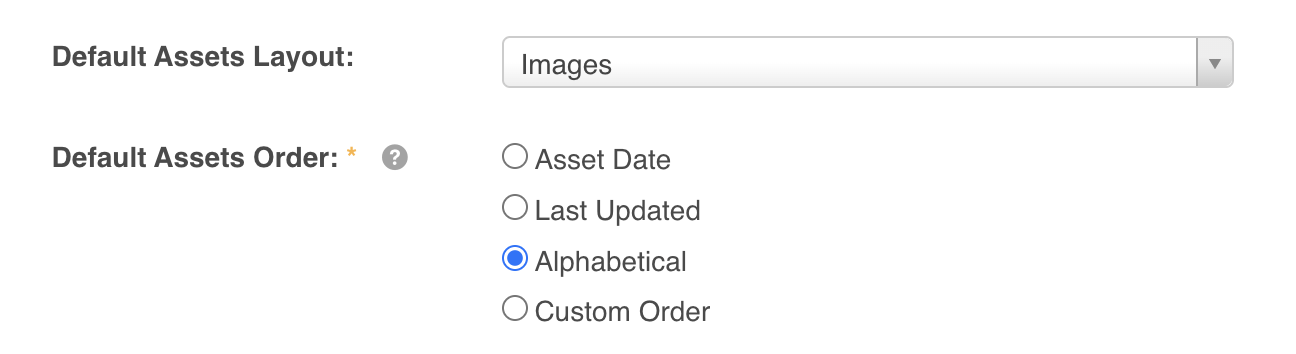
- Locate the Default Assets Layout item
- Within the dropdown menu and select either:
- List — will display your assets in a list view on the screen, with a smaller preview icon. Consider using this option if you want action icons (ie: download, preview, etc) to be more visible/prominent on the asset
- Images (also known as Mosaic) — will display your assets with larger preview images. Actions are only visible on the asset if a user hovers over them
- Card — will display your assets in a card/box view and will contain some metadata (ie: keywords) against the asset within the card. Actions are also more visible in this layout option
Adjusting the Default Asset Sort Order
To adjust the default asset sort order:
- Navigate to the Settings tab of the Admin module
- Scroll down to the Assets - General section
- Locate the Default Asset Order item and select from:
- Asset Date - by default, this will generally be the upload date of the asset. Note however that the Asset Date can be assigned as a different date by users uploading
- Last Updated - upload or edited date (more recently added/edited assets display first)
- Alphabetical - by file name (0-Z).
- Custom Order - Main Admin's can manually arrange the preferred order. Please review our article here to learn more about Custom Order.
Select the SAVE button on the bottom of the page to complete the action. The page will reload and a Success message will display confirming the changes have been applied.
Limitations
Please note that adjusting the default asset layout/sort order will not retroactively change your existing assets' layout/sort order. It will save a new default, so that if new folders are added moving forward, they will have the new asset layout/sort order saved as a part of their folder settings.
If you want to adjust the asset layout/sort order on existing folders, you'll need to do so by adjusting your folder settings in the Asset Library.
Was this article helpful?
That’s Great!
Thank you for your feedback
Sorry! We couldn't be helpful
Thank you for your feedback
Feedback sent
We appreciate your effort and will try to fix the article