As a site Admin, you may want to change how your folders visually display within the platform, or in what order they display.
There are two options for viewing your folders: List layout or Box layout. The folder order options are Alphabetical, Date Added, or Custom.
To adjust your site's default folder layout/order:
- Navigate to the Settings tab of the Admin module
- Scroll down to the Assets - General section
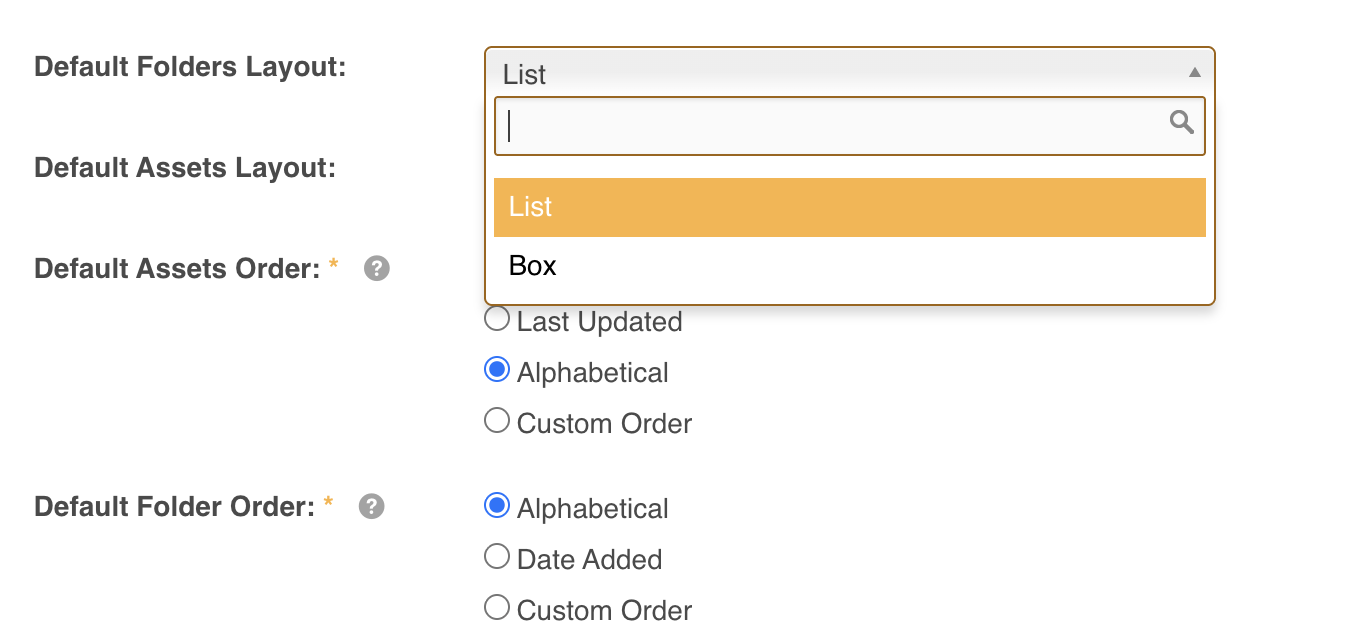
- Locate the Default Folders Layout field
- Within the dropdown menu and select either:
- List - will display your folders in two columns on the screen, with a smaller folder icon
- Box - will display your folders in a box/card view, with a larger folder icon
- Secondly, locate the Default Folder Order item and select from:
- Alphabetical- by folder name
- Date Added - by oldest to newest created folders
- Custom Order - Main Admin's can manually arrange the preferred folder order
Select the SAVE button on the bottom of the page to complete the action. The page will reload and a Success message will display confirming the changes have been applied.
Note: Changes made to default folder layout/order will retroactively change on existing folders.
For further information on how to adjust asset layout and sort order - click here
Was this article helpful?
That’s Great!
Thank you for your feedback
Sorry! We couldn't be helpful
Thank you for your feedback
Feedback sent
We appreciate your effort and will try to fix the article