Users can upload multiple assets at a time to the Asset Library, saving time and effort. As a part of the Bulk Upload feature, users can also apply metadata in bulk across a select number or all assets uploaded. This makes it easier and more efficient to assign common metadata to multiple assets at a time.
Table of Contents
Accessing the Bulk Upload Action
There are two options available to open the Bulk Upload page.
1. Via the Bulk Upload action.
When viewing any of your folders, whether in a parent folder or a sub-folder, you can click the More icon or +Add button to open a dropdown of folder-related actions. In both instances, click the Bulk Upload option to load the Bulk Upload page. You can see an example of this below.

2. Drag & Drop your files into your folder directly.
This will automatically open the Bulk Upload overlay. Note that if a user who does not have permission to upload in the folder tries to access the Upload page via drag & drop, they will be presented with an error message.
Note that you need to be within a folder to upload files. This action will not be available if you're in the Asset Library parent folder view.

Adding Files to your Bulk Upload page
If you've opened the Bulk Upload page via drag & drop, then the files you added will already be processing, ie uploading.
If you've come through the Bulk Upload action however, you can either drag & drop your files or click the Browse action to select files from your device, both located on the left of your screen (as highlighted below).

To add more files to your existing list, you can either drag in new files or click on the +Add more Resources button that appears under your upload list (highlighted below).

You can add up to 1,000 files to the Bulk Upload page at a time. If you try to upload more than 1,000, you will get the below error message and the upload will not be processed. Note, if the upload limit is increased to up to 3,000 assets, this will apply to that limit.

Viewing your Files in the Bulk Upload List
Once your files have been added, they will be processed and added to the upload page. A file has been uploaded when the processing bar is green (as visible above). Note that the file will not appear in the folder until it is saved. Files can be viewed in a list or single view.
A preview will be displayed for the most commonly supported image file formats (bmp, gif, png, jpg, jpeg, ico, svg, webp), pending their file size is not greater than 15MB.
Creating Folders when Bulk Uploading
If you have Folder Admin or higher permission, you'll also be able to drag and drop folder structures. This allows you to recreate the folder structure (along with uploading the assets within those folders) to your destination folder in the platform. This is a helpful feature to leverage if you already have assets organized in the folder structure you'd like to recreate in the platform, eliminating the need to manually create each subfolder one at a time.
When dragging and dropping a folder structure, you'll be presented with a window which lets you choose whether you'd like to create the folders or skip the folders (ie: just upload the assets from the folder structure, but not create the folders) while bulk uploading.
Note, any folders or folder structures that are empty will not get created in the platform.

What Metadata (Information) can I add to my files?
There are multiple types of metadata and fields that you can apply to your files. You can read more about the options below, based on the section they're located within.
Main Details
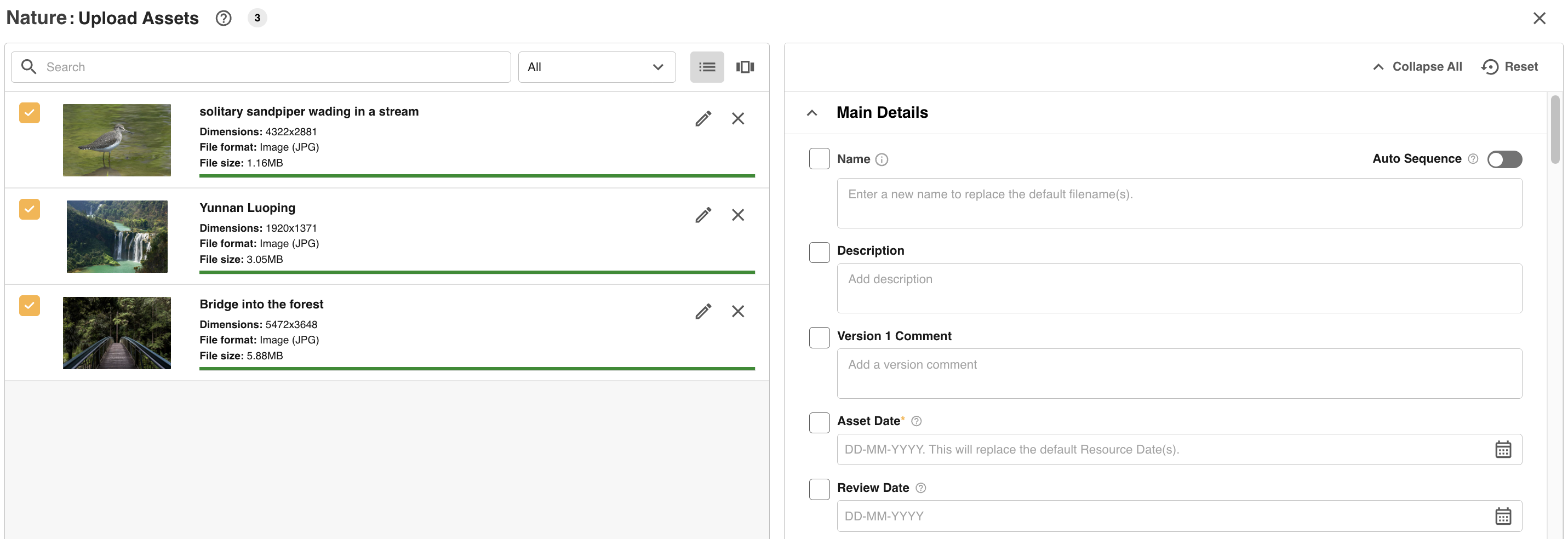
The first section will always be the Main Details section. This allows users to add values to default fields like Review Date or Resource Date.
Note that the Name and Resource/Asset Date fields for each file will be automatically be populated with that file's filename and today's date.
Leave these blank on your bulk upload form unless you need to override those default values; applying the same name to all selected files.
You can also toggle on the Auto Sequence field, which, if used in conjunction with the Name field, will automatically append a sequence number to the end of your file names. This is particularly helpful if you're uploading images from the same photo shoot, and you want your images to all have the same shoot name, but be numbered differently to tell them apart.
Tags
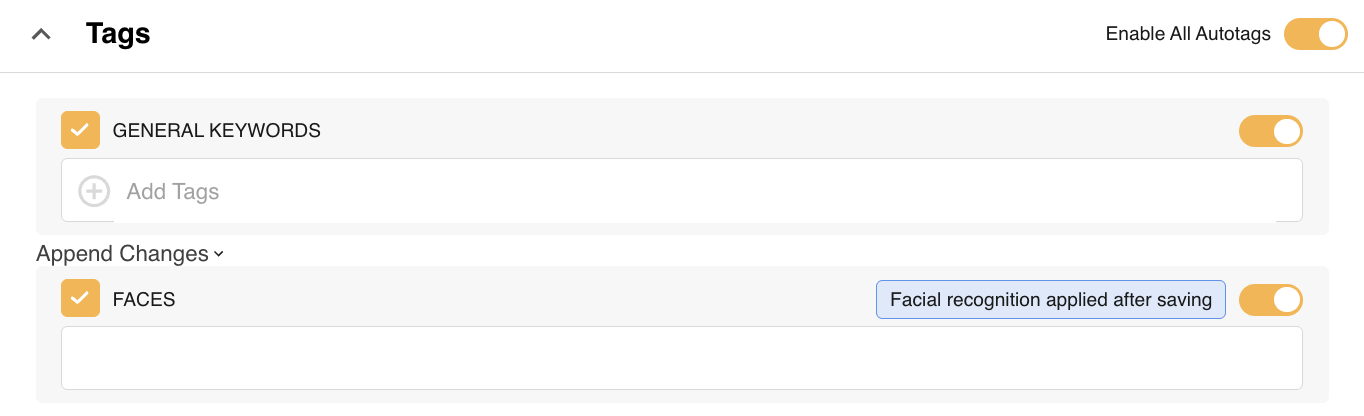
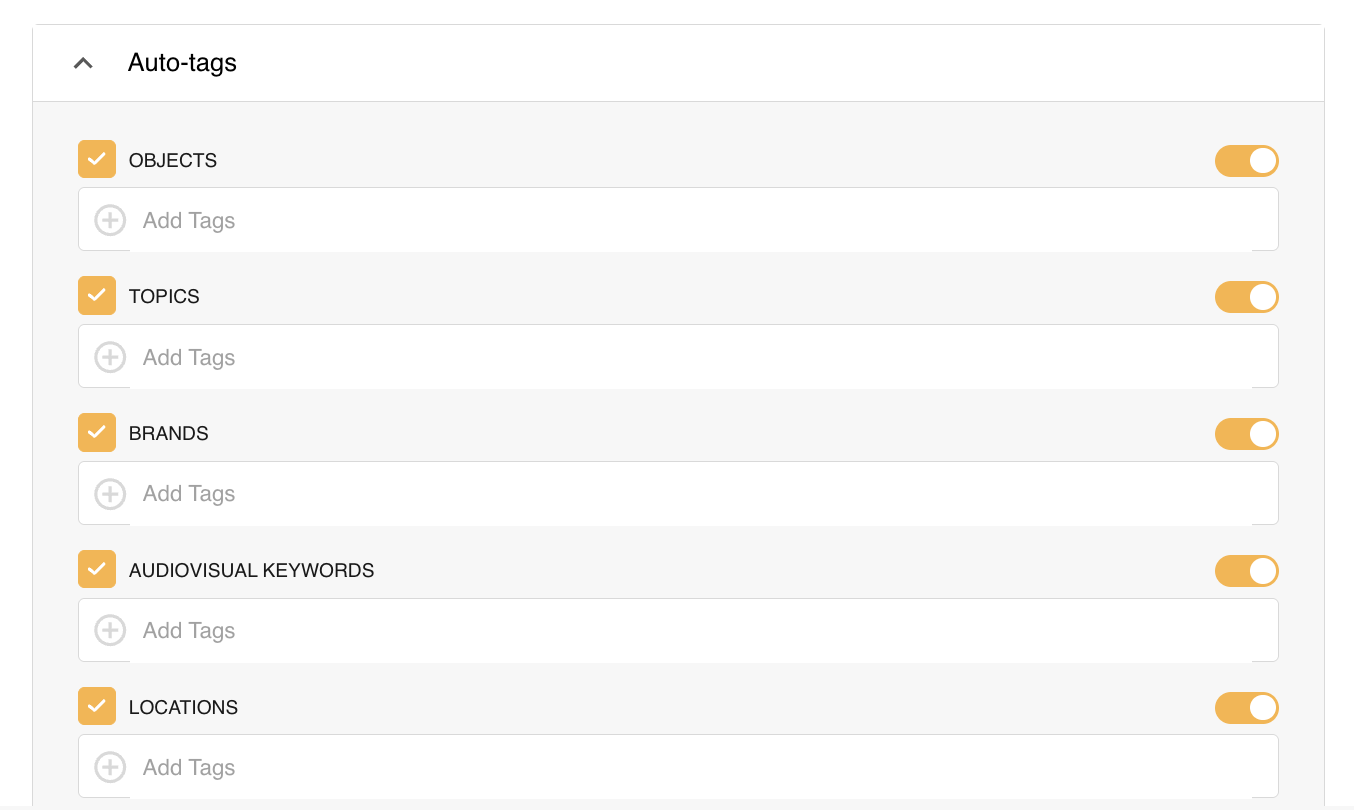
Within the Tags section are fields for adding Keywords and Auto-Tags to make it easier to find a file while performing a search. If Image Auto-Tagging or Video/Audio Auto-Tagging is enabled on your platform, keywords can also be tagged automatically by the system for images, video or audio.
There are different types of tags you can apply. If Asset Intelligence is enabled on your platform, you'll see some or all of the below fields. If Auto-tagging by default upon Bulk Upload is not enabled in your platform's Admin settings, you can manually enable the toggle to auto-tag your assets.
- General Keywords
- Auto-tags for General Keywords are automatically detected from recognizable objects, living beings, scenery, and actions that appear in images.
- Applies to Images only
- Faces
- Can be toggled on for images that should be run through Facial Recognition. Learn more about Facial Recognition here
- Apples to Images only
- Audiovisual Keywords
- Auto-tags for Audiovisual are automatically detected from the speech and visual text.
- Applies to Video and Audio only
- Objects
- Auto-tags for Objects are automatically detected from objects or living things.
- Applies to Images, Video and Audio
- Brands
- Auto-tags for Brands are detect commercial brands from speech or text in Audiovisual files, as well as text in Image files.
- Applies to Images, Video and Audio
- Landmarks
- Auto-tags for Landmarks are automatically detected from identified landmarks in the image.
- Applies to Images only
- Locations
- Auto-tags for Locations are automatically detected from the speech and visual text.
- Applies to Video and Audio only
- AI Generated Description
- Automatically assigns a description to an image file. Learn more about this feature here
- Applies to Images only
Filters
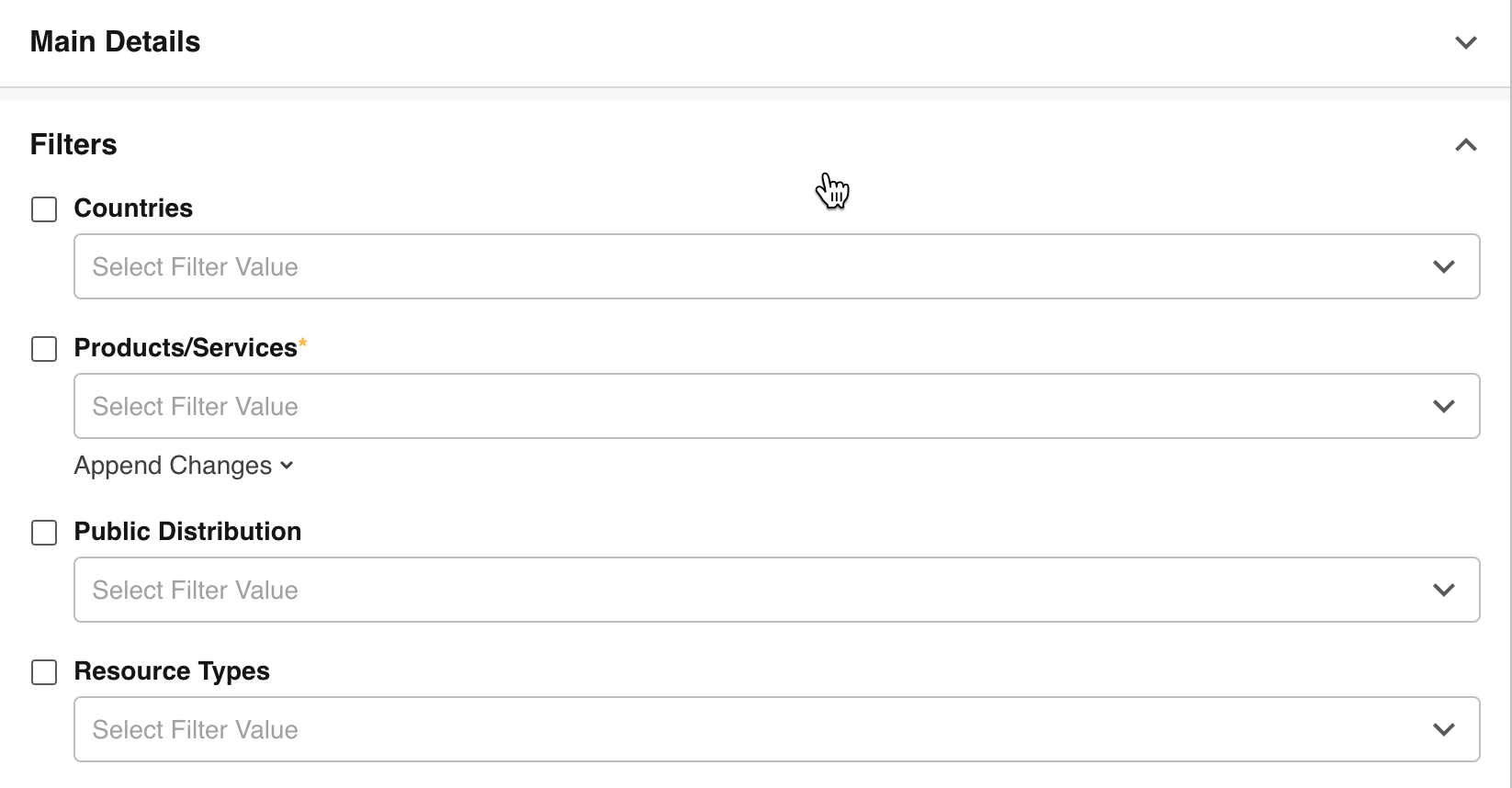
Filters are created in the Admin > Filters area and allow an easy way for users to tag and group files together by category. They are often used to make it easier to locate and search for files.
Filters that appear may be specific to the folder you're uploading to. If your platform/folder doesn't have any filters, this section will not appear.
You can read more about filters here.
Custom Upload Fields
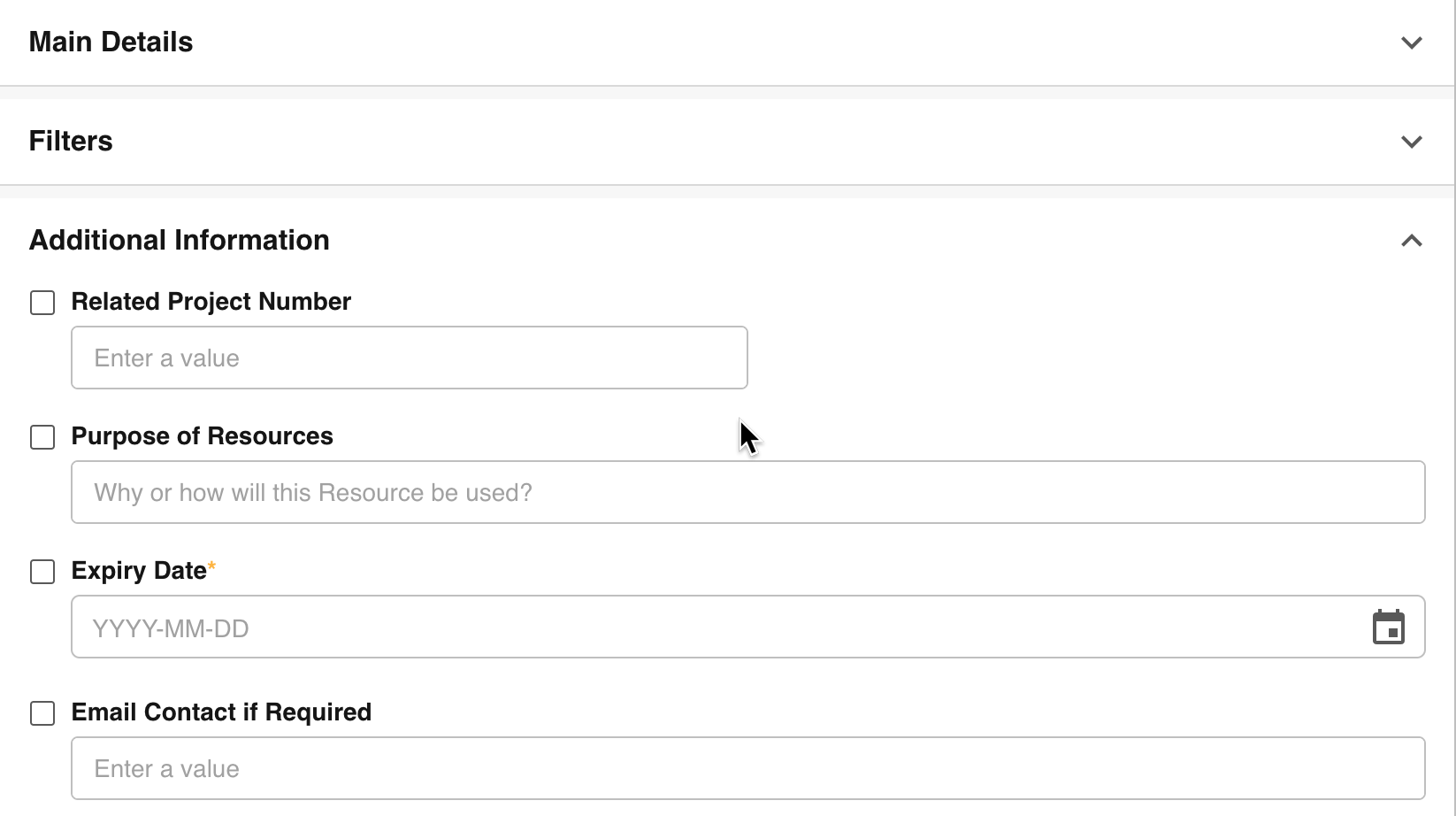
Custom Upload Fields are applied to all folders and allow you to add custom fields to your upload form. This enables you to tailor the information captured about each field and allow for more search options once the files are uploaded.
This section will only appear if this is configured on your platform. Note that as the sections can have custom names, this may appear differently in your platform. You can read more about Custom Upload Fields here.
Publish Approval
A Publish Approval requires users to submit their assets for approval before they are published to a folder and become available for other users.
The Grouped Resource Publish Request feature allows items that are uploaded together via a Publish Approval process to be grouped together, which allows the requester to more easily monitor this group of requests collectively, or still as individual requests. It also allows reviewers to respond to such multiple requests within a group all at once. Click here to read more.
Bulk Applying Metadata to Files
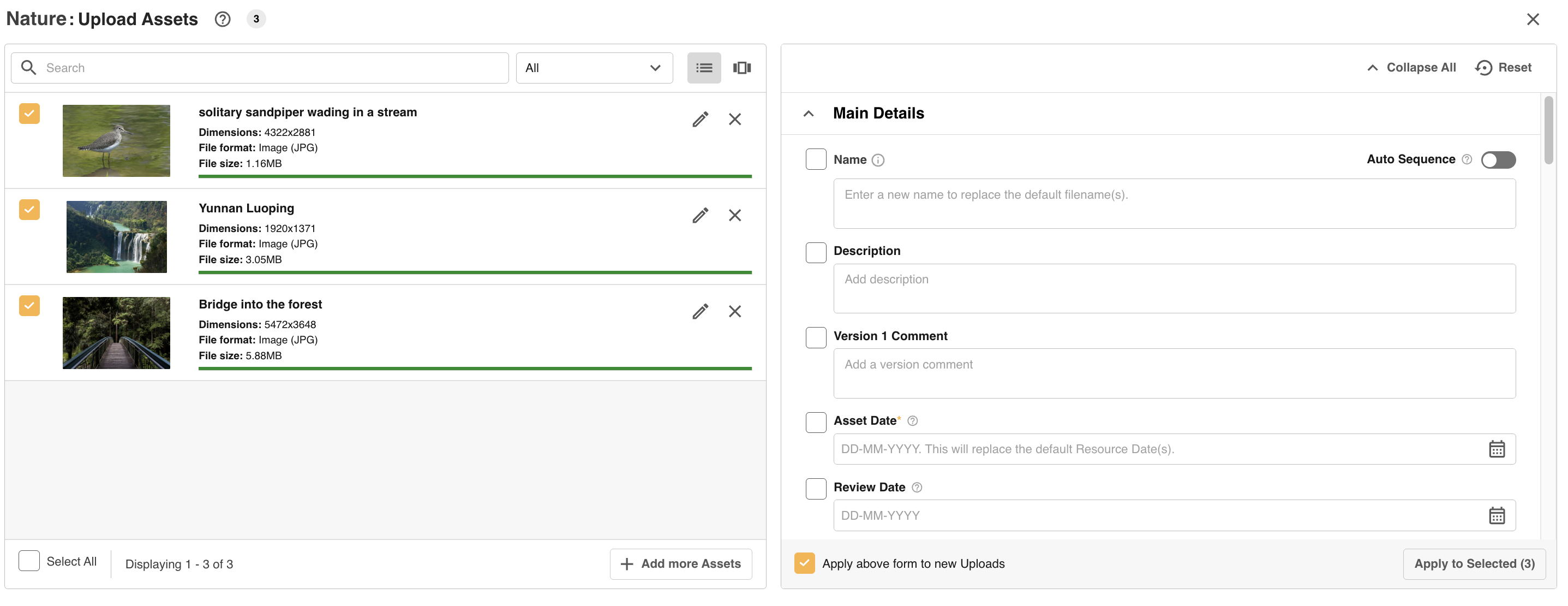
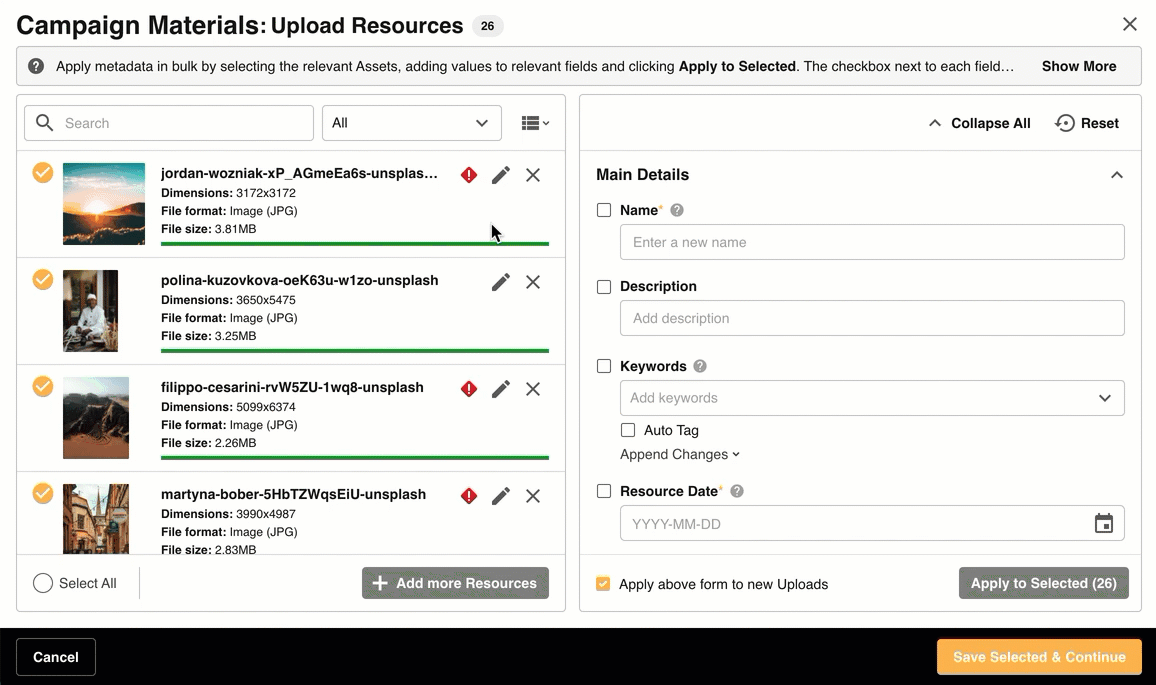
There are multiple ways to apply metadata and details to your assets. The upload form that appears on the right of your Bulk Upload screen (pictured below) is where you can add your file information and metadata. Sections with a mandatory field will be open by default.
Apply to Selected
The easiest way to apply metadata is to add the value(s) to your form and click the Apply to Selected button located at the bottom right of the Main Details panel (as highlighted below). When selected, the values will be applied to any selected file in the upload page. The number next to Apply to Selected refers to the number of files selected. If there is a search or filter selected in the upload queue, this will update to Apply to Results, with the changes only being applied to the files within that results list.
Append or Replace?
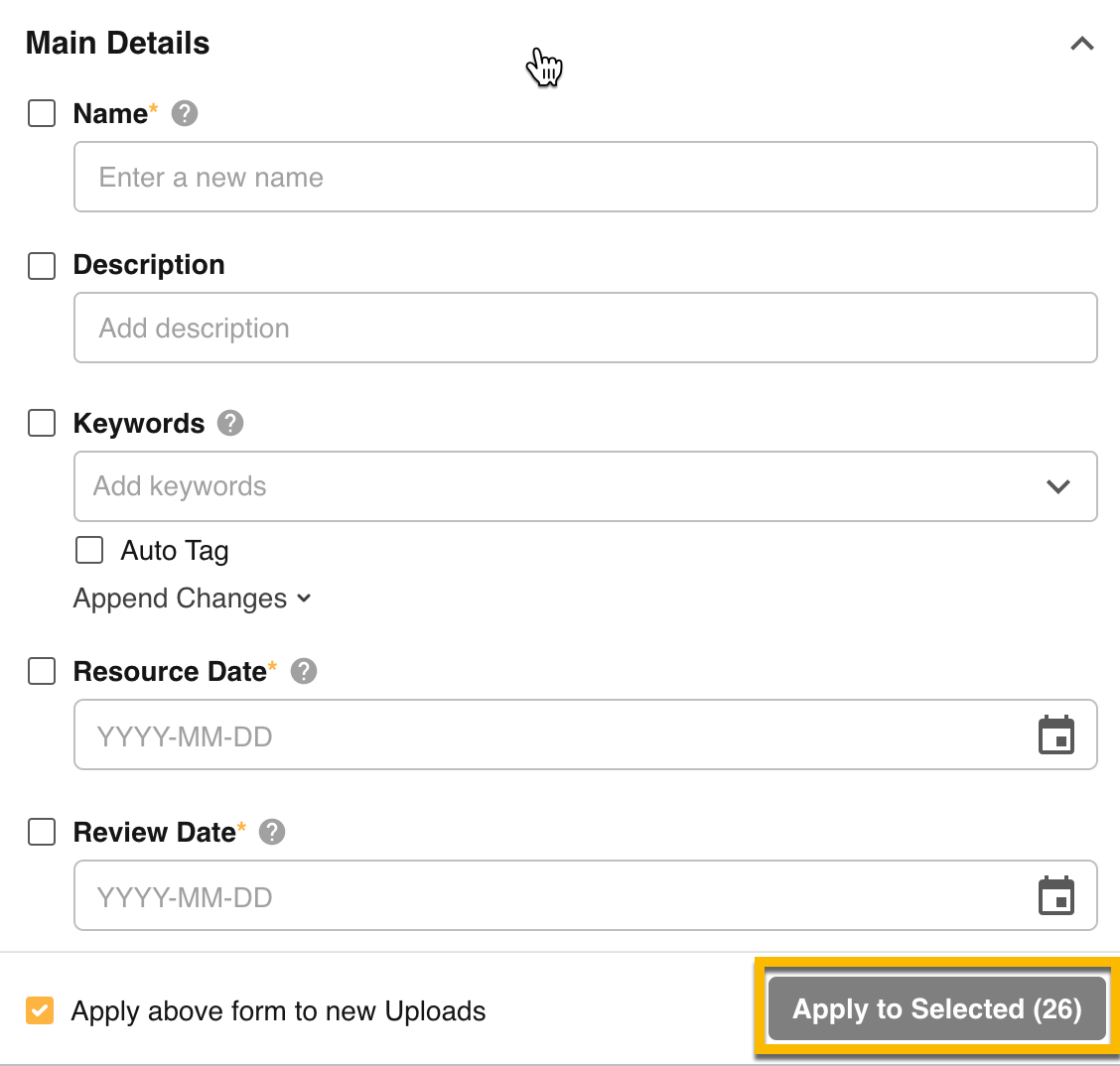
The type of field will dictate whether your applied value will replace an existing value or if it will be added to it (appended). For all Single input fields, ie fields which can only ever have 1 value within them, these will always be replaced. This includes all fields except Keywords, Multiple Filters and Multi Select Custom Upload Fields. For the latter, users will be able to choose if they want to append or replace any existing values with the new values selected.
Apply Change Checkbox
Next to each field on the Bulk Upload page is a checkbox. The Apply Change checkbox is automatically enabled whenever a value is added to that field or a change is made, ie if a keyword is removed. The checkbox is enabled to indicate that the field will be applied when the user clicks Apply to Selected. This also allows users to select the checkbox when the field is blank, an easy way to delete existing values if you've made a mistake.
If you have added values and don't want them to apply to your selected files, you can uncheck that option for the relevant fields. If a field is unchecked, no values will be applied when Apply to Selected is clicked.

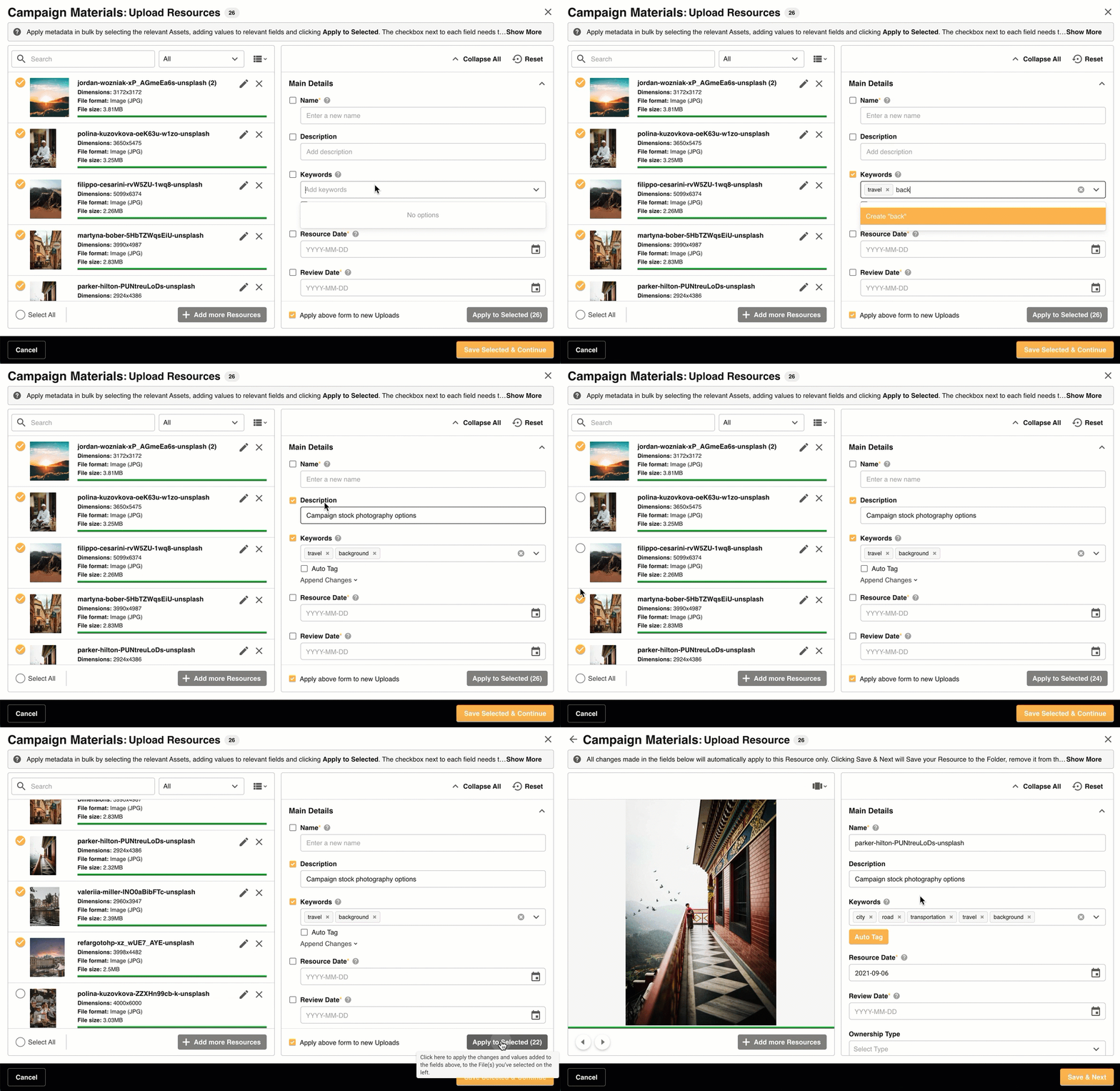
You can see a demonstration of how to apply changes to batches of files below.
Adding Metadata to a Single File
If you need to customise each individual file with unique metadata, the single file view allows you to edit and then save each file individually. This makes it simple to confirm and double check the information prior to saving.
You can access the single file view either by switching the view option from list to single or by clicking on the thumbnail, filename or the Edit icon of the file (as done below).
When on the Ssngle file view, all changes are automatically applied to that file.
For example, if I open the single file view for an image, the changes I make on that page are specific to that image and do not need to be applied. You will still need to Save the file to view that metadata in the folder, which you can do either from your bulk page or by clicking Save & Next, as demonstrated below.
Saving a Single file
If on the single file view and you click Save & Next, the file will be saved to your folder and be removed from your upload page. You will automatically be taken to the next file in your list, as it exists on the bulk page.
To get back to your Bulk view, simply switch the view back to list or click the Back button in the top left of the page.

Error Scenarios
The most common type of error is a Field Error, which indicates that a mandatory field has not been filled out and you have tried to save that file. To resolve Field Errors, you can either apply the field in bulk (look out for the mandatory '*') or navigate to the Single File view to resolve the error.
If the file upload has failed, the user will be able to click a retry icon to attempt processing again, or remove the file via the icon highlighted below.
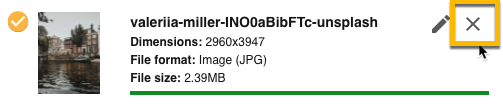
If errors are detected with a file after it has been processed, an alert indicator will be added to the relevant file. This may occur if the file has been detected as a Duplicate file, indicating that it already exists in another folder. It could also appear if a virus has been detected. In both instances, you will need to open the Single file view for the relevant folder and resolve the error.
For Duplicate files, you can also choose to enable an Apply Selection to all Uploads checkbox. This will automatically apply your selection, ie whether you skip or continue uploading, to all other files that have been detected as Duplicates in your current upload request.
You can read more about Duplicate detection here or view the demonstration below.
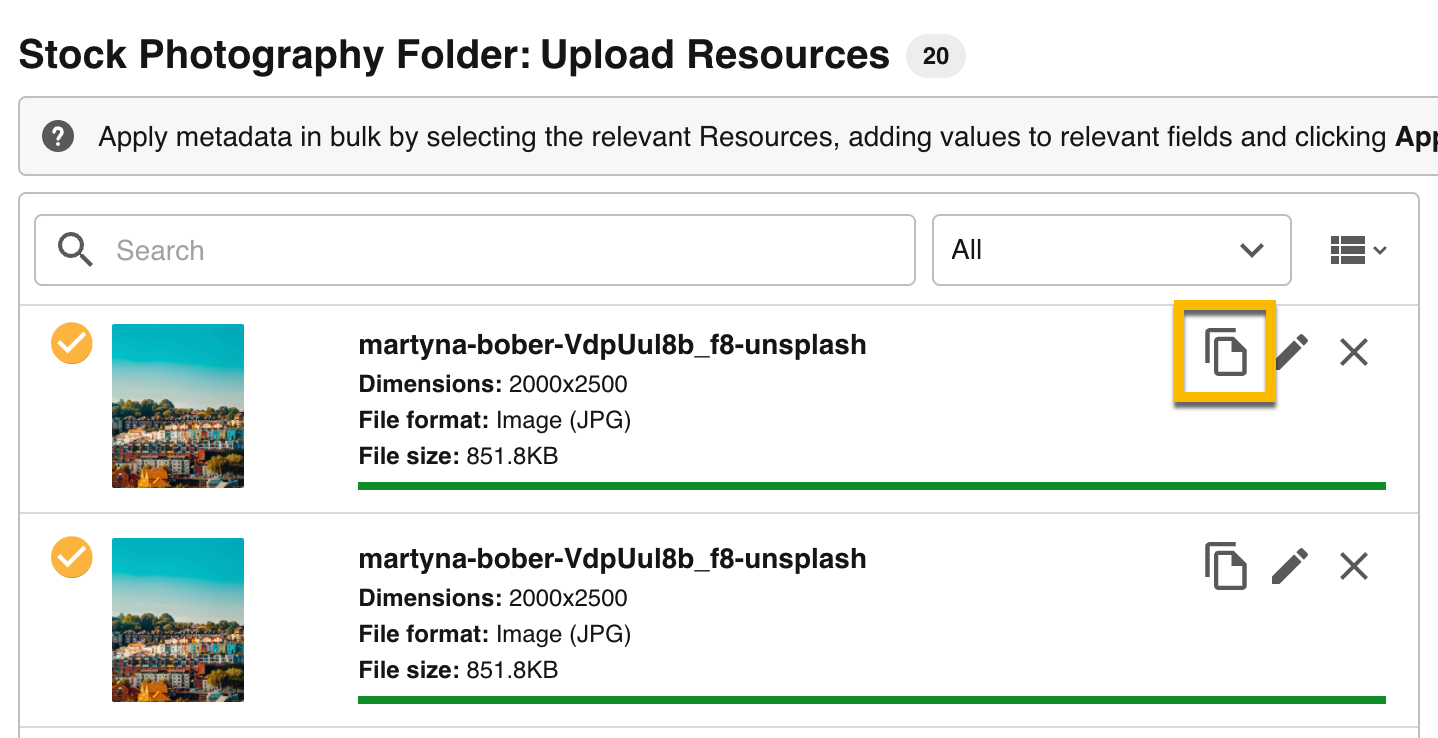
If you upload multiples of the same file within an upload request you will see an Icon (highlighted below), indicating that the file is a duplicate of another file in the upload list. You can navigate to a specific filter of these items, making it easier to remove the duplicate files. Note that this is separate from the Duplicate Asset handling above.
Filter by Upload Status
The filter option at the top of the upload list allows you to filter to any of the error / progress scenarios of the files in your upload list. For instance, Field Errors will only appear as an option if a file with a field error exists. If you select that option then only files with Field Errors will appear, making it easy to identify the files that need to be updated.
Saving your Assets
All the metadata applied to the files, and the files themselves, won't appear in your folder until they have been saved.
To save the files individually, go to the single file view and click Save & Next.
To save your files in bulk, select the files you wish to save and click the Save Selected & Continue button at the bottom of your page. This will save only those files which are selected and completed; ie they have no errors and have completed processing.
Once you click the save button, you won't be able to work on those selected items anymore as they will be saved to your folder and removed from your upload list. Depending on the number of files and their size, it may take a minute or two to save and remove these files. You can see an example of this below.
If you are done bulk uploading and saving all the assets, select Exit to exit out of the Bulk Upload screen. You'll then be taken to the folder you've just uploaded assets within.
Note that IE 11 users will not be able to access this version of Bulk Upload.
Please note that the 'Assets' terminology referenced above may appear differently in your platform as these are customisable terms. You can view alternative options here.
Was this article helpful?
That’s Great!
Thank you for your feedback
Sorry! We couldn't be helpful
Thank you for your feedback
Feedback sent
We appreciate your effort and will try to fix the article