This article outlines the process of how to download a single asset from the IntelligenceBank platform and provides further guidance on the options available for each asset type.
The ability to download assets is available for users who have Access level permission or higher.
Table of Contents
How to Download an Asset
There are multiple places in the platform users can go to download an asset:
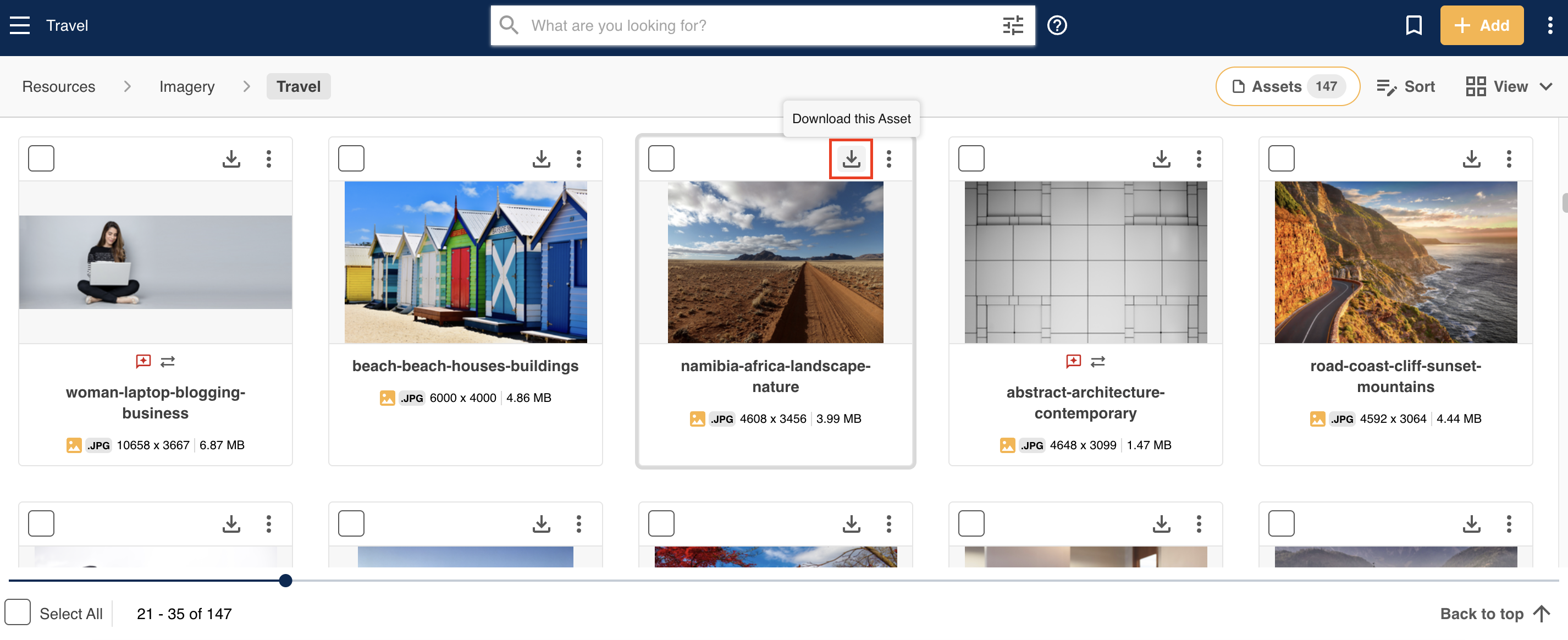
Within a Folder, Collection, or Off of a Search
Within a folder, collection, or from a search, select the download icon against the asset as shown below.
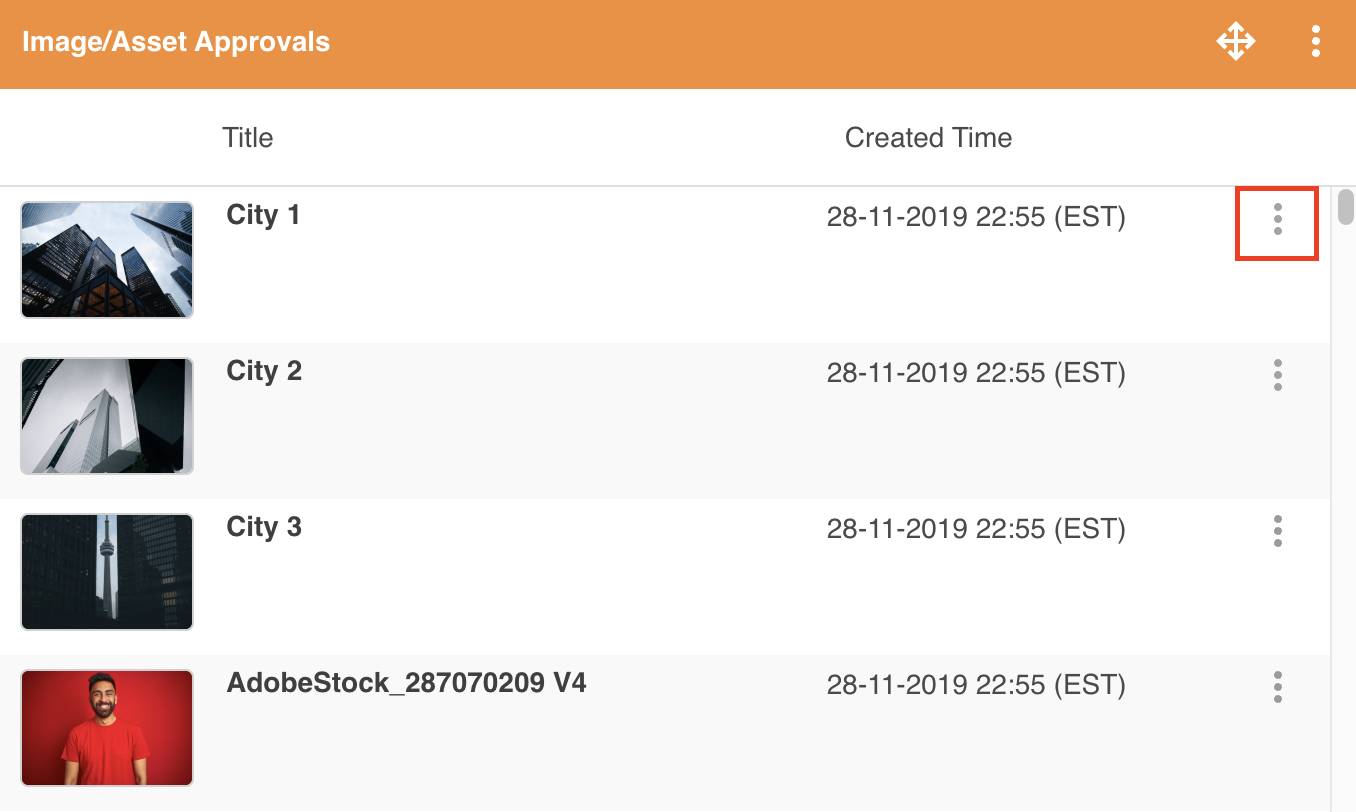
From a Dashboard widget
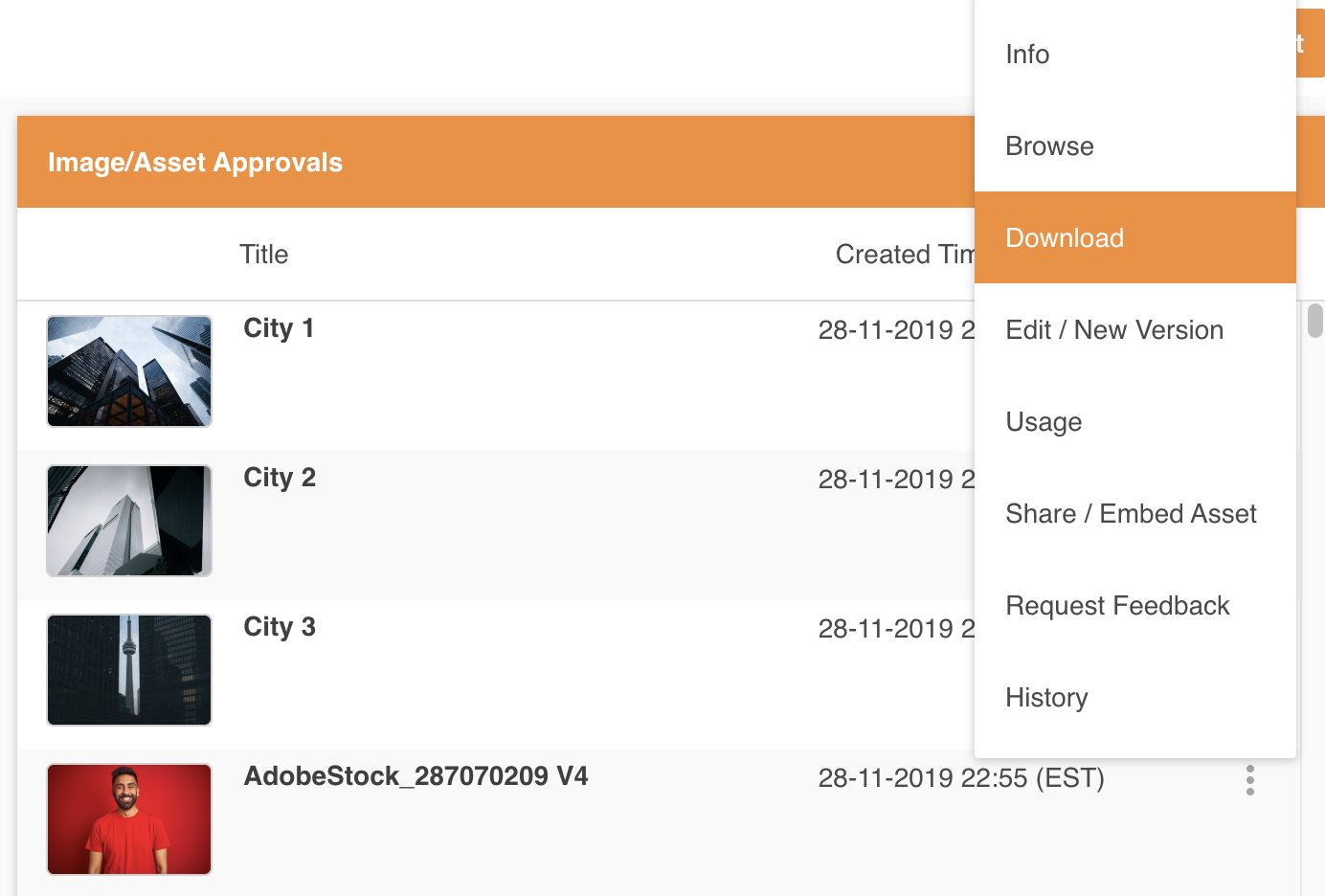
If you're viewing the asset within a dashboard widget, access the action menu against the asset by selecting the three vertical dots and select Download.
From within your Approvals List
You can also download assets directly from within your Approvals List. Navigate to this area and locate the desired asset within the list.
Then, select the Download icon in the Action column.

Once you've clicked the Download action, a variety of actions may occur. These are all dependent on the type of file you wish to download, as well as whether you as a user have permission to use Download Transformations and/or Transformation Presets, which can restricted on a group level. To learn more about these Transformation Permissions, please read the article here.
Downloading an Image
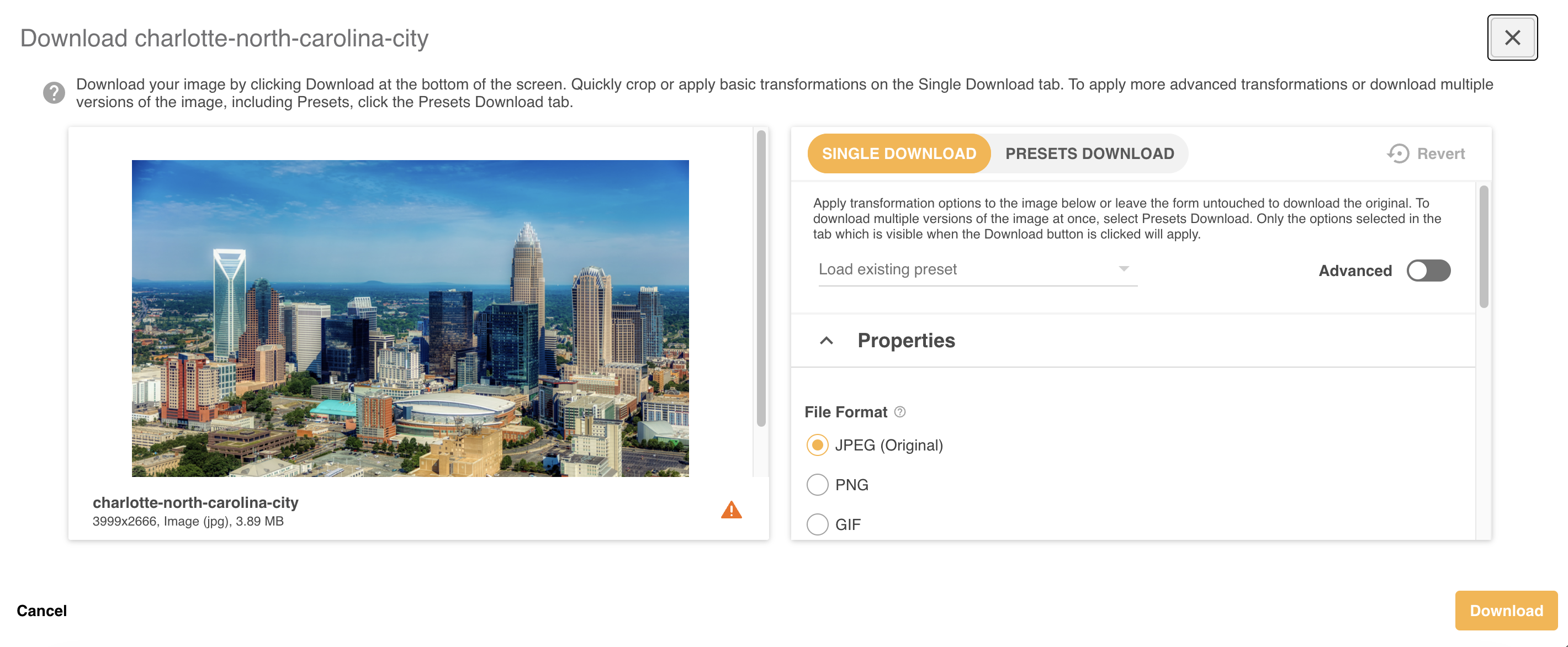
If you are downloading an image, after you select Download, you'll be taken to a screen where you will have the option to apply Download Transformations or Presets prior to downloading. These options enable you to download this image in a particular file format, dimension, etc, if you need this image within selected parameters for a specific use.
To learn more about these transformation options in more detail, refer to the article here.
If you just need the image in its original format/size, select Download from this screen. The download will begin automatically to your computer.
Downloading a Document
If you are downloading a document, multiple options will be available based on the type of file you are downloading. Most of these options will be available to anyone downloading a document file, whilst others will only appear if specific settings have been enabled on your platform.
If the document you are downloading is not supported for any transformation or conversion, it will download immediately. Otherwise, one of the options below will be available.
Downloading PDF's
PDF files will typically be downloaded automatically.
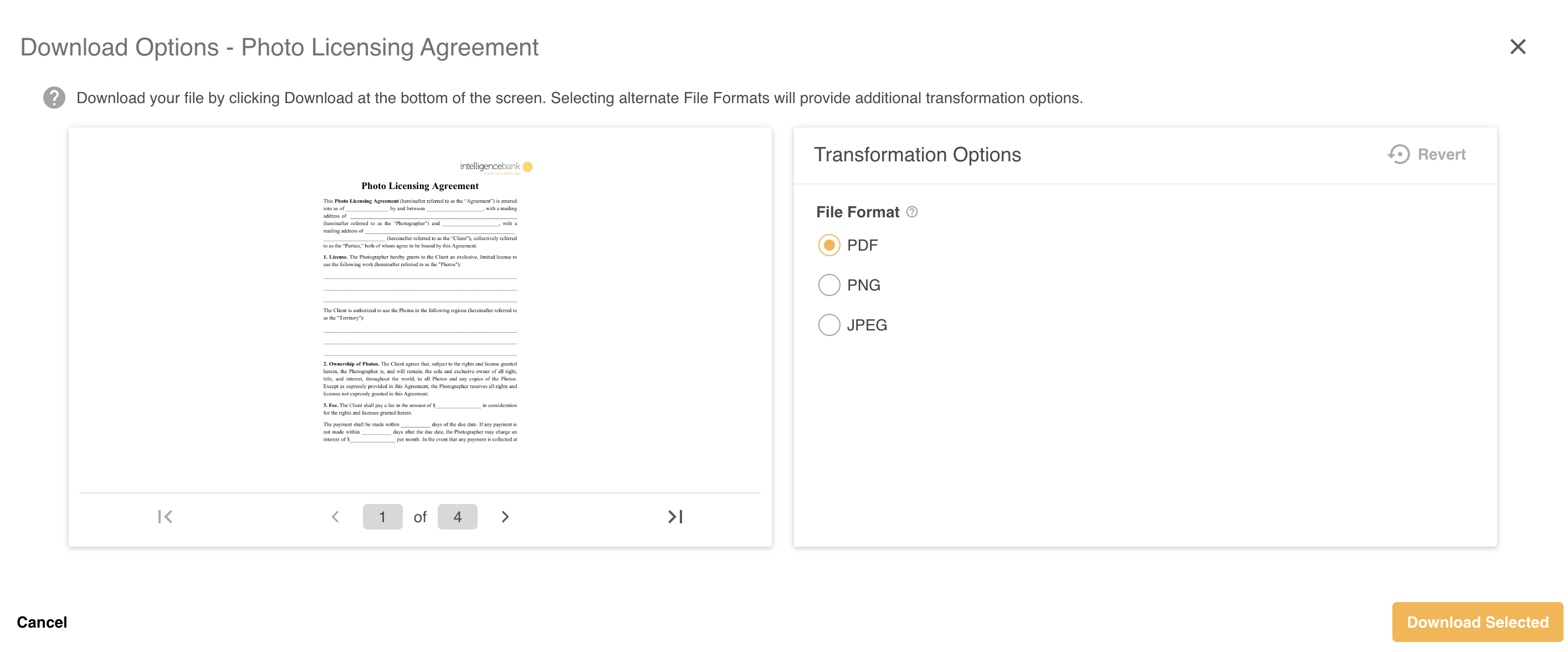
However, if the Document Download Options setting in Admin has been enabled, clicking download on a PDF file will open a Transformation Overlay allowing you to convert the file to an image so you can apply transformations to it. You can read more about this below.
If you just wish to download the original PDF file, simply click Download Selected at the bottom right of the page.
Downloading other Documents
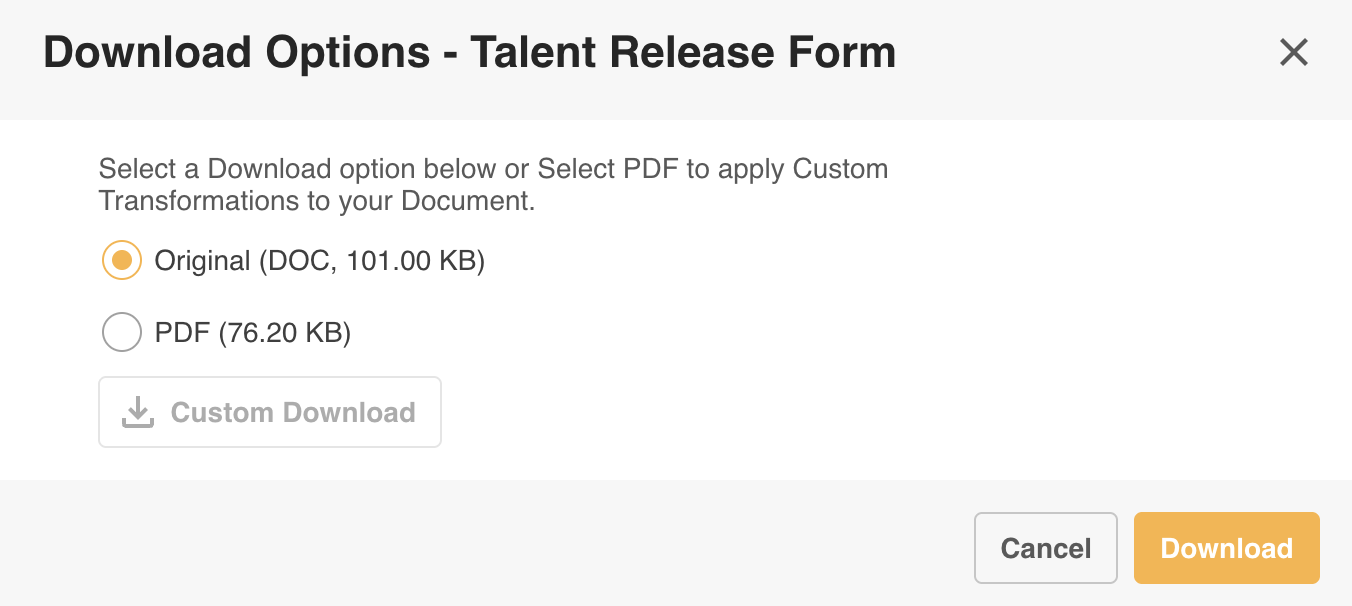
When downloading other Document types, for example Word, Excel, Powerpoint files, etc, there will generally be 2 options available when the download icon is selected.
If a PDF version of the document exists on the platform already (you will be able to see the Reader action if so), then after clicking the download icon, a popup (pictured below) will appear. Here you will be able to choose between downloading the Original file or a PDF version of the original.
Once you have made your selection, click the Download button on the bottom right of the popup.
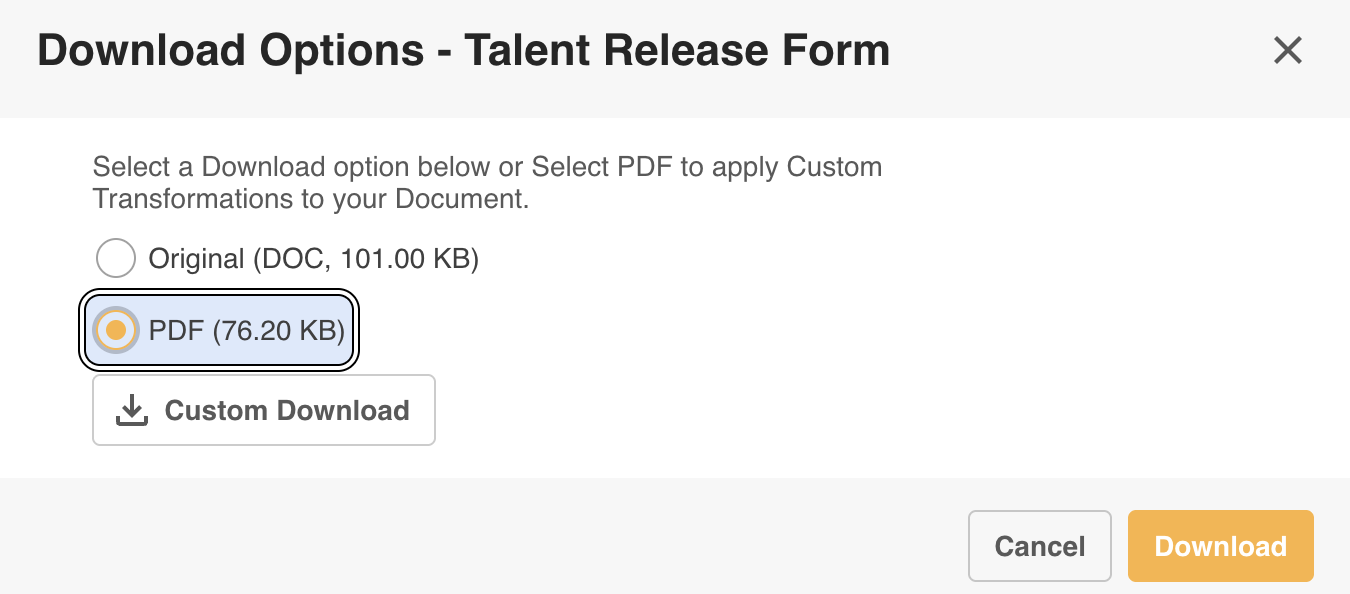
Another option may be available if Document Download Options is enabled in your Admin settings. In this instance, you will see a Custom Download button once PDF is selected. You can read more about the custom options below.
PDF Transformations
If the Document Download Options setting in Admin enabled, clicking Download on a PDF file or a document file with a PDF version will also have the option to apply Custom Transformations. In this instance a Transformation Overlay will appear, allowing you to convert the PDF to an image so you can apply transformations to it.
The transformation options available include:
- File Format: PDF, PNG, or JPEG. By default PDF is selected.
If PNG or JPEG are selected, the following options may appear:
- Compression Quality: This will only be available if JPEG is selected, but will allow you to reduce the file size of the image. Doing this can affect the quality of the image.
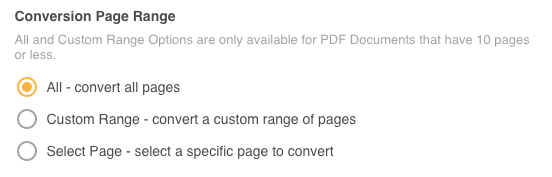
- Conversion Page Range: This field allows you to select which pages will be transformed. It can also allow you to download specific pages. It is only available if there are less than 10 pages within the document. The options available include:
- All - convert all pages: This will convert all pages
- Custom Range: This will convert a custom range of pages, as entered in the Custom Range field that will appear.
- Select Page: This will convert a specific page, as selected in the Custom Range field that will appear.
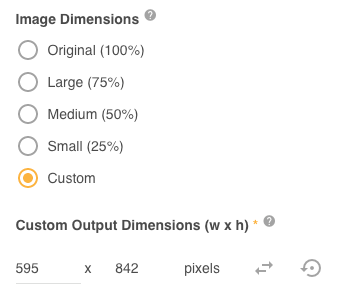
- Image Dimensions: This field allows you to change the Image Dimensions that will be downloaded, ie you can download a file that is 75% of the original size. There are a few additional options available if Custom is selected here.
- If Custom Range or All is selected in the Conversion Page Range field: The user will be able to change either the Height or Width of the pages. This can be switched via the arrow icons (highlighted below):
- If Select Page is selected in the Conversion Page Range field:
- You will now be able to click the Crop icon and adjust both the width and height values. They can do this via the Custom Output Dimensions field or by clicking on the border dots on the image preview and dragging them to the required output position. You can see an example of this below:
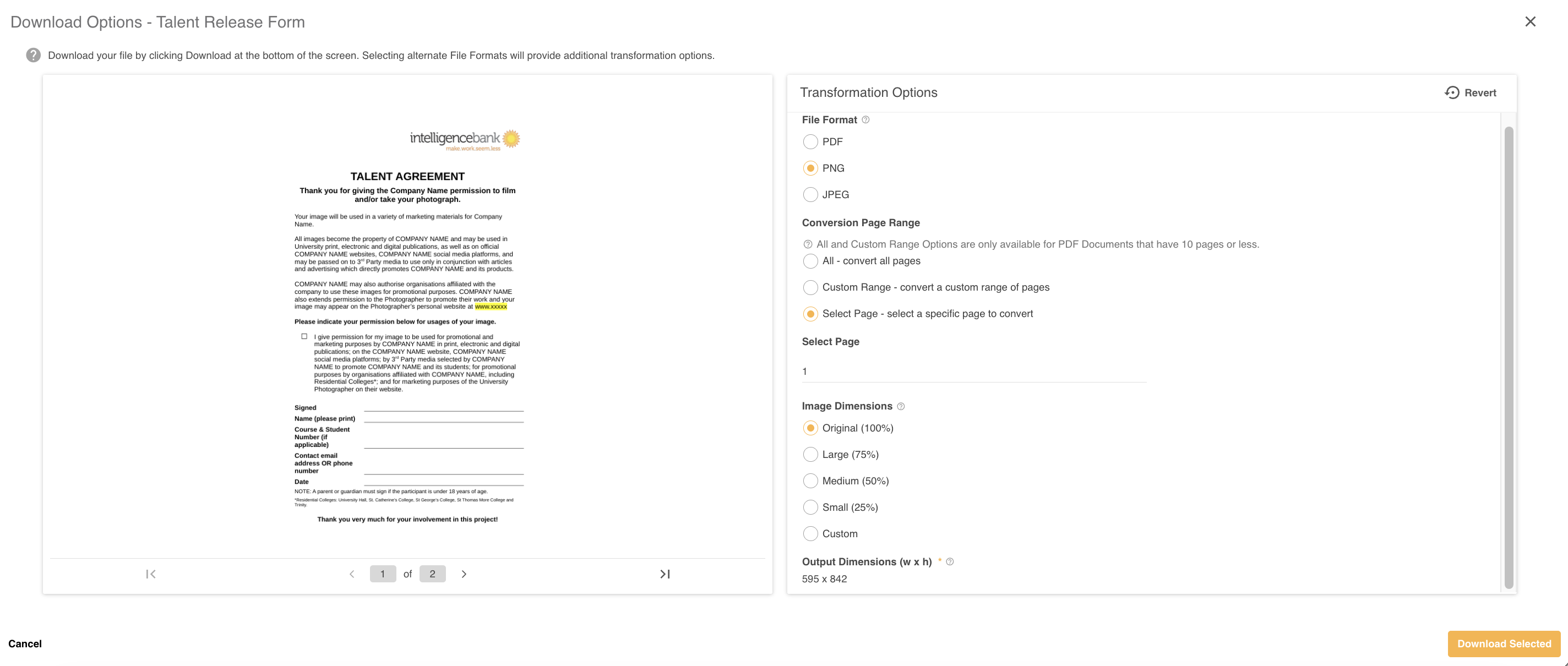
- You can also alter the Pre-Crop Dimensions, allowing you to change the size of the image before the Output Dimensions are applied. For example, you could create a zoomed out version of a document using this method.
- You will now be able to click the Crop icon and adjust both the width and height values. They can do this via the Custom Output Dimensions field or by clicking on the border dots on the image preview and dragging them to the required output position. You can see an example of this below:
- If Custom Range or All is selected in the Conversion Page Range field: The user will be able to change either the Height or Width of the pages. This can be switched via the arrow icons (highlighted below):
Downloading a Video
When downloading a video file, your options will be dependent on the streaming options selected within the Admin section.
In most instances though, clicking download on a video file will open up the Video Download popup (pictured below).
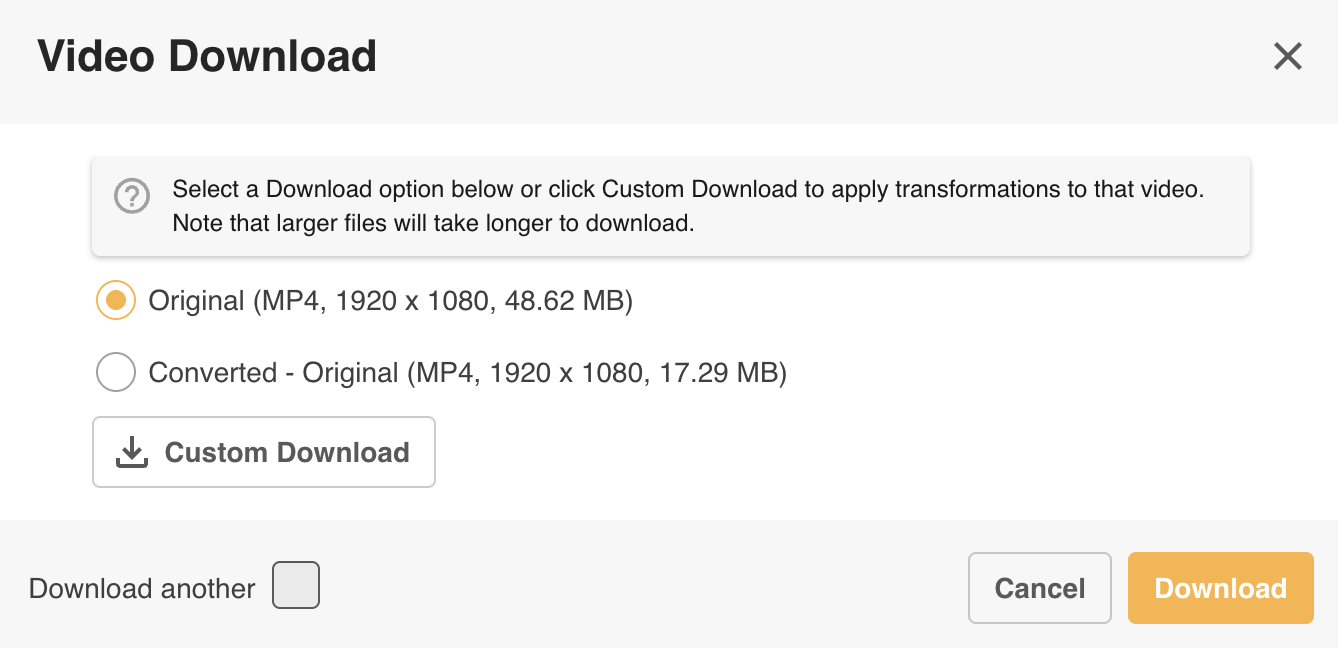
Here you can select either the original video (by default), or other converted versions of the video. You can also select Custom Download, allowing you to apply transformations to the video file.
Transformations to Videos include:
- Output format
- Resolution
- Start / End Time
- Watermarking: including the usage of either System or Custom Watermarks and the options to change the size and opacity.
You can read more about Video Downloads here.
You'll also see a Download another checkbox. Enable this checkbox if you want to keep the popup window open after clicking Download. This allows you to quickly download another format or custom video option.
Downloading Other File Types
When downloading file types other than those mentioned above, all files will automatically download. File types that will use this behavior include (for example):
- Audio
- Compression
- Remote
Downloading with Approval Requests
If you have Preview permission and there is a Download Approval workflow enabled, you will need to submit an approval request in order to download an asset. The Request Approval page (pictured below) will appear on your screen once you click Request Download.
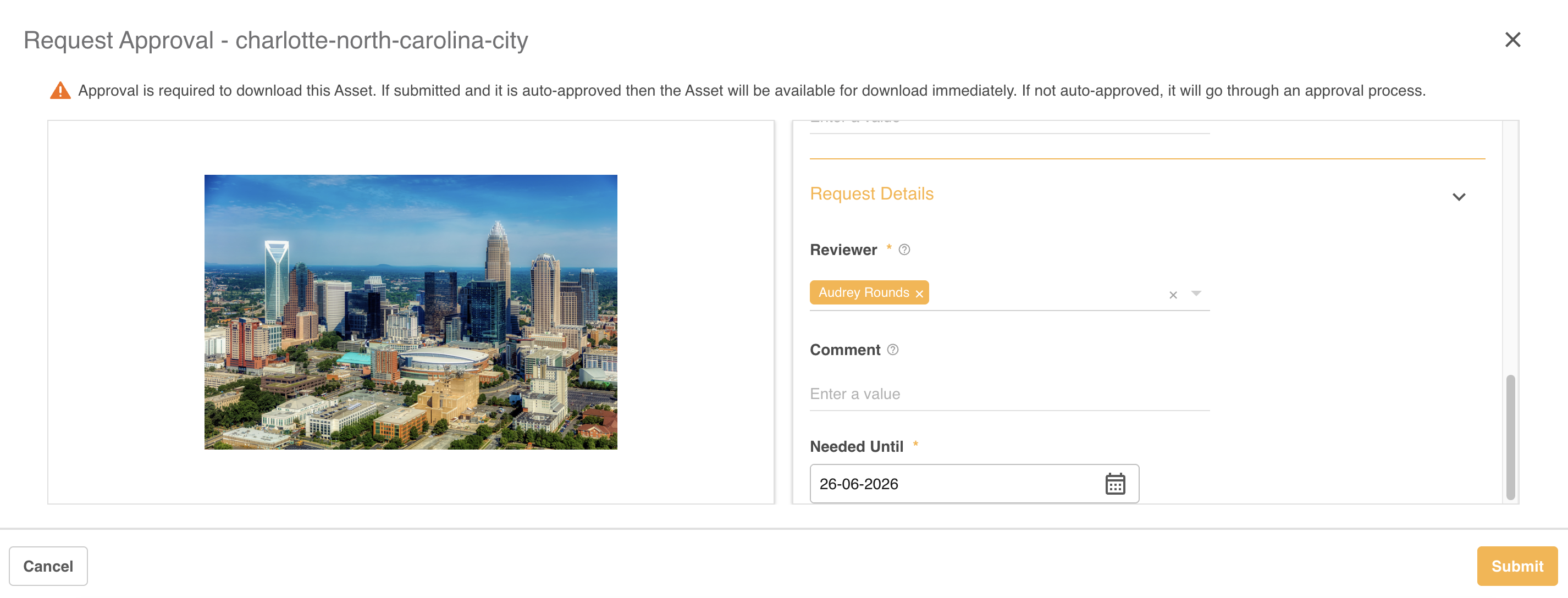
If your request is auto-approved, the overlay will be replaced by the page or popup referenced above based on the file type, or the file will immediately download.
If not Auto-Approved, you will need to wait until your request is approved, after which you will be able to proceed as mentioned above.
File Naming
By default, files downloaded use their original File Name.
This setting can be updated by Main Admins so that downloaded assets use the Resource Name instead. This might be beneficial if your original file names don't follow your desired naming convention, or aren't particularly intuitive.
This can be updated in the File Name for Downloads field in the Admin>Settings area of the platform.

Please note that the 'Assets' terminology referenced above may appear differently in your platform as these are customisable terms. You can view alternative options here.
Was this article helpful?
That’s Great!
Thank you for your feedback
Sorry! We couldn't be helpful
Thank you for your feedback
Feedback sent
We appreciate your effort and will try to fix the article