When Record File Approval Workflows are enabled on a Multi-Upload field, you can track file approvals while they're in progress, and report on them afterwards when looking back at a project or campaign.
This article covers three areas:
- Tracking in-progress approvals: progress icons, filters and Dashboards.
- Record File reporting: Data reporting on files and revisions, whether or not they go through approval.
- File Approval reporting: Data reporting on approval requests and responses.
Table of Contents
- File Approval Progress Tracking in Databases
- Filter Records by File Approval Status
- Show Time to Complete in Records
- Dashboards: Time to Complete
- Dashboards: Markup Comments Revisions
- Reporting on Record Files
- Reporting on Revisions for Record Files
- Data Conditions (Reporting Filters)
- Request and Response Reporting for File Approvals
- Time to Complete in Reporting
File Approval Progress Tracking in Databases
Track the progress of File Approval requests from the Database Record Home, with an overview across every record shown.
Configure the Featured Field
When a database has a Multi-Upload field with a workflow enabled, that field can be selected in the Featured Field column setting in Database Settings. There is also an All Multi Upload Fields option, which tracks progress across every Multi-Upload field in the record.

Once a field (or All) is selected, choose what to track in Featured Field Completion Value:

| Completion Value | What It Tracks |
|---|---|
| Approved, Cancelled, Declined or Pending | How many files have that status, out of all files sent for approval. Files with no request aren't counted. |
| Completed | All Approved, Cancelled and Declined files together, which also shows how many are still Pending. |
Display in Database Views
Once configured, a progress icon appears in the Featured Field column in List View:

A grey N/A icon shows when no relevant files have had approval requests. Otherwise the icon shows X of Y Status, where X is the number of files with the selected status, Y is the total number of relevant files with approval requests, and Status is the value chosen in Settings. For example:
- 1 of 5 files are Approved
- 2 of 20 files are Declined
- None of 10 files are Cancelled
- 7 of 7 files are Pending
Hover over the icon for more detail. When Completed is selected, the tooltip breaks the count down by Approved, Declined, Cancelled and Pending.
The icon's colour shows what share of files sent for approval have the selected status:
| Icon Colour | Files Matching the Status |
|---|---|
| Red | 0 to 50% |
| Orange | 50 to 99% |
| Green | 100% |
The icon also appears in the other record layouts:
Card View

Calendar View

Kanban View

Filter Records by File Approval Status
When filtering your records, you can show only records with File Approvals in certain statuses. A Multi-Upload field only appears in the Filter side panel when it has a File Approval Workflow enabled. Select one or more of: Approved, Cancelled, Completed (any of Approved, Cancelled or Declined), Declined or Pending.

| If You Select | You See |
|---|---|
| Pending | Records with at least one Pending file. |
| Approved and Declined | Records with at least one file that is either Approved or Declined. |
| Completed | Records with at least one file that is Approved, Declined or Cancelled. |
Show Time to Complete in Records
Users who can see file requests in a record can also see how long each request took to complete, giving time tracking at the record level.
Configure Time to Complete
In the Form Builder, edit a Multi-Upload field that has workflows enabled and select Display Time to Complete. An Include Weekends toggle then appears, turned on by default.

If you turn Include Weekends off, weekends are excluded from the calculation. For example, 11:30pm Friday to 12:30am Monday counts as one hour. The weekend's start and end follow the time zone of the user who made the request.
Display in the Record
When a request is completed, text such as Time taken to Approve, Time taken to Decline or Time taken to Cancel appears next to the file's status in the file list.
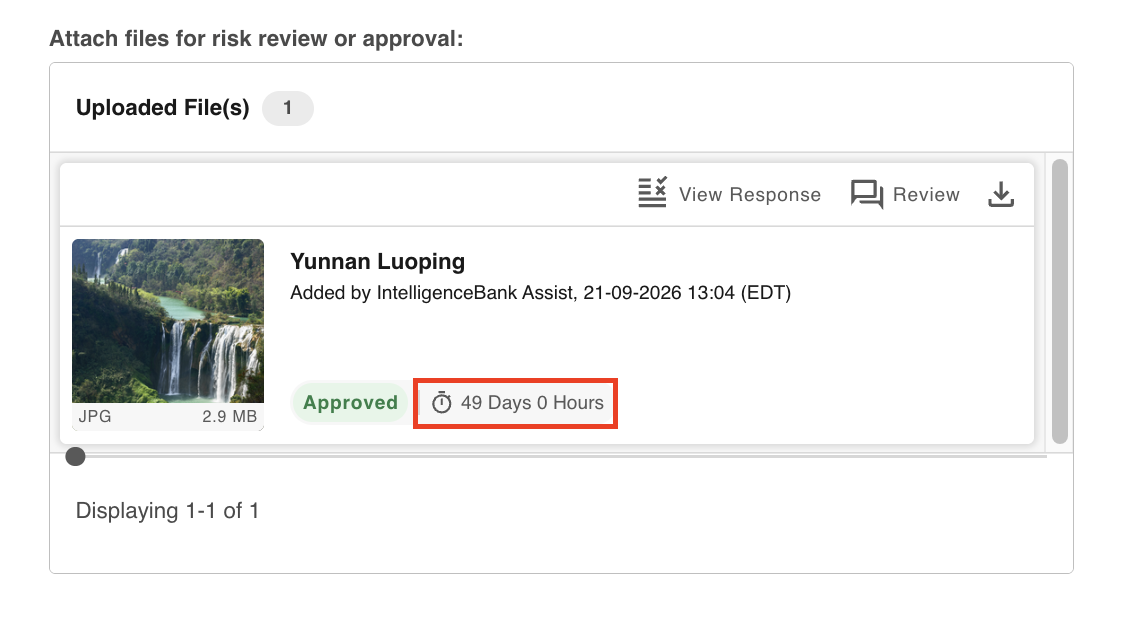
- Pending requests show no text, as they aren't complete.
- 0 Hours means the request was completed (including cancelled) in under an hour.
Dashboards: Time to Complete
In Dashboards, when an Item List widget uses the Workflows tool, the Feature Column or Secondary Fields can show the same Time to Complete values as the record.

| Option | What It Shows |
|---|---|
| Time to Complete | Total days and hours taken to complete the request. Complete means Approved, Declined or Cancelled. |
| Time to Complete (Excluding Weekends) | The same, without weekends. The weekend's start and end follow the time zone of the user who made the request. |
The value matches what's shown in the record, if that is also enabled. In the example below, a secondary field excludes weekends and the Feature Column includes them:

- Pending requests show as N/A.
- Cancelled requests don't currently appear in widget results.
- Neither option can be used in the Default Sort Order field, so results can't be sorted by Time to Complete.
Dashboards: Markup Comments Revisions
You can also track how many new Revisions were made during a Record File Approval request. In Dashboards, when an Item List widget uses the Workflows tool, Markup Comments Revisions is available in two ways.
As a Feature or secondary field: shows the number of new revisions made in this request only. It doesn't count the original upload, or revisions made in General Markup Comments for the same file.

As a filtering condition: shows only requests with more than, or less than, a number of revisions. A "less than" filter also includes N/A results, where no new revisions were made or General Markup Comments isn't enabled on the field.

Reporting on Record Files
Many of these reporting options are useful for any file, not just files going through approval. Some only apply to files under approval.
In Data Reporting, select a Database, then choose a Multi-Upload field as a Data Column. These options are then available:
| Data Column | What It Returns |
|---|---|
| File Count | The number of current files in the field. |
| File Name(s) | Each file name, on its own line. |
| Type | Whether each item is a File or a Web URL. |
| File URL | The full web address of any URL in the field. |
| Creator Name | The name of the user who added the file. |
| Creator Email | The email address of the user who added the file. |
| Created Time | When the original file was uploaded. |
| Approval Status | The current File Approval status, if there is one, so you don't need a separate workflow report. |
| General Markup Comments Revisions, File Approval Revisions, Total Revisions | Revision counts. See Reporting on Revisions for Record Files. |
| Published Location (UUID) | The UUID of the folder a Publish to Folder file was first published to. |
| Published Location (Name) | The name of the folder a Publish to Folder file was first published to. |
Here is an example report, showing every file in a field on one record, with workflow statuses and other key details:

Reporting on Revisions for Record Files
With a Multi-Upload field selected as a Data Column in Data Reporting, these Revision options are also available:

| Data Column | What It Returns |
|---|---|
| General Markup Comments Revisions | The number of revisions made to a file in General Markup Comments, such as "1". Shows N/A if General Markup Comments isn't enabled on the field, or no revisions were made there. |
| File Approval Revisions | The number of revisions made while the file was under Approval, such as "1". Shows N/A if no File Approval Workflow is enabled on the field, or no revisions were made in an approval request. |
| Total Revisions | The two counts above, plus the original upload, which counts as Revision 1. When a file exists, the minimum is always 1. |
Examples of Total Revisions:
- A file is uploaded and no revisions are made anywhere: Total Revisions = 1 (the original file).
- A file is uploaded, then revised once in General Markup Comments and once in a File Approval request: Total Revisions = 3 (original + 1 + 1).
Data Conditions (Reporting Filters)
These options are also available as Data Conditions, to filter results by the files in the selected Multi-Upload field:
| Condition | Shows Only Results With |
|---|---|
| File Name(s) | File names that fully or partly match. |
| Type | A File or a Web URL. |
| File URL | A web address that fully or partly matches. |
| Creator Name | Files added by specific users. |
| Creator Email | Files added by specific users, matched by their unique email. |
| Created Time | Files added on a specific day or in a time frame, such as after 1 Jan 2022. |
| Approval Status | Files with a specific approval status, such as every record with Pending files. |
| General Markup Comments Revisions, File Approval Revisions, Total Revisions | A given number of revisions. The value must be a number, such as '5', to match. |
| Published Location (UUID) | Files published to specific folders, matched exactly. |
| Published Location (Name) | Files published to folders with a matching name. Several folders may share similar names. |

Request and Response Reporting for File Approvals
In Data Reporting, Workflow Request and Response reports on Record File Approval requests have extra options. They link each request to the record its file belongs to, so you don't need to run several reports:
| Data Column | What It Returns |
|---|---|
| Record UUID | The UUID of the record the file is in. UUIDs never change, so this reliably links the file to its record. |
| Record Title | The record's current title, which can change if the record is updated. |
| Record Sequence ID | The record's Sequence ID, only where it is enabled for that Database. |
| Field Title | The name of the Multi-Upload field, useful when a Database has more than one. |
| Database Name | The Database the record, and so the file, is in. |
| Markup Comments Revisions | The number of new revisions made in this request only. It doesn't count the original upload or revisions made in General Markup Comments. Also available as a Data Condition, to show only requests with more than, or less than, a number of revisions. |

Time to Complete in Reporting
All Workflow Requests, including File Approvals, have a Time to Complete (Hours) data column in both Workflow Request and Response data reports.
Unlike Time to Complete in the record and in Dashboards, there is no option to exclude weekends. The value is shown as total hours (for example, '25' rather than '1 Day, 1 Hour'), which makes calculations easier when you export to a spreadsheet, such as the average time across all requests for a campaign.
Pending requests show as N/A and update once completed.

You can also use it as a Data Condition to filter by how long requests took. For example, if you have a target time to close requests, filter for the ones that took longer.

Was this article helpful?
That’s Great!
Thank you for your feedback
Sorry! We couldn't be helpful
Thank you for your feedback
Feedback sent
We appreciate your effort and will try to fix the article