Files uploaded to a Multi-Upload field on a Brief or Form appear as cards. Each card shows the file's approval status, open comments and risk review results, along with the actions you can take. You can see the same cards in two places: inside the record, and in the Record Files panel, which you open straight from the record list.
Table of Contents
Opening Record Files
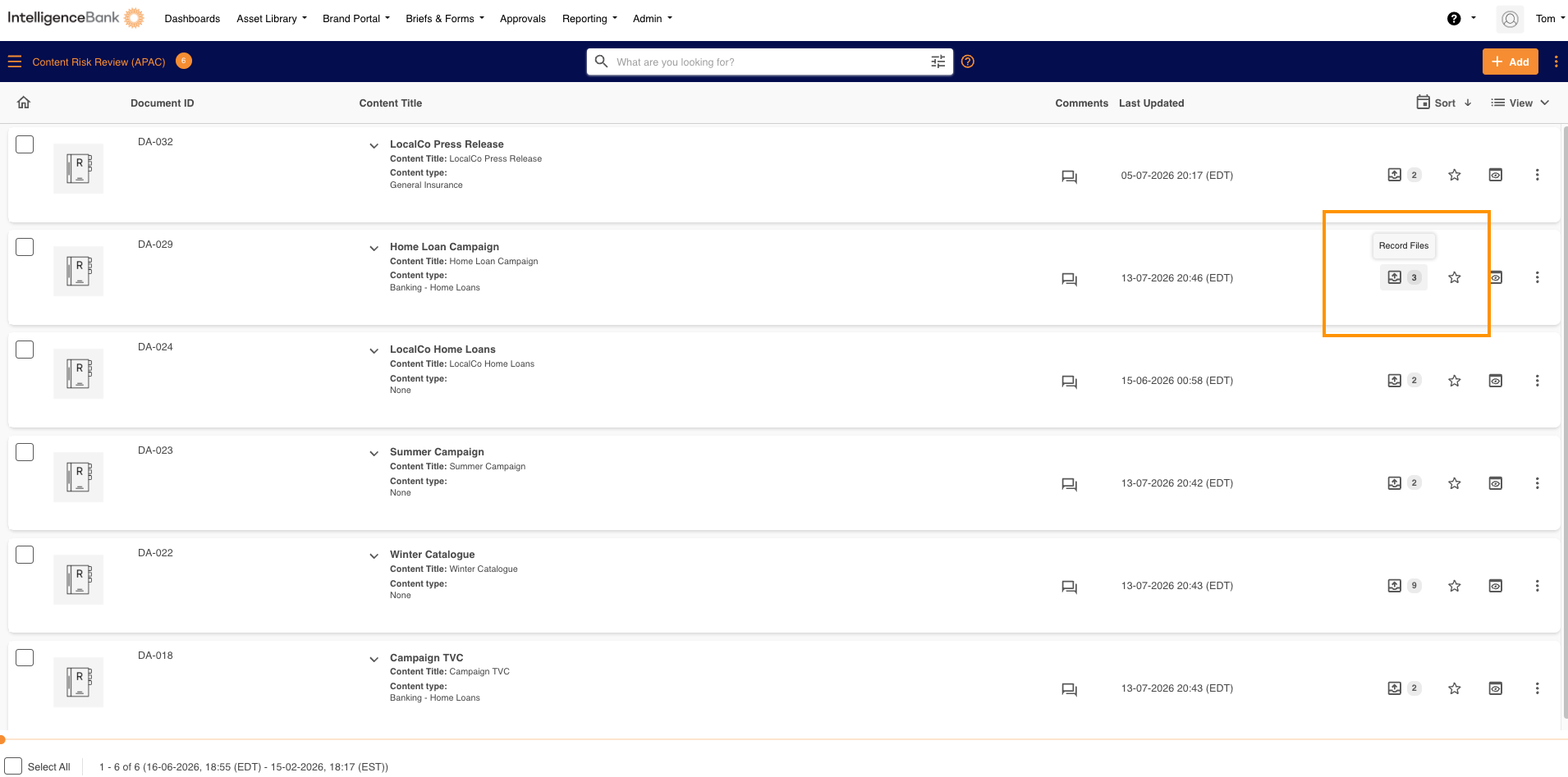
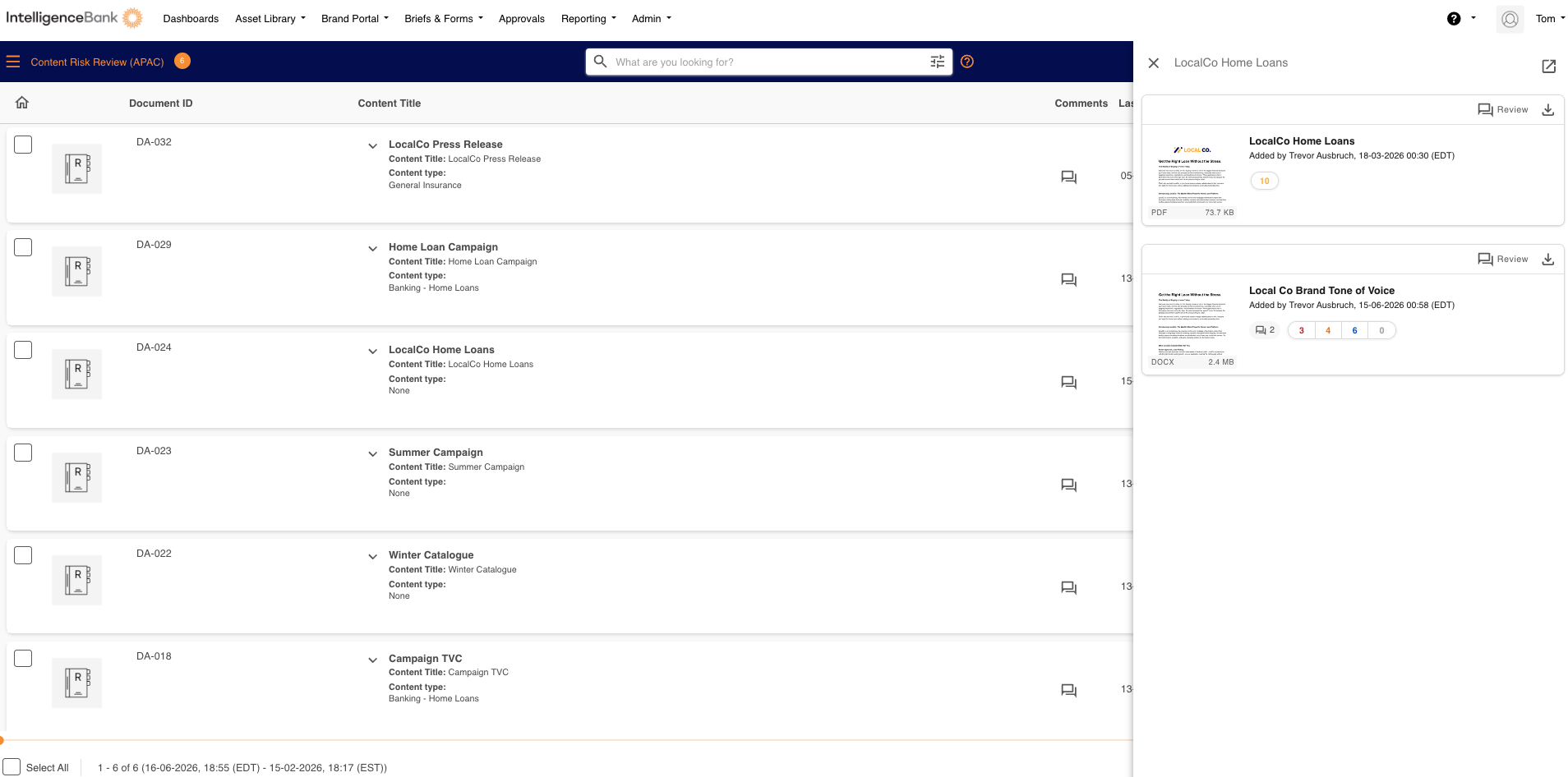
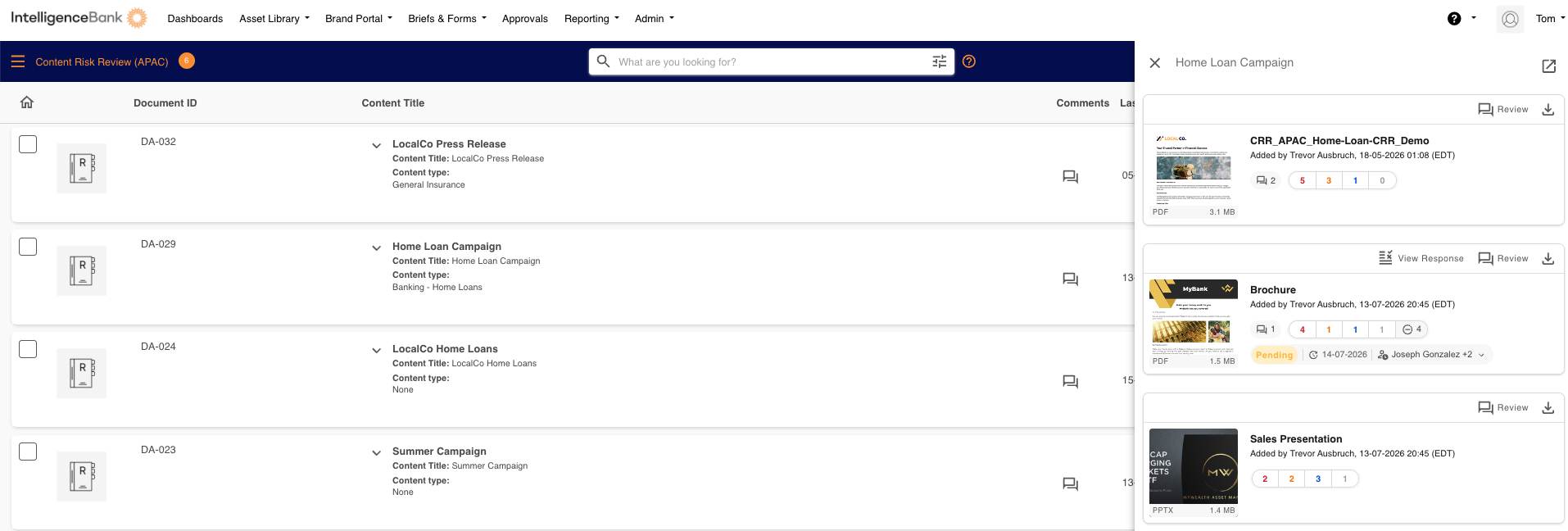
The Record Files button appears on each record in every record view. A number badge shows how many files the record holds, and the button is hidden when there are none. Select it to open the Record Files panel, which slides in from the right and lists every file on the record. The icon at the top right of the panel opens the full record in a new tab.
| Record View | Where to find the button |
|---|---|
| List View | The first of the action icons on the right of each record, including the table-style list. On a narrow screen it may move into the three-dot (...) menu. |
| Card View | In the icon row at the top of the card, to the left of the star icon. |
| Kanban View | In the three-dot (...) menu on the card, just above Star this item. |
| Calendar View | The first action on the calendar item. |
See Record Layout Options for more on each view.
What Each File Card Shows
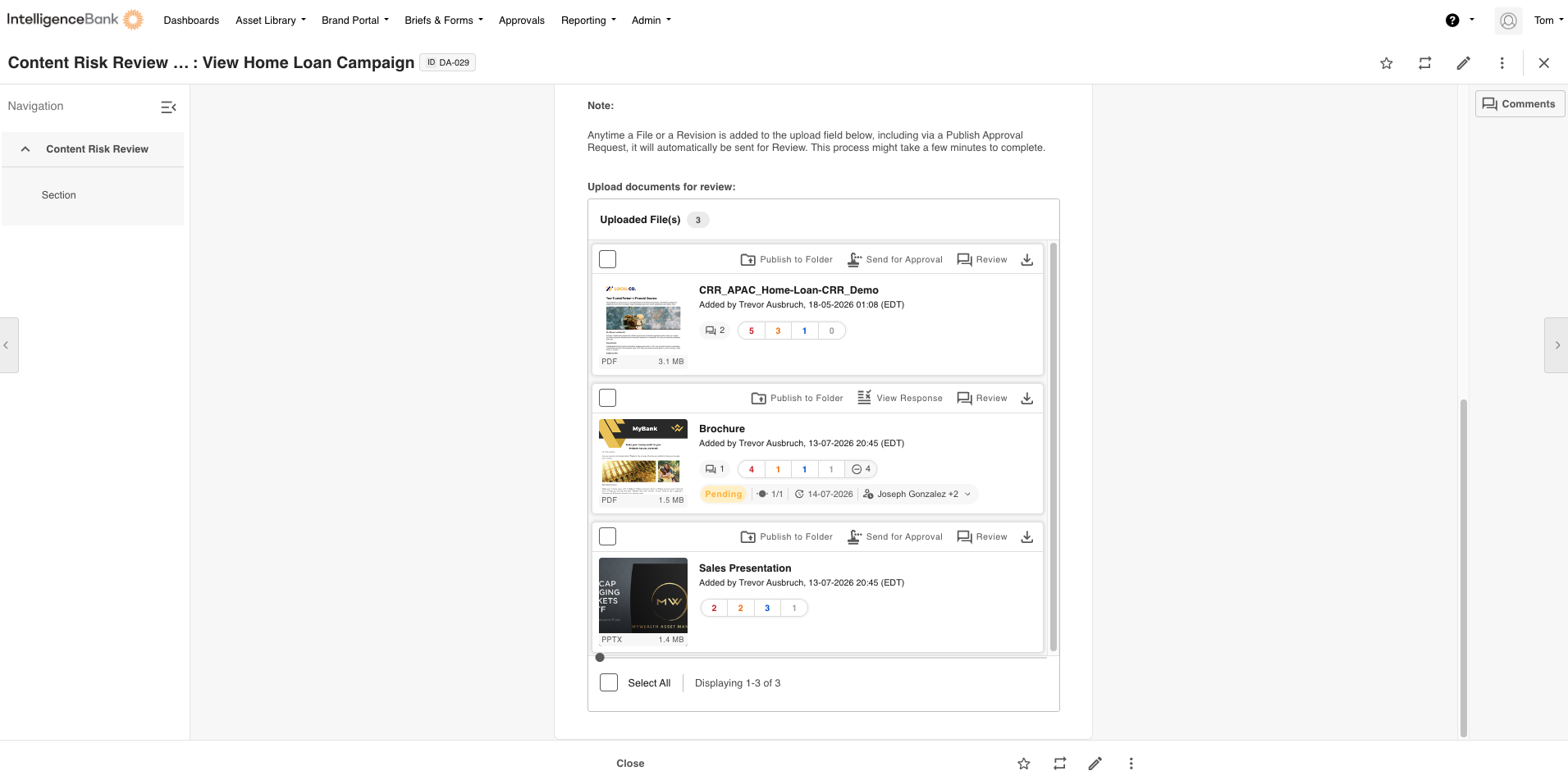
Inside a record, the cards sit under the heading Uploaded File(s), with the number of files next to it.
| Element | What it shows |
|---|---|
| Thumbnail | A preview of the file. Hover and select Preview to open it, for file types that support preview. The bar along the bottom shows the file type and size, or URL for links. |
| File name | Shown without its extension. Hover to see the full name. |
| Added by | Who uploaded the file, and when. |
| Approval status | Where the file is in its approval. See Statuses and Counts. |
| Risk counts | The risks found by a Content Risk Review, by risk level, plus any dismissed risks. |
| Direct Comments | The number of open markup comment threads on the file. |
Actions on Each Card
The actions you see depend on the file, how the field is set up and your permissions. Up to three show as buttons on the card, with the Download (or Go To Link) icon on the right. Any others are in the three-dot (...) menu. On a phone, all actions are in the three-dot menu.
| Action | What it does |
|---|---|
| Publish to Folder | Publishes the file to a folder. Shown when publishing is set up for the field and the file has not been published yet. |
| Go to Folder | Replaces Publish to Folder once the file has been published, and opens the folder in a new tab. Hover to see the folder path and the publish status. See Publish status. |
| Send for Approval | Sends the file for approval. Shown when approval workflows are turned on for the field and the file has not been sent yet. |
| View Response | Replaces Send for Approval once the file has an approval request, and opens the request. An orange dot means the request is waiting on you. |
| Review | Opens the file's markup comments so you can add comments or read earlier ones. Shown when markup comments are turned on for the field, or the file already has comments. |
| Remove | Removes the file from the field. Only available while you are creating or editing the record. |
| Download | Downloads the file. Not shown for links, or when downloads are restricted for the field. |
| Go To Link | For files added as a URL: opens the link in a new tab. |
| Update Risk Review | Runs the Content Risk Review again. Shown next to the risk counts when the review has not run or is out of date. |
Statuses and Counts
Approval status
| Status | Meaning |
|---|---|
| Pending | The approval is in progress. The card also shows the current stage, the required-by date and who it is waiting on. If several people are involved, you see the first name plus a count (for example "+2"). Select it to see everyone. |
| Pending on others | The approval is in progress and is waiting on other people. Shows the same stage, date and people details. |
| Approved | The file has been approved. |
| Declined | The file has been declined. |
| Reviewed | The request has been reviewed. |
| Completed | The approval request is complete. |
| Cancelled | The approval request was cancelled. |
When Display Time to Complete is turned on for the field, finished approvals also show how long they took. See Record File and File Approvals - Tracking & Reporting.
Approval status is only visible to people involved in the approval or with permission to view it, unless the field is set to Display Approval Status To All Record Users in the form builder.
Publish status
Once a file is published, the Go to Folder icon and its hover message tell you what has happened to it.
| Hover message | What it means |
|---|---|
| Publish Approved | The file is live in the folder. |
| Pending Approval | The publish is waiting for approval. |
| Publish Declined | The publish was declined. |
| Publish Cancelled | The publish was cancelled. |
| The file has been moved to a new directory. | Someone moved the file after it was published. The hover message shows its new location. |
| The file has been removed from the destination folder. | The file is no longer in the folder it was published to. |
| Access to this folder is restricted. | You do not have permission to open the folder. The button is greyed out. Contact your admin for access. |
| The destination folder was deleted. | The folder no longer exists. The button is greyed out. |
Risk counts
If you use Content Risk Reviews, each file shows the risks found in its latest review. Hover over any number to see what it means, for example "2 High Risks to Address".
- A count per risk level: High, Medium, Low and Advisory.
- A single count: the risks have no risk level, for example because risk scoring is not turned on.
- Dismissed risks: shown separately, and not included in the counts above.
- No numbers: the review finished and found no risks.
Instead of counts, you may see a label:
- Risk Review In Progress: the review is still running.
- Risk Review Not Yet Run: the file has not been reviewed, or the review is out of date. Select Update Risk Review to run it.
- Risk Review Failed: the review did not complete. Hover for the reason, then select Update Risk Review to try again.
- A blue information label: the file cannot be reviewed, and the label says why, for example its file type, size or length.
Direct Comments
Counts open markup comment threads. A thread with replies counts once, and resolved threads are not counted, so the number disappears when every thread is resolved.
Selecting Files and Bulk Actions
The field shows three cards at a time. When there are more, select Show All (or Show More for fields with over 50 files) at the bottom of the field, and Show Less to collapse it again.
Tick the checkbox on a card, or use Select All, then choose from the Select Bulk Action menu at the top of the field. Only actions that apply to your selection are listed: Request approval, Publish to Folder, and Remove (while creating or editing the record). There is no bulk download.
Adding Files
While creating or editing the record, use the Select File(s) menu at the bottom of the field and choose Browse Desktop or Select URL(s). You can also drag files and folders into the field.
- File limit: up to 50 files unless your admin sets a different limit in the form builder (up to 1,000, or up to 50 when Risk Review is turned on for the field). Files over the limit are skipped, and a message tells you how many.
- Upload progress: each card shows Uploading, then Upload Completed. If it shows Failed, you can Cancel or Retry. If it shows Virus Detected or File size exceeded, remove the file.
- Not added: duplicates and empty or unsupported files are skipped with a message. Screenshots cannot be pasted in; save them as a file first.
The terms Database and Record may appear differently in your platform, as these are customisable.
Want to see this in action? Take a quick interactive tour of the file cards and the Record Files panel.
Launch the Product TourRELATED:
Was this article helpful?
That’s Great!
Thank you for your feedback
Sorry! We couldn't be helpful
Thank you for your feedback
Feedback sent
We appreciate your effort and will try to fix the article