When adding an upload field into a database, users can choose from two upload options, each with their own different series of features. Those options are:
- Single File Upload
- Multiple File Upload
This article will outline these differences and assist you in deciding which option suits the database form you are building.
Table of Contents
Single File Upload
With this field type, only one file can be uploaded to each field. Other upload fields will need to be added if the Multiple File functionality detailed further below is desired.
Single Upload Annotations
This option can be enabled in the form builder settings for single upload fields and will enable our 'legacy' annotation tool for uploaded Images and PDFs.
For more information on this feature, see Image and PDF Annotations in Database Forms.
Note that this option is not currently available for the Multiple File Upload option.
File Type Restrictions
In the form builder you can restrict what file types can be uploaded to the Single File Upload field by selecting either Images or Videos from the File Type Restriction field that will appear when Single File Upload is selected.
Subsequent Image Validation Rules or Video Validation Rules can then be enabled, if required.
Image Validation Rules may include:
- File Format - Can be restricted to only allow one or a combination of 'GIF', 'PNG', 'JPG', 'JPEG', 'BMP', 'TIF', 'TIFF', 'SVG', 'EPS', 'AI', 'PSD', 'TGA' file types
- Width of images in pixels
- Height of images in pixels
Video Validation Rules may include:
- File Format - Can be restricted to only allow one or a combination of 'MOV', 'AVI', 'MP4', 'MXF', 'FLV', 'F4V' file types
- Width of videos in pixels
- Height of videos in pixels
- Frame Rate - Can be restricted to one or more of '24p', '25p', '30p', '48p', '50p', '60p', '72p', '120p', '300p' options
- Auto Sampling Rate
- Audio Bit Depth - Can be restricted to one or more of '8-bit', '16-bit', '20-bit', '24-bit', '32-bit', '64-bit' options
Anti-Virus Scanning
This feature is available as an optional add-on for your platform. If enabled on your Asset Library, it is an Anti-Virus check and will also apply to files uploaded to the Single Upload field. An error will display and the file will have to be removed / replaced for the record to be saved.
Use As Thumbnail
When the above File Type Restriction field is set to Images in the form builder, an additional Use As Thumbnail option may appear. When enabled, the uploaded image will display as the record thumbnail in the record list. Only one field in a form can be set as such, so if this does not appear it means another field is already enabled to represent the Thumbnail for the records in this database.
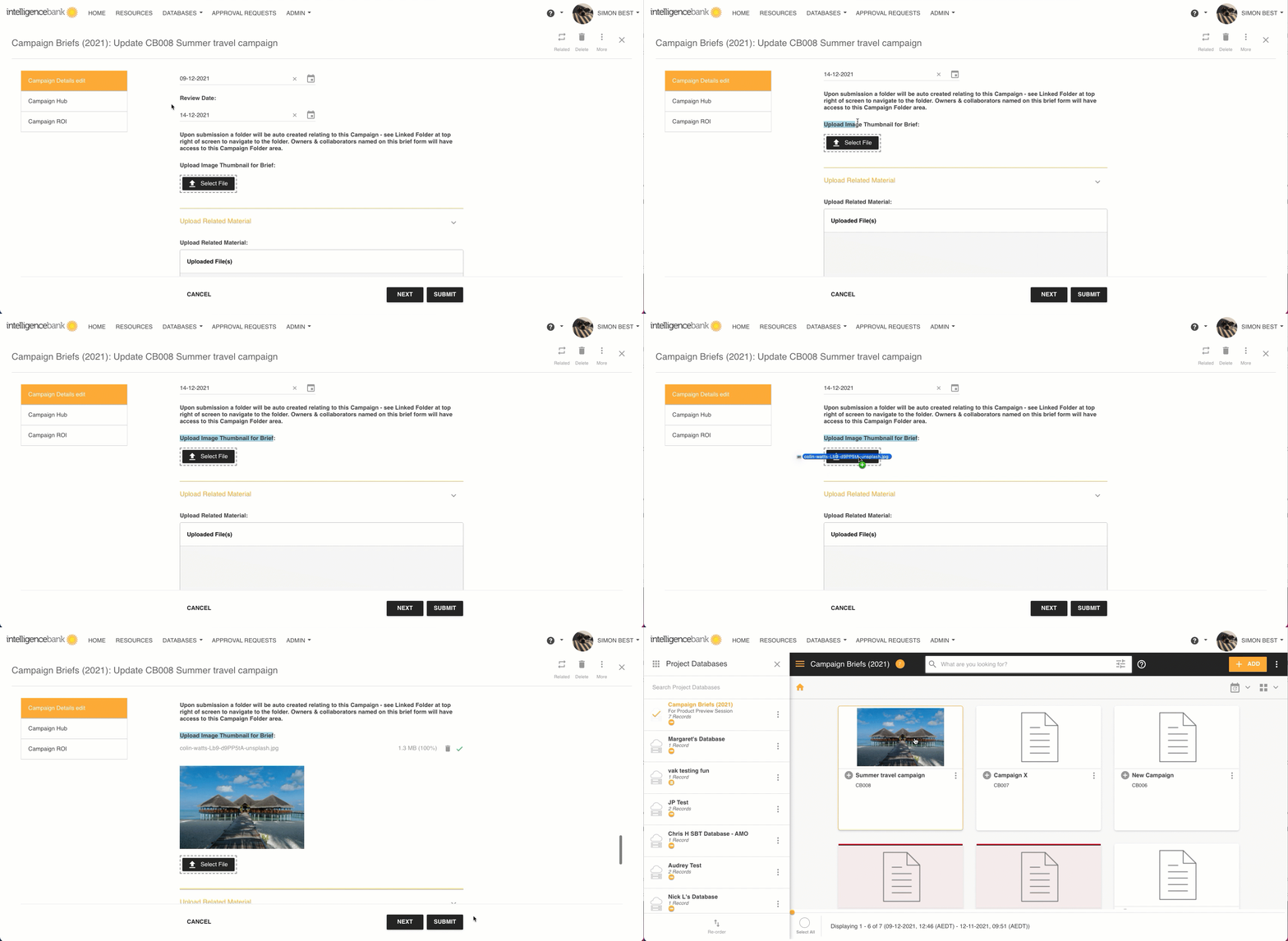
You can read more about this option in Thumbnail Display in Records.
Note that this option is not currently available for the Multiple File Upload option.
Multiple File Upload
Select or Drag and Drop Multiple Files
Multiple File Upload fields allow for multiple files to be added, either by selecting them from your desktop, or by dragging and dropping them into the field.
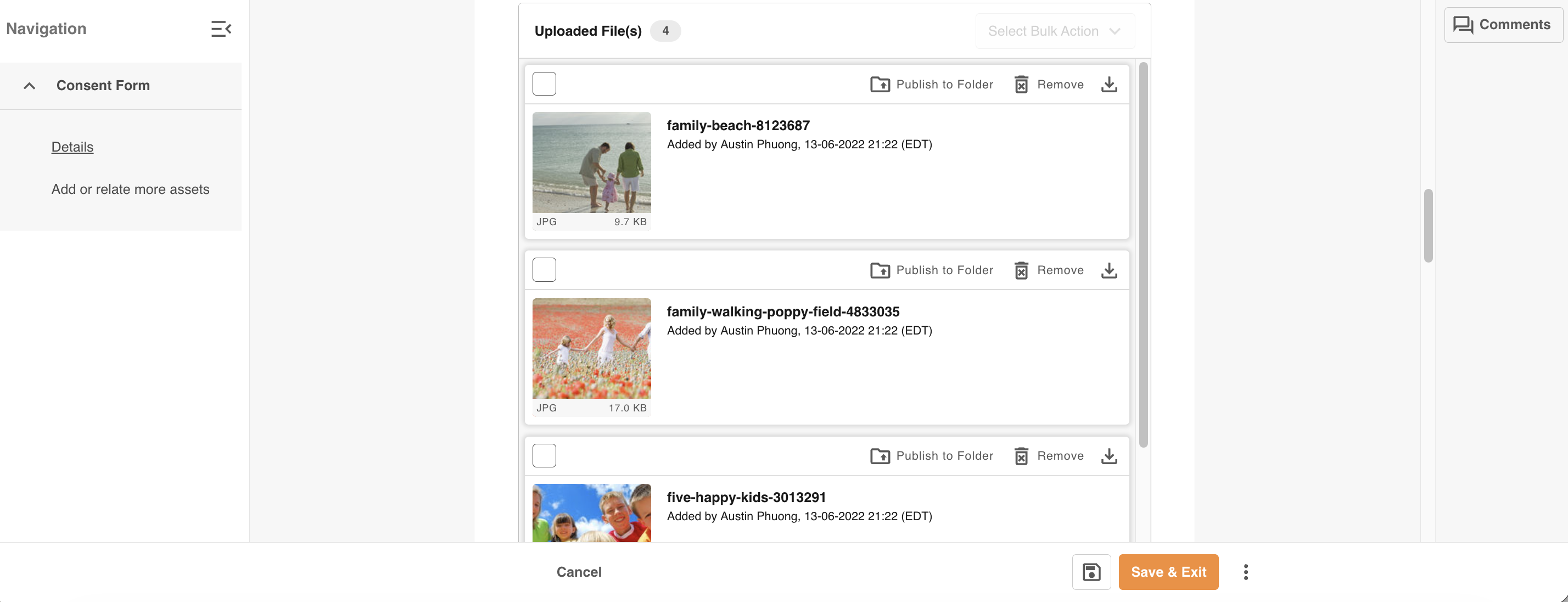
Users can limit the number of files that can be added to a Multiple Upload field to any number between 1 - 1,000. This can be customised in the Form Builder for each Multiple Upload field. (Note that the more multiple upload fields a form has, the more general loading performance may be affected.)
Thumbnails will be generated for supported images and added URLs.
Note that records cannot be saved or submitted while files are still uploading. Once finished uploading, the record must then be saved or submitted for the below functionality to apply for files, either while viewing or editing records.
Anti-Virus Scanning
This feature is available as an optional add-on for your platform. If enabled on your Asset Library, it is an Anti-Virus check and will also apply to files uploaded to the Multiple Upload field. An error will display against impacted files which will have to be removed for the record to be allowed to be saved.
Add URLs to a Multiple Upload Field
URLs can also be added into Multiple Upload fields, which opens up the potential to add Markup Comments and/or review them as part of an approval process.
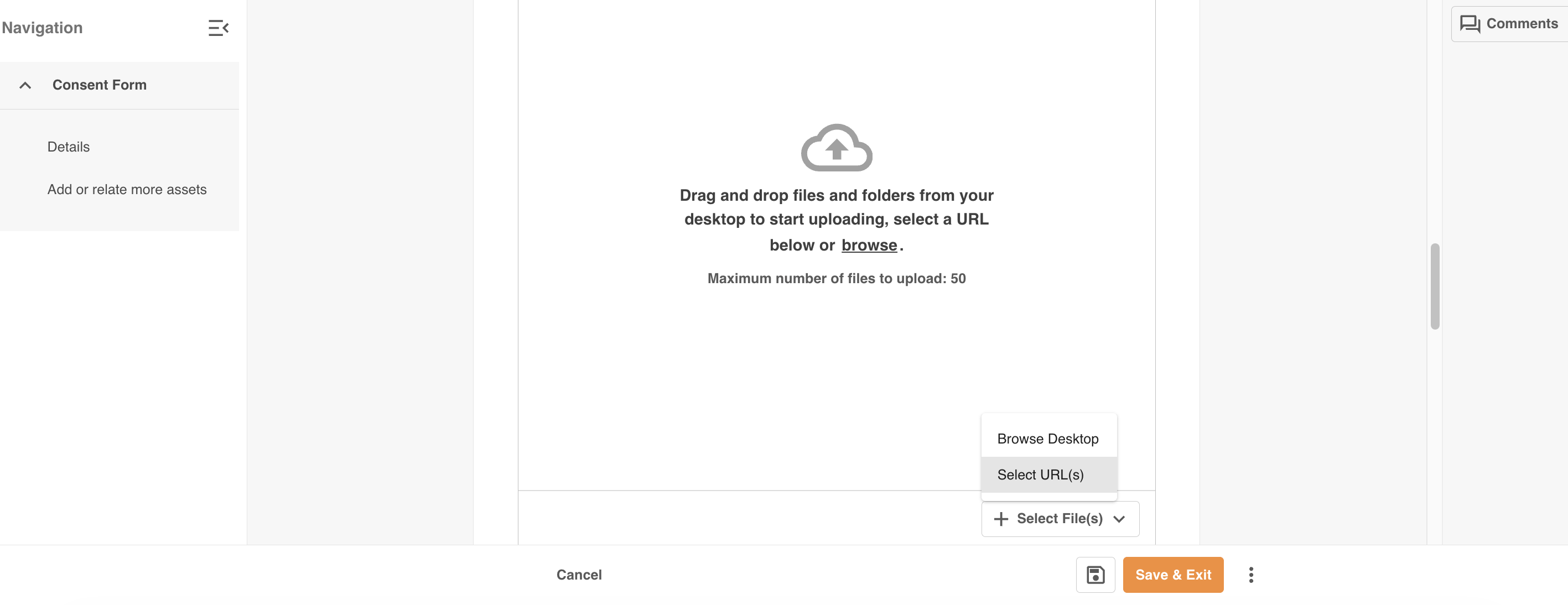
To add URL(s) you can click the Select Files > Select URLs button.
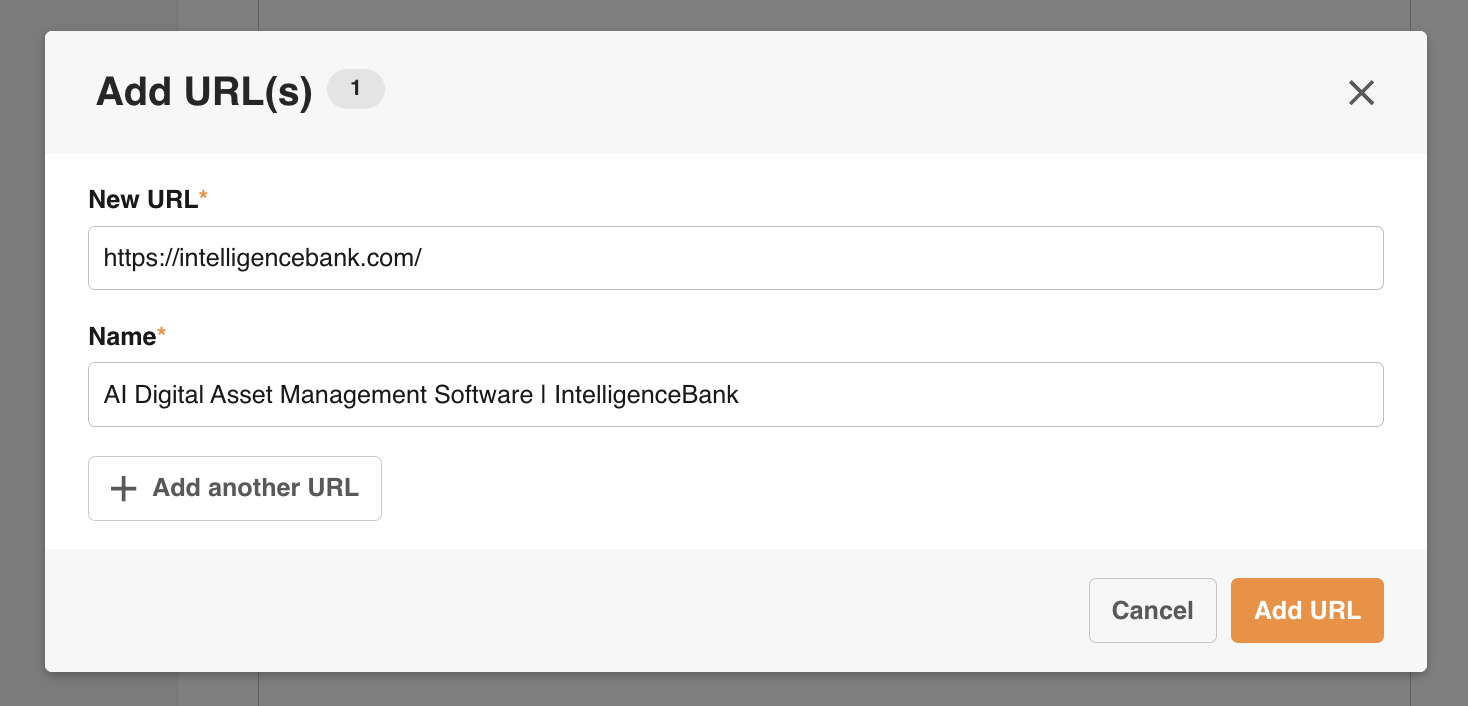
Then, enter the URL in the New URL field, add or update the Name, and select Add URL.
You can also potentially drag and drop a single bookmark from your browser into the Multiple Upload field itself.
Note that Drag and Drop of URLs is currently not supported in Safari browsers.
Once a URL has been added, if you wait a few seconds you will notice the name field for that URL may automatically update. This is the name of the web page you have added (which will match the name in an open tab for that same web address, or a saved bookmark). Depending on the site, it may take up to 10 seconds or so to fetch this information, during which time you can still proceed to save with the default name (the domain name of the URL), or to manually add your own.
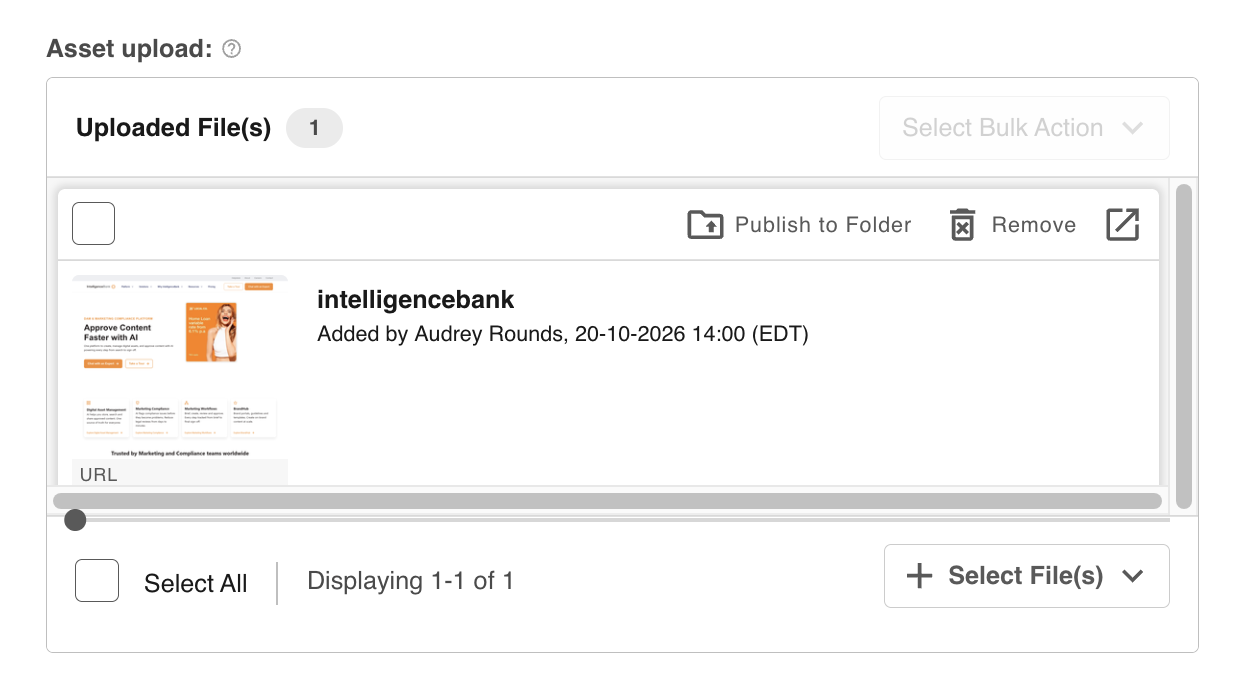
Multiple URLs can be added at once in the Add URL(s) pop-up, noting that URLs will still be included in the maximum number of files allowed in each Multiple Upload field. Unlike other file types, IntelligenceBank supports multiple entries of the same URL into the same field.
Once saved, a Go To Link action icon will be available for users to open in a new tab. Or users can click the thumbnail to preview the web page within the platform.
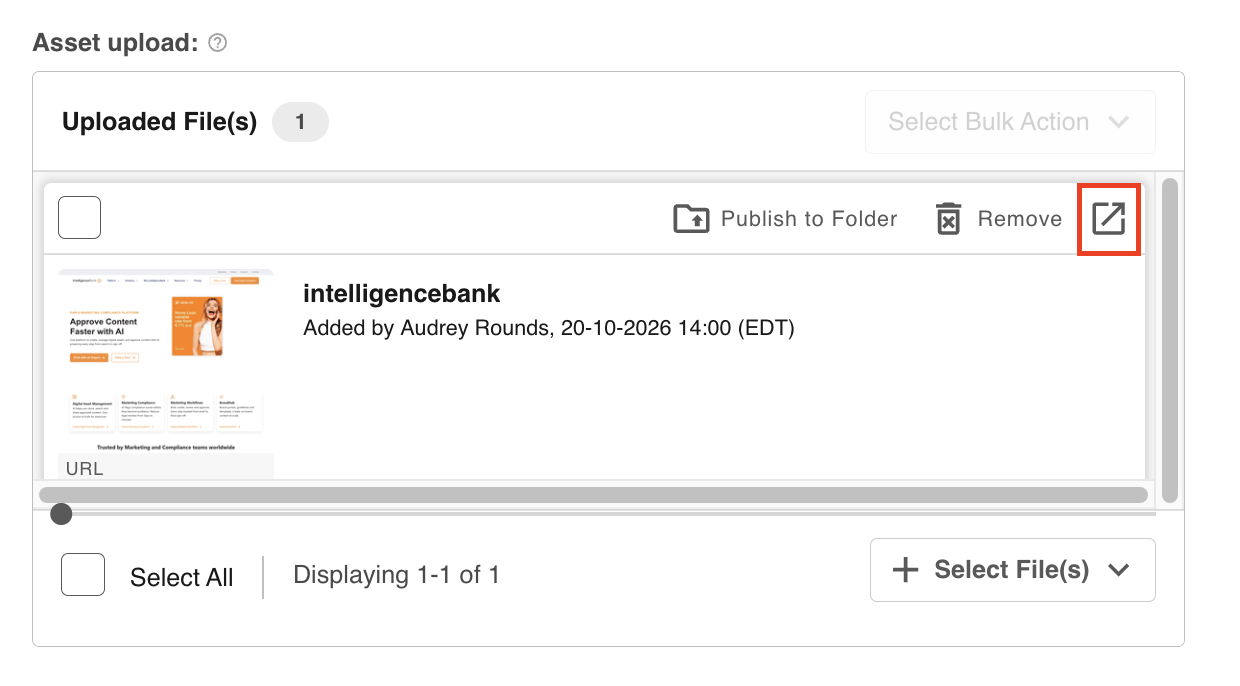
There are some restrictions where previewing a URL is not possible, which will impact any attempt to use it as part of Markup Comments and other features:
- Only URLs which can be displayed in an iFrame can be viewed. Note that this may be a setting which might need to be enabled when creating the link / webpage.
- The URL must be publicly accessible. If the link's content is behind a login for example, it cannot be viewed.
- The link should be a secure link, containing for example "https" not "http".
- There are some outstanding issues when viewports are enabled on a website. If you have any issues with these, please contact your Customer Success Manager for more information.
Auto-Save Files when Updating Records
This feature can be enabled by Admins by checking the Auto-Save Files on Updates field in the Database Settings page when adding a new database or editing an existing one.
Once enabled, any new files or URLs added to Multiple Upload fields when editing records will automatically be saved, keeping you on the same page without needing to save/submit the record first. This will then allow you to start utilising features such as General Markup Comments, File Approvals, or Publish to Folder without delay.
There are a few things to note before enabling Auto-Save Files on Updates:
- This feature is only supported on record updates (edit, or continue of staged database record.) This is because a record needs to exist before a file can be saved to it.
- Likewise, a multiple upload field has to already exist in the record before auto-save will work. This excludes any potential multiple upload field that may conditionally appear during the updating of a record, or for when the field may reside in a duplicable section that is added but has not yet been saved.
- When more than one file is added at the same time during an update of a record, auto-save will occur in batches once all added files have finished successfully uploading. (This includes across more than one multiple upload field).
- If any files have been removed during the update of the record, and then new files are added in, the removed files will be deleted at the same time the new ones are auto-saved.
- It is also important to note that if a record publish approval workflow is enabled for a database that also has auto-save enabled, the added files will bypass the approval request. In other words, files that are auto-saved will then appear in the record for all users who can access it right away. It will not be published pending approval like other potential changes to the record data.
Preview
Once a record is saved or submitted, a preview will be generated for certain file types.
The currently supported file types for preview within the multiple upload field include:
- DOCUMENTS: 'pdf', 'txt', 'doc', 'docx', 'htm', 'html', 'xml', 'rtf', 'ppt', 'pptx', 'csv', 'xls', 'xlsx', 'odp', 'ods', 'odt', 'json'...
- IMAGES: 'jpg', 'jpeg', 'png', 'gif', 'tga', 'psd', 'jp2', 'pef', 'jpf', 'orf', 'ico', 'ai', 'raf', 'tiff', 'indd', 'tng', 'ras', 'eps', 'ppm', 'svg', 'arw', 'cr2', 'xbm', 'heic', 'bmp', 'mrw'...
- VIDEO: 'mp4', 'mov', 'flv', 'mpeg', 'ogv'...
- AUDIO: 'ogg', 'mp3', 'wav', 'flac'...
- URLs: that can be displayed within an iFrame, be publicly accessible, and are secure links.
The number of supported file types may expand in time. If you have concerns about a specific file type, please contact your Customer Success Manager.
Previews can be accessed by clicking over the thumbnail of these file types. A hover will inform users when files are unsupported for preview.
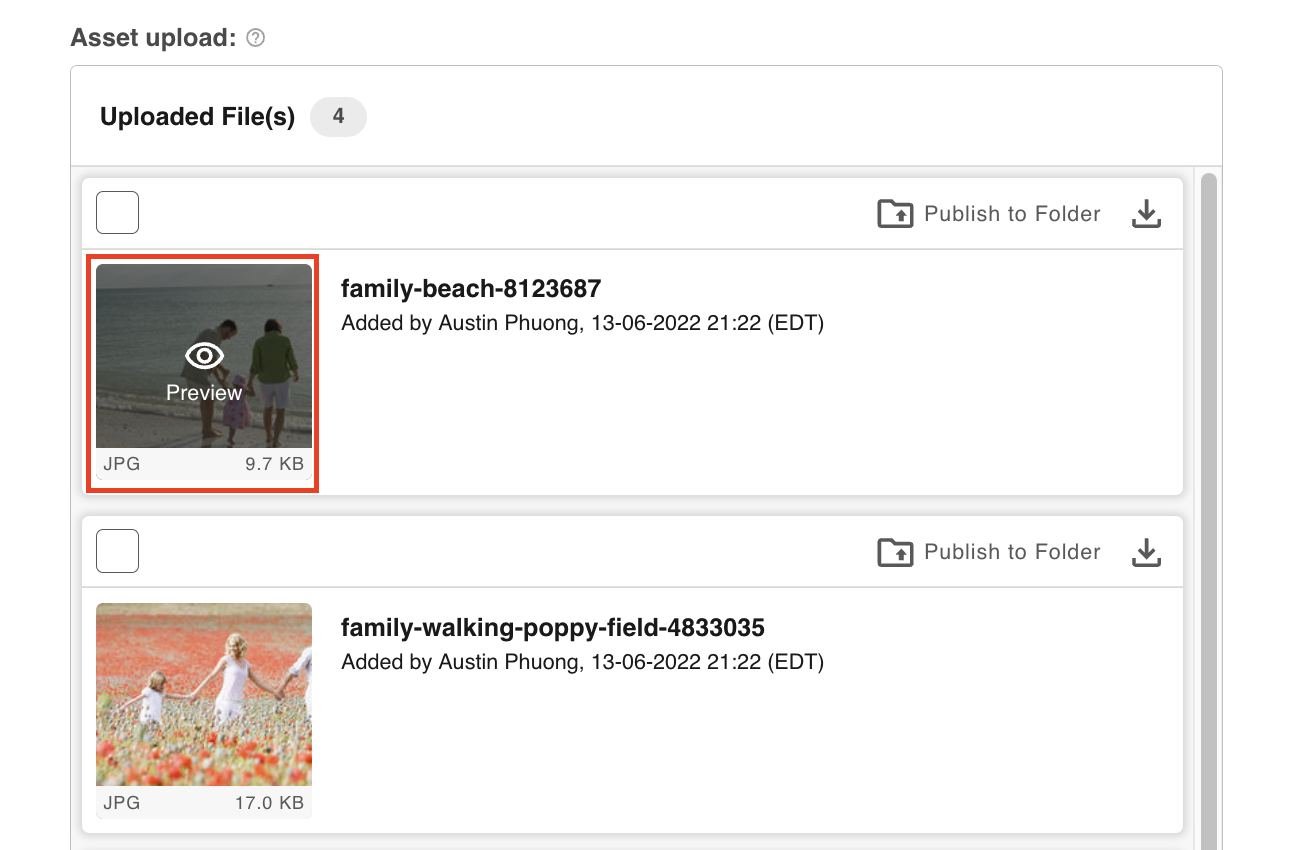
File Details
After saving or submitting a record with uploaded files, the following details will display on the file in the upload field:
- The user who uploaded it and date/time of when it was uploaded
- File format
- File size
Expand File List
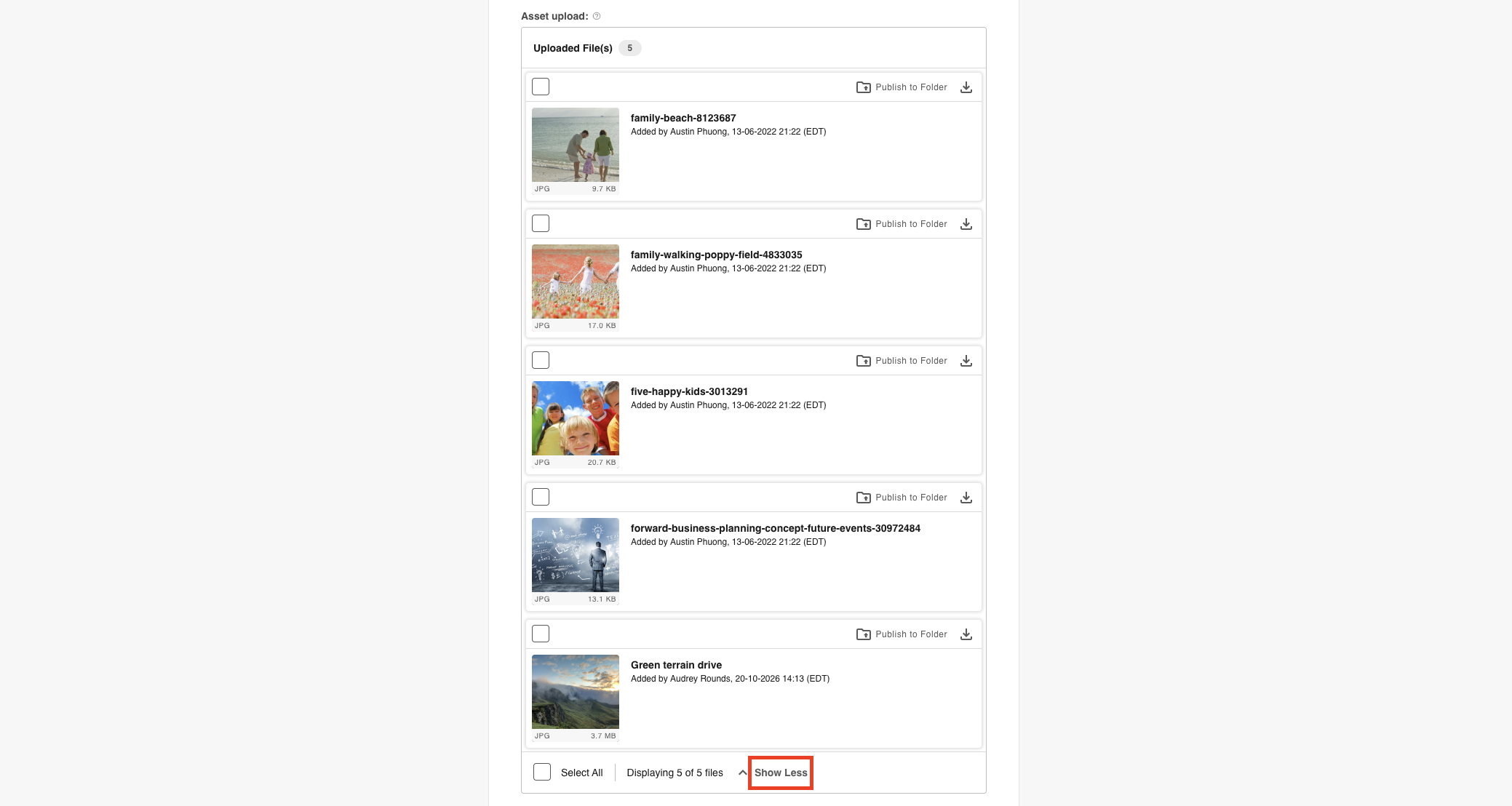
When more files exist than can be shown in the field's native height a Show All link will be displayed in the field footer:
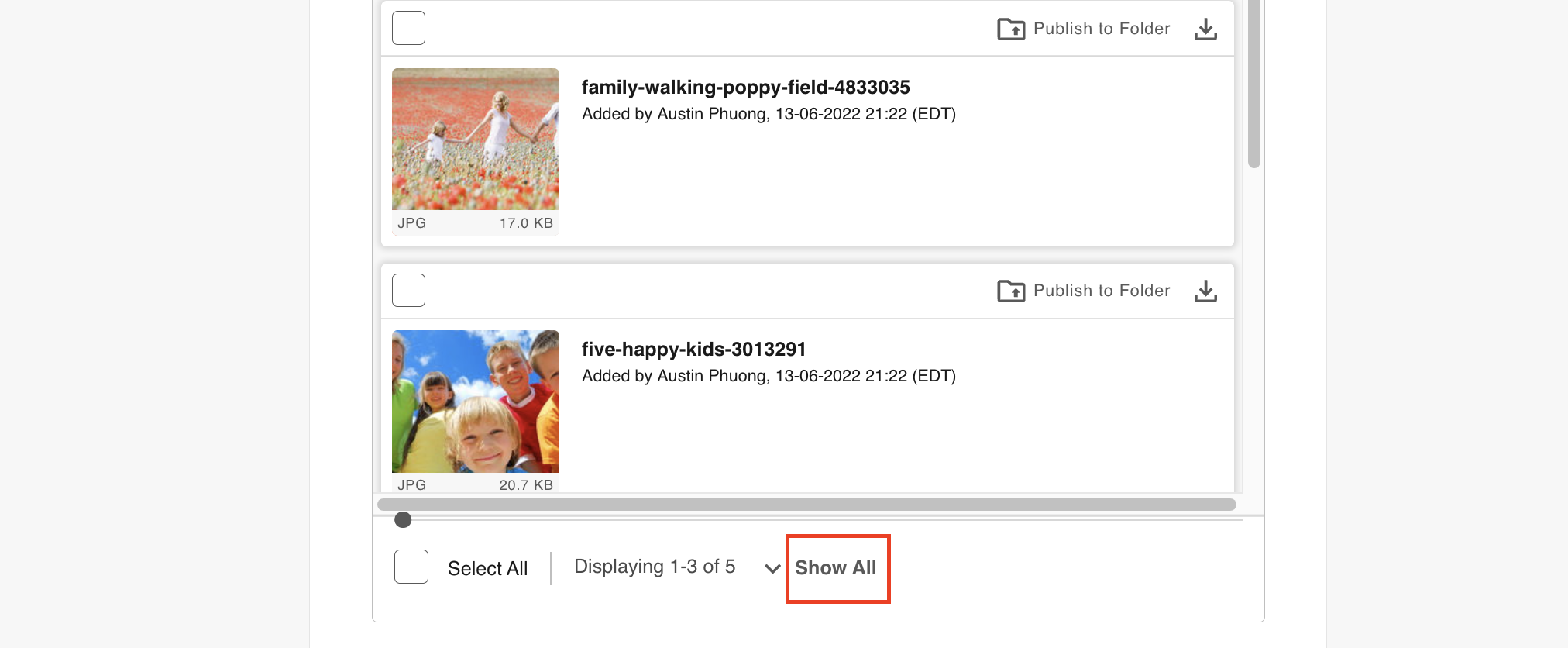
Clicking this will expand the file list to show all uploaded files.
Show Less can be selected to collapse the list back down to a more condensed view (at this stage, any files not shown can still be seen via scrolling within the condensed field state.)
Remove Files
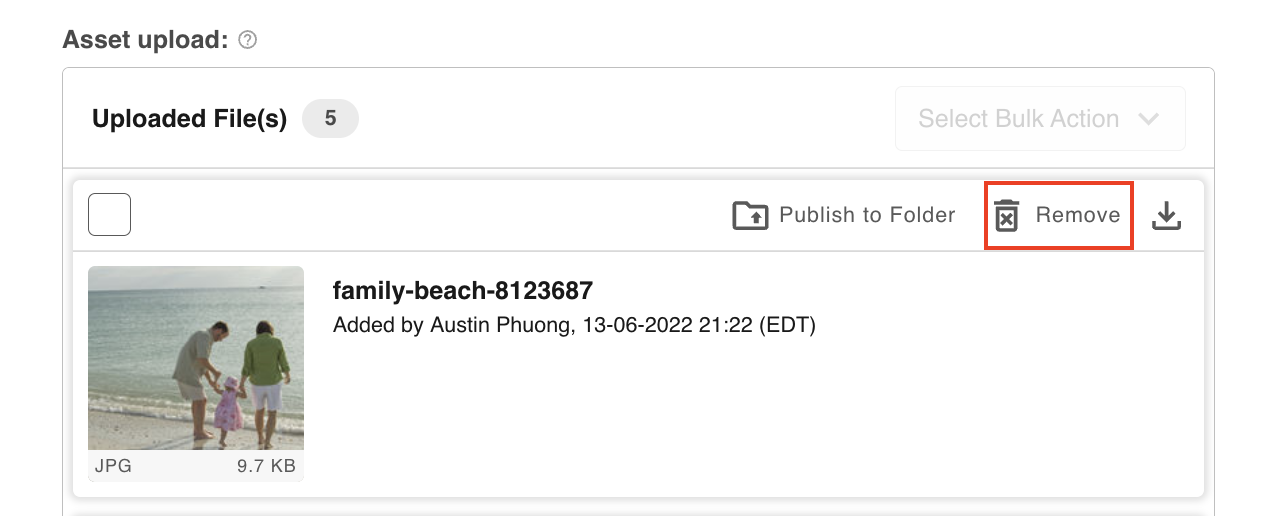
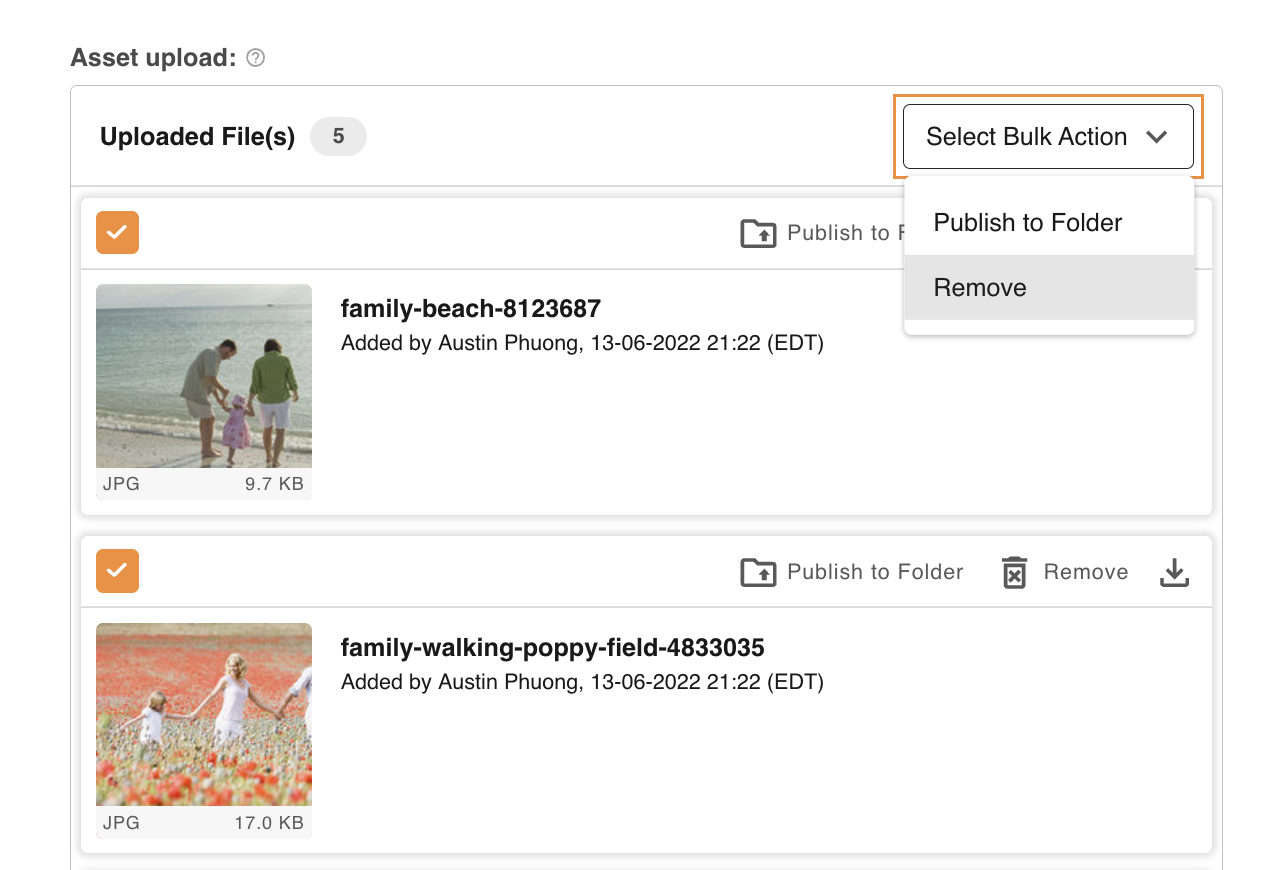
Files can be removed from the field by either the user that has just added it (in case they have uploaded the wrong file by mistake) or in subsequent edits of the record by any user that has at least Edit permission on the record. For the latter scenario, the record has to be saved or submitted for the removal to take effect.
Users can remove files both individually and in bulk.
Download Files
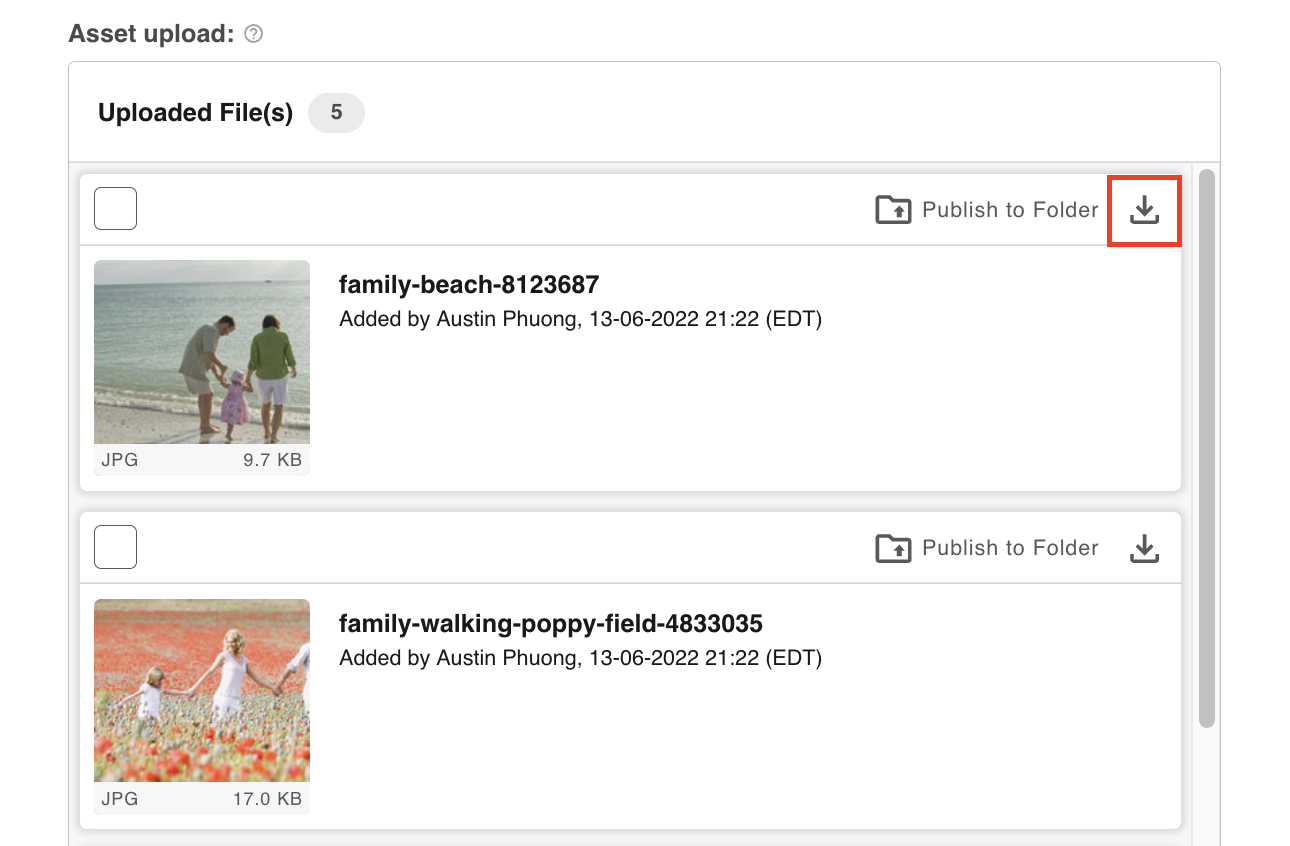
Once a record is saved or submitted, files (excluding URLs) can be downloaded by any user that has permission to either view or edit that record.
Multiple Upload Field Notes & Restrictions
- The Multiple File Upload field and subsequent options are only available in the database module (i.e. this is not available in the Survey module).
- Single Upload fields cannot be changed to a Multiple Upload field. A new Multiple Upload field will need to be added to achieve this. Likewise Multiple Upload fields cannot be changed to a Single Upload field.
- Duplicate files will be automatically excluded from being added to the same field (the same file can however be added into different multiple upload fields within the same record). The only exception to this is for URLs which can have multiple instances of the same web address added.
- Should added files fail to initially upload, they can be re-tried and re-processed until successful, or removed if the file cannot be uploaded.
- The ability to add new files will be paused if your platform storage limit is reached. Please speak to your Customer Success Manager about increasing your storage should this occur.
Publish to Folder
This feature allows users viewing or editing a saved or submitted record to select files or URLs within a Multiple File Upload field and publish them directly into a folder within the Asset Library. This is particularly helpful if, for example, a creative deliverable that was reviewed and approved within a brief needs to be made more widely available in the Asset Library.
When this option is enabled in the form builder, you can set one of two options that will dictate the Publish Destination Folder for files:
- Allow User Choice - this will allow users to choose which folder they publish a file into
- Nominate Folder - the folder destination is set in the form builder and locked (users will only be able to publish into the nominated folder)
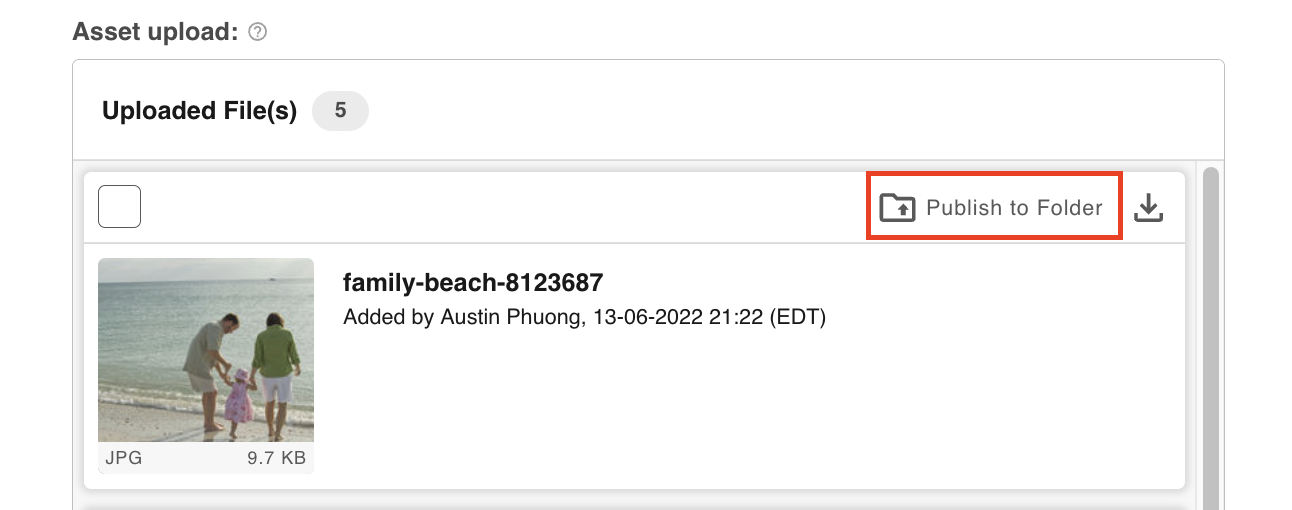
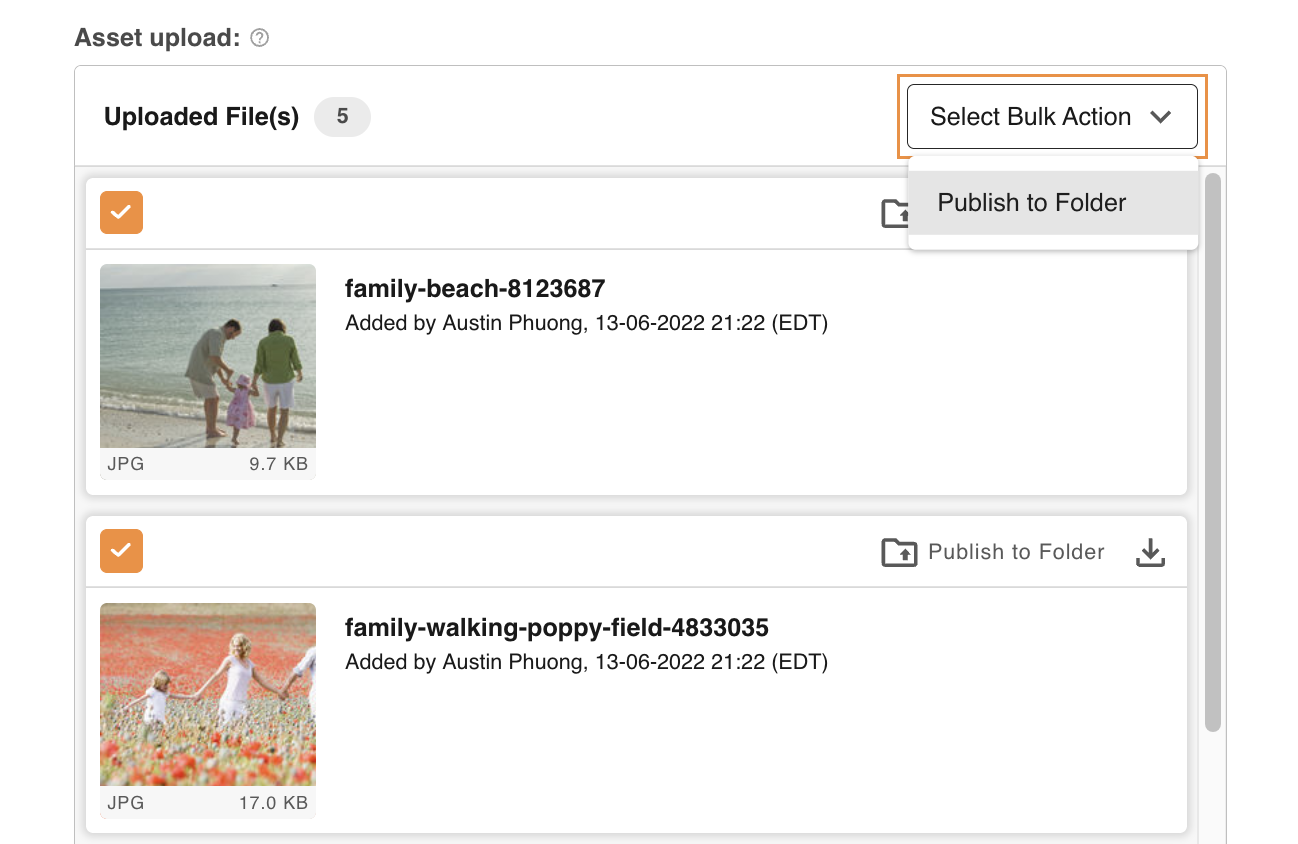
Once enabled, users can select the Publish to Folder button on individual files or in bulk. Once Publish to Folder is selected, users will be able to add any relevant metadata/keywords to those files before saving them within the folder.
Files can only be published to a folder once.
If an asset publish approval workflow is applied on the selected or nominated folder, it will apply for these files upon Publish to Folder as well.
Once the file(s) are successfully published into a folder, all asset actions can then be applied as normal (moved, edited, etc.)
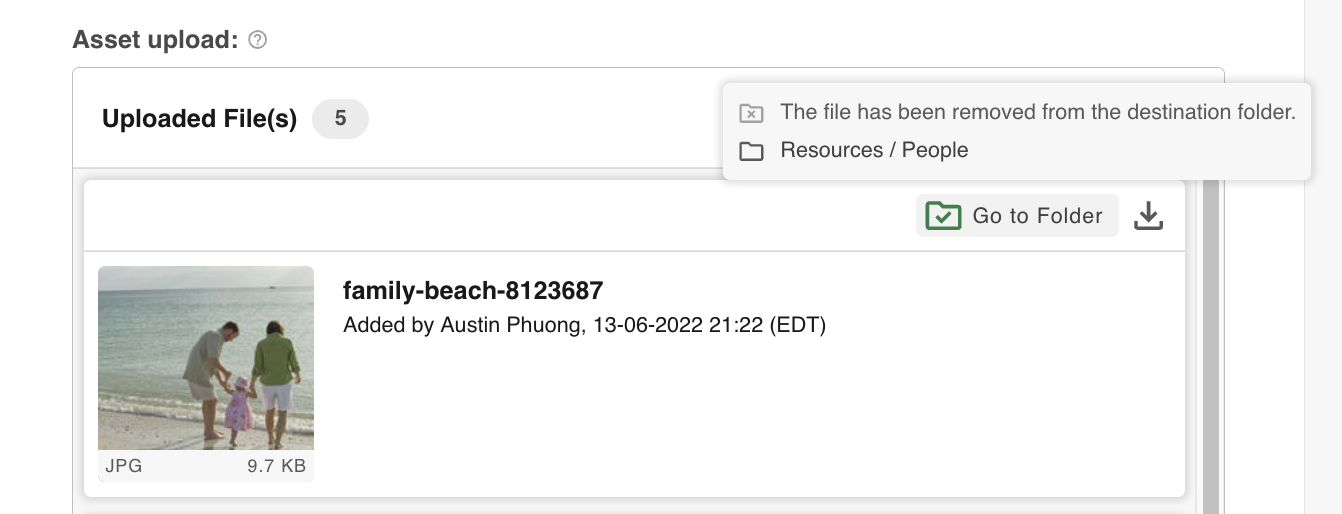
Once published to the Asset Library, the file in the record upload field will indicate that it's been published to a folder. If you hover over the icon indicated below, it will display the folder name. You can click the icon to go directly into that folder as well.
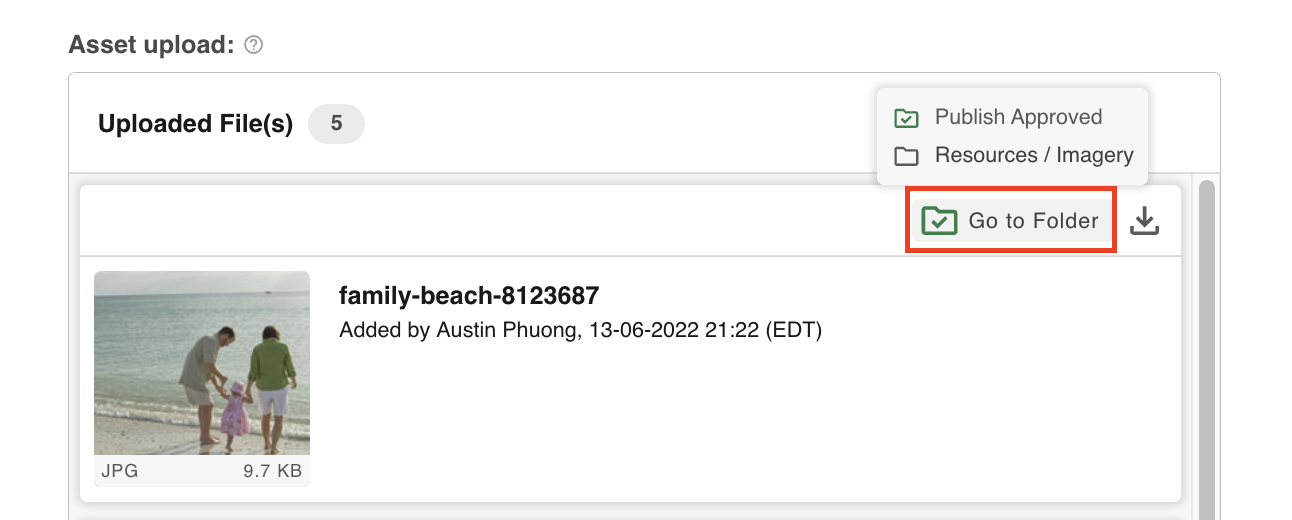
If the asset is moved to a different folder, the current location will be reflected here.
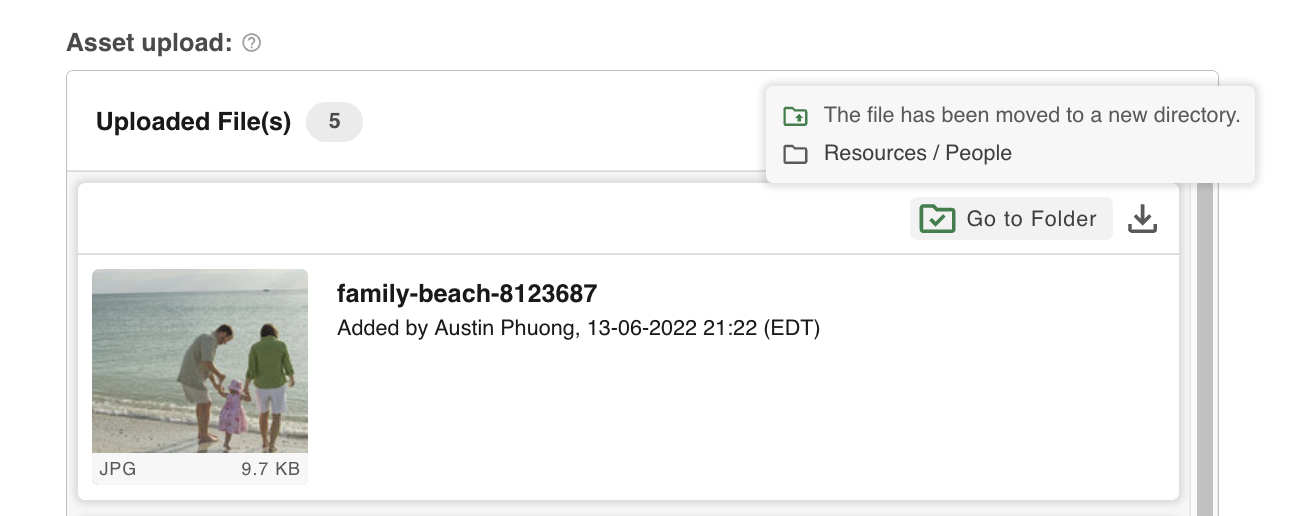
If the asset is deleted from the folder, this will also be reflected against the file in the record.
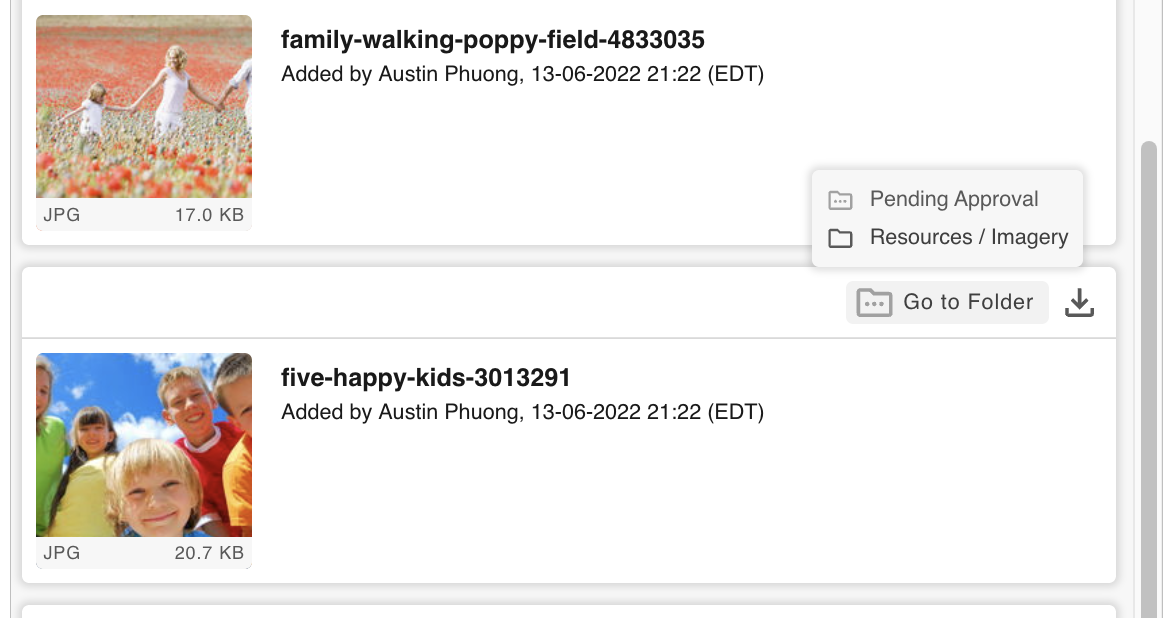
Additionally, any assets published to a folder that has a publish approval workflow on it will display the status for the request when it is pending, declined, or has been cancelled.
Published assets will also be auto-related to the record the original file resides in.
Publish to Folder - Allow User Choice
When this option is enabled, users viewing or updating a record will be able to select any folder they have at least Publish permission on to publish into. The Publish to Folder button will therefore be available for all users who can publish into any folder.
Allow User Choice may best suit scenarios where all users who access the record are trusted to publish into the correct folder of their choosing.
Users can select a folder from a Folder Tree. Only folders the user has permission to publish into will be available for selection.
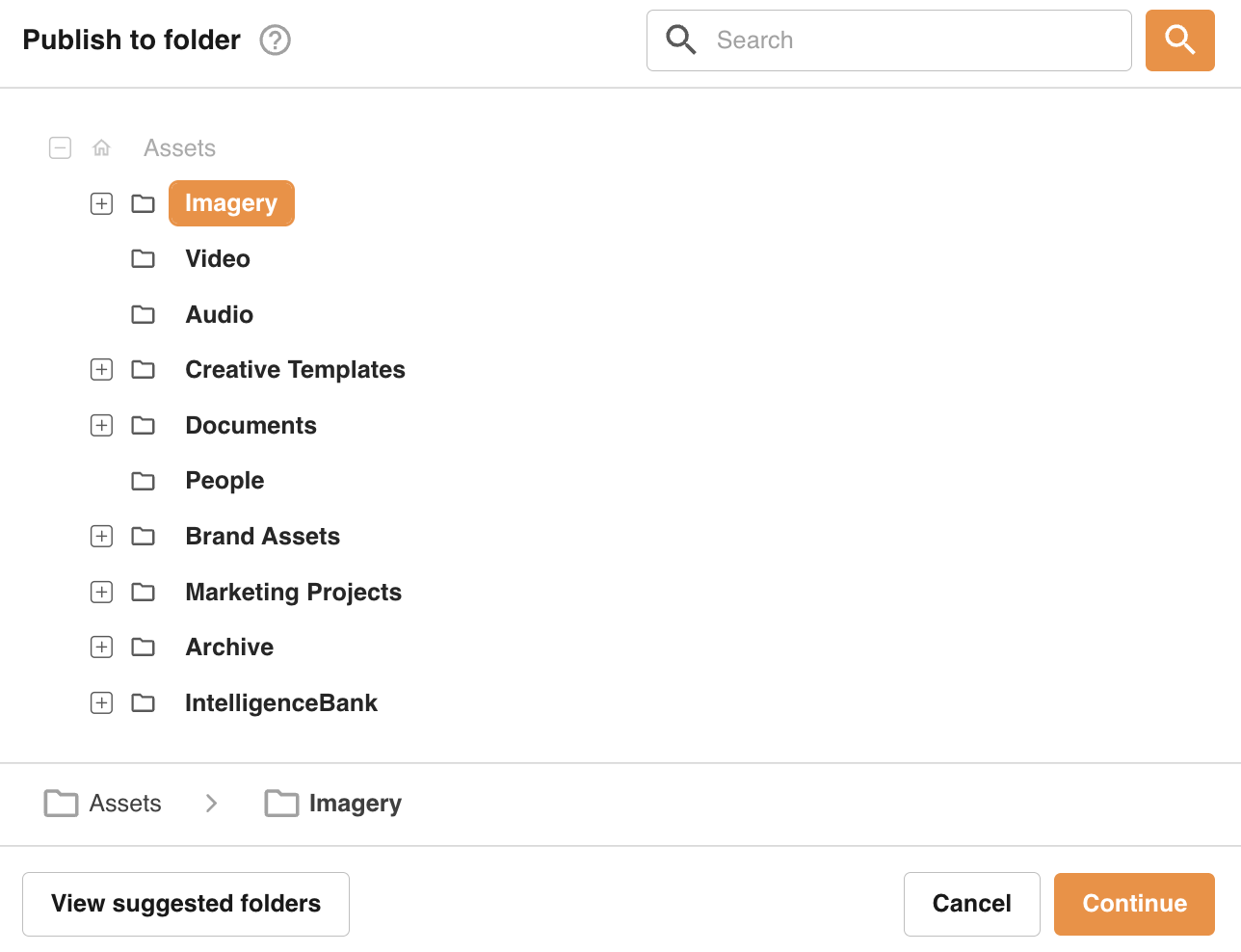
The tree logic will show folders the user has permission to at least view, up to a point in the branch where the user loses permission.
For example: If a user has the below permission to a folder branch:
- Folder A - View permission
- Folder B - View permission
- Folder C - Publish permission
- Folder D - No permission
- Folder E - Publish permission
- Folder D - No permission
- Folder C - Publish permission
- Folder B - View permission
The user will only be able to select 'Folder C' to publish into. They will not see 'Folder D', or 'Folder E' (since they did not have permission to its parent 'Folder D').
In this scenario the user can still find 'Folder E' by searching for a folder by name within the Publish to Folder window.
When searching, only folders that the user can publish into will be returned in the results.
Additionally, if the Auto-Created Folders feature is enabled for the database, then once these folders have been created they will be displayed as a shortcut upon opening the View suggested folders link.
Other suggestions will also be displayed here based on recent behaviour on the platform or by the current user, such as Previously Selected Folders, Recently Visited Folders, and/or Most Visited Folders.
Note that users with no permission to publish to any folder on the platform will not see the Publish to Folder button against these files.
Publish to Folder - Nominate Folder
Within the form builder, Publish to Folder can be set up for a specific, dedicated folder as the destination.
This option may then be ideal for scenarios where the destination folder needs to be strictly restricted, or to only display this feature for select users (a folder that only Admins can publish to, for example).
Preview permission or higher on the folder is required for whichever user is doing the actual set up within the form template.
Once set up, only users who have Publish permission or higher on the nominated folder will see the Publish to Folder button against any files uploaded to a saved record. This option will be hidden from all other users.
When selected, users will be taken directly to the Publish to Folder page to add relevant asset information before saving the asset.
Publish to Folder in the Asset Library
Once published, the below information will appear at the bottom of the published asset's details in the Info Preview page:
Linked Record
- This will display the title of the record the file was published from, including the record’s sequence ID (where present).
Published From
- This will display the name of the database the above listed record resides in.
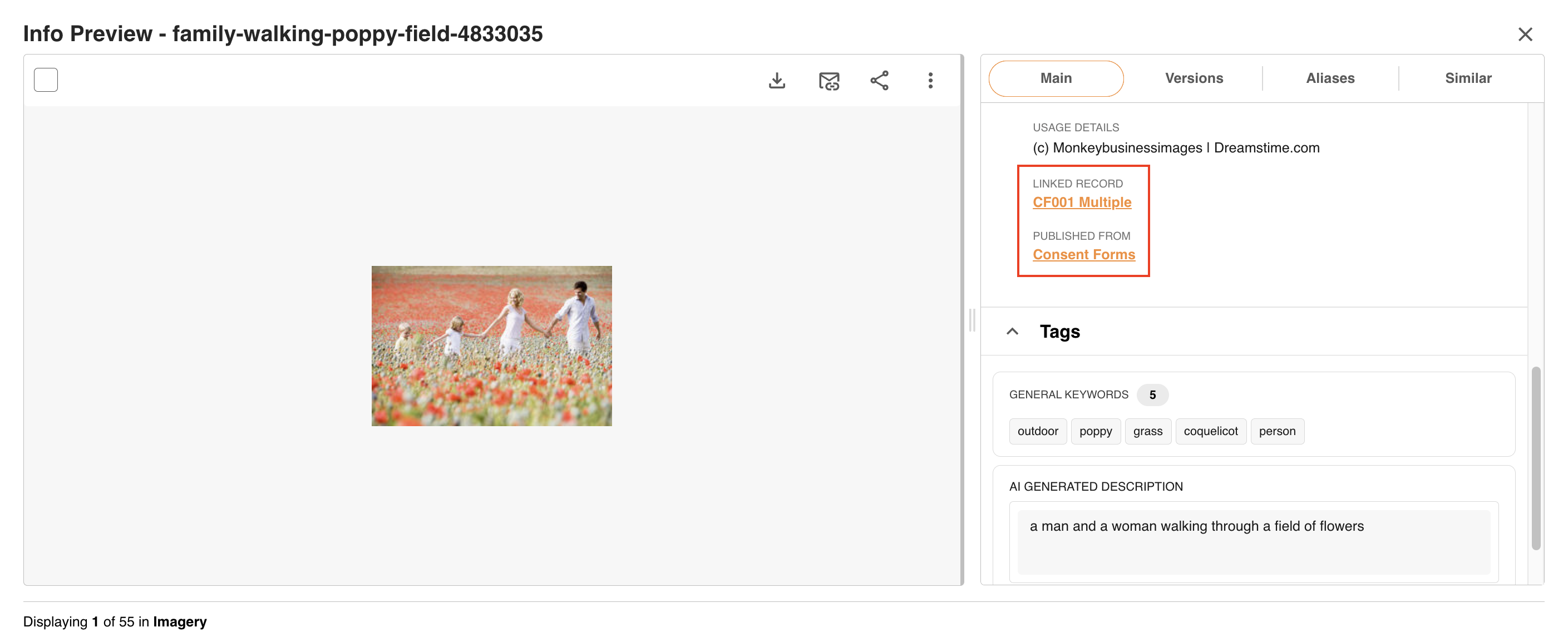
The values for both of these are links which will open in a new tab - permissions for the record and database will be handled upon these links being opened.
If either the record or database are deleted, the names will continue to appear here. However, they won't be clickable links and (Deleted) will be appended to the end of the names.
Publish to Folder Notes & Restrictions
- Once created, any edits to the asset will not reflect back against the file in the record. If the asset name or version changes on an edit, the original file in the record will not be impacted and will continue to display the original file name.
- It's not possible to publish a file as a new version of an already-existing asset within a folder. Publishing to Folder will create the file as a separate, new asset within the folder.
- If a Record File Approval has been enabled for the upload field, then a restriction can be configured to only allow users to publish to a folder if the file has been approved. You can read more on this feature under Only Publish Approved Files to Folders in Record File Approvals.
If you have any further questions about upload fields within your database forms & records, please contact your Customer Success Manager.
Was this article helpful?
That’s Great!
Thank you for your feedback
Sorry! We couldn't be helpful
Thank you for your feedback
Feedback sent
We appreciate your effort and will try to fix the article