The Recycle Bin is where deleted items go before they are permanently removed. As an administrator, you can view everything that has been deleted, restore items you need to recover, and track who deleted what and when.
Table of Contents
What Can Be Recovered
The Recycle Bin collects deleted items from across IntelligenceBank. The following item types are supported:
- Folders - any folder deleted from the file library.
- Files - images, videos, documents, and other media deleted from the library.
- Collections - named collections of items that have been deleted.
- Databases - entire databases that have been deleted.
- Briefs/Forms - individual briefs/forms deleted from a database.
- Database attachments - files attached to database records.
Accessing the Recycle Bin
The Recycle Bin is available to authorized users via the admin page of the site.
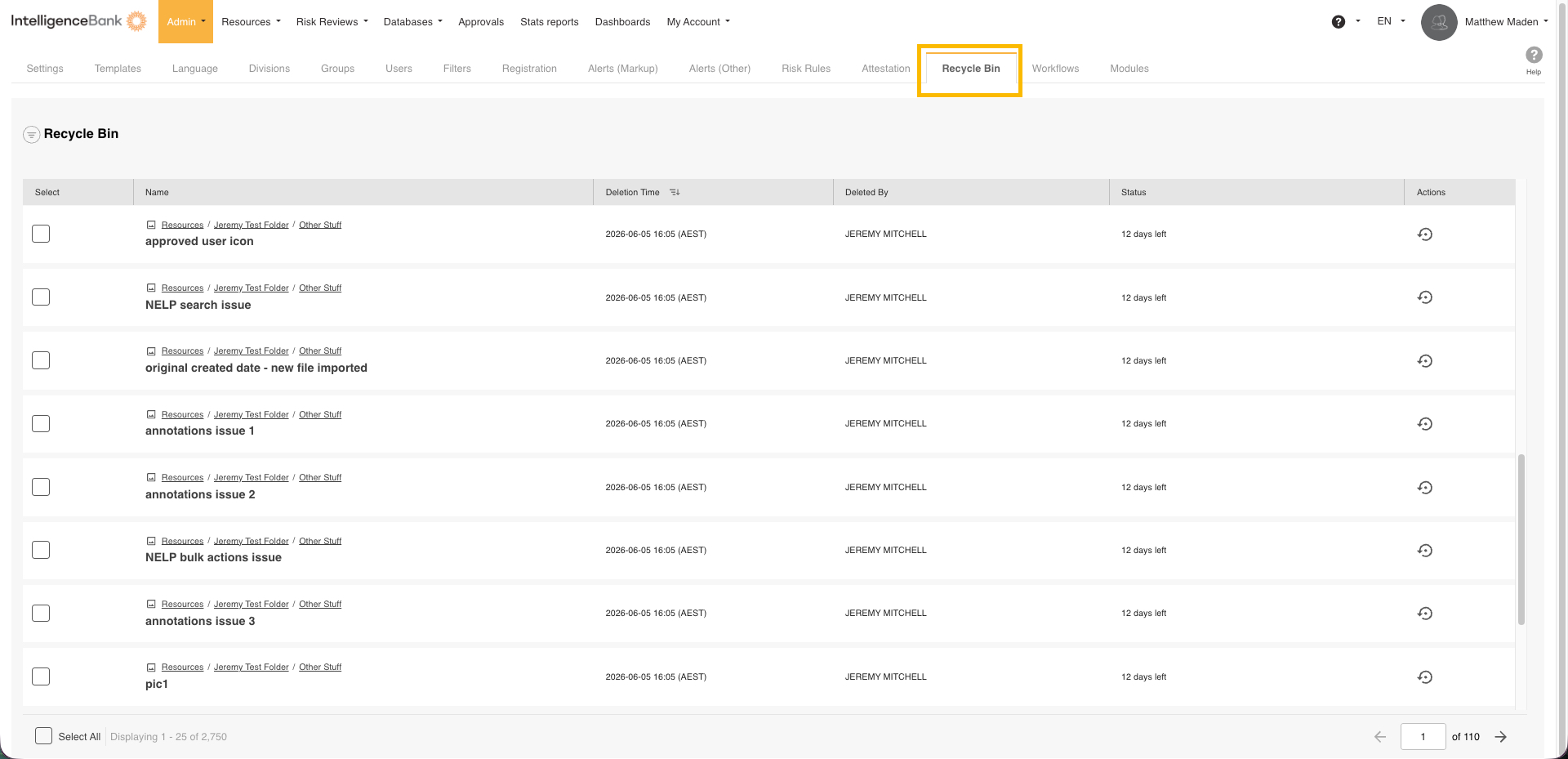
Once open, the Recycle Bin displays a table of all deleted items across your account. Each row shows the item name and type, when it was deleted, who deleted it, the folder or database it came from, and its current status.
Finding Deleted Items
You can search, filter, and sort the Recycle Bin to locate specific items quickly.
Search
Use the search bar to look up items by their ID. This is useful when you need to find a specific item and know its identifier.
Filters
The filter panel on the left lets you narrow results by:
- Status - filter by Deleted (not yet restored), Restoring (restore in progress), or Restored.
- Deletion date - choose from preset ranges including yesterday, this week, last week, this month, last month, or older.
Sorting
Click the Deletion Time column header to toggle between newest-first and oldest-first order. Sorting oldest-first is useful for identifying items approaching the end of their retention window.
Reading the status column
The Status column shows the current state of each item and, for items not yet restored, how much time remains before permanent deletion:
| Status | What It Means |
|---|---|
| Deleted | The item has been deleted and can still be restored. The status shows how many days remain before it is permanently removed. |
| Restoring | A restore is in progress. This typically completes within a few seconds. Refresh the page to check the updated status. |
| Restored | The item has been successfully restored to its original location. A link appears in the row so you can navigate directly to the recovered item. |
| Past retention period | The item has exceeded the 30-day retention window and can no longer be restored. It will be permanently removed during the next cleanup cycle. |
Restoring Items
You can restore items one at a time or in bulk. Restored items return to their original location in IntelligenceBank.
Restoring a single item
| 1Find the item | Locate the deleted item in the Recycle Bin list. Use search or filters if needed. |
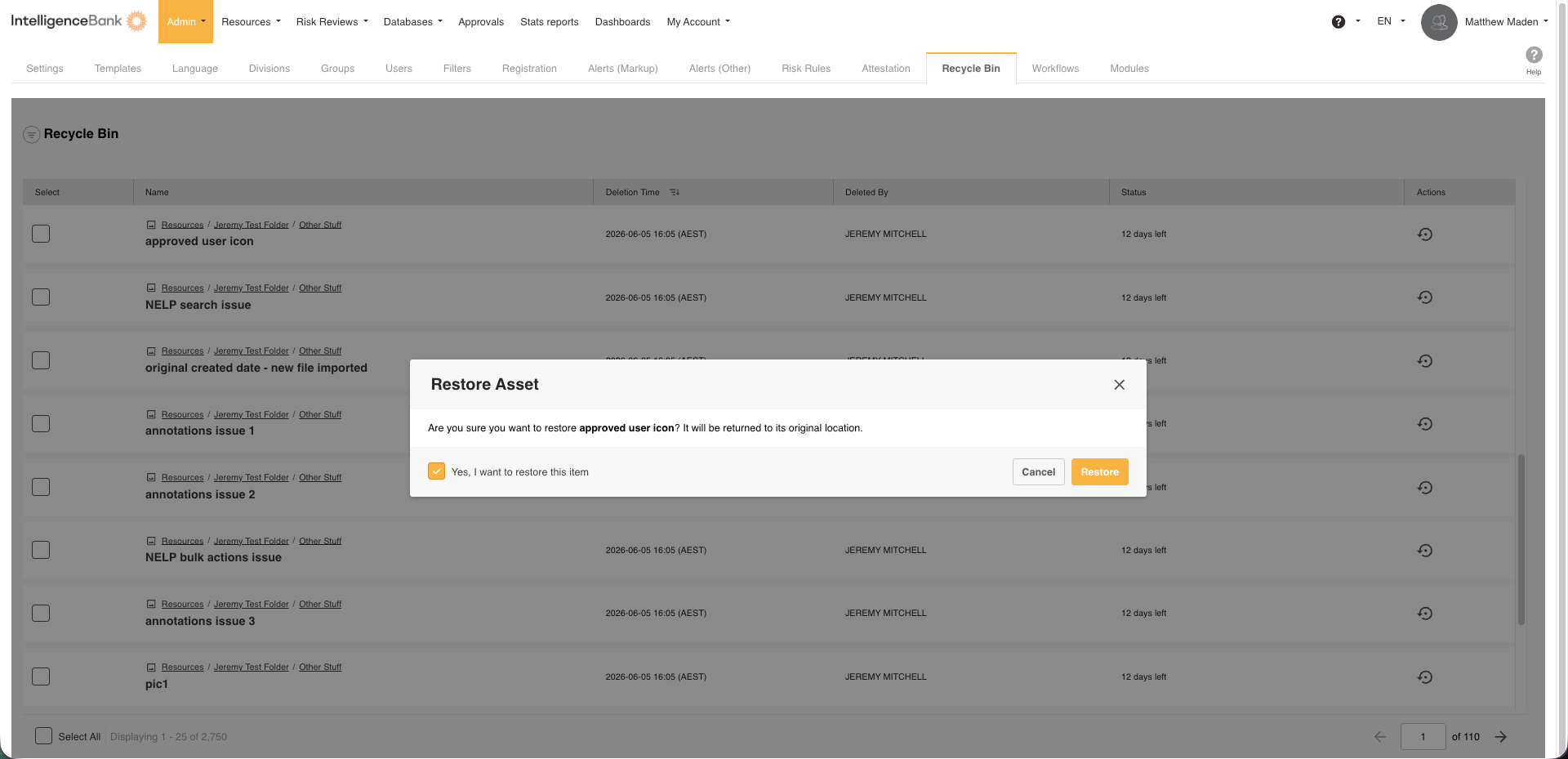
| 2Click Restore | Click the Restore button on the item's row. A confirmation dialog will appear. |
| 3Confirm | Review the details in the dialog and confirm the restore. The item status will change to Restoring while IntelligenceBank recovers it in the background. |
| 4View the restored item | Once the status changes to Restored, a View Restored Item link appears in the row. Click it to navigate directly to the recovered item. |
Restoring multiple items at once
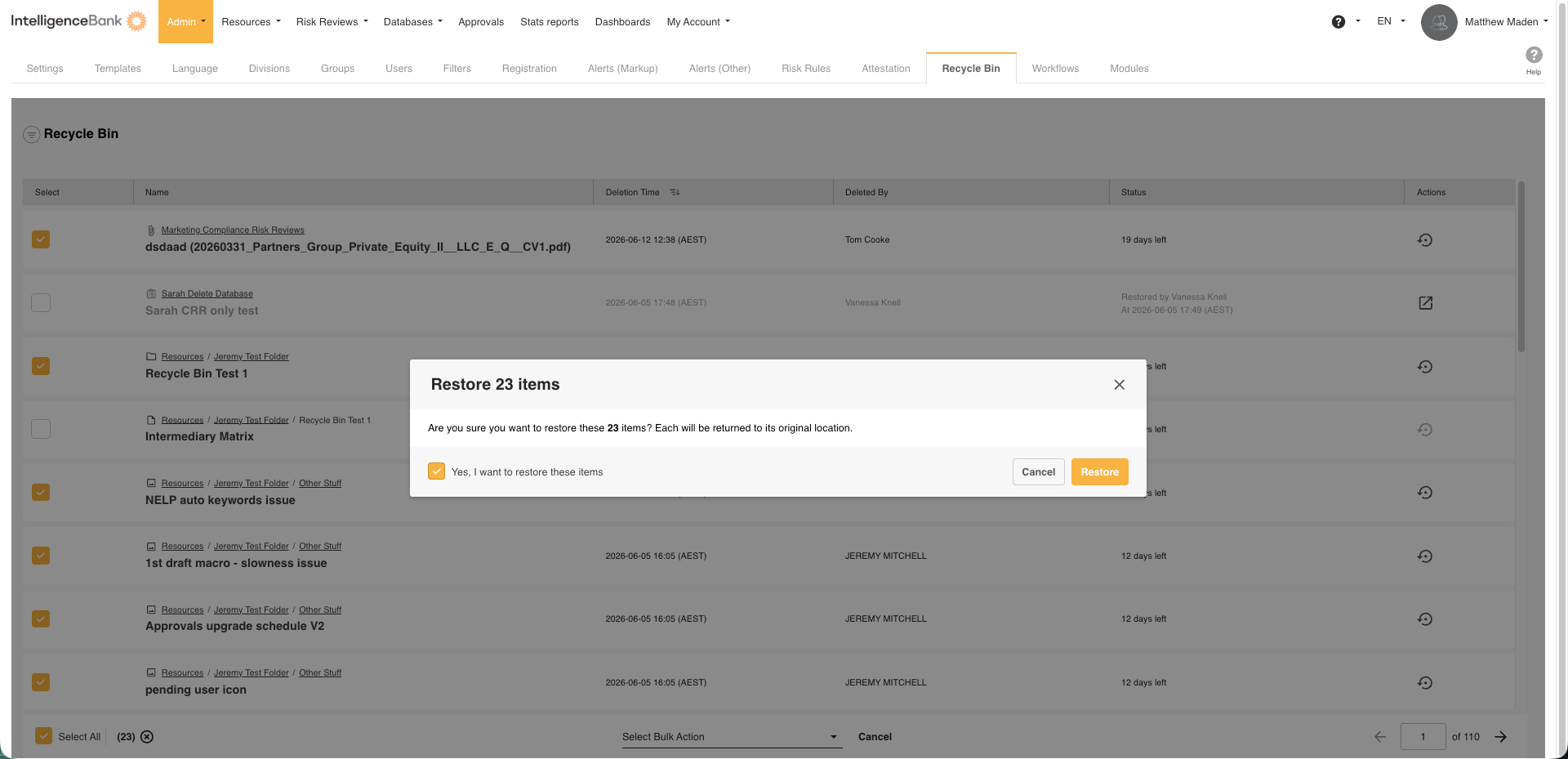
To restore several items in one go, check the boxes next to each item you want to recover, then click the Restore button that appears above the table. The same confirmation step applies before anything is restored.
Retention Period
Deleted items are restorable in the Recycle Bin for 30 days from the date they were deleted.
The Recycle Bin shows you how much time each item has remaining:
- Items well within the window display "x days remaining."
- Items in the final days of their window show a countdown, for example "5 days remaining."
- Items that have expired show "Past retention period" and the Restore option is disabled.
Troubleshooting
| The Restore button is greyed out | The item has either passed the 30-day retention period, or its parent folder or database has also been deleted. Check the status column - if it reads "Past retention period" the item cannot be recovered. If the parent is also deleted, restore the parent first and then retry the child item. |
| The item is stuck on "Restoring" | Restore runs as a background process and normally completes within seconds. Refresh the page after a minute. If the status has not updated, use the refresh icon on the row to check again. If the problem persists, contact IntelligenceBank support. |
| I cannot see the Recycle Bin in my navigation | The Recycle Bin is only available to main administrators and users with specific permissions applied to their account. If you believe you should have access, contact your platform administrator to review your account permissions. |
| The restored item is not where I expected it | Items are restored to their original location. If the parent folder or database has since been moved or renamed, use the View Restored Item link in the Recycle Bin row to navigate directly to the recovered item. |
Need Help?
If you need help recovering deleted items or have questions about the Recycle Bin, our support team is here to assist.
Contact SupportWas this article helpful?
That’s Great!
Thank you for your feedback
Sorry! We couldn't be helpful
Thank you for your feedback
Feedback sent
We appreciate your effort and will try to fix the article