The IntelligenceBank AI Marketing Compliance Plugin for Adobe InDesign brings your organization's compliance, legal, and brand checks into InDesign. Open the plugin panel on the document you're working on, run an on-demand review across every page, address the risks the panel surfaces, and - when you're ready - send the document to the selected Database, and if applicable, Record, in IntelligenceBank.
Table of Contents
What the Plugin Does
- On-demand risk detection - check your layout against your organization's rule sets without leaving InDesign.
- Whole-document review - the plugin exports your open document to PDF and reviews every page.
- Risks grouped by page - results are organized under Page dividers so you can scan findings by location.
- Comments in your document - bring the detected risks into the open InDesign document as native PDF Comments, anchored to where they were found.
- Download the reviewed PDF - save a copy of the exact PDF that was reviewed for sharing or record-keeping.
- Direct submission - once you're satisfied, send the document to IntelligenceBank to create or update a record on the platform.
- Consistent rules - the same compliance, legal, and brand checks your team uses elsewhere in IntelligenceBank.
Requirements
- Adobe InDesign (desktop) with UXP plugin support. The exact supported versions are listed on the Adobe Exchange listing.
- An active IntelligenceBank account with Content Risk Reviews enabled on your Site.
- A saved InDesign document open in the application. The plugin exports the open document to PDF, and unsaved documents may fail to export.
- An internet connection. Signing in, running reviews, and sending documents to IntelligenceBank are all online operations.
Installing the Plugin
- Open the IntelligenceBank AI Marketing Compliance listing on Adobe Exchange.
- Click Free* and follow the prompts to add the plugin to your Adobe account. Installation is handled by the Creative Cloud desktop app.
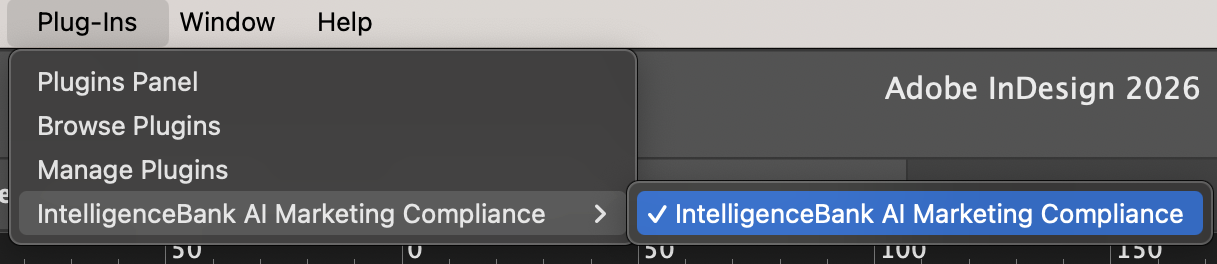
- Open or restart Adobe InDesign. The plugin appears under Plugins > IntelligenceBank AI Marketing Compliance.
- Select the plugin to open its panel. You can dock the panel alongside your other InDesign panels.
How To Use
| 1Open the Plugin | In InDesign, open Plugins > IntelligenceBank AI Marketing Compliance to launch the plugin panel.
 |
| 2Sign In | Enter your IntelligenceBank platform URL in the Platform URL field and click Login to IntelligenceBank. A browser tab opens so you can complete authentication on your IntelligenceBank platform - SSO is supported if your platform has it configured. Once the browser tab confirms you're signed in, return to InDesign and click Continue. After your first successful login, the plugin remembers your platform URL and tenant branding so subsequent sign-ins are faster. |
| 3Open Your Document | InDesign automatically supplies the open document as the content to review - there is no upload step and no file to choose. Once signed in, the plugin opens to the Create Review tab with your document already in context. Save the document first so it can be exported cleanly. |
| 4Configure Your Review | In the Risk Review Configuration section, choose your Database and Upload Field, then set any required category filters - or select an existing Record to load its values. The Start Risk Review button stays disabled until every required filter is set. Category filters follow the conditional logic configured on your IntelligenceBank platform form: depending on your selections, a filter can appear or hide, become required or optional, and a filter's available values can narrow to match the value chosen in a parent filter (cascading filters). |
| 5Run the Review | Click Start Risk Review. The plugin exports your document to PDF, uploads it for analysis, and shows a progress indicator while the review processes. You can cancel a review in progress at any time - your previous results are preserved. |
| 6View Results | Once complete, results appear in the Latest Review tab. Risks are grouped under Page dividers, and each risk card shows the risk title (rule name), a description of the issue, a quote highlighting the specific content that triggered the risk, an expandable "Additional Info" section with a recommendation (where available), and an AI-generated rephrase suggestion (where available). Review results are persisted, so if you close and reopen the plugin on the same document, your most recent results are still available. Details of the review are also always available for reference in the Details section. From this screen you can Insert Comments into your document (see Insert Detected Risks as Comments), Download PDF, Review Again on the same content and configuration, Send to IntelligenceBank, or start a New Risk Review. |
Reviewing the Document as a PDF
When you start a review, the plugin asks InDesign to export your open document to PDF and sends that PDF to IntelligenceBank for analysis. Reviewing the exported PDF is what lets the plugin assess your layout exactly as it will print or publish - text, images, and design together - and group findings by page.
The review works against a PDF render rather than editable InDesign text, but each finding still carries the page and position where it was detected. From the Latest Review panel you can read the findings page by page, insert them into your document as native PDF Comments (see Insert Detected Risks as Comments below), download the reviewed PDF to share with collaborators, or send the document to IntelligenceBank. To get the most accurate results, save your document and resolve any export warnings before running a review.
Insert Detected Risks as Comments
You can bring the detected risks straight into your open InDesign document as native PDF Comments, so your team can see and resolve them in the layout without opening the plugin. In the Latest Review tab, click Insert Comments in the Detected Risks header. The plugin places the whole review's findings into the document in one step, anchored to the pages and positions where they were found, and opens InDesign's PDF Comments panel so you can see them right away.
- Native PDF Comments - the findings become standard InDesign PDF Comments. Use the PDF Comments panel (Window > PDF Comments) to read, filter, navigate, and mark them as you work.
- The whole review at once - one click inserts every detected risk. Once they are in, the action shows the comments are already in the document.
- Part of the document - inserted comments live in the InDesign file, so anyone who opens it sees them, even without the plugin.
Send to IntelligenceBank
Sending to IntelligenceBank is an explicit, separate action - running a review does not automatically upload the document to IntelligenceBank. Click Send to IntelligenceBank in the result actions footer once you're satisfied with the review and need to upload your content to an IntelligenceBank record for official sign-off or approval. The plugin re-exports the document as a PDF and uploads it to your platform along with the review metadata. When you send a document to create a new record, the plugin pre-fills that record's Title field with your InDesign document's name (without the .indd extension), so the new record opens already titled - this applies when the record's Title field is a Text field.
Settings
The menu in the plugin header gives you Settings, Clear Results (visible once a review is loaded), Help & Support, and Logout. The Settings page lets you tailor what the plugin shows. Changes save automatically and persist between sessions.
Interface
- Onboarding Help Banners - show or hide the help banners that walk you through the risk review process.
- Compact View - reduce font sizes and component spacing for a tighter UI.
Actions
- Send to IntelligenceBank - show or hide the button that sends reviewed content back to your platform. Hide it if your workflow doesn't require sending the document.
- Download Review as PDF - show or hide the option to download the annotated PDF of the reviewed document.
Data and Security
- Encrypted in transit - all communication with IntelligenceBank uses TLS.
- Your authentication - sign-in is delegated to your IntelligenceBank platform, including SSO if your organization has it configured. The plugin does not store your credentials.
- Same platform controls - documents sent to IntelligenceBank inherit the permissions, retention policies, and access controls already configured on your platform.
Frequently Asked Questions
Why is my review based on a PDF?
The plugin exports your open InDesign document to PDF and reviews that PDF, so the analysis reflects your finished layout - text, images, and design together - and findings can be grouped by page.
Can I insert risks back into the document as comments?
Yes. In the Latest Review tab, click Insert Comments in the Detected Risks header to bring the detected risks into your open InDesign document as native PDF Comments, anchored to where they were found and shown in InDesign's PDF Comments panel. See Insert Detected Risks as Comments above for details. You can still download the reviewed PDF or send the document to IntelligenceBank as well.
What's the maximum file size?
See the latest file size limits here. The limit applies to the exported PDF, not the InDesign source file.
Which versions of InDesign are supported?
Any version of Adobe InDesign (desktop) that supports UXP plugins. The Adobe Exchange listing states the exact supported versions.
Do I need to be online?
Yes. Signing in, running reviews, and sending documents to IntelligenceBank all require an internet connection.
The plugin isn't loading. What should I check?
- Confirm you have an internet connection.
- Make sure a document is open in InDesign.
- Close and re-open the plugin panel.
- Make sure InDesign and the Creative Cloud desktop app are up to date.
- If the issue persists, submit a ticket.
Get Started
Was this article helpful?
That’s Great!
Thank you for your feedback
Sorry! We couldn't be helpful
Thank you for your feedback
Feedback sent
We appreciate your effort and will try to fix the article