There may be times when a pending approval request needs to be re-assigned to another reviewer for approval. This might come up if, for example, a reviewer leaves your organisation or is absent and you want to make sure the approval request still stays on track.
Follow the steps below to re-assign the reviewer on an approval request:
- Navigate to the Approvals area of your platform.
- Locate the relevant approval request you need to re-assign. You can do this by filtering the approval requests by reviewer in the filters panel in the lefthand side of the Approvals area. This will display all their related reviews.
- Find the approval request that needs to be re-assigned, and select the Re-assign Reviewer icon (middle icon on the Actions area of the request).
- This will open up a window where you can remove the existing reviewer, then select from the dropdown menu of your users to find and select whoever needs to be the new reviewer on this request.
- Click Save to finalise your changes.
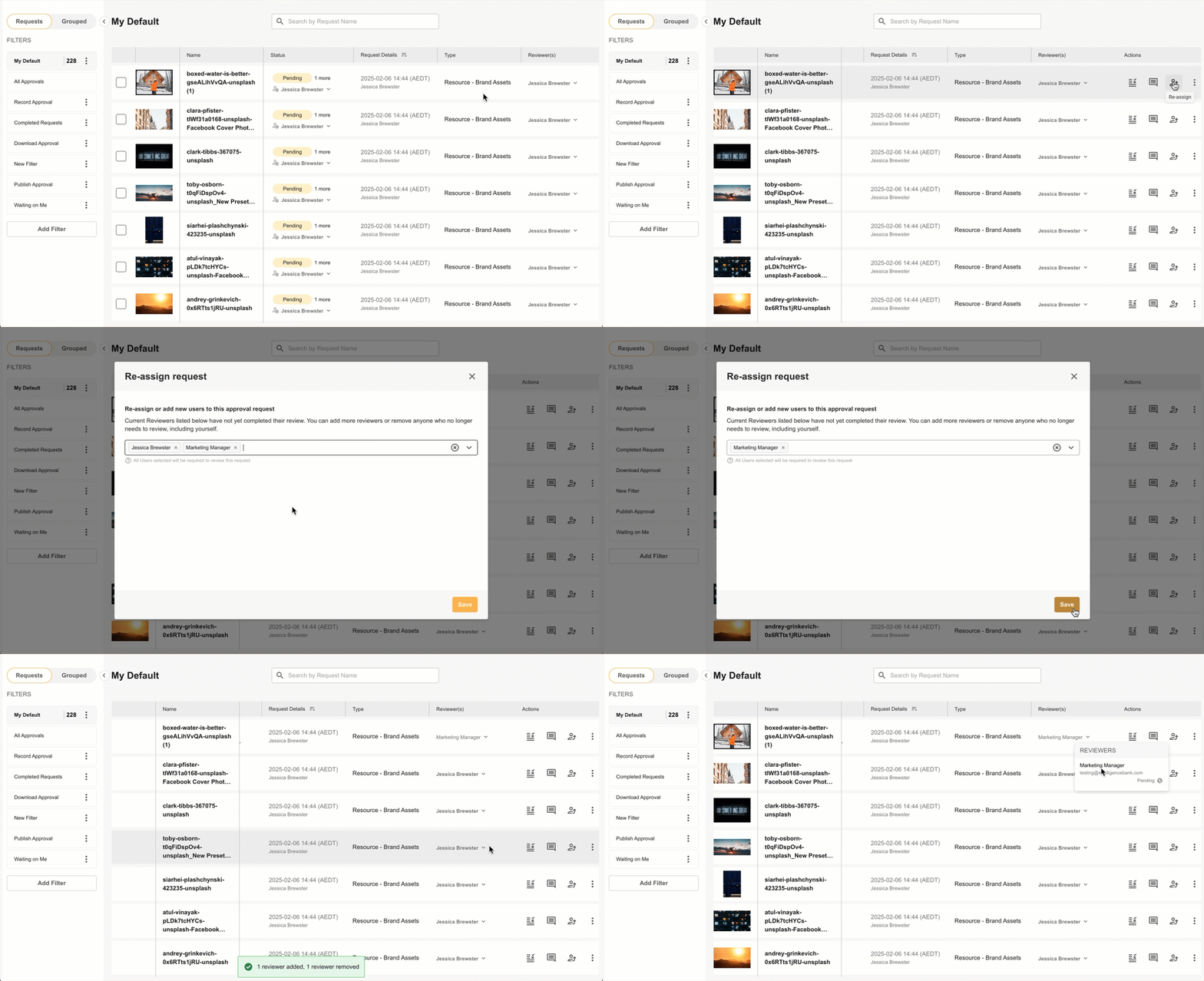
This will then update the reviewer on this pending request and notify the new reviewer that they now have an approval request pending their response.
Requesters can also re-assign Reviewers in some scenarios. Click here to read more
*Note that some terminology may appear differently in your platform as terms like Approvals are customisable.
Was this article helpful?
That’s Great!
Thank you for your feedback
Sorry! We couldn't be helpful
Thank you for your feedback
Feedback sent
We appreciate your effort and will try to fix the article