IntelligenceBank offers an easy way to add or upload resources/assets to folders within the platform. These assets can then be searched for, shared, and downloaded within the business for use in campaigns or other marketing functions, be it internal or external.
How to Upload an Asset
Follow the steps below to upload an asset:
| 1Navigate to your folder | Navigate to the folder you'd like to upload your asset to within your Asset Library. Select the three vertical dots shown below and select Add Asset from the action menu.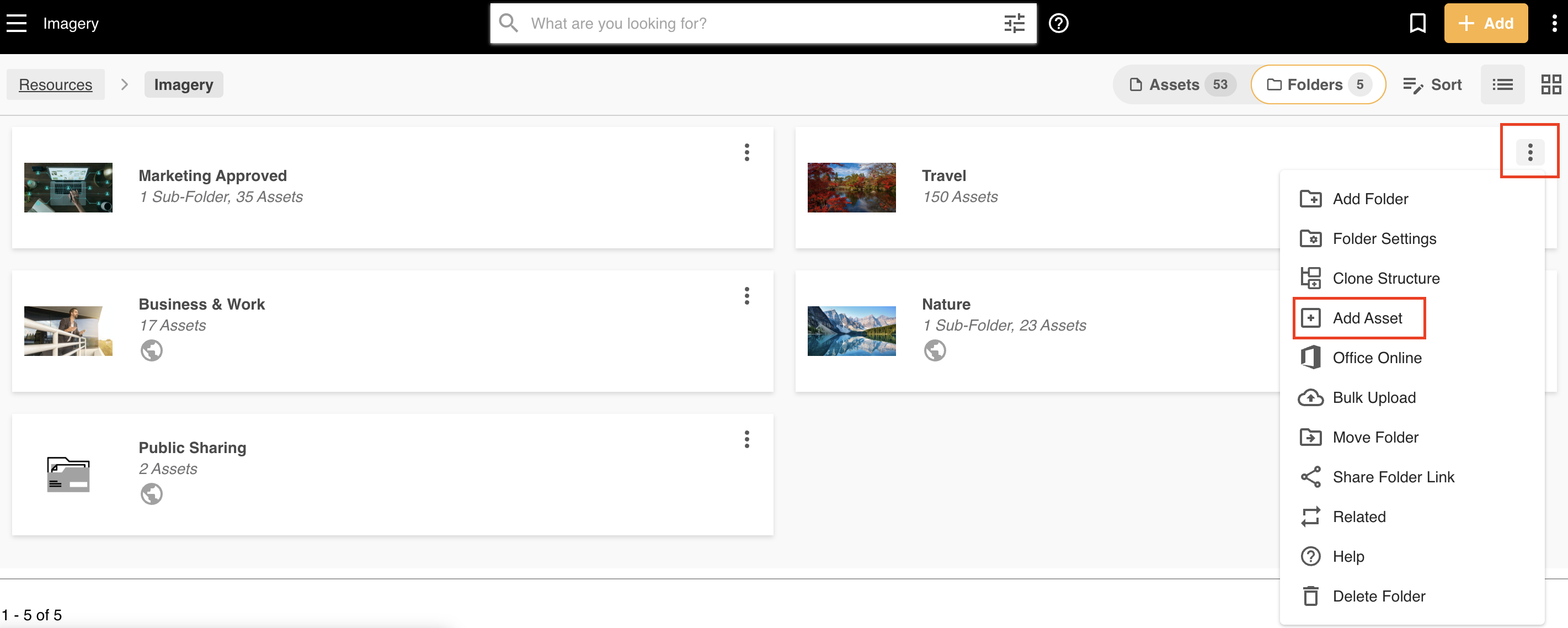 |
| 2Click Add Asset | If you're within the folder, you can also click on the + Add button on the right hand side of the search bar, then Add Asset.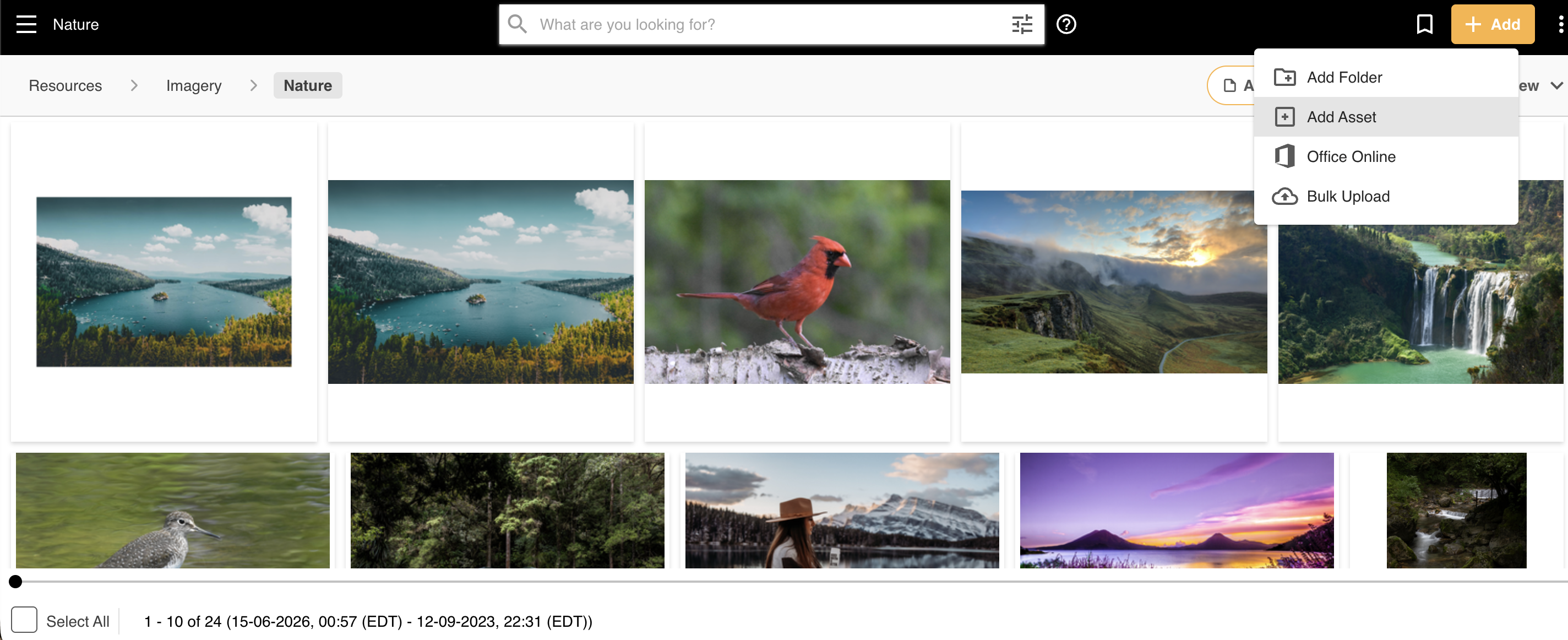 If you are in an empty folder, you'll also be able to select the Add Asset tile as shown below. If you are in an empty folder, you'll also be able to select the Add Asset tile as shown below.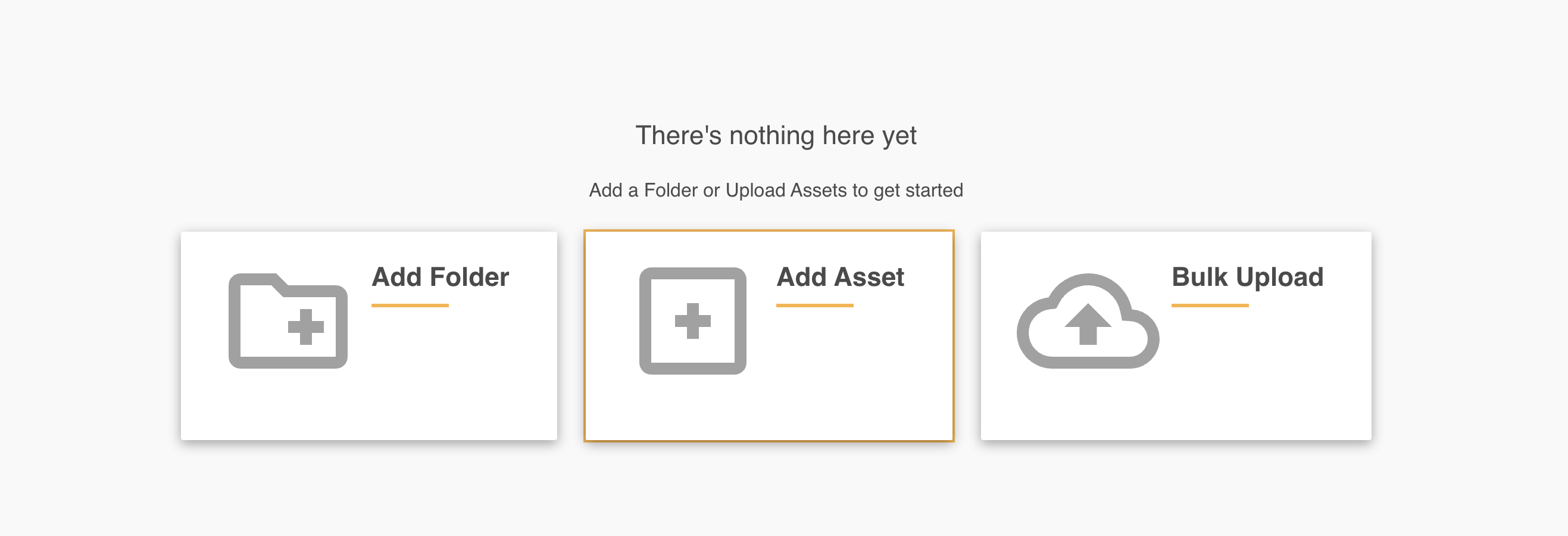 |
| 3Upload your file | Once you select Add Asset, you can drag and drop your asset over the area indicated in the left hand side of the image below, or select browse to locate the asset on your computer.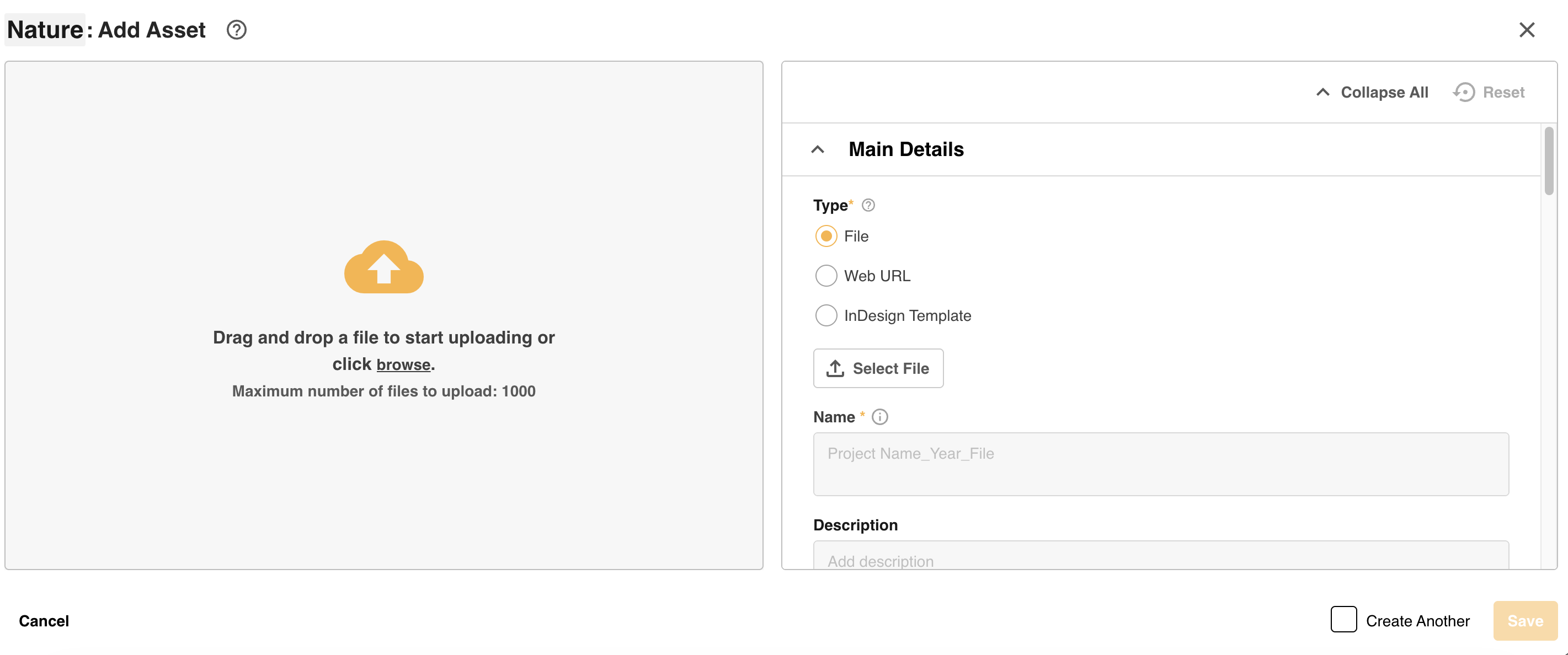 |
| 4Wait for upload to complete | Once your asset is added to the area, the upload process will start. You'll be able to see your asset in the lefthand side, and a progress bar, which will turn green once the upload process is complete.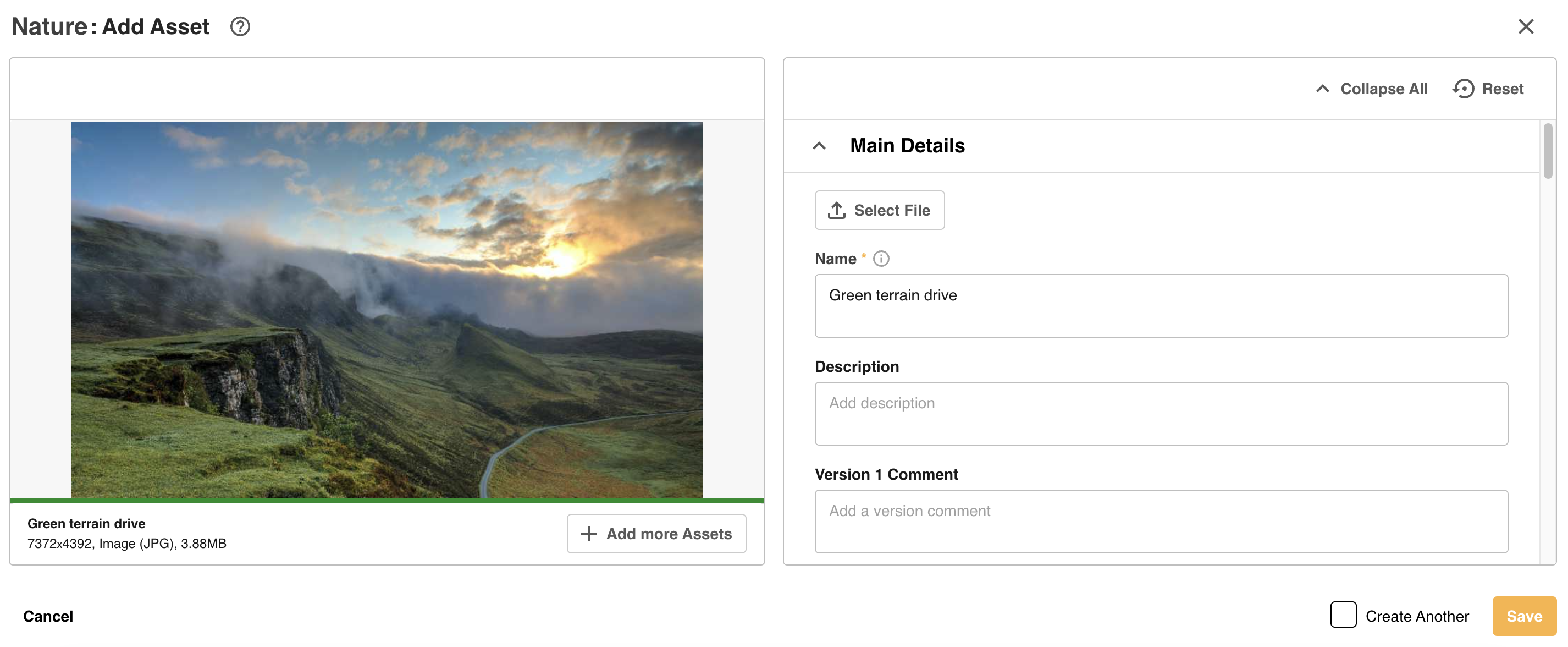 |
| 5Add metadata | The Name of the file and the Resource/Asset Date will auto populate within the Main Details area to the right. Before saving your asset to the folder, you'll be able to add specific metadata (ie: keywords, a description, filters, etc) to the asset as well. Metadata greatly enhances the asset's searchability, making it easier for users to find the assets they need. |
| 6Save the asset | Once you're ready to save the asset to the folder, select Save. Your asset will then be accessible within the folder. |
Uploading Multiple Assets
Prior to saving, if you drag & drop multiple files on the lefthand side of the upload window, or click on the + Add more Assets button, you'll be taken to the Bulk Upload page. From here, you can bulk apply details and metadata to your files.
*Note that the name given to modules, features and information items may vary in your platform as they can be customized by Main Admin users.
Was this article helpful?
That’s Great!
Thank you for your feedback
Sorry! We couldn't be helpful
Thank you for your feedback
Feedback sent
We appreciate your effort and will try to fix the article