IntelligenceBank offers a number of customisable options for downloading videos from the platform. Along with the option to download the various bitrate streaming options, users can also apply transformations on the fly to those converted formats or to the original video file.
These capabilities eliminate or reduce the need to store different file formats of the same video. Users can choose to download a video in a particular file format to suit their need, or even download just a snippet of a video for a particular purpose, allowing them to self-serve.
Downloading a Video
To download a video:
| 1Navigate and click Download | Navigate to the video file you wish to download and click the Download icon.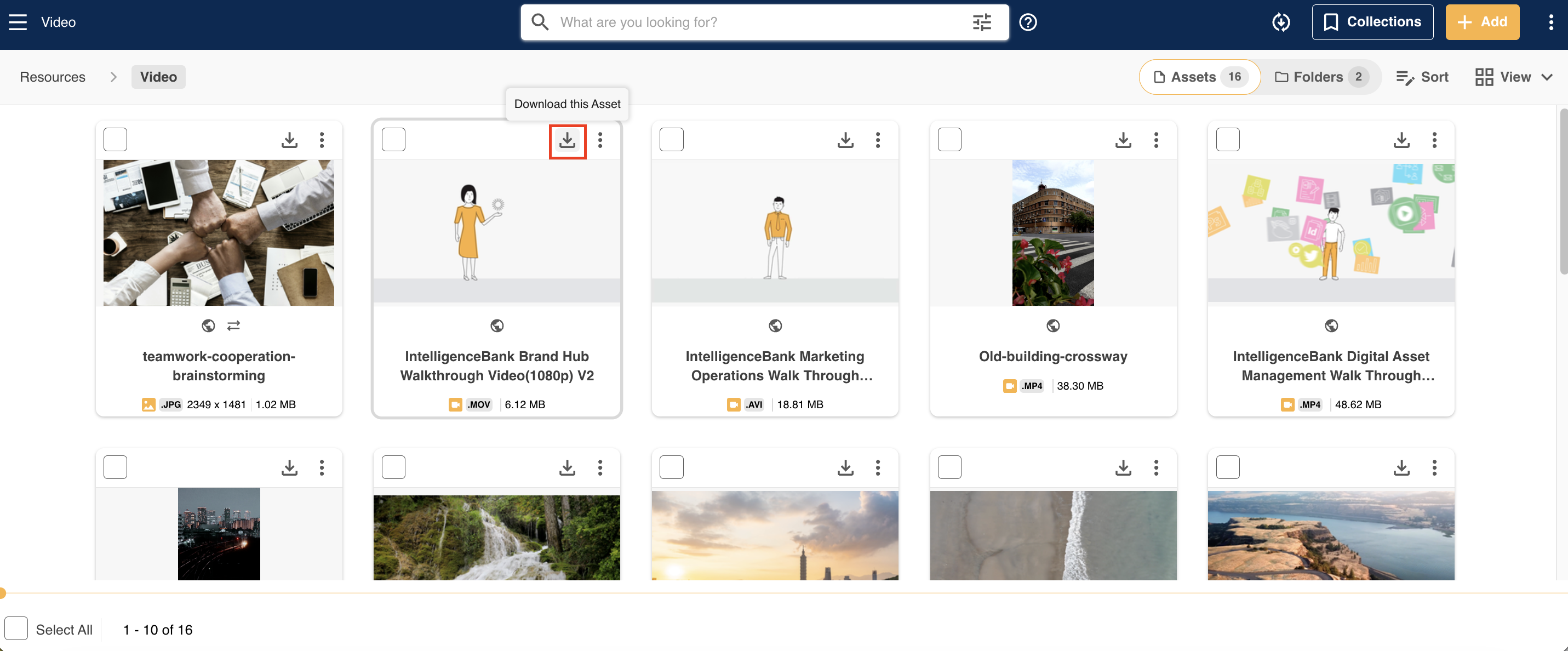 |
| 2Confirm your download options | The Video Download popup will then appear. To immediately download the original file or a converted version of that file, select whichever option you need, then click the Download button at the bottom right of the popup. Note that the converted options that appear in the popup will depend on the options selected in your Admin area. 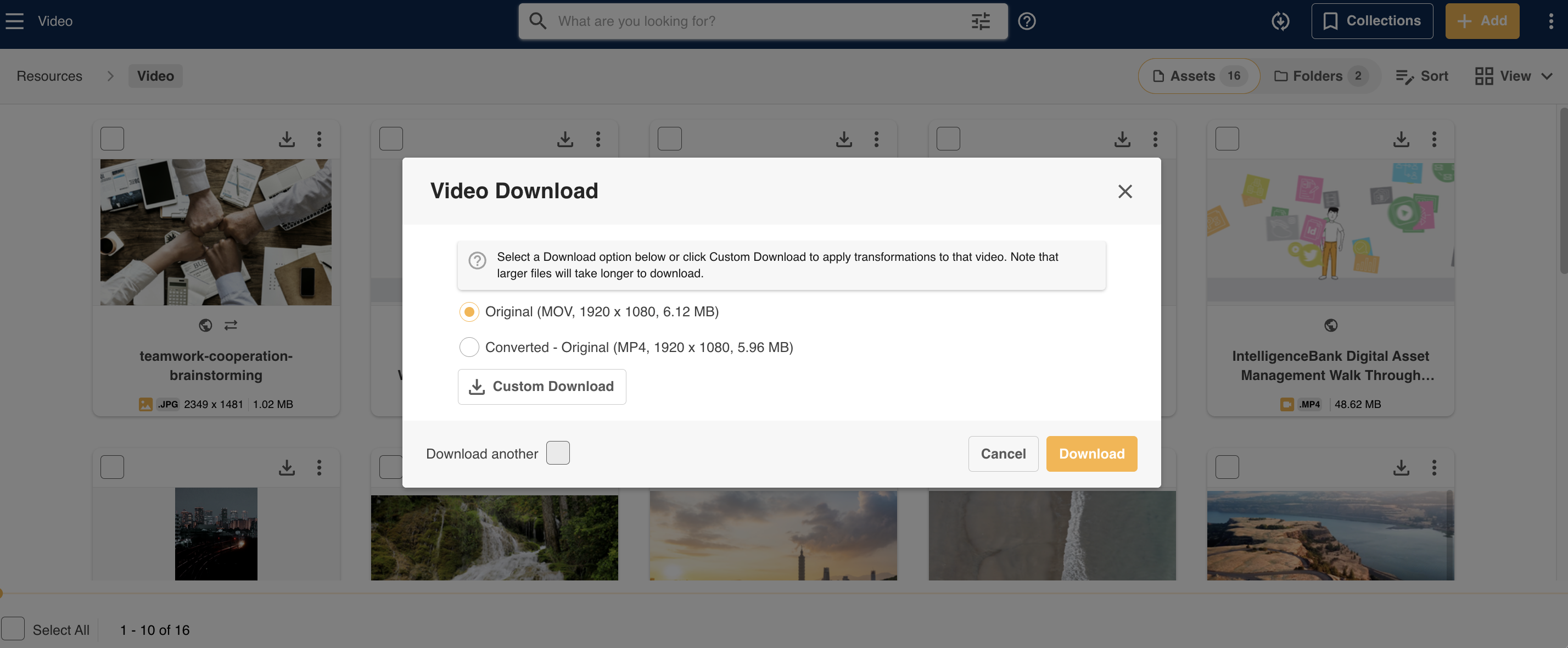 |
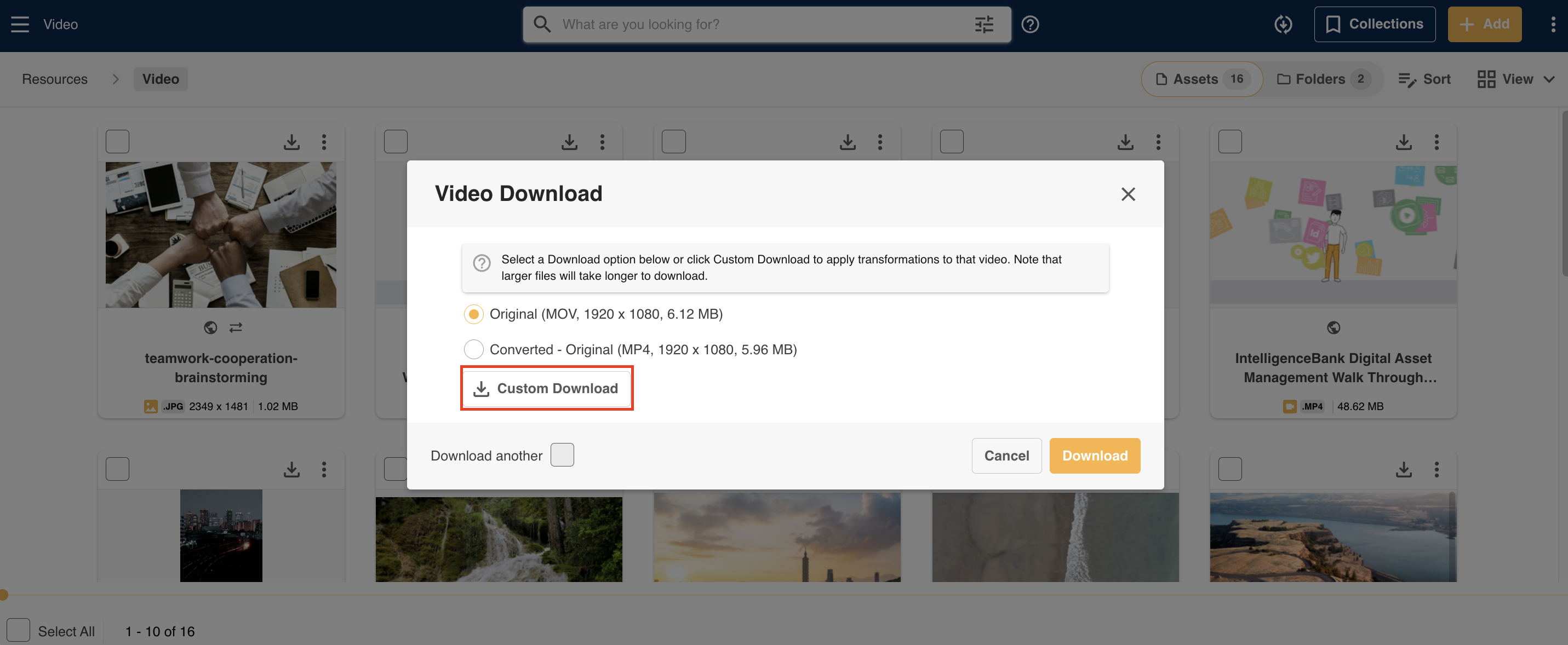
| 3Apply transformations (optional) | If you want to apply transformations to the video file, click Custom Download. |
Download another option
If you want to quickly download an additional format, for instance you wish to download the original and also a Converted MP4 version, select the Download another checkbox. After clicking Download, instead of the popup automatically closing it will remain open so you can choose the next format to download.
Customise your Download
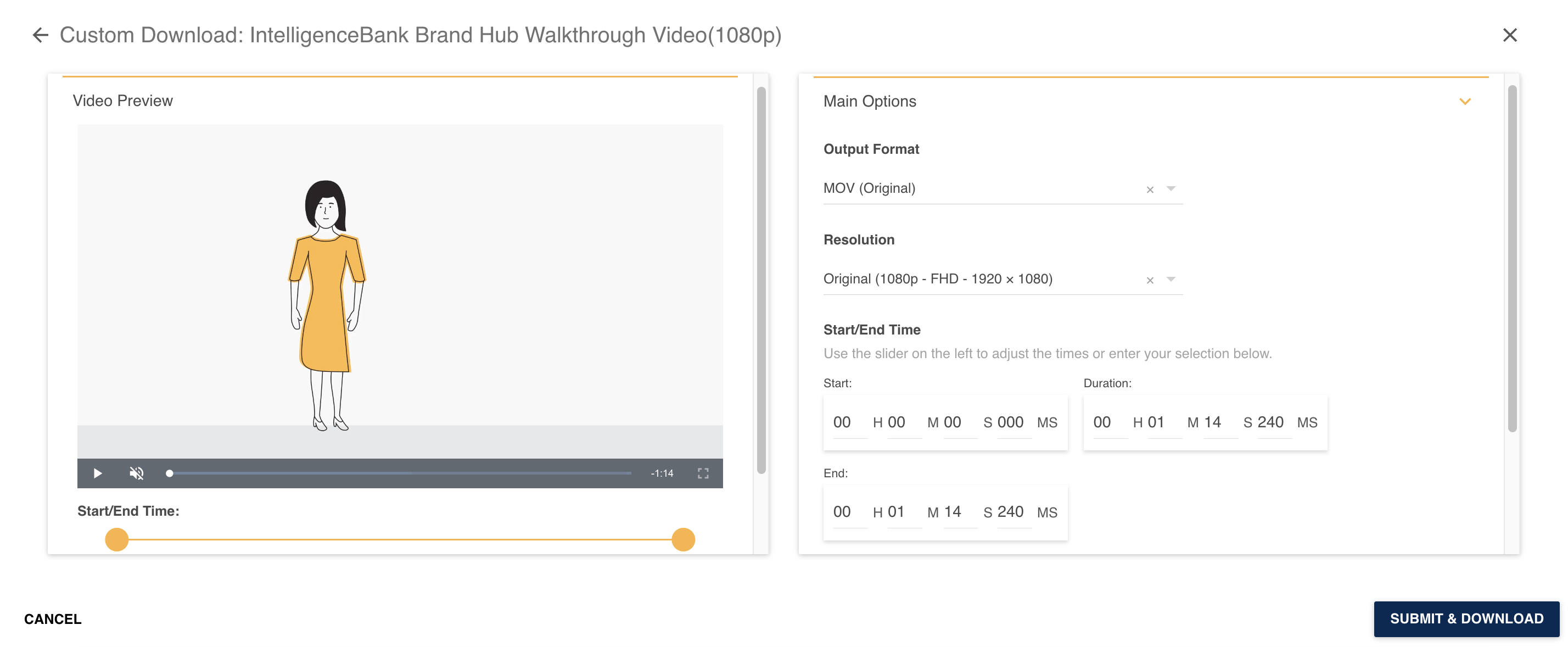
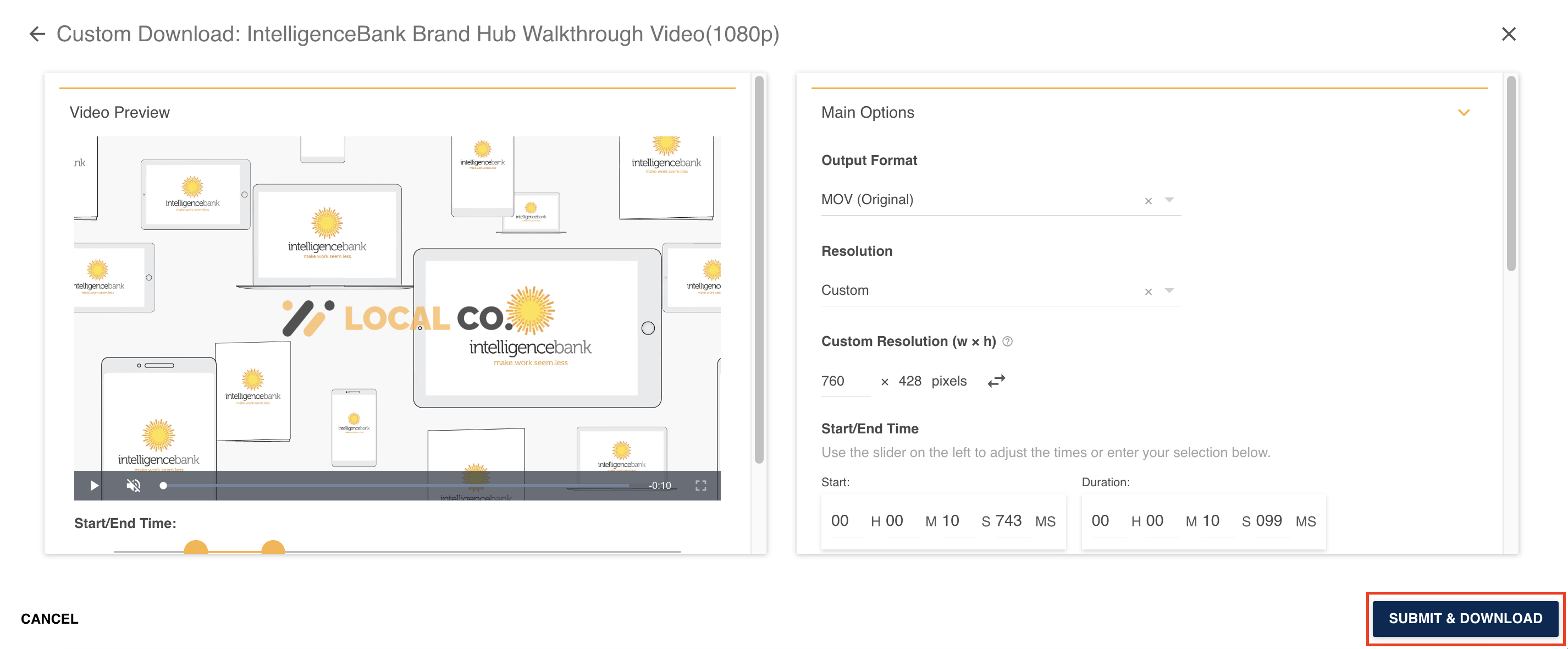
If you wish to apply transformations to your video download, select the version (ie the original file or a converted option) that you wish to apply the changes to and click the Custom Download button. This will open a new overlay, with a range of transformation options, including other formats, resolutions, time selection, and watermarks.
Video Preview
On the left side of the Custom Download overlay is a preview of your video. For specific transformations, you will be able to see your changes immediately on the preview. These include Start/End Time and multiple Watermark options.
Main Options
The right hand side panel of the Custom Download overlay contains the bulk of your transformation options. The values you select here will be applied to your video after you click Submit & Download. Note that these changes will not affect the original video file.
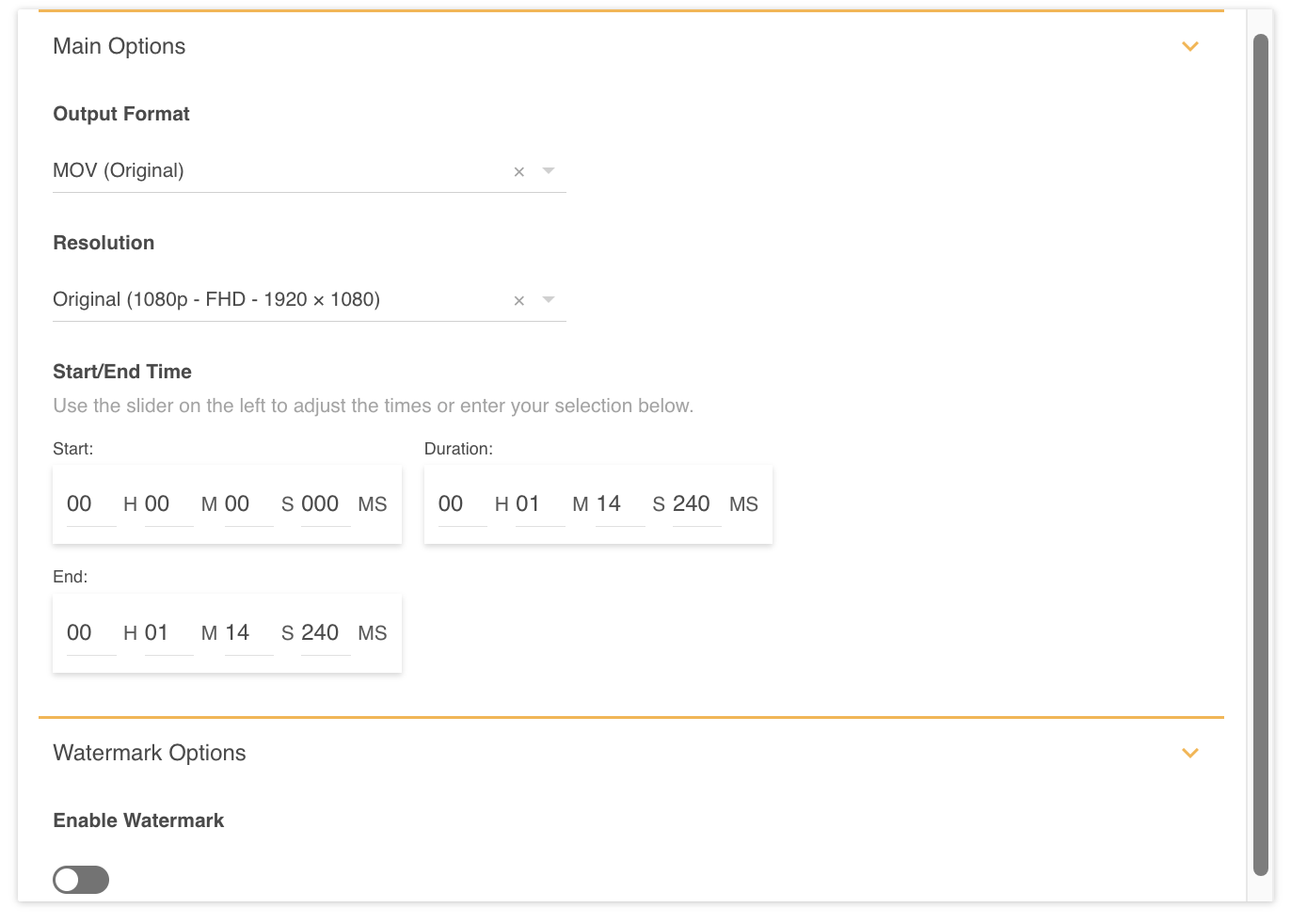
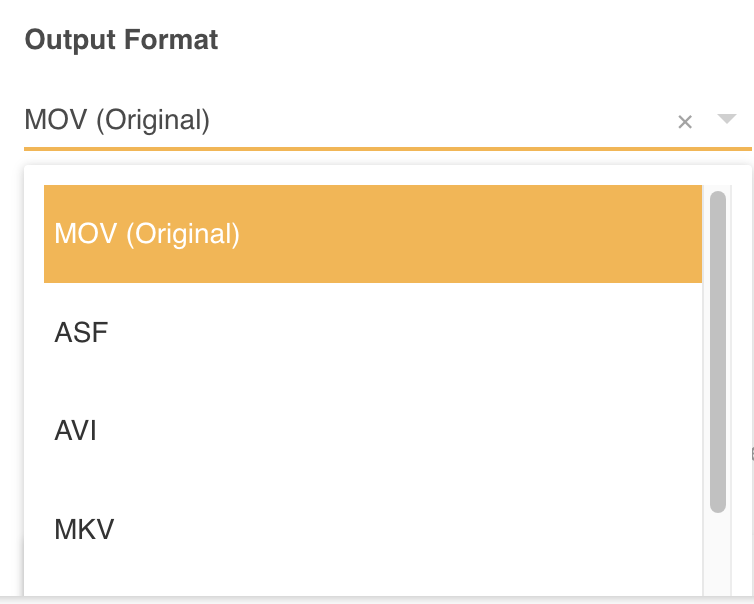
Output Format
The output format dictates the file format that your video will be downloaded in. The default option will be based on your selection from the popup and the selections available will be dependent on the original file type.
Note that more formats will be added as browser support is extended.
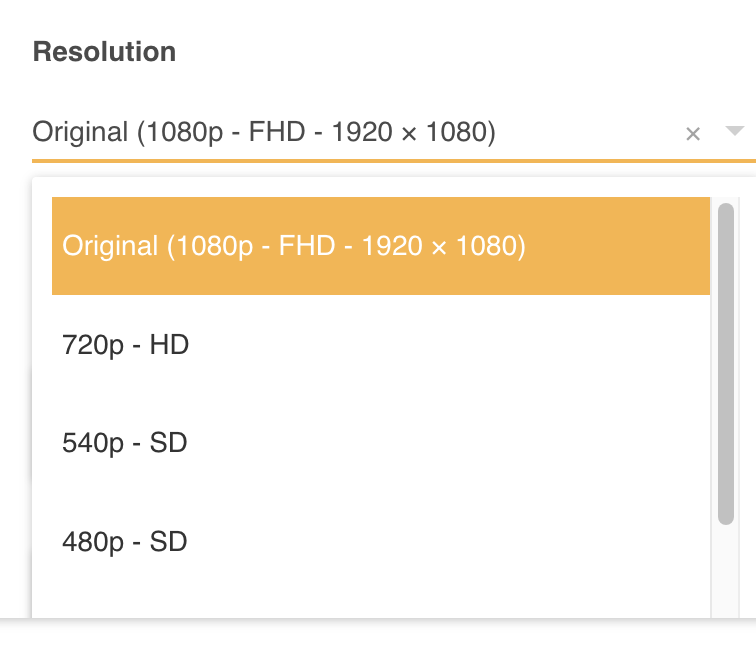
Resolution
Video Resolution refers to the size of the video in pixels. You can choose to download your video as the original size, one of the existing converted options, or input a Custom Resolution.
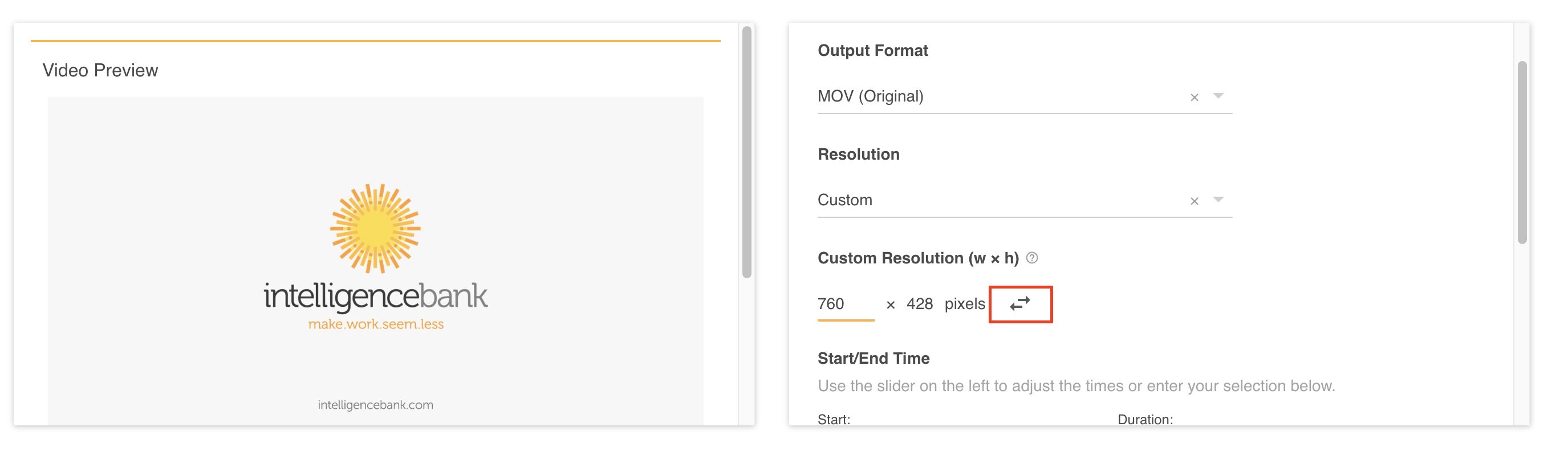
Custom Resolution
If you select Custom Resolution, you can customise either the width or height of the video. The default value available is to change the width, ie 1034px in the example below. If you then click the arrows icon to the right of the field, you can switch the input, allowing you to customise the height instead of the width. Whichever value you don't update will automatically change also, ensuring the video is scaled correctly and isn't distorted upon download.
Start / End Time
Users can also edit the Start / End Time of the video, allowing them to download a specific snippet of the video. You can change both the Start and End time, as well as alter the Duration which will update the End time accordingly.
There are two ways to select the range of the video that will be downloaded:
Slider
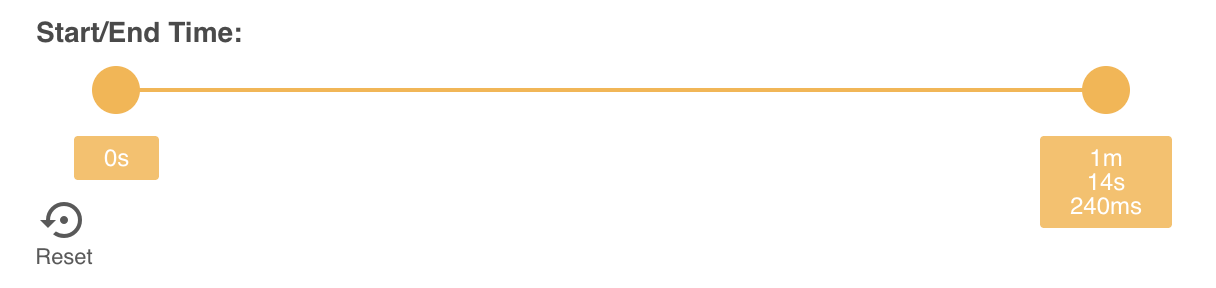
Under the Video Preview (on the left side of the page) is a Start / End Time slider that allows you to drag the Start and End times to a specific point. You can also just click on the bar to update the location of the nearest dot. The highlighted portion visible on that slider will be the length of the video that is downloaded.
As you adjust the slider, the Video Preview will update to reflect that particular time in the video, so you can see at what point the video would start or end. You can also play the video from whatever start and end time you've selected, to review and make sure the times you've selected are appropriate before you download.
If you click the Reset icon below the slider, the video selection will be returned to the default (ie the full video) length, as indicated below.
Text
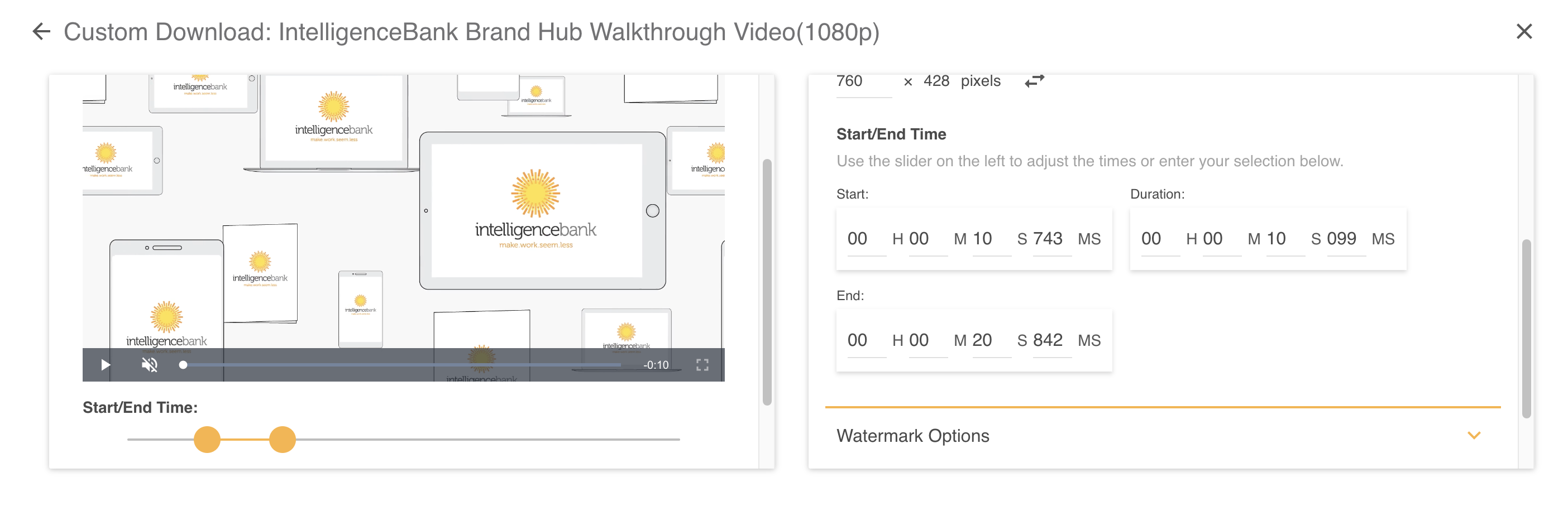
In the Main Options area, you can also change the inputs at a more granular level. For instance, if you need to change the Millisecond values the slider may not be able to indicate changes that small. The text inputs can update those values, and support changes to the Duration of the video, which will automatically update the End time.
As with the slider option, as soon as you start typing in specific start/end times, the Video Preview will jump to those times, so you can better visualise and review that specific part of the video before downloading.
Watermark Options
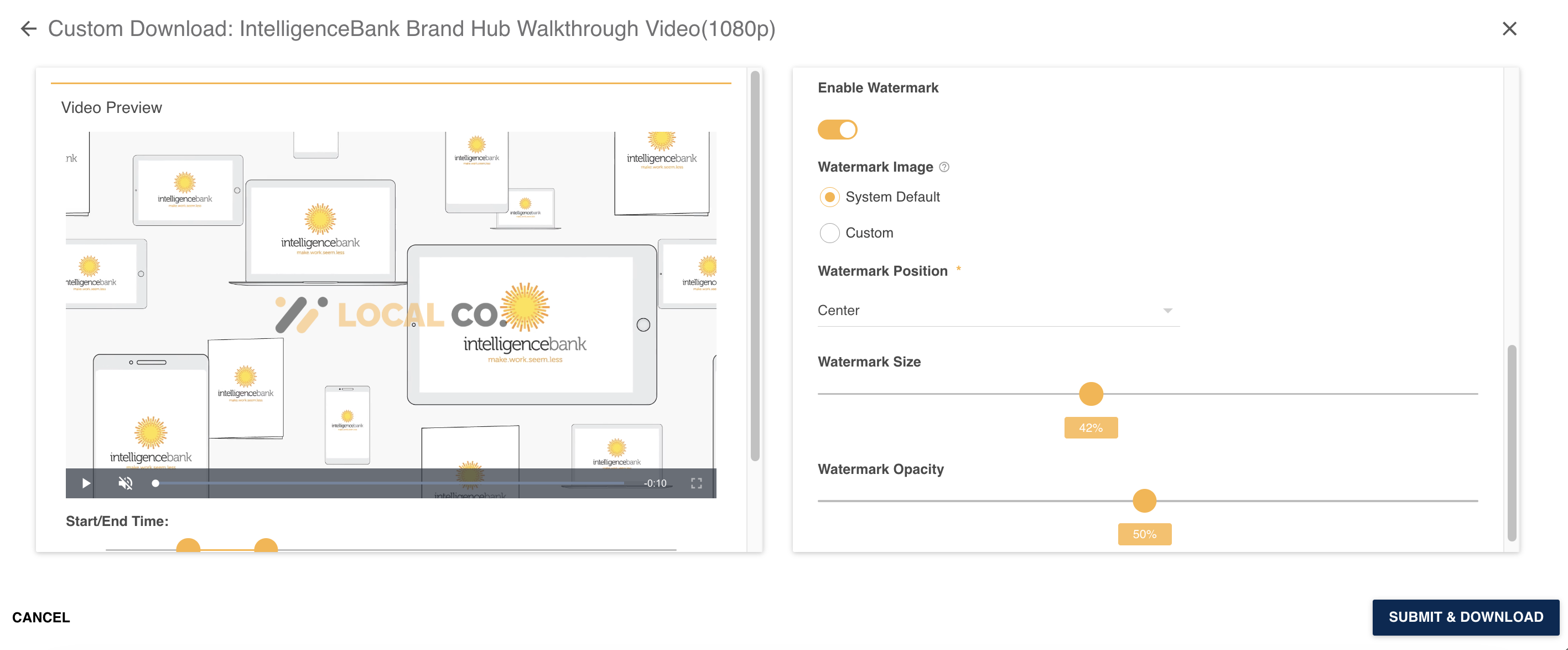
If you wish to add a watermark that will appear on the video after download, you can also enable this option via the Enable Watermark setting. Once enabled, number of additional options will appear on your page (as demonstrated below).
Watermark Image
This option will appear if there is a System Default watermark already uploaded in the Admin > Templates area. If there is an image uploaded in that field, it will be the default option and will immediately appear over your Video Preview.

Custom Watermark
To upload a Custom Watermark, select Custom from the Watermark Image field. Then click the Select File button and browse your desktop to upload a file. Once uploaded, the watermark will immediately appear over your Video Preview.
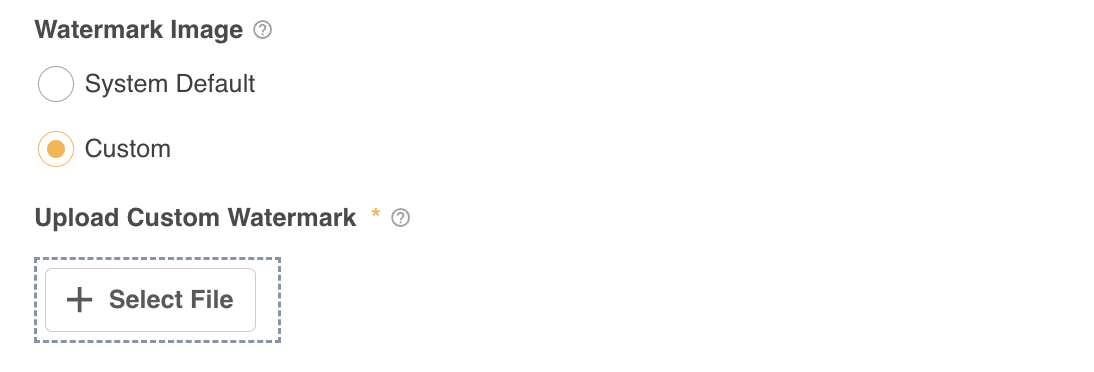
Supported watermark formats for upload include PNG, JPG or JPEG file types, whilst the maximum file size allowed is 5 MB.
Watermark Position
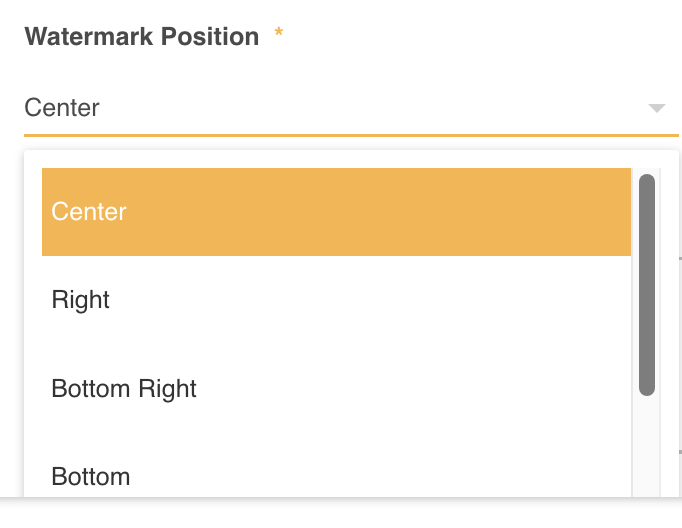
The options in this dropdown field will enable you to select where on the video the watermark will be placed. The default option is Center, so once a watermark is added you will see it in the Center of your Video's Preview. Changes to this selection will immediately be reflected on the Video Preview.
Watermark Size
This slider bar allows you to customize the size of the watermark file selected. The default value is 20% and all changes are immediately reflected on the Video Preview. Simply drag the dot or click anywhere on the slider bar to update the percentage.
Note that the sizes supported for each image will depend on both the watermark image and the video; ensuring that the aspect ratio of the video is not affected.

Watermark Opacity
This option allows you to change the opacity of the watermark file uploaded. The default option for this field is 50%. Like with the other watermark options above, all changes made here are immediately reflected on the Video Preview. To change the value, drag the dot or click anywhere on the slider bar to update the percentage.

Downloading the Video
Once you have finished applying transformations to your video, click Submit & Download. Unless you have clicked Download another, the overlay will close and you will be back on the Assets page.
A snackbar will appear to confirm that your video download is being processed and that you can track the download in the Jobs List popup.
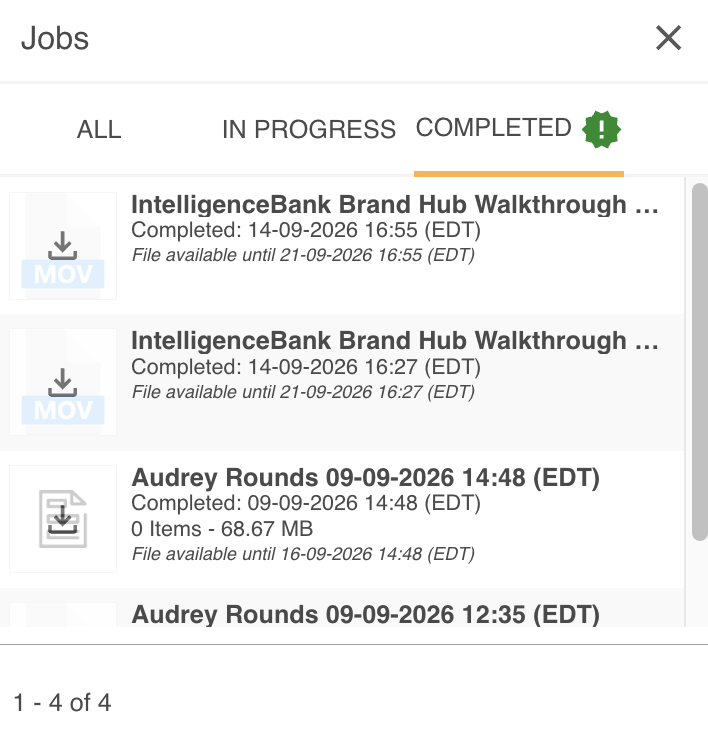
Once the video has been successfully transformed, it will be available to download from the Jobs List or will automatically download to your browser if you are still logged in. If you open the file, all transformations will have been applied.
Please note that larger videos files, for instance those over 1GB and some file types (like WEBM), might take longer to process than smaller files.
Download Jobs List popup
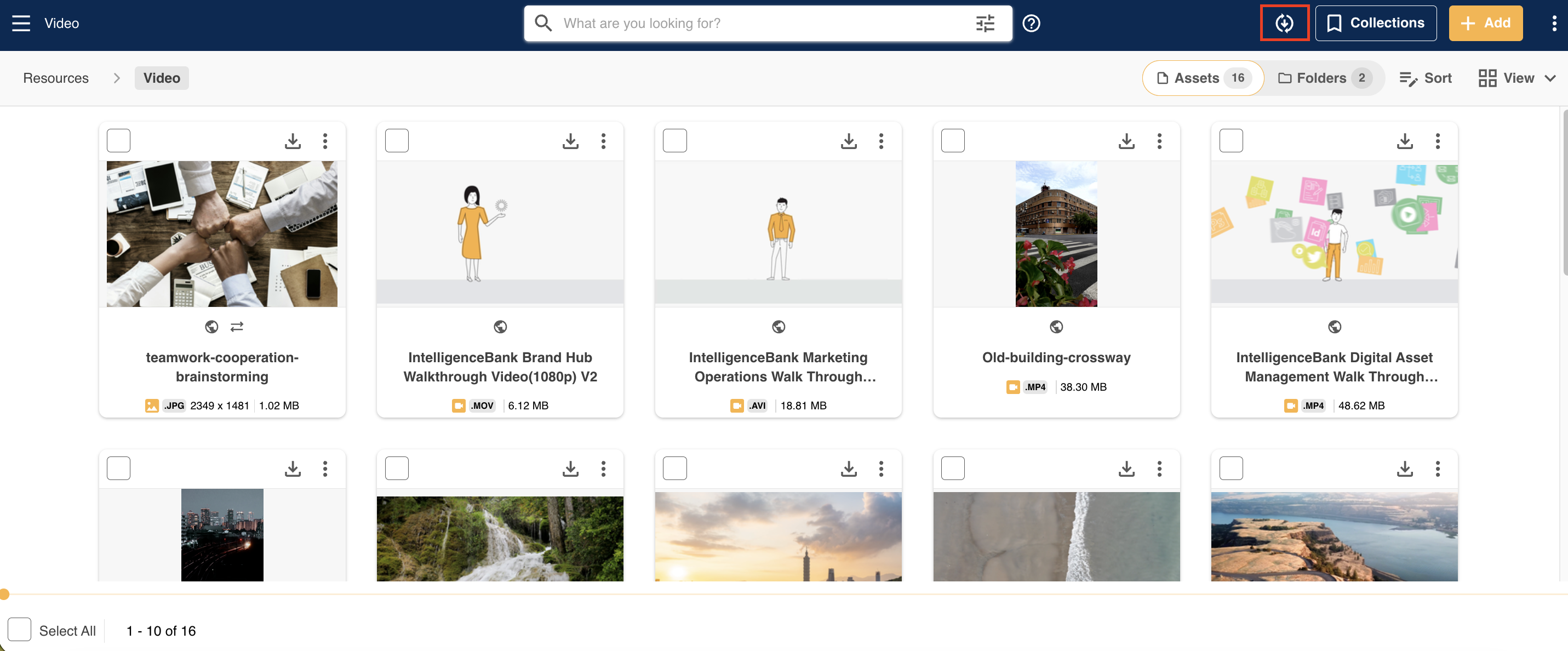
Your Download Jobs List is located at the top right of your Assets page, and is accessible by clicking on the icon indicated below.
If there is also a count next to the icon, it means that there are active Jobs that are running, ie a video transformation like applying a watermark is currently occurring.
This popup will contain all the Download Jobs that you (on a user-by-user basis), have requested over the past 7 days, allowing you to download them again as necessary.
Was this article helpful?
That’s Great!
Thank you for your feedback
Sorry! We couldn't be helpful
Thank you for your feedback
Feedback sent
We appreciate your effort and will try to fix the article