If your platform has Public Access enabled, you can set folder(s) up so that they are accessible by non-registered users, without requiring them to have a login to the platform. These non-registered users can then search, view, or download assets stored in those folders, allowing them to self-serve and grab what they need.
This feature (known as a Public Portal) is particularly useful for organisations thatwant to make a standard gallery of assets available to the public on a fairly regular/recurring basis (such as media kits for the press or PR firms). Setting up a Public Portal minimises the manual effort involved in otherwise needing to constantly create and send out public share links to the same content.
Main Admins have the ability to set up Public Portals in the platform.
To set up a Public Portal:
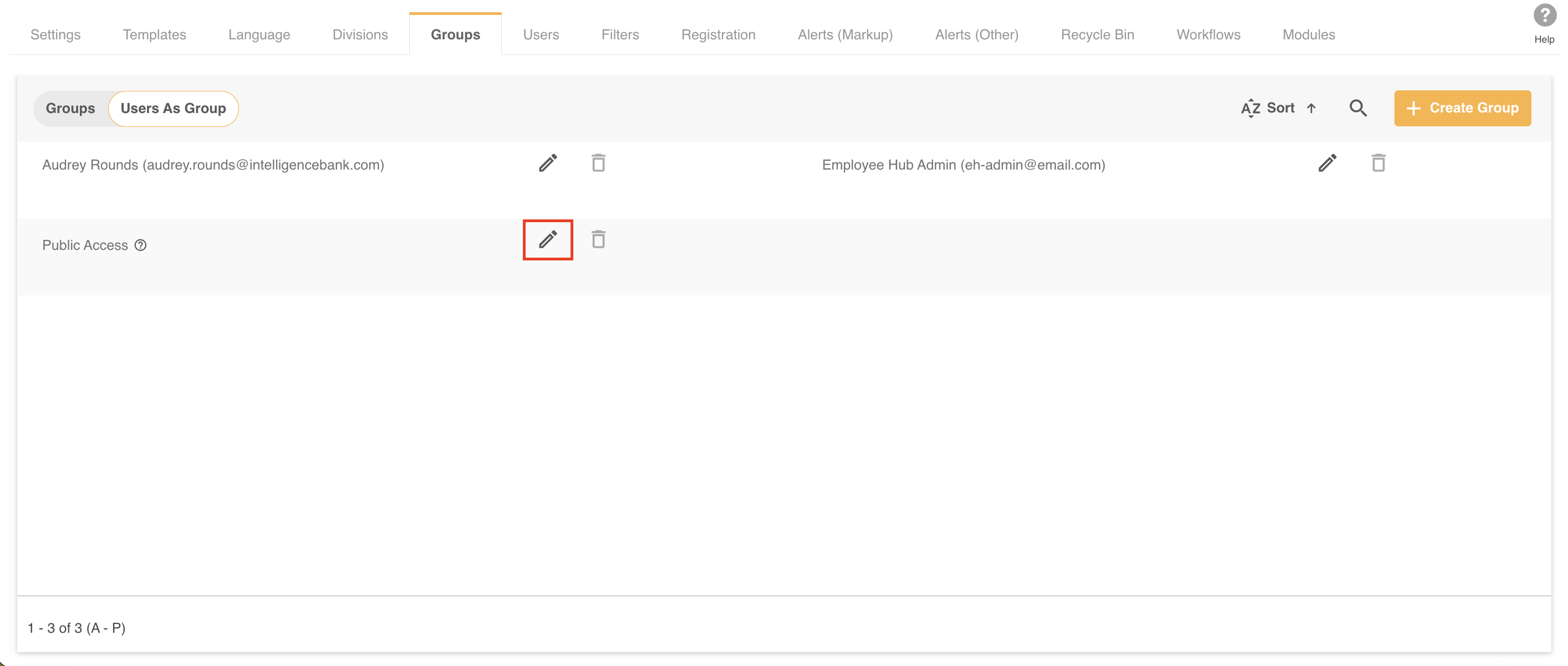
| 1 | Navigate to Admin>Groups and click on User as Group. |
| 2 | Click the edit icon next to the Public Access user.
|
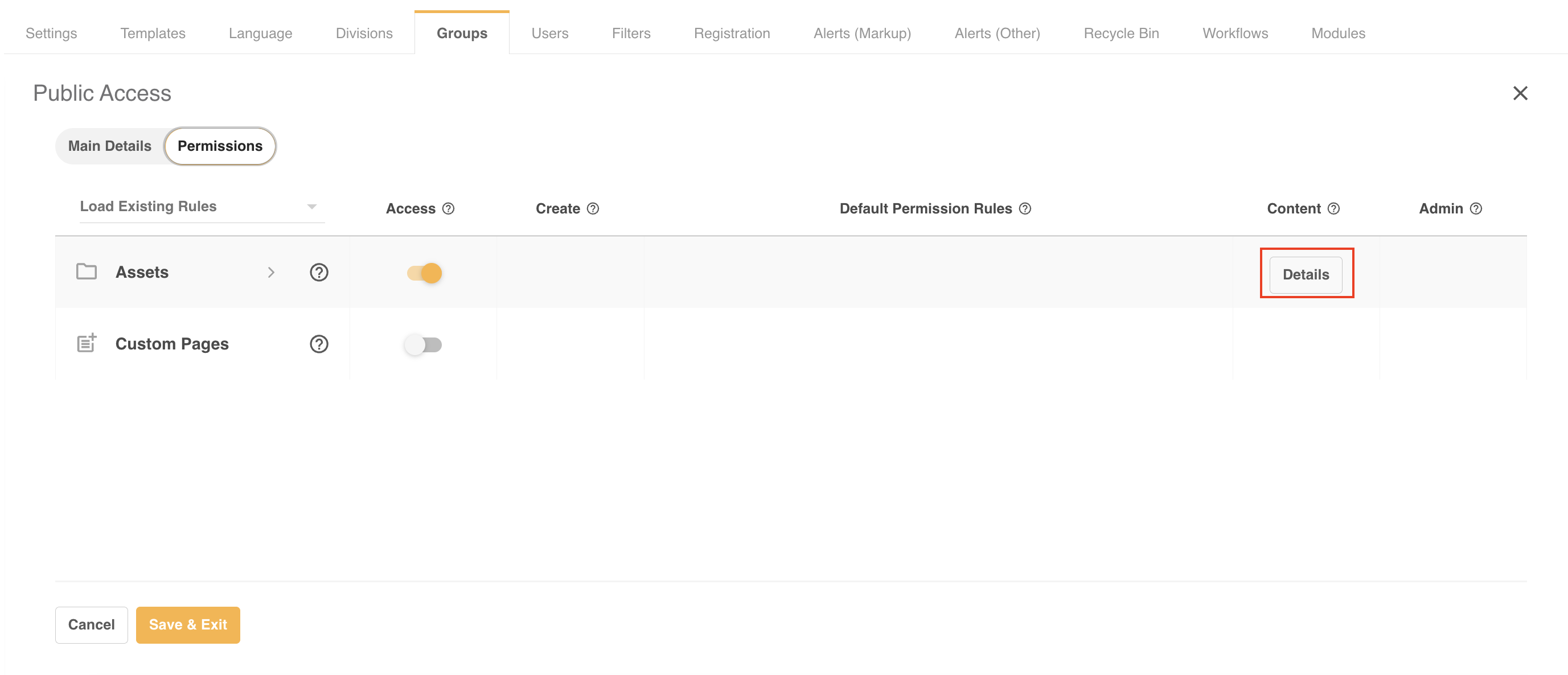
| 3 | Toggle on Access to the Assets/Resource module. You can then enable access to specific folders by clicking Details under the Content column.
|
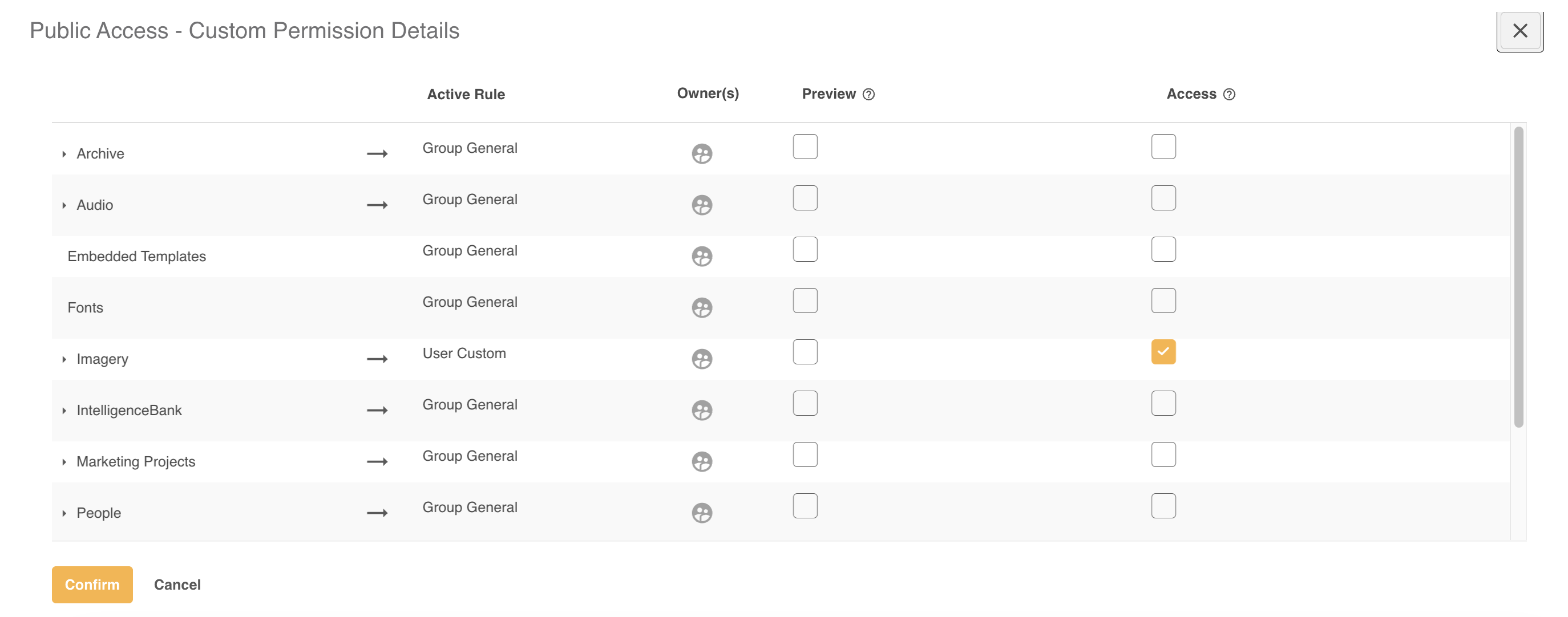
| 4 | Note that only Preview and Access permissions are available for the Public Access user.
|
| 5 | When you are finished selecting the folder(s) you'd like set up, select Confirm, then Save & Exit. |
Accessing the Public Portal
Once Public Access user permissions are enabled, non-registered users can be provided a link to those folders (via the browser URL) and navigate through folders and assets as if they were a registered user.
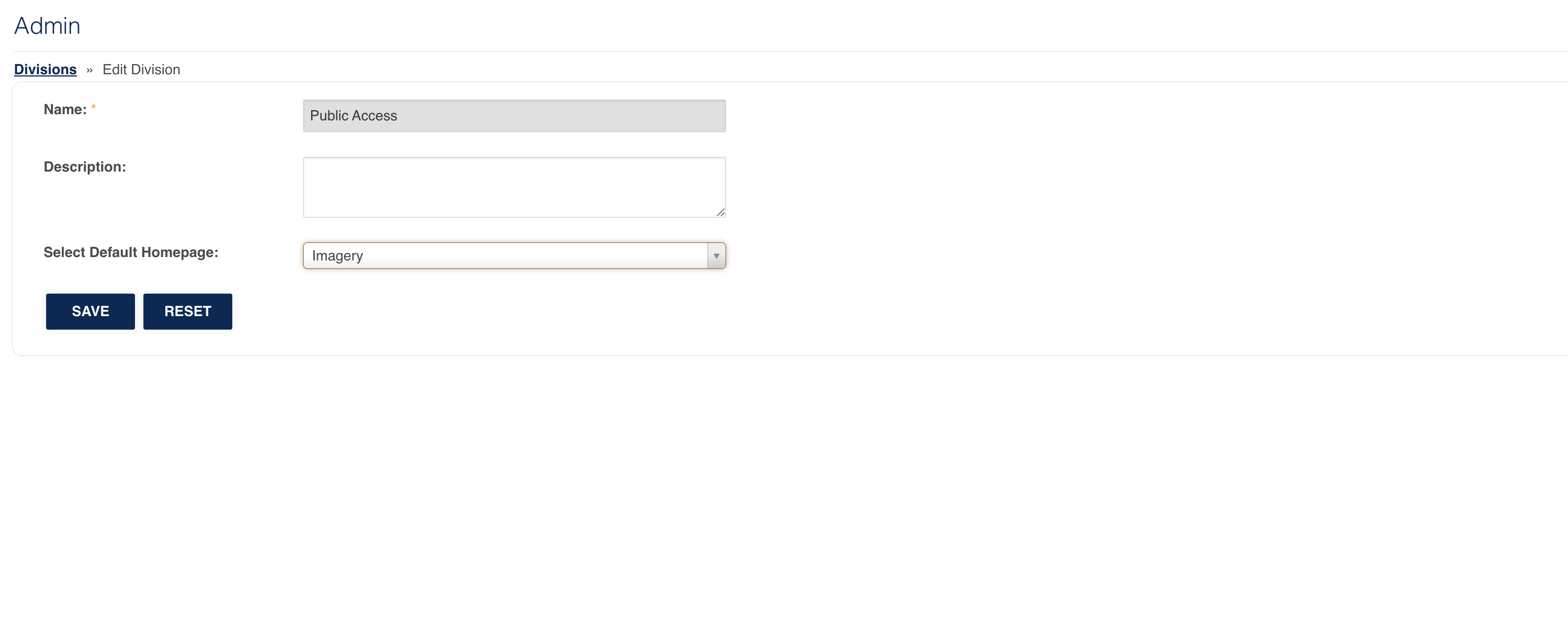
You can also set the Public Portal to be accessible from your platform's root domain URL. To do so, set up the Default Homepage of the Public Access Division in Admin>Divisions to a navigation menu item that is tied to a folder selected in the steps outlined above.
Important Considerations
- Download workflows do not apply to public folders.
- Bulk Actions are not available on public folders.
- Annotations are not available to non-registered users.
- Non-registered users do not have the ability to email a link from the platform to other users.
- Asset metadata will be visible to non-registered users.
*By default, a maximum of 50 simultaneous public users can access Public content at any given time, with a maximum of 1000 unique public visitors per month. For more information, or to increase these limits, contact your Customer Success Manager or contact us here
Was this article helpful?
That’s Great!
Thank you for your feedback
Sorry! We couldn't be helpful
Thank you for your feedback
Feedback sent
We appreciate your effort and will try to fix the article