If the folders in your Asset Library need to be displayed or reordered in a custom order, this can be done within the folder side panel.
Reordering folders is available to:
- Main Admins
- Asset/Resource Admins
Important: In order to re-order folders in a custom way, Custom Order must be selected in the Default Folder Order setting (located in the Admin>Settings area of the platform).
How to Reorder Folders
Once custom order has been enabled, follow the below steps to reorder folders:
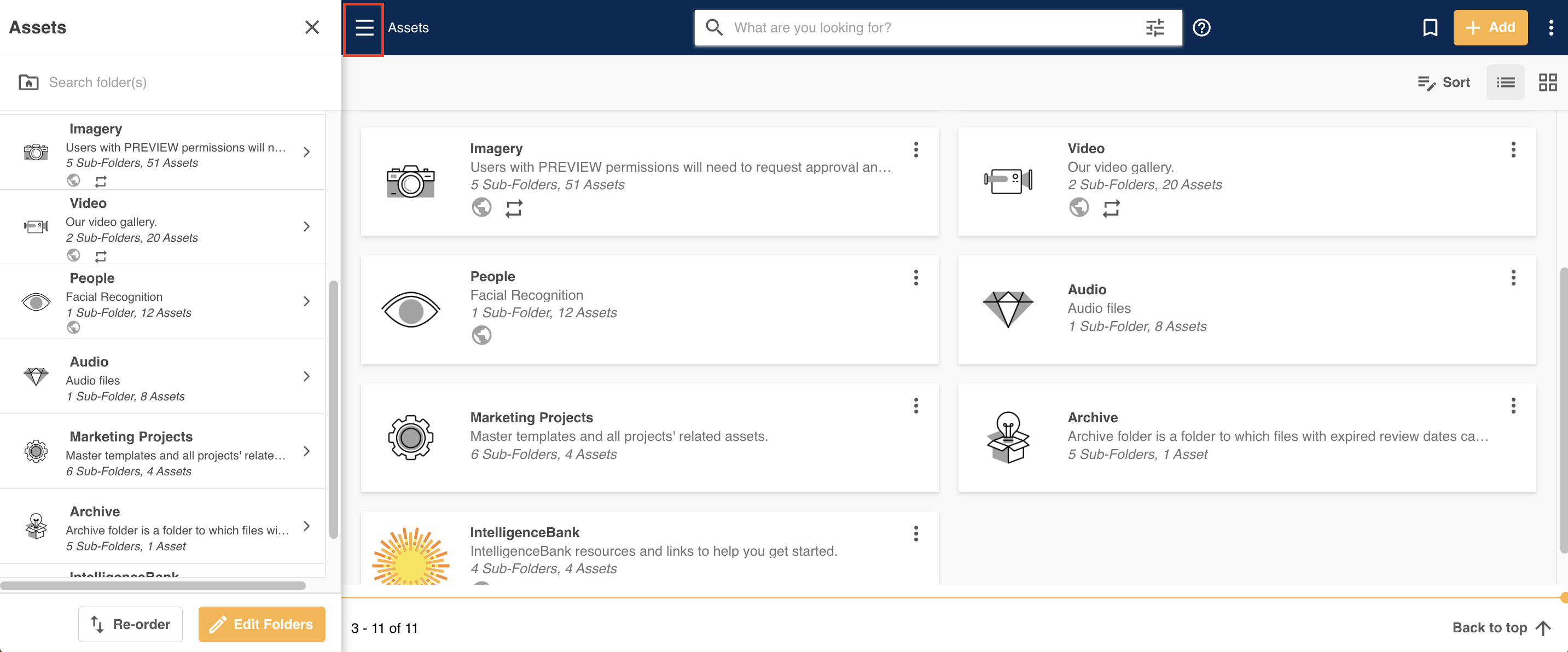
| 1Navigate to the Asset Library | Navigate to the Asset Library and open up the folder side panel.
|
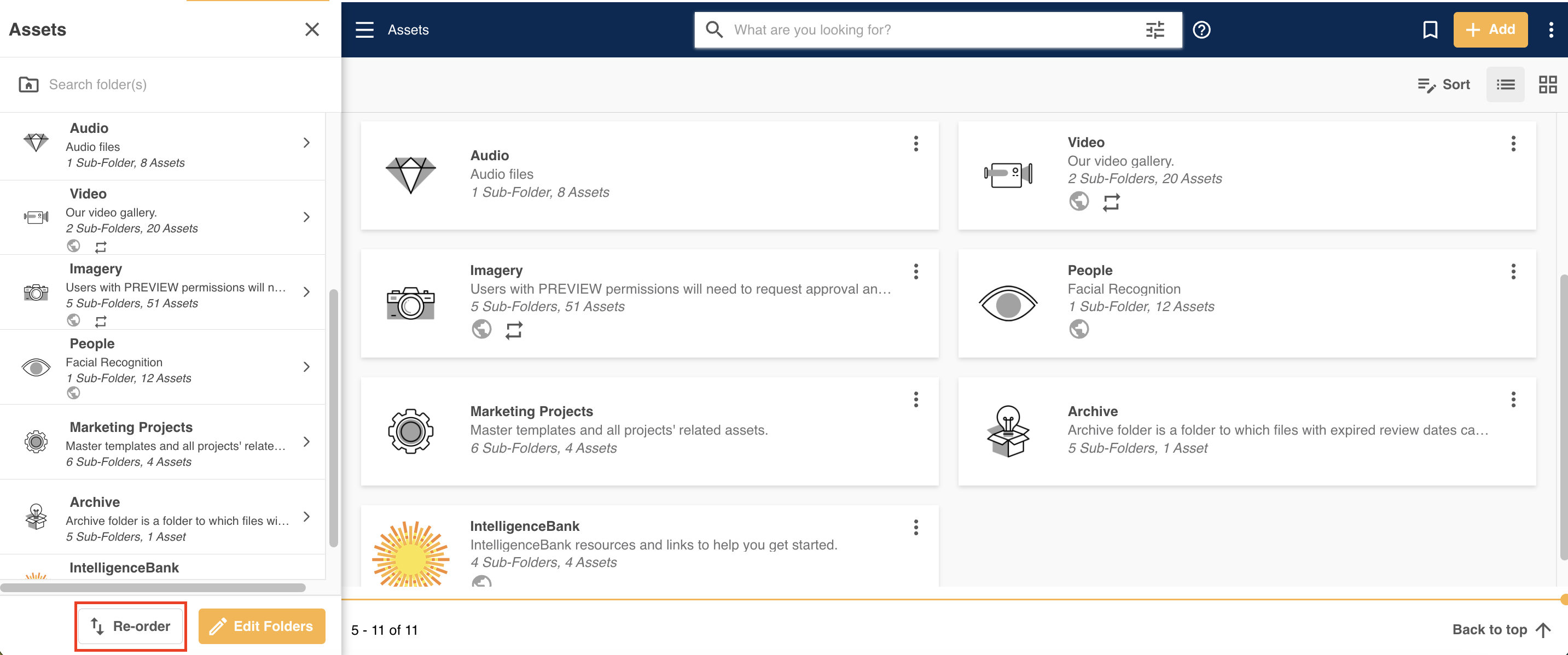
| 2Click the Re-order button | Click the Re-order button at the bottom of the side panel.
|
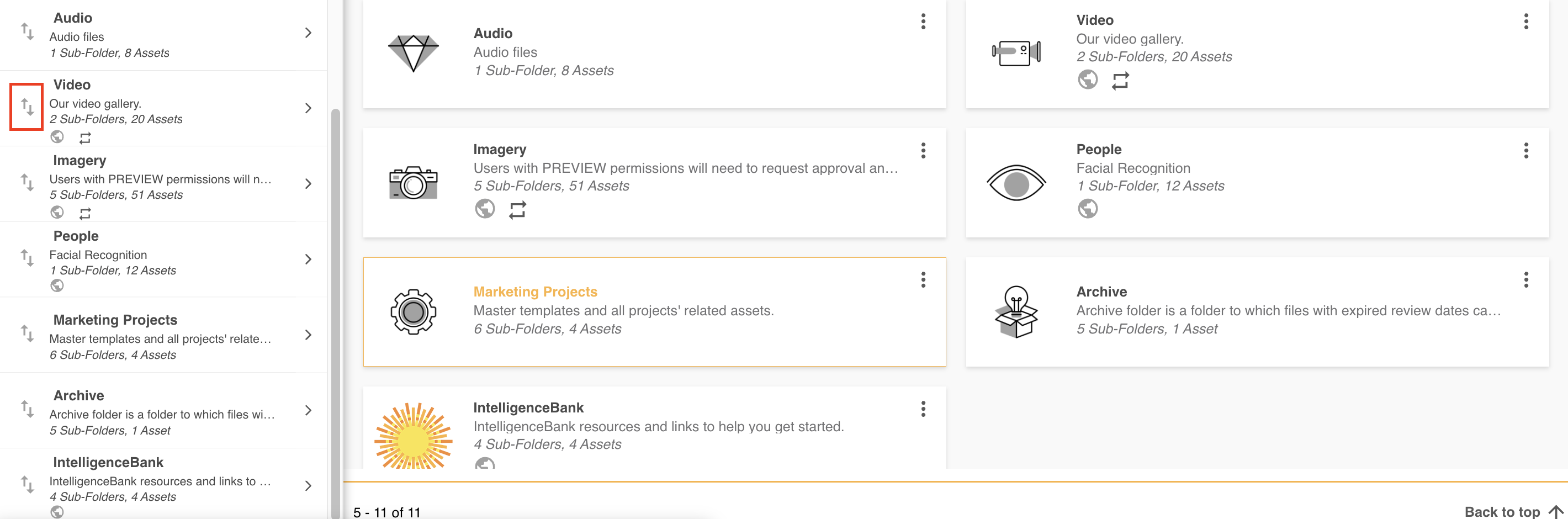
| 3Click on the re-order icons | Click on the re-order icons that display to the left of the folder names. Drag and drop the folders to reorder. You can also open each individual folder structure using the folder arrows, and reorder the folders within it.
|
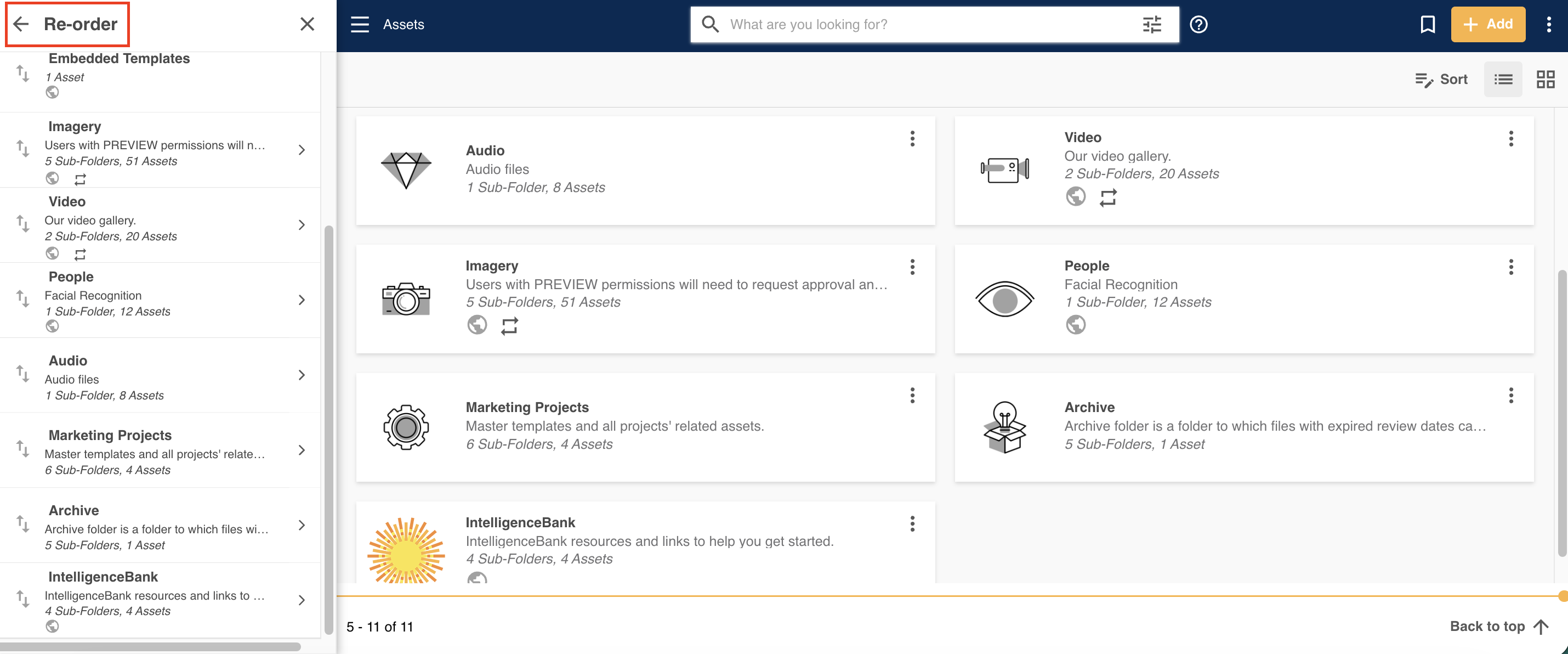
| 4Click the Back button | Once you're done reordering the folders, click the Back button on the top left of the side panel. Your page will refresh to show the updated folder order.
|
*Note that the name given to modules, features and information items may vary in your platform as they can be customized by Main Admin users.
Was this article helpful?
That’s Great!
Thank you for your feedback
Sorry! We couldn't be helpful
Thank you for your feedback
Feedback sent
We appreciate your effort and will try to fix the article